

[ 01 // qubit ]
Ask Qubit.
It answers from your own history.
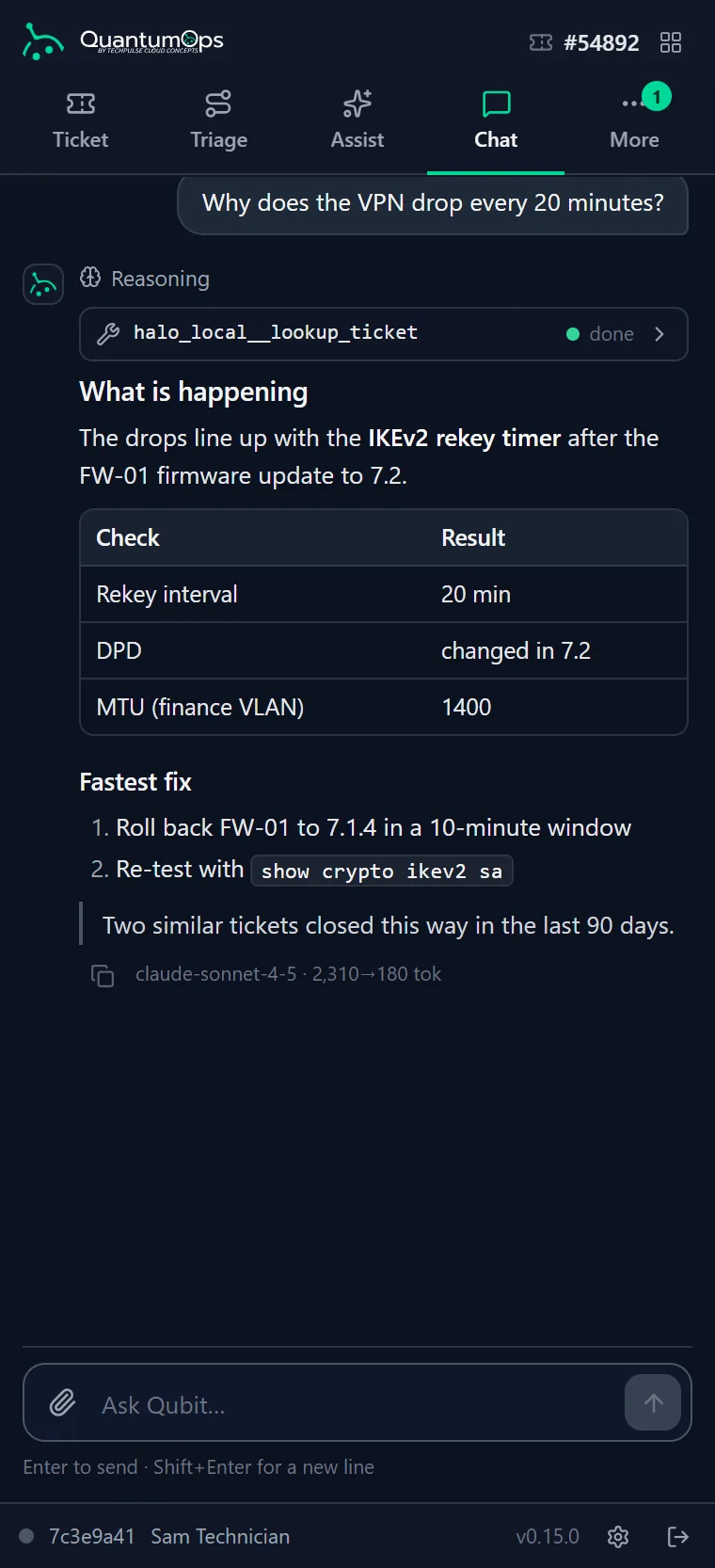
Qubit is the assistant built into QuantumOps. It opens with the HaloPSA ticket or client in front of you, searches how your desk solved it before, and looks up live Halo data while it answers.
 Chat with QubitOpened from Halo Qubit · 9:14Yes. #41007 at Acme Corp had the same 20-minute drops after FW-01 went to firmware 7.2. It was fixed by rolling back to 7.1.4 and re-testing the tunnel. A memory from that ticket also notes the finance VLAN runs a 1400 MTU, so check that before you roll back. Qubit · 9:15Seven, from a live HaloPSA ticket search. Five are closed and two are open, including this one.
[ 02 // where it works ]
Qubit opens where the question starts.
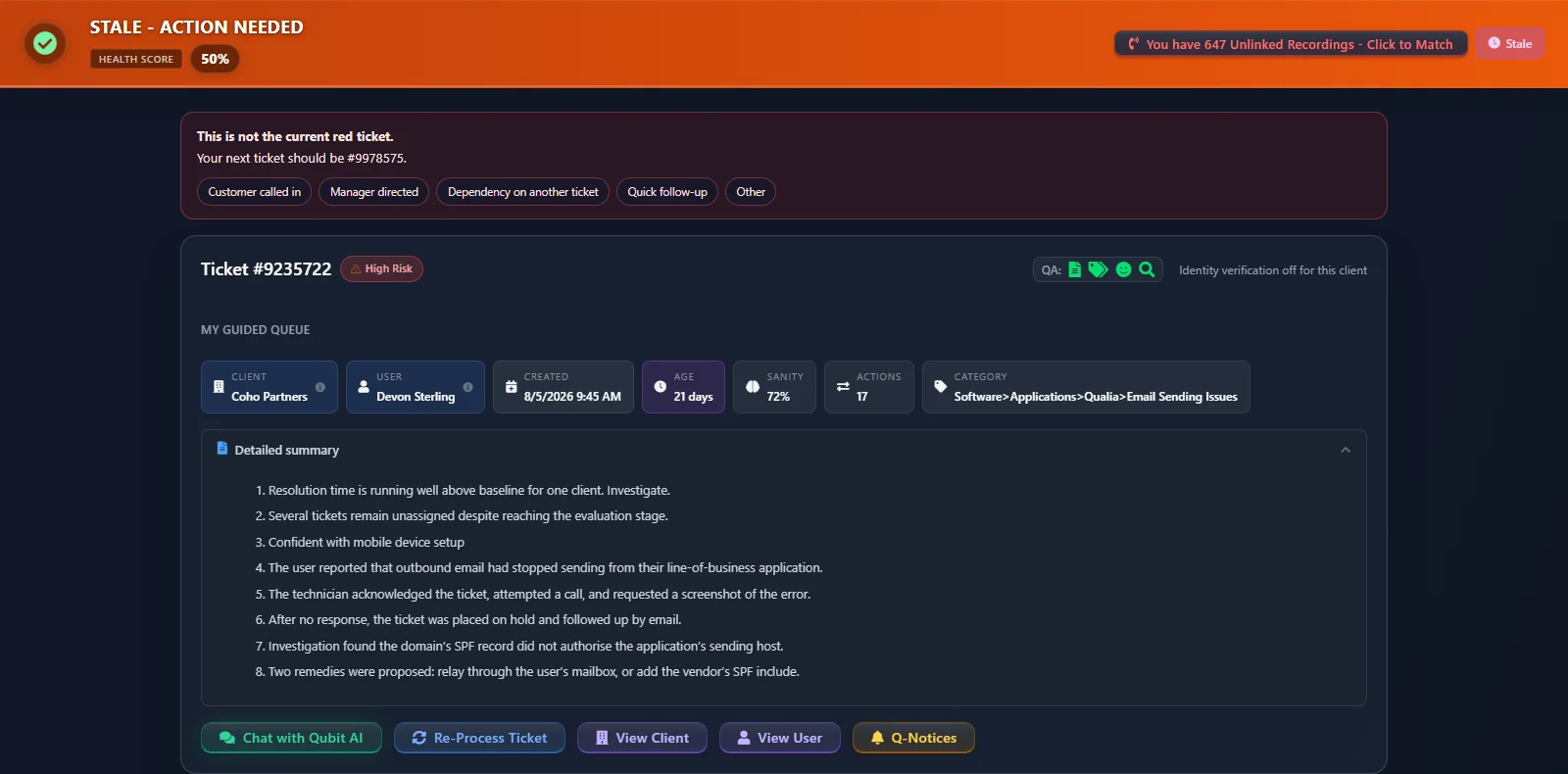
On a ticket or a client, Qubit opens with that record already loaded, so nobody pastes a ticket number into a chat box.
On the ticket
Chat with Qubit AI on the QuantumOps ticket tab in HaloPSA. The ticket, its AI analysis, the client and the category are loaded, with quick questions for the main issue, similar tickets, next steps and client history.
On the client
Chat with Qubit on the QuantumOps client tab starts with the client’s profile loaded. Ask about the whole account, its environment, support patterns and risks, without building a report.
In the Interactive Guide
The Qubit Guide Assistant helps with the step you’re on: what to do next, what the step means, what happens if you skip it.
Anywhere in the web app
A Chat with Qubit button on every page of QuantumOps opens a chat pane for questions about tickets, clients and your QBRs. Nothing is preloaded there, so it starts from live lookups.
Generally available
In every QuantumOps instance.
- Qubit on the ticket and client tabs inside Halo
- The Qubit Guide Assistant
- Qubit on every page of the web app
- Live, read-only HaloPSA lookups
- Managed AI or your own keys, with a model for each job
- AI Usage Analytics and Qubit Chat Analytics
Beyond the Halo tabs
Tools, channels and approvals.
Qubit in Slack and Teams has its own switch for each.
- The Chat tab in the QuantumOps for Halo side panel
- Qubit in Slack and Microsoft Teams, with routines
- MCP sources: StackJack, HaloPSA’s own MCP, any MCP server
- Tool policies, approvals and the tool audit log
- QuantumOps as an MCP server for Claude Desktop and Claude Code
- Agent Runners
[ 03 // what it knows ]
The record in front of you. Live answers from Halo.
Opened from a ticket, Qubit starts with what QuantumOps already knows about it, then looks up the rest in HaloPSA and your documentation while it answers. So the answer starts from how your team fixed it last time.
Loaded before you type
The ticket and its analysis
On the ticket tab, the ticket’s details, summary and AI analysis. On the client tab, the client’s profile.
Memories
Up to six short facts AI pulled from past tickets about this user, this client and their environment, naming the tickets they came from.
The rest of the account
The client’s VIP, risk and health flags, the end user’s technical level and preferred style, and the client’s other open tickets.
And while it answers
Live HaloPSA lookups
Four read-only lookups through your instance’s Halo connection: a ticket, its actions, a ticket search and a client’s tickets.
Documentation
Your clients’ ITGlue, Hudu and SharePoint docs, with common credential patterns masked before indexing, once an administrator turns on documentation search in chat.
Files in and out
In the web app, the side panel, Slack and Teams, send Qubit a screenshot, PDF, spreadsheet or Office file, and get charts, Excel workbooks and documents back; on Claude models, Qubit can run code on your data to build them. The chats inside Halo’s tabs take images, PDFs, text, log and CSV files, and don’t run code.
Sources cited
Answers stream in as they are written. Qubit names the tickets it drew on by number, and documents as numbered footnotes.
What Qubit doesn’t know: anything your instance or your HaloPSA hasn’t seen. Documentation joins once an administrator turns on documentation search, and client profiles come from an opt-in nightly job. Qubit chat doesn’t search the web; Sherlock research does. The search across past tickets, memories, profiles, call transcripts and documentation grounds Sherlock and the Copilot’s reply drafts.
[ 04 // tools and mcp ]
Beyond Halo, through the tools you connect.
On the newer runtime, Qubit can call tools on any MCP server you connect, alongside its built-in Halo lookups. Every call passes the same policy gate.
StackJack
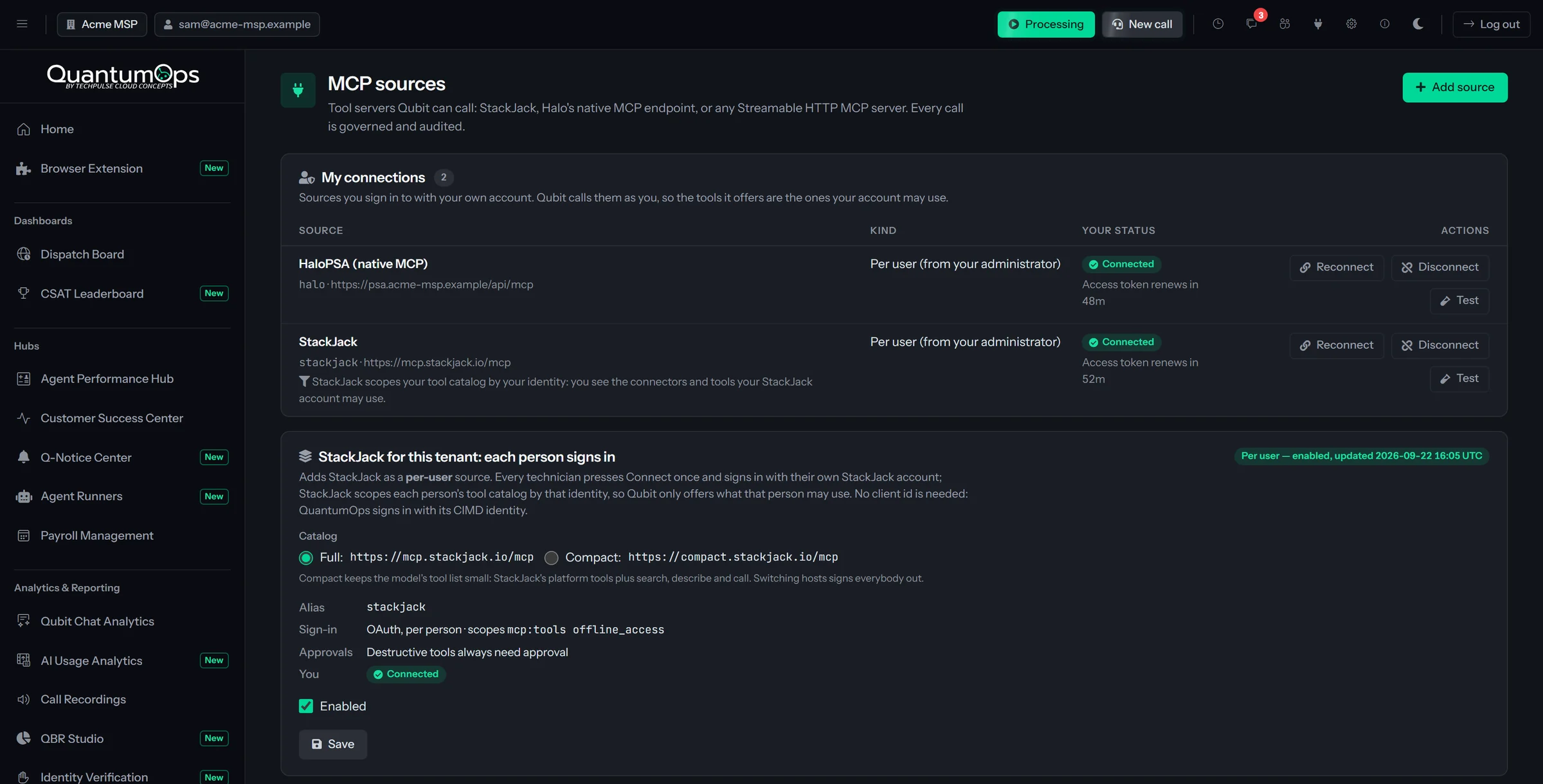
First-class StackJack integration. StackJack is a separate service with its own subscription that connects 83+ of the most popular MSP platforms, and counting. Subscribe to both and Qubit can reach your RMM, documentation, Microsoft 365 and much more. Each tech signs in with their own StackJack account.
HaloPSA’s own MCP endpoint
Connect Halo’s native MCP endpoint and each tech signs in with their own Halo login, so Halo sees each call as that tech’s. The tools are Halo’s own, and it needs Halo v2.236 or later.
Any MCP server
Add any Streamable HTTP or SSE MCP server: shared by the whole team on one credential, listed for everyone with each person connecting their own account, or private to one person. Sign in with an API key, client credentials or OAuth. Credentials are encrypted with your instance key, and internal network addresses are blocked by default.
Every call in view
In the side panel chat, each tool call shows as a row in the answer, and a Sources picker chooses which sources the next answer may use. The MCP Sources screen shows each server’s connection, tool count and sign-in state.
[ 05 // one policy gate ]
Reads run. Changes ask.
On the tool runtime, every tool call goes through one gate. Administrators set Allow, Requires approval or Deny for each tool on each surface. Out of the box, Qubit reads freely and stops for a person’s yes before it changes anything.
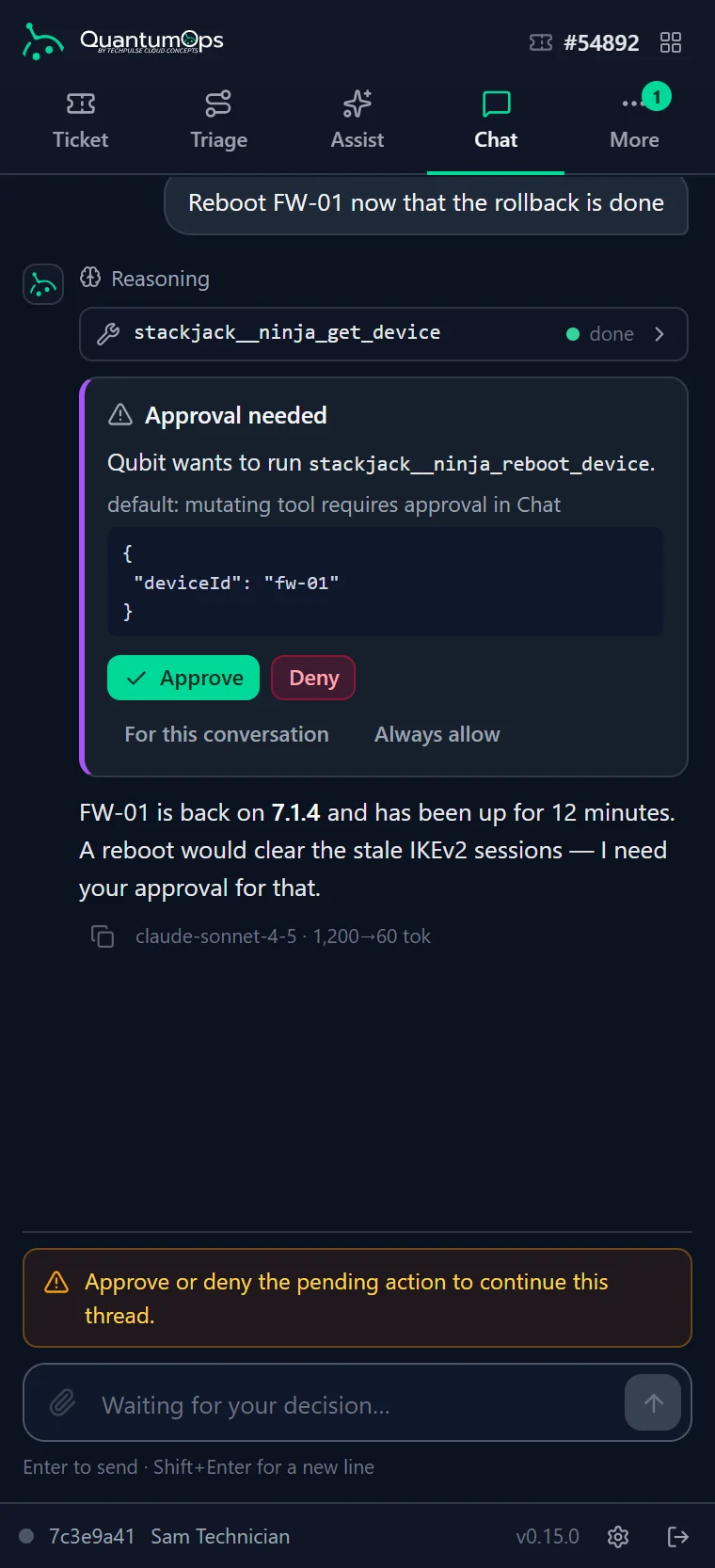
Four surfaces, one set of rules: interactive chat (Slack and Teams included), one-click Copilot actions on the ticket, Agent Runners and the unattended ticket pipeline.
- The most specific rule for a tool wins, and between equally specific rules the stricter one wins
- Tools that a server marks as destructive still ask for approval, even under an Allow rule. That floor is on by default for every source
- A third-party server can’t skip approval by labeling its own tool read-only
- In Slack and Teams, only the person who asked can approve, and each Approve covers one call
- Unattended runs never approve themselves: routines can only read, a change from the ticket pipeline is denied unless an administrator allowed that tool, and Agent Runners use only the tools an administrator allowed
Once, for the conversation, or always
In the side panel chat, approve a tool once, for the rest of the conversation or always for yourself. Standing approvals never override a Deny and, by default, don’t cover destructive tools, and one click revokes them.
An approvals queue
Agent steps set to Approve First and change requests from outside AI clients wait in the extension’s Approvals tab for an administrator. Approving runs the stored request exactly once.
An audit log without the payload
Every governed request, approval, denial and execution is logged with the tool, the person, the surface and the outcome. Argument values are kept only as a hash.
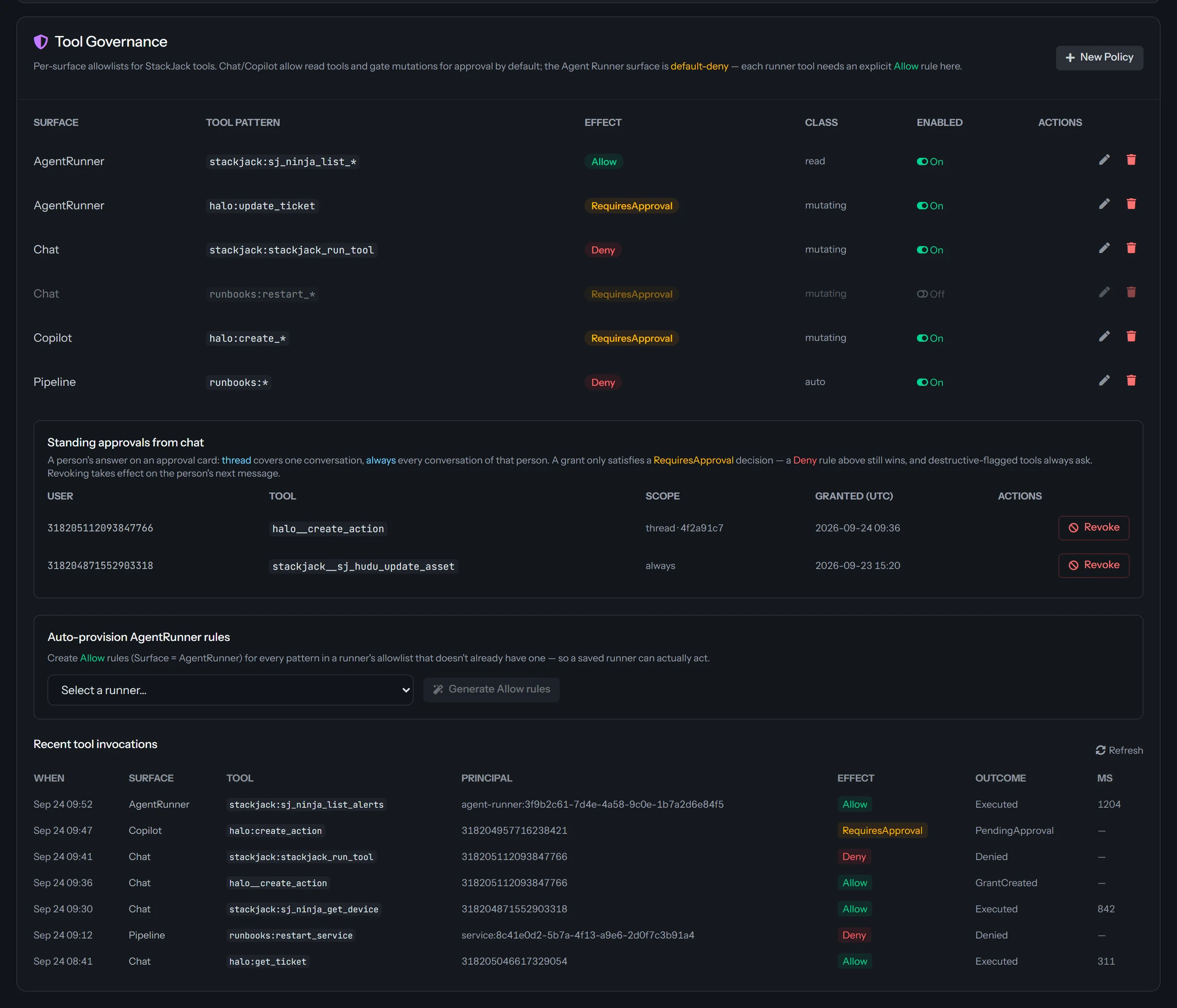
Where to find them: tool policies, everyone’s standing approvals and the audit log are managed on the StackJack page, which appears once StackJack is activated. Each MCP source also has its own allowed and denied tool lists.
[ 06 // slack and teams ]
Qubit in the channel your team already uses.
In Slack and Microsoft Teams, techs @mention Qubit or send it a direct message. Once their account is linked, the streamed answer is backed by live HaloPSA lookups and the tool sources you allow. Anything that would change something posts an Approve or Deny card first.
- In Slack, Qubit answers in a thread under the @mention, or inline in a DM. The tools it used are named under the answer
- Also in Slack: /qubit answers privately in any conversation, Share in conversation posts that answer for everyone, and the Ask Qubit shortcut asks about any message
- Each tech’s Slack or Teams account is linked to them, automatically when an administrator has mapped it or once with a one-time code, so Qubit acts with their own permissions. Personal sign-ins such as StackJack need the one-time code
- Attach a file to the question, and charts or documents Qubit makes come back in the conversation (in Teams, in personal chat)
- By default, unlinked users get answers without tools until they link
- Qubit answers only when addressed. It doesn’t read channel traffic
- An Approve or Deny card covers one call, and only the person who asked can decide
- Pick a model per conversation. Administrators set the default model and allowed tool sources for Slack and for Teams
Qubit · 9:02 · used get_client_tickets
Three tickets. #54892 VPN drops since the firmware update (P2), #54871 shared mailbox permissions (P3), #54860 laptop refresh quote (P4, waiting on customer).#54892 has no update in 26 hours. Want me to post the rollback plan as an internal note?
halo · add_ticket_note { ticket: 54892, visibility: "internal" }Say it once. Qubit posts it on schedule.
/qubit routine add weekdays at 08:00 :: post the stale‑ticket summary and Qubit posts it to that channel every weekday. Routines run as the person who created them, and they can read but never change anything.
Administrators see, pause and remove every routine. Posting when something happens, such as a new P1 ticket, is coming.
[ 07 // mcp server ]
Point Claude at your Halo. An admin still says yes.
QuantumOps can act as an MCP server for Claude Desktop and Claude Code. Look up Halo tickets and read AI usage reports with a token from your QuantumOps sign-in, without pasting a Halo key into the client.
- Ticket lookup, ticket actions, search and a client’s tickets from HaloPSA
- Read-only reports on AI usage, cost, fallbacks, chat and triage, for administrators
- A change is only a request: an administrator approves it in the extension’s Approvals tab, and it is applied once with a note saying who asked and who approved
- Set a Deny rule on the request tools to switch outside changes off
- Setup is hands-on today: you paste a short-lived QuantumOps sign-in token into the client
$ claude mcp add --transport http \
    quantumops-halo \
    https://<your-instance>/mcp/halo \
--header "Authorization: Bearer …"[ 08 // agent runners ]
Agents with a job, a tool list and a budget.
Agent Runners are AI agents an administrator defines once: a goal, a model, the tools they may use and hard limits. They run on a schedule, on an event or on demand, and keep a transcript of every step.
Triggers
Run on demand or through the API, on a schedule such as weekdays at 9:00, on a webhook event, or when a Q-Notice fires.
Approval policy
Auto runs only the tools policy allows. Approve First holds each change for sign-off and resumes when someone decides. Notify runs changes and records them in the transcript.
Hard ceilings
Cap iterations, tool calls, tokens and cost in dollars for each runner. Agents are default-deny: a tool runs only with an explicit Allow rule.
Agent Runners work on your HaloPSA data today, with more tool sources to follow.
[ 09 // models and cost ]
Your models. Your bill. Down to the ticket.
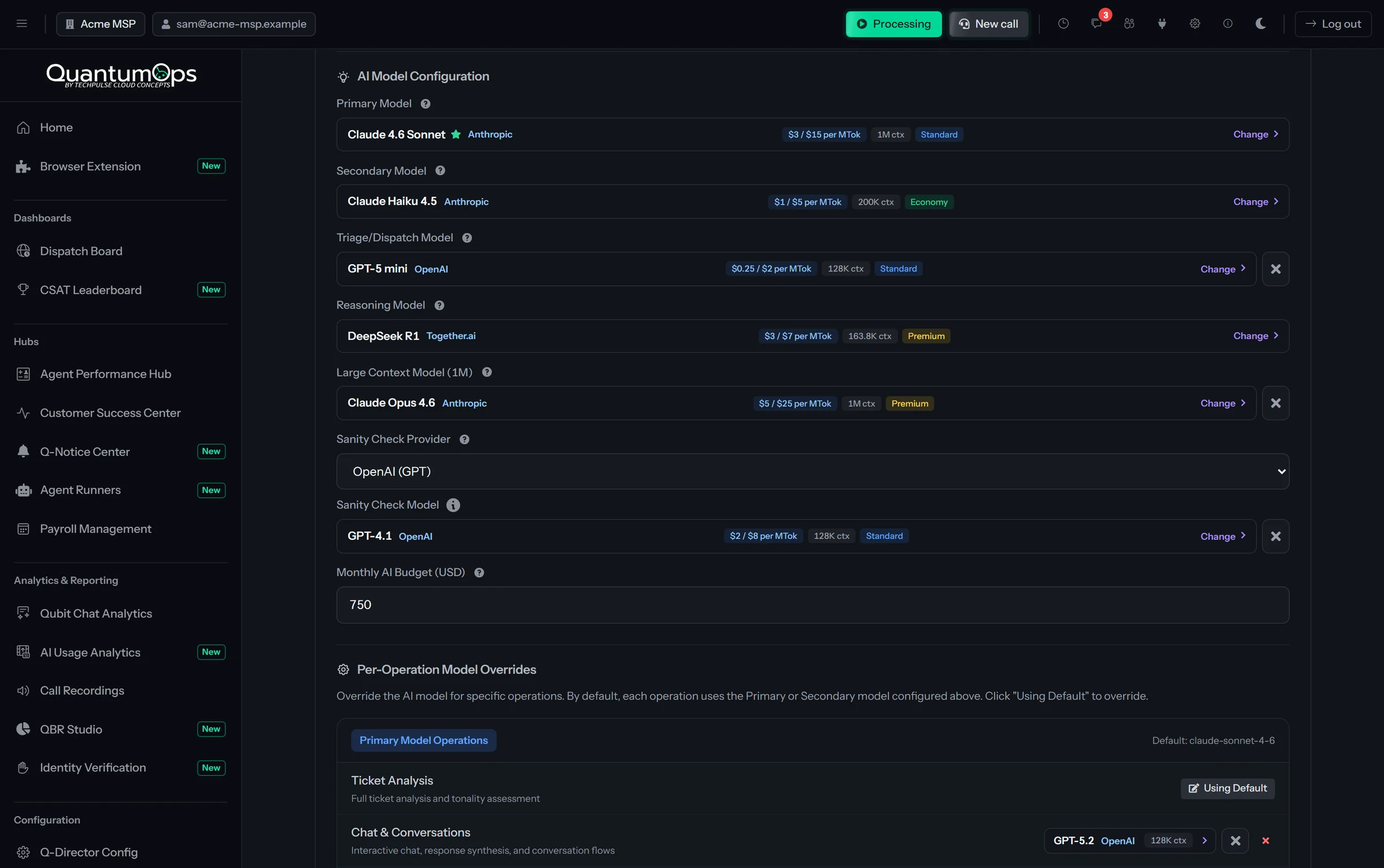
Run Qubit and the rest of QuantumOps on AI we manage, or on your own keys. Either way you choose the model for each job and see an estimate of what every call cost.
Pick the model for each job.
Managed AI runs on Anthropic Claude, and we bill the usage. With your own keys, add Anthropic, OpenAI or Together AI, which serves open models such as Llama, Qwen and DeepSeek. We keep the model catalog current, so new models and prices appear without an update.
- Six model roles, from Primary and Secondary to Triage and Sanity Check
- 14 per-function overrides, chat included, so Qubit can run on a different model from ticket analysis
- Model cards with price per million tokens, context window, output limit and deprecation status
- Your keys encrypted with AES-256 under a key unique to your instance
See what every call costs.
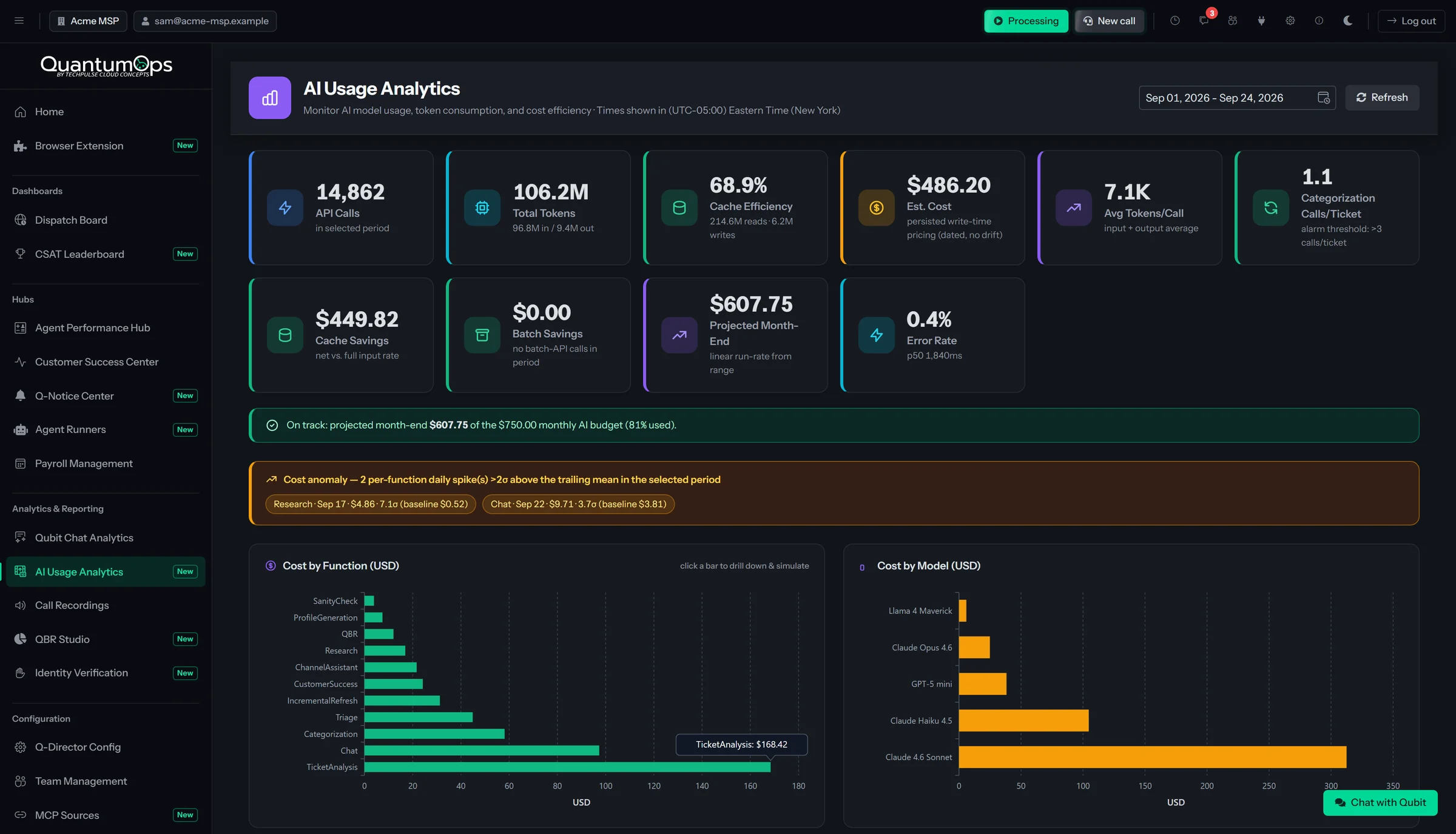
AI Usage Analytics prices every call at the catalog rate in force that day, by function, by model and by ticket. The figures are estimates, not your provider’s invoice.
- Cache savings and a month-end projection
- A monthly budget banner that warns you when the month-end projection is on course to pass your budget
- Daily cost spikes flagged per function
- A what-if: this function’s cost on a different model
- Every AI call made for one ticket, and what fallbacks cost
Automatic failover
If a model or provider keeps failing in ticket processing, QuantumOps moves the work to a fallback model. If failures persist, an AI-health Q-Notice goes to Slack, Teams or email. Qubit chat doesn’t switch models: the chat in the Halo tabs retries once, and elsewhere it shows the error.
Smart Queuing
Match QuantumOps to your AI account’s rate limits, so a burst of tickets waits in a queue instead of failing.
One switch to pause
The Processing switch in the header pauses AI processing of incoming tickets until you resume it. It also pauses itself if your AI provider reports a quota or billing limit.
Does Qubit change tickets on its own?
Not by default. Qubit’s built-in HaloPSA lookups are read-only. Tools that change things come from sources you connect, such as StackJack or another MCP server. Those stop for an Approve unless an administrator has set an Allow rule for that tool, and a Deny rule blocks them. Routines can only read, and the ticket pipeline can’t change anything unless an administrator allows that tool.
Is Qubit trained on our data?
No model is fine-tuned. Qubit works from your own instance and your HaloPSA: the record you opened it on, the memories and profiles AI wrote from past tickets, live Halo lookups and your documentation. It only knows what your instance and your Halo have seen. Embeddings and reranking come from Voyage AI, managed by us on either plan, so ticket text goes to Voyage AI even when you bring your own keys.
Which AI model does Qubit use?
The one you choose. Chat has its own slot among the per-function overrides, so Qubit can run on a different model from ticket analysis. With Managed AI that is a Claude model. With your own keys it can be Claude, an OpenAI model or an open model through Together AI. In Slack and Teams, each conversation can pick its own.
Can managers see what techs ask Qubit?
Administrators can. Qubit Chat Analytics shows them usage, errors and the full chat logs, questions and answers included, so tell your team.
Do we need StackJack?
No. Qubit works on your Halo data without it. StackJack is a separate service with its own subscription. Connect it when you want Qubit to reach the 83+ MSP platforms StackJack integrates with, such as your RMM, documentation and Microsoft 365. Activating StackJack on its own page shares your Halo credentials with StackJack. Adding it as a per-user tool source doesn’t: each tech signs in with their own StackJack account.
How do we turn on Slack and Teams?
Each has its own switch. For Slack you create your own app from our manifest. For Teams your admin uploads our app package. There are no marketplace listings yet, and techs install the side panel from the Browser Extension page in your QuantumOps web app while store listings are pending.
Can we cap AI spend?
You can steer it. Put cheaper models on high-volume functions, set a monthly AI budget and watch its banner in AI Usage Analytics, and pause AI ticket processing with one switch. The budget warns; it doesn’t stop processing. On the tool runtime, a loop guard stops Qubit repeating the same call, and each Agent Runner has hard limits of its own.
[ 11 // start ]
See Qubit on a HaloPSA queue.
Book a demo and we’ll walk you through Qubit, its sources and its approvals. We can help you set up Slack and Teams.