

[ 01 // ticket autopilot ]
A plan is ready
when you open the ticket.
QuantumOps builds a cited resolution plan for each ticket from your own history. The agent reviews it, changes what they disagree with and locks it after one plain-words summary. Then QuantumOps runs it step by step, under the policy your administrator set. The playbooks behind it are learned from how your desk really closed that kind of ticket.
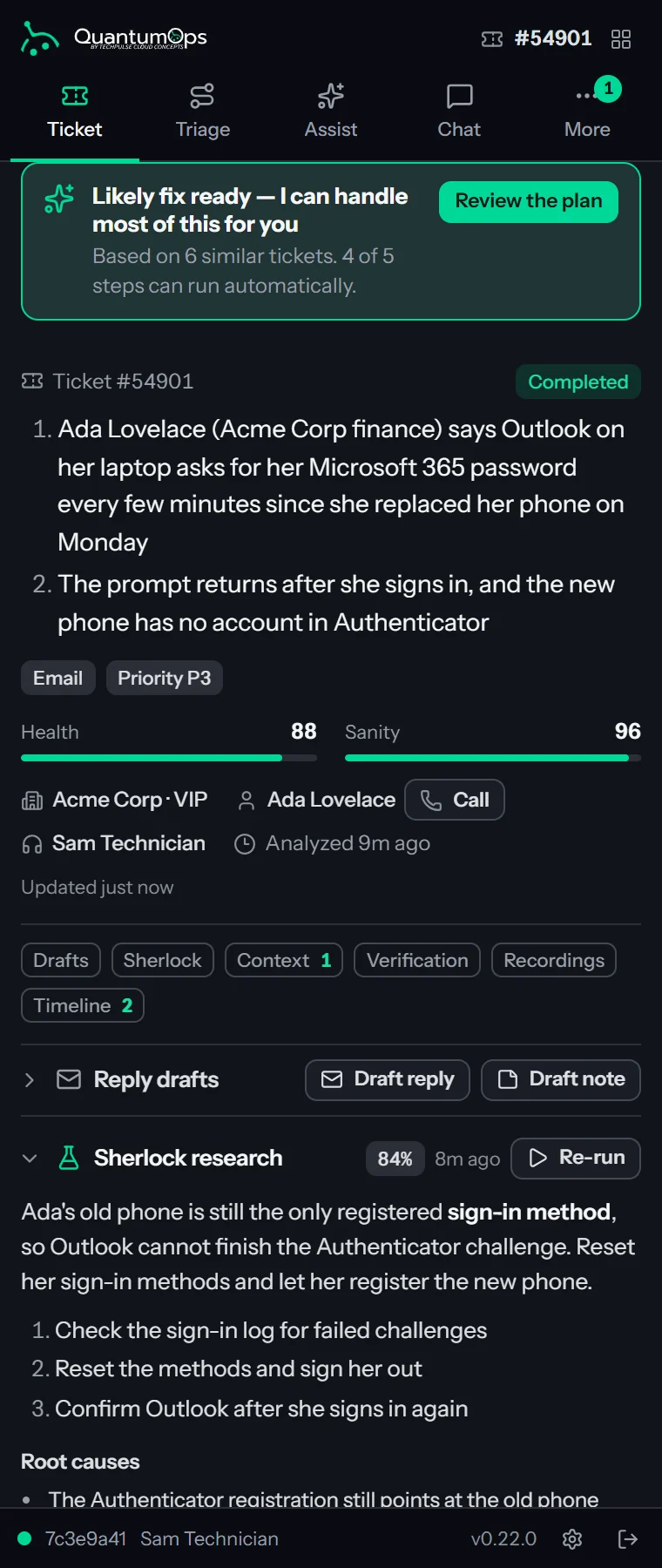
The QuantumOps browser extension’s side panel: the banner on the Ticket tab, the plan in the Assist tab and the summary the agent agrees to before anything runs.
[ 02 // how it works ]
Plan, review, lock, run.
Four steps in the side panel, and the agent decides each one.
01
A plan before you ask
Tickets that match the filters an administrator sets (type, team, client, priority) get a plan as they arrive. Any other ticket gets one shortly after its first open. A banner on the Ticket tab says when a likely fix is ready.
02
Review and refine
Every step has a kind, a tool, editable arguments and a cited reason. Reorder it, edit it, add a step from the tool catalog, ask the AI to refine the plan, or write one from your own instructions.
03
Lock with one summary
Locking shows a single summary in plain words: what runs without asking, what asks you, what needs an approver and every customer message in full. Edit a step afterward and it asks again.
04
QuantumOps runs it
The plan runs step by step inside QuantumOps, whether or not the panel is open. A step that needs you says so, and the run ends with one private note on the ticket listing what ran.
What a plan is built from
- The ticket itself, and similar tickets that were resolved, with what was done on them
- Your documentation and the memories QuantumOps keeps about the client and the user
- The tools the agent is allowed to use, from your PSA and any connected tool source
- A confidence band that comes from the evidence: nothing is rated High without history or a routine behind it
What the agent can do with it
- Reorder, remove or edit a step, and add one from the tool catalog
- Refine the plan with a sentence, or recalculate it from scratch
- Write a plan from their own instructions
- Open Other paths: up to three alternates, any of which can be promoted to the plan


While it runs
- The running view shows the current step and what is next
- Needs you appears when a step needs a click, a reconnect, an approval that was denied or expired, a decision to make, or a clash with someone else’s change. Run it, retry it, skip it or mark it done
- After each step an adaptive check can continue, adjust the plan (changed steps ask for consent again) or stop
- Before each change, the run checks whether someone else has already acted on the ticket
- Stop ends the run. Steps that already ran are not undone
[ 03 // what it replaces ]
One plan instead of three suggestions.
Autopilot takes the place of three things you may remember from earlier versions of the Ticket and Assist tabs.
Suggested actions
The cards that proposed a reply, a merge or a nudge are gone, from the HaloPSA Ticket Dashboard and from the side panel. Their job is now a step in the plan.
The step-by-step guide
The Agent Assist tab ran a step-by-step guide inside HaloPSA. Now the side panel opens the plan, not a path picker: the plan sits with up to three other paths, any of which can be promoted to the plan. In HaloPSA, the Agent Assist tab is a notice that points to the side panel.
Copilot suggestions
QuantumOps no longer generates a set of suggestions for every finished ticket, and nothing generates a Resolution Replay. The fixes that worked now feed the plan and the routines.
Drafts are still there. The Ticket tab’s Draft reply and Draft note buttons write a draft on request, to copy into the ticket or to let a plan send as a customer-message step. A customer message inside a plan goes through your communication policy first.
How a ticket is read, triaged and researched before the plan is built
[ 04 // the control model ]
Your policy decides what runs without a click.
An administrator sets the rules once, in Autopilot settings. A plan can never go past them, whoever locked it.
Overrides by role and by person
Give one role or one person more room, or less. An override can never go above the ceiling.
Rules for each tool
For every tool, per scope: Pre-allowed, Needs approval or Blocked. A Blocked tool never runs, and never reaches an approver.
Messages and destructive tools ask
A message to a customer always needs a click unless an administrator allows unattended sends. A destructive tool always needs a click, whatever the mode.
Sensible defaults
Out of the box, changes to your PSA are allowed with a click and StackJack changes need an approver.

Governed like the rest of Qubit
Tool governance covers five surfaces now: Chat, Copilot, Agent Runner, Pipeline and Autopilot. A rule for a person beats a rule for a role, and a rule for a role beats the tenant’s.
Replies follow your house rules
A customer message in a plan is checked against your communication policy, banned phrases and required disclaimers included, and blocked if it fails. The agent reads it in full before locking.
Cost you can see, and a stop
Planning, investigating and checking show in AI Usage under their own names. Unattended runs stop on any processing pause and at your AI limit.
[ 05 // approvals ]
A step that needs approval goes to someone who can say yes.
It becomes an approval request. It doesn’t run, and it doesn’t quietly fail.
- An administrator picks the approvers: roles, people or both. The default is the Service Desk Manager role
- The request lands in the approver’s extension, and as a Teams or Slack message with Approve and Deny when their chat identity is linked
- Each request shows the ticket, who asked, the exact arguments and the reason
- The first decision wins, and nobody can approve their own request
- If nobody decides, the request goes to the Administrators after 15 minutes and expires after 8 hours. Both are the defaults
- A denied or expired request shows up as Needs you on the agent’s plan
The extension’s Approvals tab opens for named approvers, not only for administrators, and shows each approver the requests assigned to them. For administrators it also lists the requests from Agent Runners and from outside AI clients.

An approval request in Slack and Teams
The message says who wants to run which tool on which ticket, shows the arguments, gives the plan’s reason and when the request expires, and carries Approve and Deny. What it shows is masked and cut short, and it says that the full arguments are in the extension. In a channel app, the decision is checked against the decider’s linked identity, and the first answer wins.


[ 06 // playbooks ]
It learns how each kind of ticket gets resolved.
Every closed ticket teaches QuantumOps the work that was actually done on it. Tickets about the same kind of problem are grouped into one family, and each family becomes a playbook an administrator can turn into a routine.
A trace for each closed ticket
When a ticket closes, QuantumOps reads its notes and e-mails and writes a short trace: the issue type, what triggered it (an alert, a request, monitoring, a schedule), the checks that were made and what they found, the decision and what it rested on, the actions taken, what the customer was told and how it closed. QuantumOps’ own notes, from Q-Director, Qubit and Autopilot, are context and never counted as work done.
Written without names
Every field in a trace is generic: no person, company, e-mail address, phone number, address or secret. Credential-shaped text is masked before anything is stored, and ticket text is fenced in the prompt.
No work, no playbook
A ticket closed as a duplicate, as spam or by an auto-close is marked as closed with no real work done, so it never counts toward a playbook.
Grouped by the problem, not by the clicks.
- Tickets are split by ticket category first, then clustered by what the issue is about, using the same search by meaning that finds similar tickets
- Families whose issue-type labels mean the same thing are merged, so a ticket that was categorized inconsistently still lands with its family
- A family qualifies at five tickets inside the look-back window, by default
- Nothing is dropped silently: every mining run records how many families it found, wrote up, declined and failed
This replaces grouping by the sequence of updates on a ticket. That sequence is mostly triage noise: a reassignment, a status change, a bot note. The thing that repeats is the problem and the way it is solved.
From a family to a drafted playbook.
- A model reads up to 12 traces of the family, newest first and with a mix of outcomes, and drafts the playbook: a name, when it applies (category, alert source, keywords), the steps, and which tickets follow it
- It is told which tools your tenant can really use: the ones reachable through the Autopilot connection and the StackJack family, plus the built-in steps: your PSA’s own and Escalate to dispatch
- A tool you do not have becomes a manual step that keeps the instruction (“In the Entra admin center, open the user’s sign-in logs”), and the card says Needs the tool
- If a family has no common way of being solved, no candidate is made, and it is looked at again on the next run
- If a draft fails, the card says so and the next run tries again. There is no placeholder with made-up steps
It re-reads your history by itself. The scan over the last 90 days of closed tickets re-reads any ticket that was recorded in the older format, at the same pace, and under the same pause and AI spending limit. There is nothing for an administrator to run.
[ 07 // decision steps ]
A playbook can branch once, on evidence.
The last step of a playbook can be a decision: a question, the steps that gather the evidence, and two to four outcomes, each with its own steps. It is how a playbook tells a false alarm from the real thing.
 Triage a suspicious sign-in alertExample
An example, with fictional wording. Your playbooks come from your own closed tickets.
The rules a playbook follows
- At most one decision, and it is the last step of the main line
- Two to four outcomes. Each has a label, a “when” that says how to recognize it, and its own steps
- No decision inside an outcome, so a playbook never nests
- Up to 10 steps in the main line and 8 in an outcome
- The decision names the earlier steps whose results it reads
A routine’s template is checked against the same rules when it is saved, and so is every plan QuantumOps drafts.
Who picks the outcome.
In an agent’s plan, the agent
When the plan reaches the decision, QuantumOps reads the question, the outcomes and what each says about when it applies, the ticket and the results of the evidence steps. It recommends one outcome with a confidence and a short rationale.
The step waits as Needs you with that outcome already selected. The agent picks an outcome, in the extension or in the web app.
In a run that goes on its own, Autopilot, when it is sure
A run that goes on its own gets the same recommendation. If its confidence reaches the threshold, 0.8 by default, the outcome is chosen automatically.
If it does not, the run parks as Needs you, and the owner is told that a person needs to decide.
After the choice
- The outcome’s steps are added to the plan after the decision. They are not part of the plan until then
- Those steps go through the same policy as any other: a change that needs a click still asks, and one that needs an approver still goes to one
- The plan records who chose (the agent, or Autopilot), when, and any note they left
- Only one choice can win. A second click finds the decision already made
- The check after each step can adjust a plan, but it never swaps in the steps of an outcome that was not chosen
The Decision control is in the extension and in the web app’s plan views. The read-only plan card inside HaloPSA shows the plan and says to open it in the extension.


In the web app, the whole decision.
- The plan’s audit shows the question, the recommended outcome with its confidence and rationale, and what was chosen
- A choice made by Autopilot says so, with the time. One made by a person shows who chose, with any note they left
- The outcome’s steps follow the decision in the audit, each with its tool, policy decision, input and output
- The same plan view has a button for each outcome while a decision is waiting
[ 08 // two more steps ]
Raise the priority. Or pull in dispatch.
Two steps a playbook can use that plans did not have before: change a ticket’s priority, and escalate it to dispatch. Both are Changes, so your mode and tool rules decide whether they run or ask.
Change priority
Sets the ticket’s priority to one you name, or to the top priority your tenant uses.
Escalate to dispatch
The step for a ticket that has turned out to be serious. In one step it:
- Sets the top priority
- Posts the findings on the ticket as a private note
- Raises a Critical Q-Notice on the ticket, which reaches the ticket’s page in the extension and the dispatch board
- Sends a direct Q-Notify to the dispatchers who are on shift, or to every dispatcher when none is
It is classified as a Change and never as a customer message. It reuses the Q-Notice and Q-Notify you already have, so there is no new delivery channel to set up. Q-Notice and Q-Notify covers both, and Dispatch shows where the board shows them.

[ 09 // the candidates page ]
A playbook you can read before you trust it.
The Candidates page shows each playbook the miner drafted, laid out the way the plan will run.
Applies when
The category, alert source and keywords the playbook is for.
The playbook as a tree
Each step with a chip: connected, needs the tool, or manual. A decision shows its outcomes and their steps.
Seen in N tickets, stayed fixed N%
How many tickets follow it, and the share that was not reopened within 14 days.
Time, with its basis
Minutes of agent time per ticket, marked logged in your PSA or estimated, and about how many hours a month that is at the current rate.
Examples
Links to the tickets behind it, then Create routine, Snooze for 7 days or Dismiss.

Time saved, counted honestly.
- The number is time agents logged in your PSA on the ticket’s updates, as a median per ticket. QuantumOps’ own notes are left out
- When fewer than half of the example tickets logged time, the card shows an estimate from the steps and labels it estimated
- The estimate counts 5 minutes for an investigation step, 3 for a change, 3 for a customer message, 5 for a manual step and 2 for a decision, along the most common path
- Hours a month is minutes per ticket times how many tickets of this kind arrive in 30 days
- It is not create-to-close time. That counted waiting, weekends and the customer’s silence, so it is not used

The raw sequence of ticket updates is never shown on a card.
The first candidates you see are new ones. The first time the new miner runs, the candidates from the earlier version are set aside and hidden. Ones an administrator dismissed stay dismissed, and ones already turned into routines are not touched.
[ 10 // routines ]
Fixes you repeat can run themselves, when you say so.
A routine is a plan template for one kind of ticket. It proves itself in shadow before it changes anything.
Shadow first
Every new routine starts in shadow. The plan is built and “would have done” is recorded, so you can compare it with what the agent did. Nothing changes in your PSA.
Limits, and a way to pause itself
Scope a routine by client, ticket type and business hours, cap its runs a day and its cost per run, and choose who hears about it. It pauses itself after two failed runs in 24 hours, or when more than one in five of its last ten were reopened.
Auto-run is off until an administrator allows it. It also needs an owner and a chosen technician account to act as. Without all three, a routine runs as Suggest.

What you set in the editor
- The criteria that pick the tickets, in the same condition editor as Q-Notice rules, with example tickets and an optional AI check
- The mode, an owner to tell when the routine pauses itself, and the shadow switch
- Which clients and ticket types it may run on, and the business hours and days
- How long to wait before running, the most runs a day and the most it may cost a run
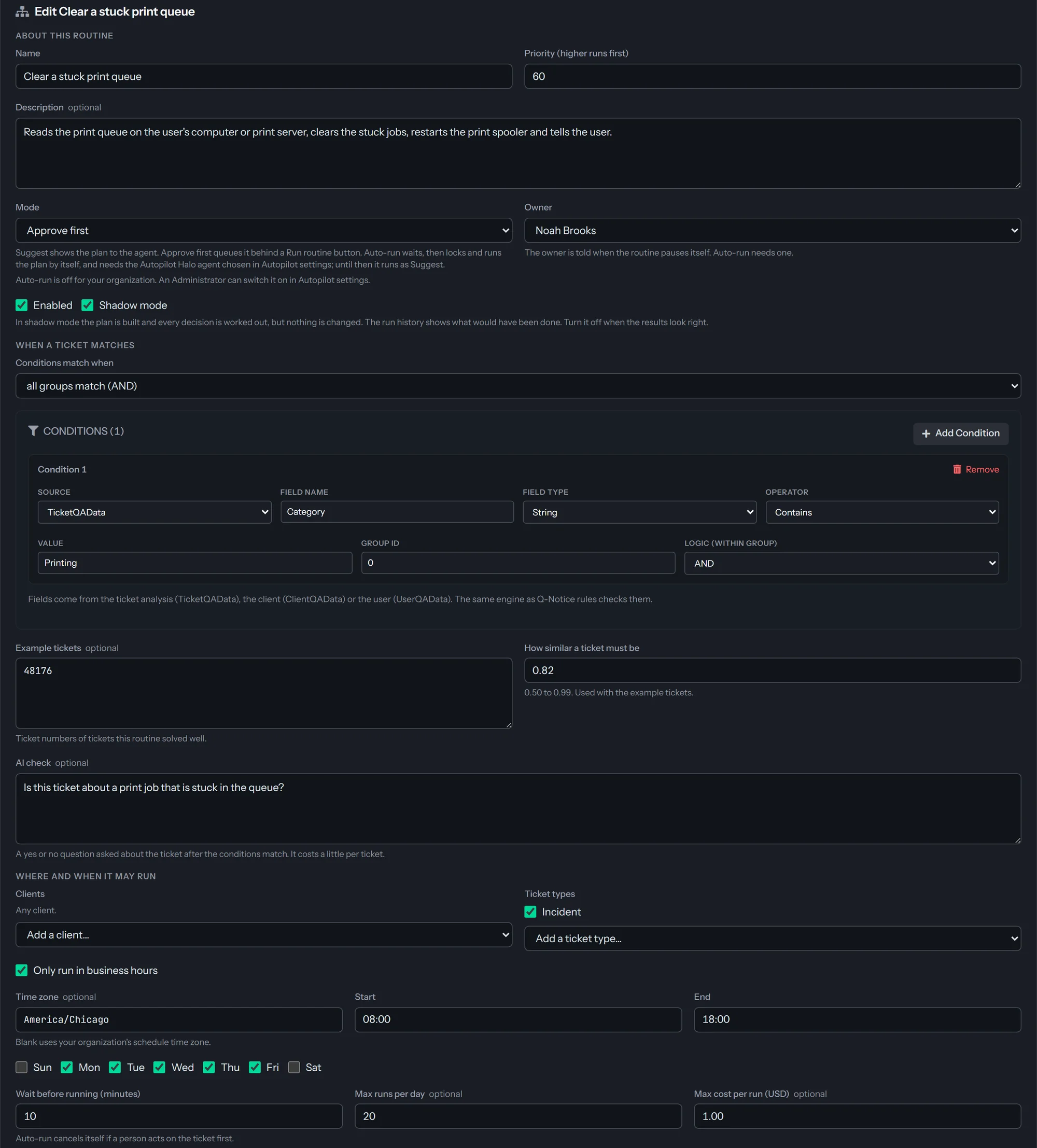

Edit the whole playbook, decision included
- Create routine from a candidate fills the editor with the playbook, in shadow mode
- A decision step is edited in place: its question, the evidence steps it reads, and for each outcome a label, a “when” and its own steps
- The editor checks the template against the playbook rules before it saves
- A routine that falls back to a person at a decision sends the routine’s failure notification, which you choose under Tell the owner
Two kinds of routines. These are Autopilot routines: they solve tickets and can write to your PSA under your policy. The routines on the Qubit page are scheduled Slack and Teams posts, and they can only read.
[ 11 // stackjack ]
Your own sign-in when you are there. A key when you are not.
A plan uses StackJack as the person it belongs to. Only a routine running unattended uses the Autopilot connection.
Attended runs: the agent’s own connection
When an agent locks a plan, its StackJack steps run through that agent’s own StackJack connection (Settings, MCP Sources). What the plan can do, and what the audit records, is scoped to that person. An attended run never falls back to the Autopilot key.
Unattended runs: the API connection
A routine that runs on its own uses the Autopilot connection’s API key, and writes to your PSA for the technician an administrator chose. HaloPSA shows that technician as the author, and Autotask and ConnectWise PSA do when the connection allows it. That technician can be an API-only account, so where it is shown, notes and changes are attributed to something plainly marked as Autopilot.
Before you lock, not after
If a plan has StackJack steps, the panel first checks the agent’s own connection. When it is missing, the panel says “Connect StackJack in QuantumOps first” and links to the place to do it, instead of letting a step wait after the plan is locked.
The list of agents to run as
- The agent for notes and changes is read live from your PSA, so the list has every agent, API-only agents included, and leaves out disabled ones
- API agents carry the label “API agent”
- A stored agent that is no longer on that live list stays visible as “Agent #123”, marked not found, instead of disappearing
- If the live list cannot be loaded, it falls back to the agents imported into QuantumOps
- API agents appear only here. They do not enter the dispatch, payroll or metrics rosters


The connection card
- Paste a dedicated StackJack user’s API key. It must start with sjk_, it is encrypted, it is not shown again, and it is used only by Autopilot. The connection does not appear in chat, Slack, Teams or the MCP source pickers
- Leave Endpoint blank for the compact StackJack endpoint. The full endpoint lists every tool StackJack offers and is not accepted
- Test connection checks the key and the endpoint. Remove connection deletes it, and unattended runs then use only the built-in read tools
- Until a technician is chosen, an unattended run that would change something waits, and a routine set to auto-run runs as Suggest. A routine set to Approve first runs as the agent who presses Run routine, so it needs neither
[ 12 // in the web app ]
The Autopilot hub shows what ran, and why.
The Autopilot item in the web app’s sidebar opens four pages.
Administrators and Service Desk Managers
Activity
Plans, waiting plans and approvals, with a full audit of any plan.
Administrators
Routines
The routine list, the routine editor and the progress of the 90-day scan.
Administrators
Candidates
The playbooks the miner drafted, with their evidence.
Administrators
Settings
The mode and overrides, tool rules, approvers and the Autopilot connection.

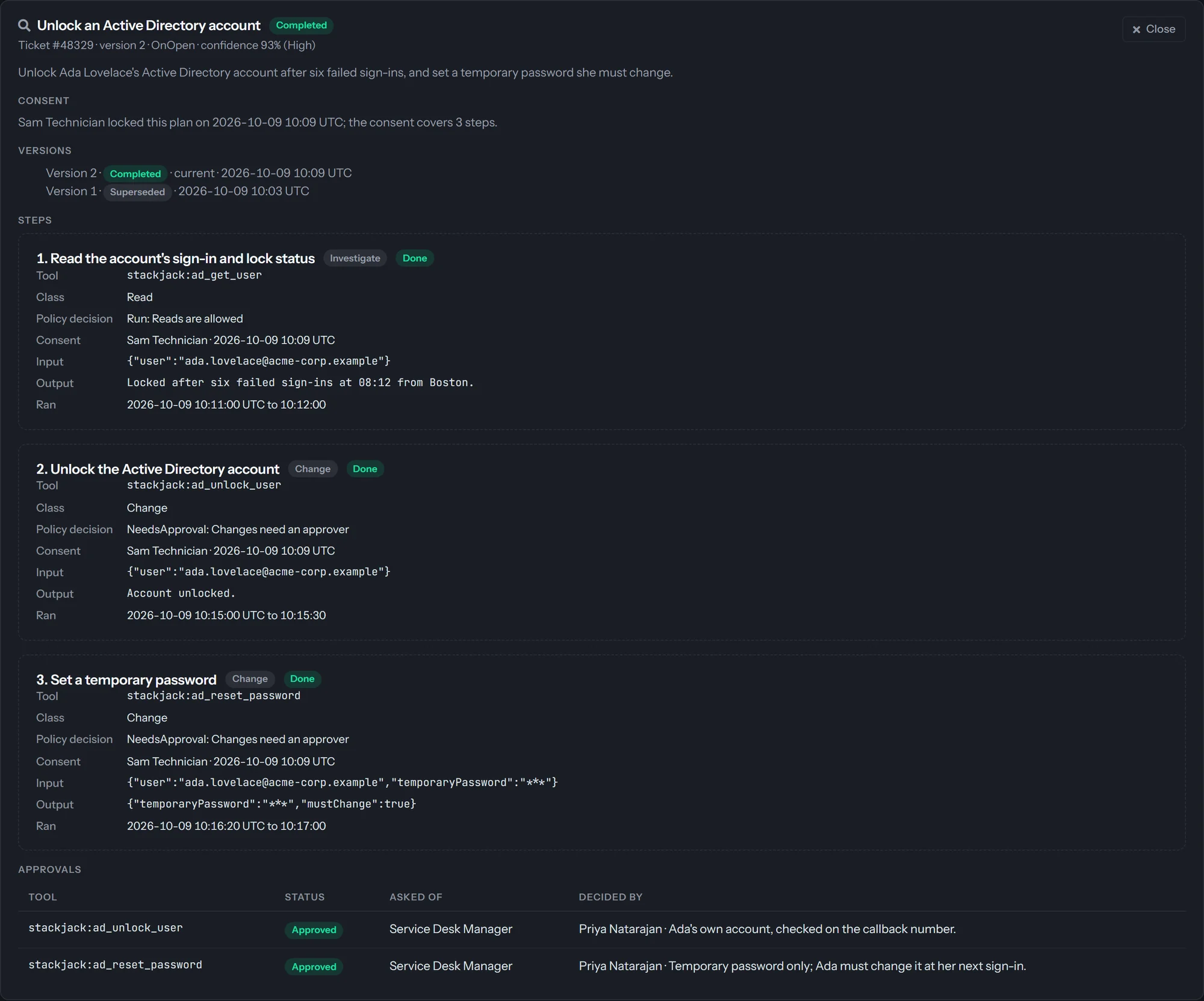
Open any plan to see the whole run
- Every version of the plan, in order
- The consent the agent gave
- Each step’s inputs and outputs
- For a decision, the recommendation, who chose the outcome and why
- Credential-shaped text masked in what is shown
Filter the Plans table by All, Running, Waiting, Completed or Stopped. A plan that a routine started shows the routine’s name. Administrators can stop a plan from here.
[ 13 // inside your psa ]
Inside your PSA, the plan is there to read.
In HaloPSA, the Ticket Dashboard tab shows the current plan as a card that can be read and not run. On Autotask and ConnectWise PSA the plan lives in the QuantumOps browser extension. Reviewing, editing and running happen in the extension either way.
- The title, the confidence band and every step with its status
- The tickets and documents the plan cites
- An Open in the QuantumOps extension link
- The agent-verification control stays above it, so a tech can verify once with an email code
The frame lock isn’t a login. Anyone who can open a QuantumOps tab in your HaloPSA can read the plan, including each step’s tool result summary or error. Keep that in mind for the tools you connect.

[ 14 // security ]
Consent is tied to what actually runs.
Nothing changes without a policy that allows it or a decision recorded against the step.
Bound to the arguments
Consent covers each step’s exact arguments, kept as a hash. Edit a step after locking and its consent resets, so it asks again.
Secrets masked
Credential-shaped text is masked in plan results and in the audit, so a password a tool returned doesn’t end up on a screen.
A key for unattended runs only
The Autopilot connection is one dedicated StackJack user’s API key. It is write-only and encrypted, never shown again, and hidden from the chat, Slack, Teams and MCP pickers. An attended run never uses it.
Checks for someone else’s change
Before each change, the run checks whether another person has acted on the ticket. If they have, the step stops and says so.
A record of every run
The audit keeps each plan’s versions, consent and step inputs and outputs, and for a decision who chose and why. Every run ends with one private note on the ticket that lists what ran.
Where the data goes
The plan and its evidence go to the AI provider doing the job. Resolution records, with generic traces and redacted steps, stay in your instance’s database, and the issue embeddings sit in your partition of the search index.
[ 15 // setup ]
Set it up in the wizard, or later in settings.
The Setup Wizard has twelve steps now, and one of them, just before the import, is Ticket Autopilot. You can skip it and come back.
Name the approvers
The roles or people who can approve a step that needs approval.
Choose which tickets get a plan early
Filters by type, team, client and priority decide which tickets have a plan waiting before anyone opens them.
Add the connection, if you want one
A dedicated StackJack user’s key lets unattended runs call StackJack tools. A second setting names the technician that unattended runs are recorded as, and it can be an API-only account. A plan a tech locks is written for that tech, with that tech’s own StackJack connection.
It comes with QuantumOps. Autopilot is in the Core bundle, with no add-on. It does spend AI on planning, investigating, checking, reading closed tickets (the 90-day scan repeats this), drafting playbooks and deciding an outcome, and that spend shows in AI Usage.
Everything is on the Settings page later
Each answer in the wizard is a setting you can change, and the page holds a few more.
- Modes and limits, with overrides by role and person
- Tool rules: Pre-allowed, Needs approval or Blocked
- Approvers, the escalation time and the expiry time
- The Autopilot connection and the technician for unattended runs
- The tickets planned ahead of time, the confidence thresholds, and what one plan may spend in tokens, tool calls and cost
Does Autopilot run without a person?
Not out of the box. A plan runs after an agent has reviewed and locked it, and the consent summary says what will happen. An administrator can pre-allow steps, and a routine can be set to auto-run. Even then a message to a customer needs a click unless the administrator allows unattended sends, and a destructive tool always needs one. If a playbook ends in a decision, a run that goes on its own chooses the outcome only when its confidence reaches the threshold, 0.8 by default. Otherwise it waits for a person.
What is a playbook?
How your desk resolves one kind of ticket, learned from closed tickets: when it applies, the checks to make, an optional decision between two to four outcomes, and the steps each outcome takes. A playbook is a candidate until an administrator creates a routine from it, and a new routine starts in shadow.
How does it learn?
When a ticket closes, QuantumOps writes a trace of what was done, in generic wording with no names. Tickets about the same problem are grouped into a family, and a family with at least five tickets in the window, by default, gets a drafted playbook. The scan over the last 90 days re-reads older tickets automatically, under the same pause and AI limit as the rest of Autopilot.
How is the time saved worked out?
From the time agents logged in your PSA on those tickets, as a median per ticket. When fewer than half of the examples logged time, the card shows an estimate from the steps and says it is estimated. It is not the time from creation to closure.
Which StackJack connection does a run use?
An agent’s plan uses that agent’s own StackJack connection. If it is missing, the panel tells the agent to connect StackJack before they lock the plan. The API connection is used only when a routine runs unattended, and it writes to your PSA for the agent an administrator chose. HaloPSA shows that agent as the author, and Autotask and ConnectWise PSA do when the connection allows it.
Can it undo what it did?
No. Stop ends a run, but steps that already ran are not undone. That is why a change asks first by default, and why Autopilot checks for someone else’s change before it writes.
What does an approver see?
The ticket, who asked, the exact arguments and the reason. They can approve or deny, from the extension or from the Teams or Slack message. The first decision wins, and nobody approves their own request.
Does it work on tickets from outside our PSA?
No. Plans are built for tickets in the PSA your instance is connected to.
How is a customer message kept safe?
It is shown in full in the consent summary, it is checked against your communication policy (banned phrases and required disclaimers), and it is blocked if it fails. It always needs a click unless an administrator has allowed unattended sends.
What does it cost?
Autopilot is in the Core bundle, with no add-on. It spends AI on planning, investigating, checking, reading closed tickets (the 90-day scan repeats this), drafting playbooks and deciding an outcome, and it shows in AI Usage under Autopilot’s own operations. Unattended runs and the scan stop on any processing pause and at your AI limit.
Does it replace Qubit?
No. Qubit answers questions and uses tools in chat. Autopilot runs a plan the agent locked. They share the same tool governance, and Autopilot is one of its five surfaces. See Qubit and approvals.
Who can see the plans?
The Activity page opens for Administrators and Service Desk Managers, and Settings needs the Administrator role. Inside HaloPSA, the plan card is readable by anyone who can open the QuantumOps tab in your Halo, so treat it like the Sherlock research on the same tab.
[ 17 // start ]
See a plan on your own queue.
Book a demo and we’ll open a real ticket with a plan already waiting.