

[ 01 // phones and identity ]
Know who’s calling.
Put the call on the right ticket.
Call Taking finds the caller and turns the call into a routed HaloPSA ticket before you hang up. Afterward, the recording your phone system made is transcribed and matched to the right ticket. And before a tech resets anything, the caller can prove they control the Microsoft 365 account on file.
 Call TakingAcme Corp
 AI recommendations
From what the tech has typed so far
- Team
- Service desk why?
- Type
- Incident
- Impact
- Single user
- Urgency
- Medium
- Callback
- +1 617 555 0142
[ 02 // call taking ]
Answer three questions while the caller is still talking.
Who is this, have we seen it before, and what do we do with it. Call Taking is the screen your desk opens when the phone rings.
Find the caller by number or name
Search your HaloPSA users by phone number or name. No user has the number? QuantumOps checks tickets from the last seven days that mention it. When several people share a number, the tech picks the right one, and a caller who rang from a new number can have it saved to their Halo record, so the next call from it resolves by itself.
See what’s already open
The Call Taking screen puts the caller’s open tickets next to every open ticket at their company, with VIP and High Risk flags and any Q-Notices. The fourth caller in an outage gets linked to the ticket that already exists instead of opening a new one.
Verify before you act
When the client has Identity Verification switched on, the tech checks the caller from the same screen before touching their account.
Close the call honestly
On the Call Taking screen, every call ends in one of five outcomes: New ticket, Link existing, Resolved, Transfer or No action. One outage stays one ticket, and if nobody could be identified, the call records that rather than guessing.
Call Taking isn’t a softphone. Calls ring, get answered and get transferred on your phone system exactly as they do today. QuantumOps handles the ticket side: who it is, what’s open and where the work goes.
Inside HaloPSA
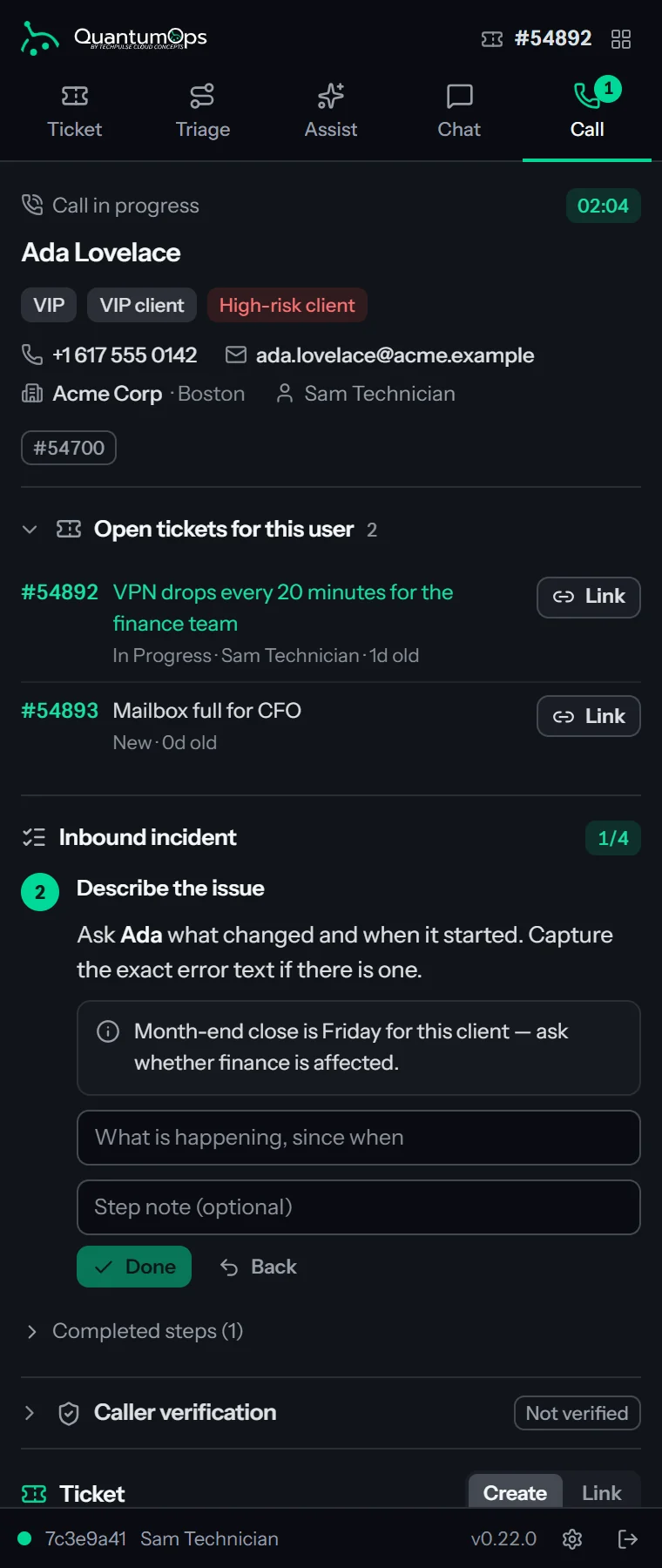
Call Taking can be embedded in Halo, where your techs already work. Your phone system or Halo can open it with the caller ID filled in, and the phone search starts straight away.
In the web app
A New call button in the QuantumOps header opens the same screen in its own tab, with a call timer running from the moment it opens.
In the side panel
The Call tab of QuantumOps for Halo takes the call next to whatever Halo page is open: look up, script, verify, create or link the ticket, wrap up. A panel reload doesn’t lose the session.
Screen pop from Yeastar
When a Yeastar P-Series also supplies your recordings, QuantumOps follows its live call events. An answered call opens a session by itself (for dispatchers, by default), and the extension’s dispatch board shows each agent’s phone as off, idle, ringing or on a call.
[ 03 // call to ticket ]
Every tech asks the right questions in the right order.
Scripts guide the call, the AI drafts the ticket from the answers, and the tech decides where it goes. Nothing is dispatched until they say so.
New ticketDispatch now AI triage recommendation
Ada Lovelace · Acme Corp · from the call notes and script answers
Outlook keeps asking for a password after an MFA reset
- Team
- Service desk why?
- Type
- Incident why?
- Impact
- Single user why?
- Urgency
- Medium why?
Call scripts
Build a script once in Q-Director from nine step types: prompts, questions, decision points, input fields, information, user match, variables, ticket search and AI Assist. Answers can fill ticket fields, and the notes land on the ticket.
AI Assist steps
On the web call screen, an AI Assist step turns the answers so far into the ticket’s summary, details, impact, urgency and a triage recommendation, with your own instructions if you want them.
Dispatch now
The AI triage recommendation, with a Why? for each field. Then Halo’s own load balance, round robin or intelligent routing, or a specific agent: the top three technicians carry a skill-match score next to a live workload view, and picking one lets the call book a firm or tentative appointment.
Or queue it for triage
Send it to the triage queue with a default team and ticket type, for a dispatcher to assign. Like every ticket created from a call, it goes straight into QuantumOps’ AI ticket analysis.
The side panel’s Call tab runs the same scripts and creates or links the same Halo tickets, with team, type, impact and urgency set by hand. AI suggestions and AI Assist steps are on the web call screen.
[ 04 // recordings ]
Every recorded call, transcribed and on the right ticket.
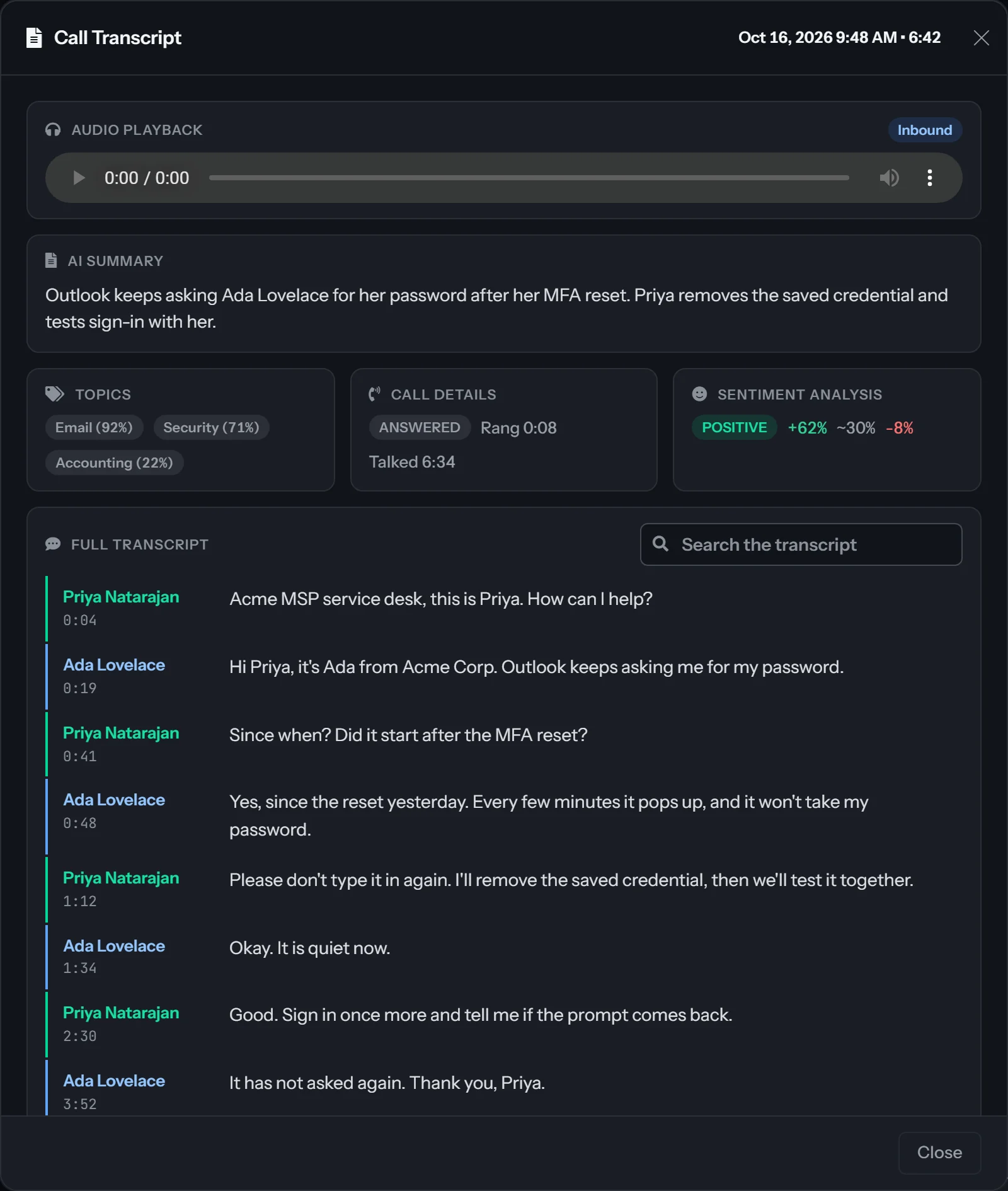
QuantumOps doesn’t record calls. It collects the recordings your phone system already makes, transcribes them and posts them to the HaloPSA ticket they belong to.
01
Collect
From a Yeastar P-Series over its API, with extensions mapped to agents and ring and talk times from the call records. Or from any phone system that can save recordings to Azure Blob Storage, using a filename template you can test.
02
Transcribe
With AssemblyAI (our recommendation), Azure Speech or OpenAI Whisper. AssemblyAI and Azure Speech put agent and caller on separate lines; Whisper doesn’t. AssemblyAI can also be given your client and product names as key terms.
03
Summarize
With AssemblyAI, each call also gets a summary, a sentiment breakdown and its topics, so nobody has to listen back to find out what was said.
04
Match
If a Call Taking session already put the call on a ticket, the recording goes there. Otherwise QuantumOps finds the Halo users with the caller’s number, looks at their tickets from around the time of the call, and scores each on phone, agent and timing. It attaches the recording when one ticket clearly wins, and suggests when none does.
05
Post
The Halo ticket gets a call log, with caller, client, site, agent, direction, duration and the AI summary, plus a collapsible transcript note that end users never see. A call matched through a Call Taking session, or by the AI at 90% confidence or more, posts automatically by default; other matches wait for you to post them.
06
Play back
Managers see the whole pipeline on the Call Recordings dashboard, with playback. Techs clear their own calls on My Call Recordings, and the side panel’s Ticket tab plays the audio. Audio streams through links that expire.
[ 05 // unmatched calls ]
When the match isn’t certain, it asks.
Shared lines, callbacks and transfers make some calls ambiguous. When no ticket clearly wins, QuantumOps hands the call to the agent who took it, with its best suggestion.
- Attached automatically when the top ticket scores 80 or more and no other reaches 70; being the only candidate isn’t enough on its own
- A second AI pass every two hours for calls from the last seven days still unmatched after 12 hours: it attaches at 90% confidence or more and suggests from 50% to 89%
- A shared phone number asks the agent to pick the caller first
- Recordings from the same number within ten minutes of each other (by default), such as a transfer, can be posted as one transcript
- A Slack or Teams DM of each agent’s unmatched calls, immediately, hourly, daily or weekly
- My Call Recordings in the web app, and suggested recordings on the side panel’s Ticket tab
QuantumOps · 8:00 AM2 call recordings need attentionHi Sam, the following call recordings could not be automatically matched to tickets and need your review:[ 06 // identity verification ]
Prove who’s calling before anyone resets anything.
Password resets and MFA changes are what help-desk attackers call for. Identity Verification has the caller prove, on their own phone, that they control the Microsoft 365 account the ticket names. It works on any Microsoft 365 plan once the client’s admin has consented.
1. The expected account is fixed first
Before anything is sent, QuantumOps ties the Halo contact to their permanent Microsoft Entra account ID in the client’s own tenant.
2. The link goes to the address on file
A sign-in link is emailed to the address on file for that person, from the client’s Microsoft directory or their Halo contact record, never an address the tech types. The tech sees a masked address and a “Send it again” button, and has no way to change where it goes.
3. The caller signs in on their own phone
A fresh sign-in to their own Microsoft 365 account, approved in Microsoft Authenticator with number matching. A sign-in more than five minutes old doesn’t count.
4. The result arrives live
Verified, a different account answered, declined or expired: the panel updates as it happens, the verification log records it, and the Halo ticket can get a private note naming who was proven.
Caller verificationWaiting- Caller
- Ada Lovelace · Acme Corp
- Ticket
- #54892
- Method
- Authenticator sign-in
- Assurance
- Substantial (client minimum)
Started from wherever the call is.
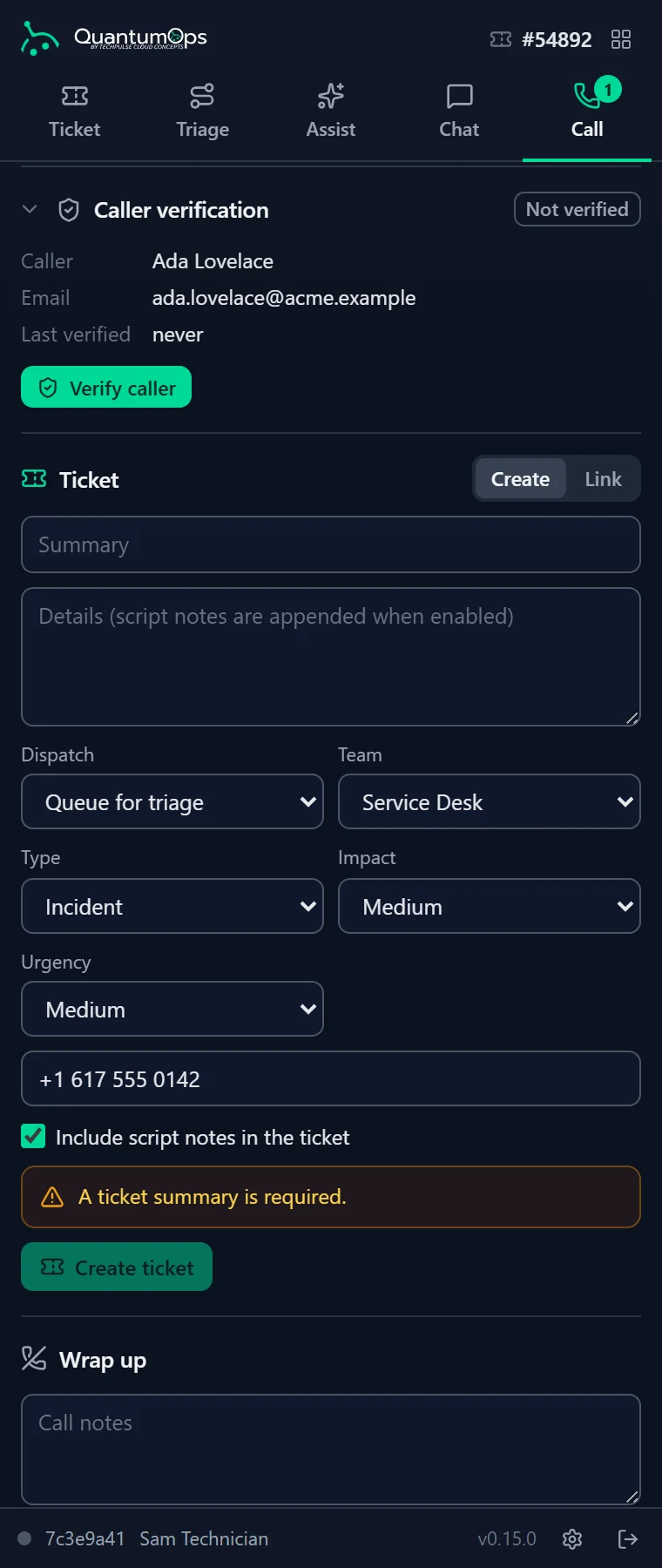
The Verify button sits on the Call Taking screen, on the side panel’s Ticket, User and Call tabs, and on the Ticket Analysis, Ticket Triage and User tabs inside Halo.
- The method is already chosen from the client’s policy, and the tech can only switch to a stronger one
- Every step in the side panel asks for confirmation first
- A badge names who verified the caller and when, and counts down the reuse window
- A caller who can’t be verified goes to the supervised override form in the web app, never a quiet pass
[ 08 // the record ]
Every attempt on the record. Every exception under a name.
Every attempt leaves evidence you can check later, in QuantumOps and on the Halo ticket.
A tamper-evident log
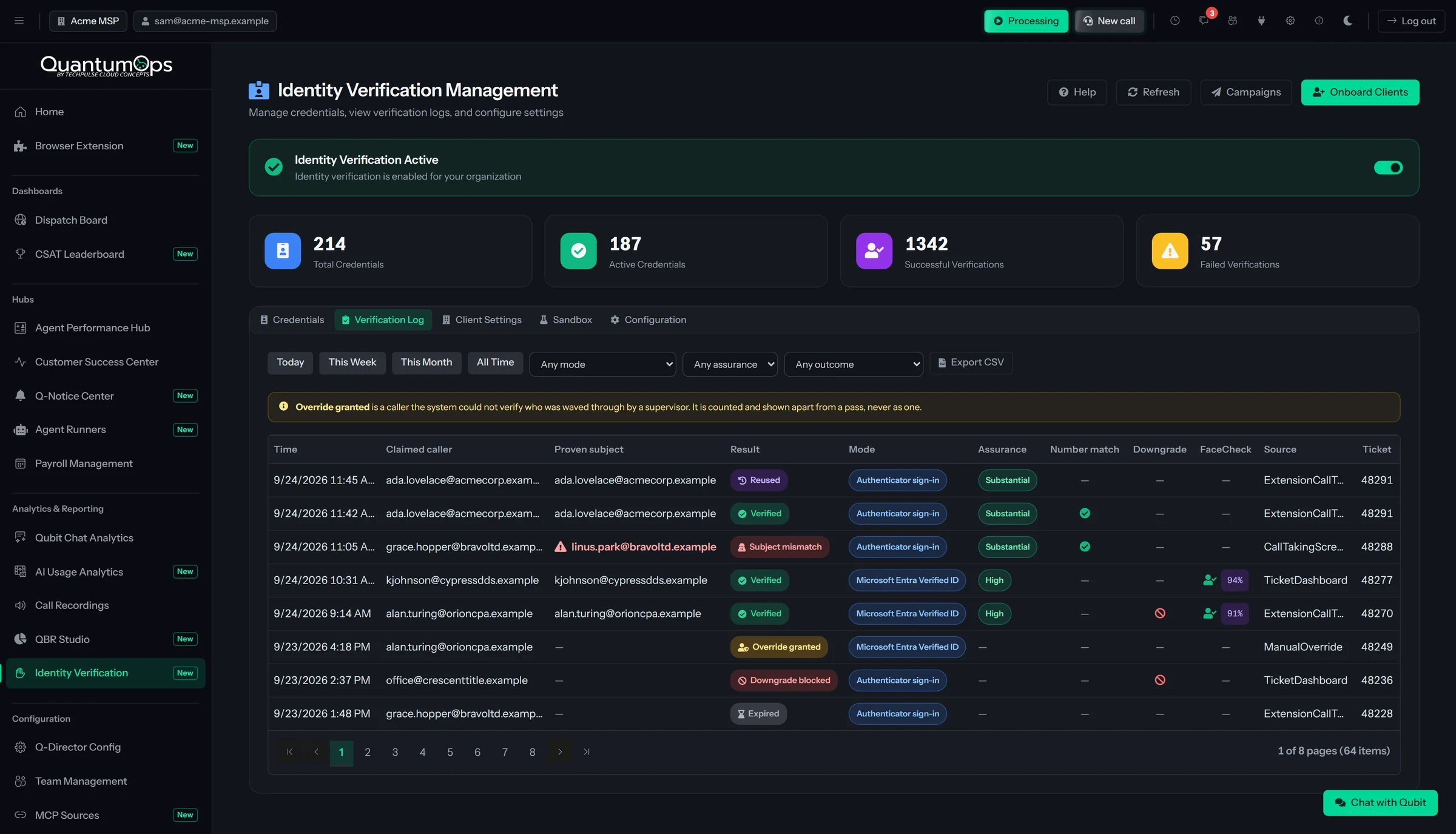
The claimed caller and the proven account side by side, mismatches flagged, filterable by date, mode, assurance and outcome, and exportable to CSV. Each row is sealed into a keyed hash chain, with the key derived from your instance’s secret in Azure Key Vault, so an edited or deleted row breaks the chain, and an admin can run the integrity check at any time.
Proof on the Halo ticket
A private note names who was proven, how and when, such as “Verified: ada.lovelace@acme.example (Substantial, Authenticator, ticket 54892)”. Up to four Halo custom fields you set up carry status, time, method and Face Check confidence for your reports.
Supervised overrides
When nothing can verify a caller, the tech opens an override, writes the reason, names a second approver who isn’t them and attests that the approver reviewed the call. Overrides are capped at three per tech per 24 hours by default, reported per technician, and never shown or counted as verified.
[ 09 // rollout ]
Switch it on one client at a time.
Setup tests the Microsoft side before any caller sees it, and every client can have its own policy.
Setup and preflight
A two-step wizard connects the app registration in your own Microsoft Entra tenant, then runs preflight checks, from the callback address and sign-in claims to client consent and Halo custom fields, each with the fix if it fails. A sandbox rehearses a verification with the real policy, log and Halo note, without contacting Microsoft or the caller.
Per-client policy
Each client’s Microsoft admin consents once, directly or through CIPP. Turn verification on client by client, set the method and minimum assurance for each, and let “Verify all” confirm with Microsoft that every consent actually works.
Verified ID and Face Check
For higher assurance, the caller scans a QR code and presents a Microsoft Entra Verified ID credential from their Authenticator wallet, optionally with Face Check. Issuance campaigns enroll a client’s users by email ahead of the first call, and any credential can be revoked.
Does QuantumOps record our calls?
No. It collects the recordings your phone system already makes, from a Yeastar P-Series over its API or from an Azure Blob Storage container your PBX saves to. Nothing is recorded in the browser, and there’s no recording agent to install.
Which phone systems work with it?
Call Taking works alongside any phone system: the tech looks the caller up, or your PBX or Halo can open the screen with the caller ID filled in. Recordings come from a Yeastar P-Series or any PBX that can save them to Azure Blob Storage. Live presence and screen pop are Yeastar P-Series only, and need your recordings collected through the Yeastar API.
Who pays for transcription?
Transcription runs on a speech-to-text account connected in the Call Recordings settings: an AssemblyAI or Azure Speech key, or Whisper through your OpenAI key. The provider charges for the minutes. Summaries, sentiment and speaker names need AssemblyAI, and Whisper doesn’t separate speakers.
Can our customers see the transcripts?
Not the transcript: that note always goes on the Halo ticket hidden from end users. The call log’s AI summary follows Halo’s own call-log visibility, so check that setting before you rely on automatic posting.
Is caller verification a one-tap approval?
No, on purpose. The caller completes a full sign-in to their own Microsoft 365 account on their phone, usually including their password, and approves it in Microsoft Authenticator. Microsoft Authenticator has to be registered on their account already.
Which Microsoft 365 plans does it need?
The Authenticator sign-in mode works on any Microsoft 365 plan, with no Verified ID setup. Forcing MFA on that sign-in needs Entra ID P1 in the client’s tenant; without it, QuantumOps checks what the caller actually did and fails closed when it isn’t strong enough. Verified ID mode needs its own Microsoft setup and per-user enrollment, and Microsoft bills each Face Check attempt.
What if a caller can’t be verified?
The tech can open a supervised override: a written reason, a named second approver who isn’t the tech, and an attestation, all in the log. Overrides are rate-limited per tech and never show as verified. Or use your usual out-of-band check.
What’s available today?
Call Taking and Call Recording & Transcription are generally available. Identity Verification, the side panel’s Call tab and recordings card, and the Yeastar screen pop are available too.
[ 11 // start ]
Know who’s calling before you reset anything.
We’ll walk through Call Taking, recordings and caller verification on a real HaloPSA queue.
[ 07 // social engineering ]
Built for the caller who isn’t who they say.
Someone calls as Acme Corp’s CFO, sounds rushed, and needs an MFA reset before a board meeting. Here is what each version of that call runs into.
Forward the link to the real CFO.
The trick: get the tech to read out or send the sign-in link, forward it to the real CFO as an “IT check”, and let their sign-in verify the attacker’s call.
What it runs into: the tech never sees the link. It goes only to the address on file, because a link you can read is a link you can be talked into forwarding, and the email tells anyone who didn’t call support not to open it.
Pass the check as yourself.
The trick: sign in with a real account of your own while claiming to be the CFO.
What it runs into: the account that signed in is compared with the one fixed from the Halo contact, by permanent ID and tenant, never by name or email. A different account is logged as a subject mismatch, never as a pass.
Swap the SIM.
The trick: port the CFO’s number and wait for a text code.
What it runs into: links go by email, not text. Each client has a minimum assurance level, Substantial by default, which rules out SIM-swappable text and voice factors, and a tech can only pick a stronger method.
Enroll your own Authenticator first.
The trick: after a phishing hit, register your own Authenticator on the CFO’s account, then call.
What it runs into: when the caller’s Authenticator was registered in the last seven days, the panel warns the tech to confirm another way before acting.
Ride on an old verification.
The trick: call back later, or on another ticket, and lean on the earlier check.
What it runs into: a verification carries over for five minutes at most, only on that ticket and for that tech. Cancel is enforced on the server, so a late approval can’t flip the result.
What the tech sees when it catches one.
The panel goes red and says a different account answered. It tells the tech to treat the call as unverified, not to carry out the request, and to report it like any suspected social-engineering attempt.
The attempt lands in the verification log as a subject mismatch, with the claimed caller and the account that actually signed in side by side.
What it proves: that the caller controls the Microsoft 365 account on file for that contact. For more, the optional Verified ID mode adds Face Check, a live match against the photo on the caller’s credential.