

[ 01 // quantumops for halo ]
Open a ticket in Halo.
QuantumOps is already there.
A browser side panel that follows your techs across HaloPSA. The AI brief, the triage, a guided fix, the caller and Qubit sit beside whatever ticket, client, user or agent is on screen. Every dispatch, reply and ticket change the panel makes waits for the tech to confirm it, unless they have already allowed that Qubit tool.
 QuantumOps for Halo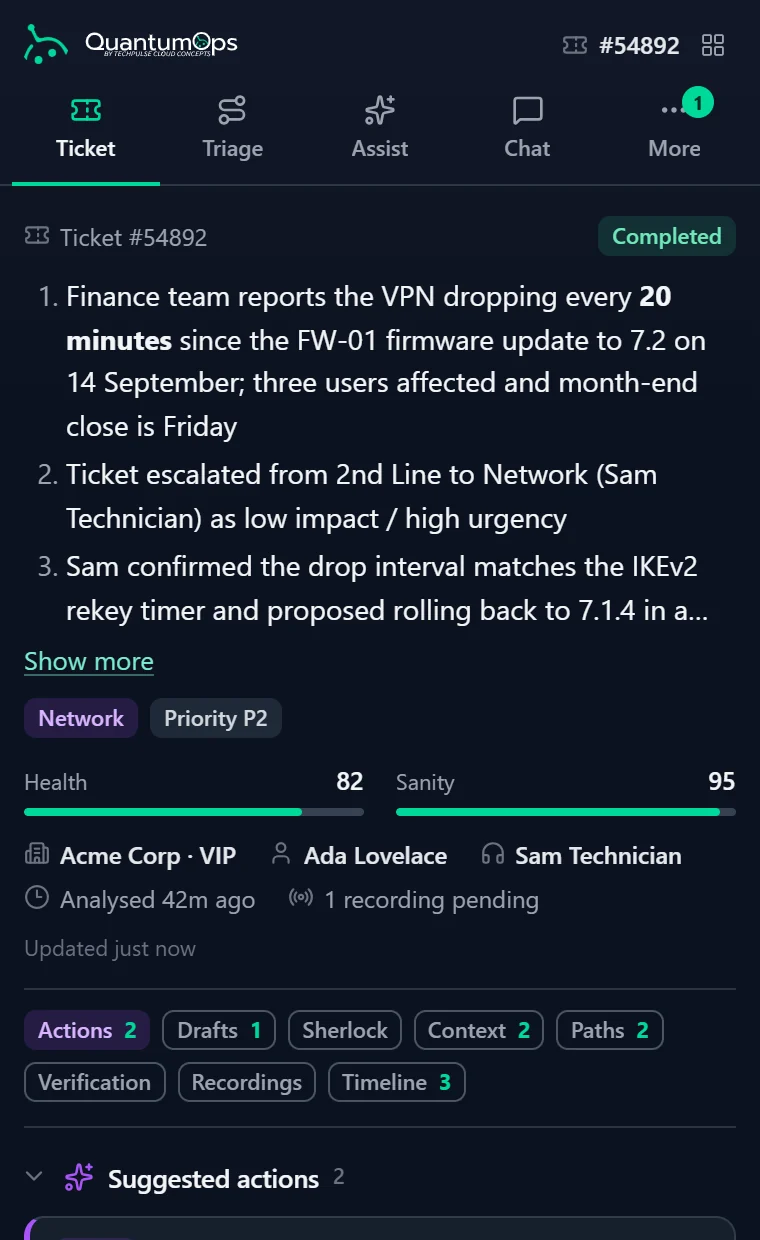
[ 02 // the panel ]
One panel. It changes with the page.
Techs keep working in HaloPSA the way they do now. The panel works out which record is on screen, loads it from your QuantumOps instance and updates live as the AI finishes its work. A ticket opened before shows at once and refreshes in the background.
How techs get it. Today techs install it from the Browser Extension page in their QuantumOps web app, because the Chrome Web Store, Microsoft Edge Add-ons and Firefox Add-ons listings aren’t live yet.
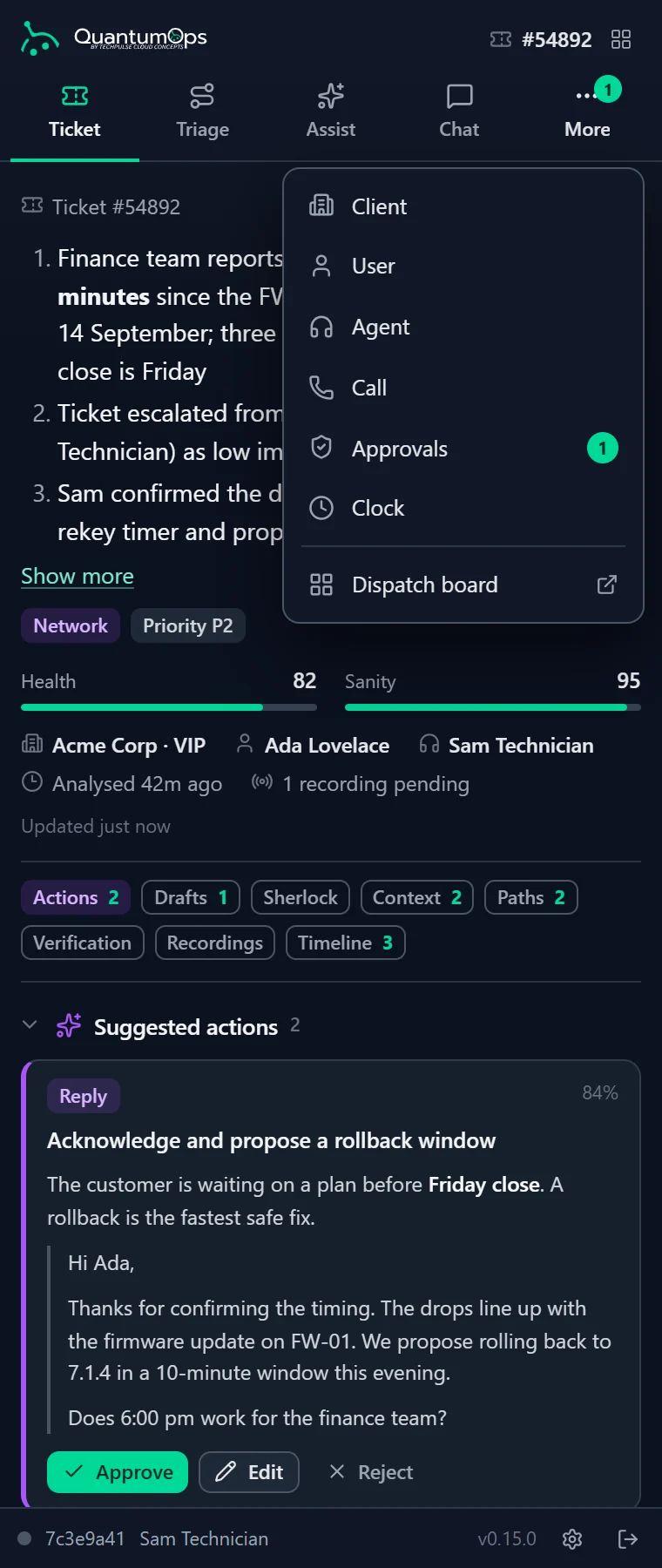
Four tabs sit across the top: Ticket, Triage, Assist and Chat. The More menu holds Client, User, Agent, Call, Approvals and Clock, plus a link to the dispatch board.
Where it goes
On a ticket
Ticket, Triage, Assist and Chat for that ticket. As a tech moves from ticket to ticket, the panel stays on Ticket, Triage or Assist, whichever they had open.
On a client, user or agent
The panel jumps to that record’s own view: the account, the person, or the technician’s day.
On a live call
Call and Clock stay put, so clicking around Halo never pulls a tech off a call in progress.
On your Halo site
halopsa.com, haloitsm.com and haloservicedesk.com addresses work out of the box. A custom Halo domain is added once in the extension’s options.
In a tab of its own
The dispatch board opens in its own browser tab from the panel, for the people who hand out the work.
How it behaves
Approved, then written as the tech
Nothing goes to HaloPSA until the tech approves or confirms it (or has given a Qubit tool a standing approval), and then it’s written as the tech’s own Halo agent. If Halo refuses it, the panel shows Halo’s reason and doesn’t try again.
Read-only until linked
QuantumOps links each login to its Halo agent through a saved link or a verified email match. Until then the tech can review the analysis but can’t change anything in Halo, and a Read-only chip says why.
Tabs follow the role
Each person sees the tabs their role, your licensed modules and your instance’s settings allow: Approvals for administrators, Clock for timeclock staff, the board for dispatchers.
[ 03 // ticket ]
The ticket, already read.
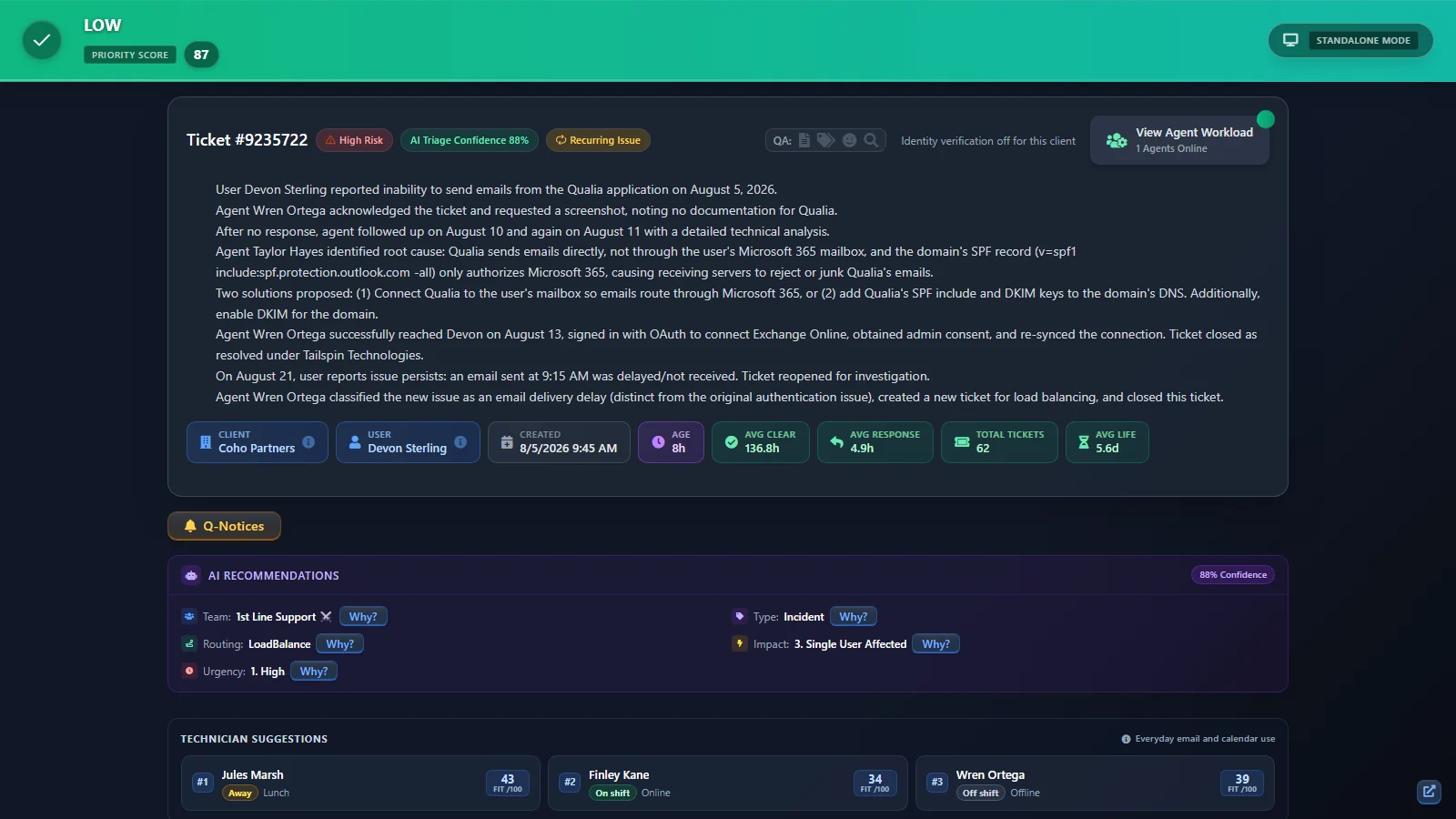
Open a Halo ticket and the Ticket tab has the summary, the scores, the next moves and the research waiting. A strip of shortcuts jumps straight to each part.
- An AI summary of the ticket so far, with Health and Sanity scores from 0 to 100
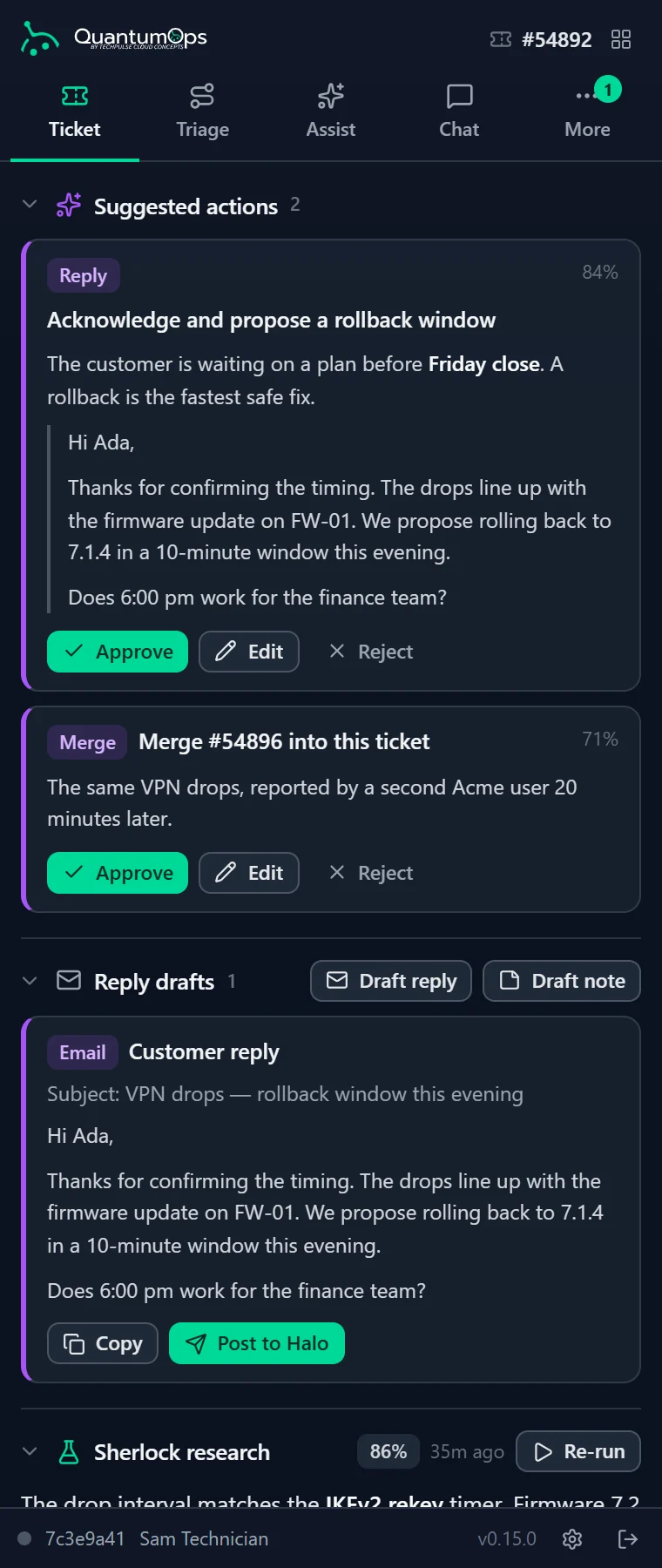
- Suggested next actions, each with a confidence figure, to approve, edit or reject
- A reply or note drafted on request, with the AI’s reasoning, to edit and copy; staged replies post to Halo from the panel
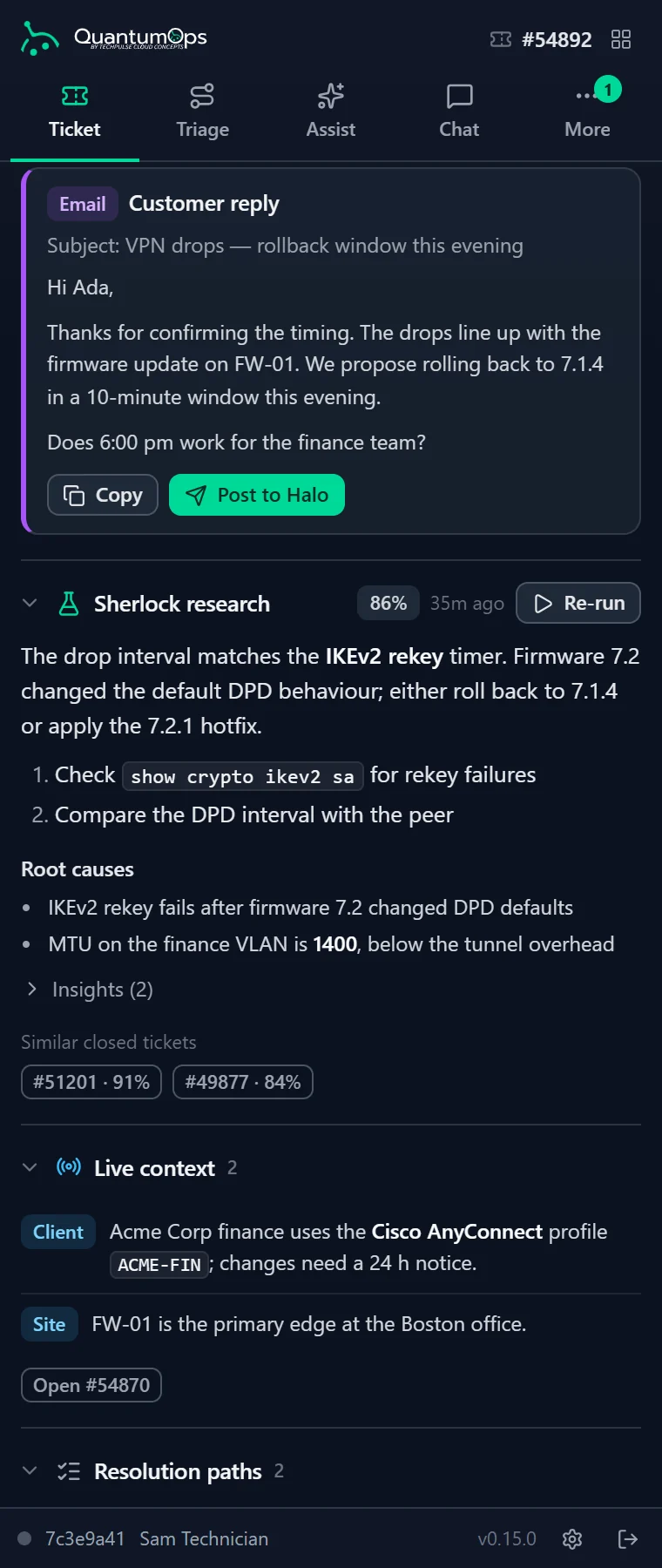
- Sherlock research: root causes, similar closed tickets, related ITGlue, Hudu or SharePoint documents, and a re-run with your own question
- Live context: related memories from past tickets, and what else the client has open
- Resolution paths, caller verification, call recordings and the ticket’s timeline
[ 04 // triage ]
Route it without leaving the ticket.
The Triage tab puts Q-Director’s recommendation beside the ticket, with one confidence figure and its reasoning. The dispatch form is already filled in. Change what you disagree with, then dispatch.
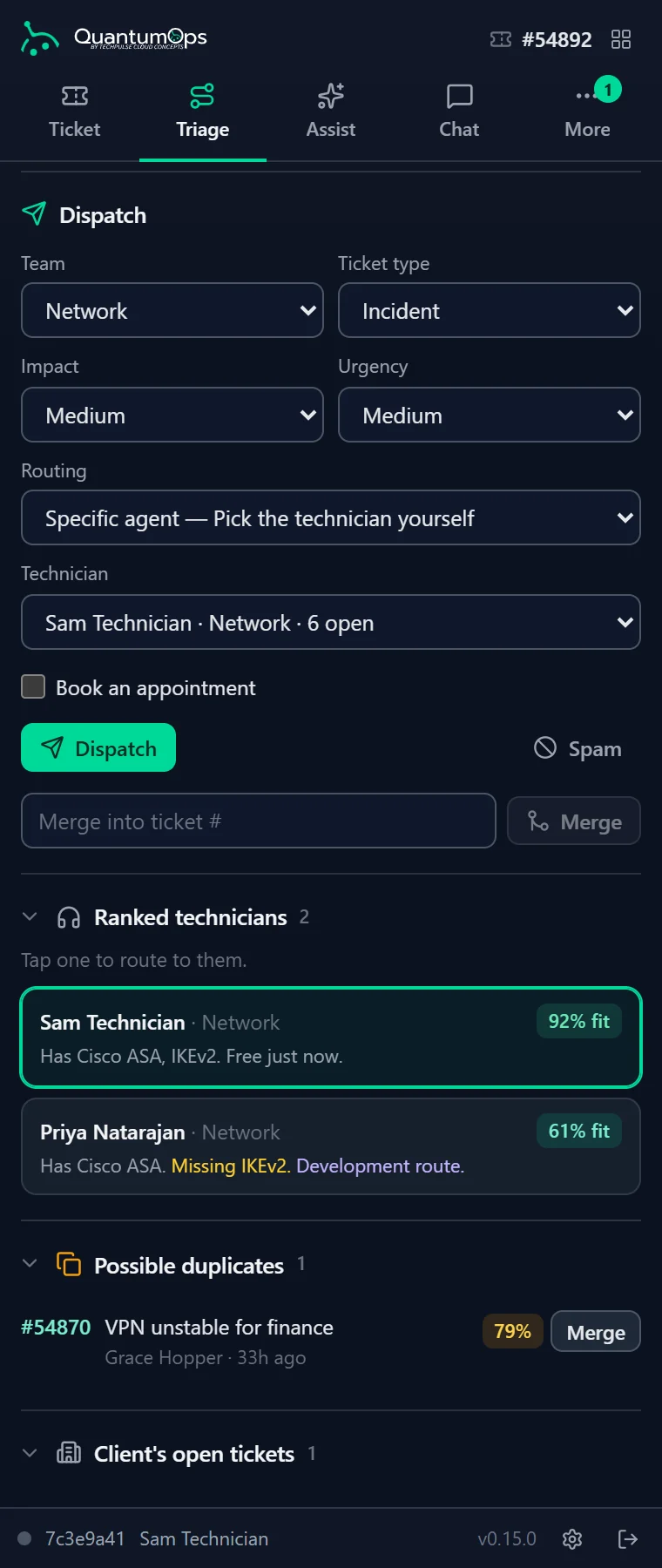
- Team, ticket type, impact, urgency, routing and technician, pre-filled from the prediction
- “Why this prediction”, a priority score and, where you switch it on, a time estimate from similar past tickets
- Technicians ranked by fit, with the skills they have and the ones they’re missing
- Possible duplicates with a Merge button, and the client’s other open tickets
- Dispatch, merge, mark as spam or book an appointment, each confirmed and written to Halo as you
[ 05 // assist ]
Walk the fix one step at a time.
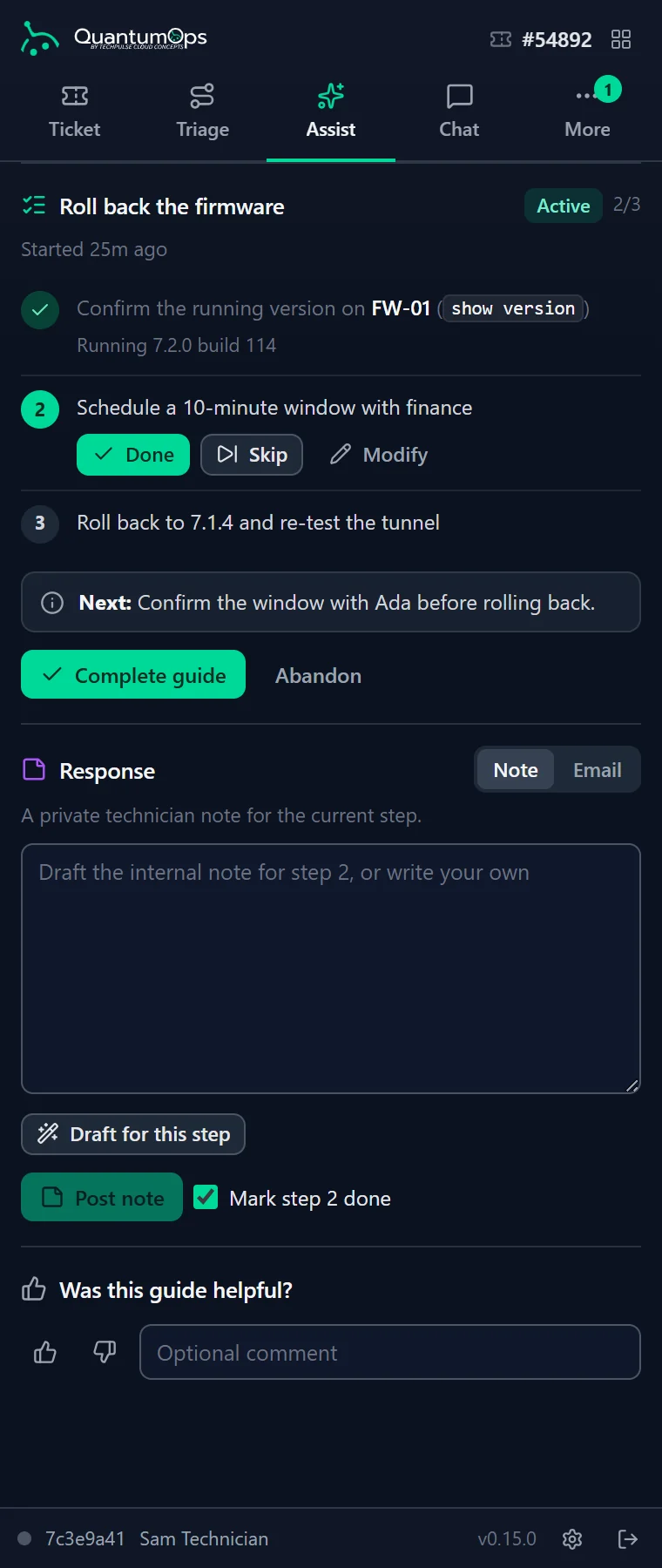
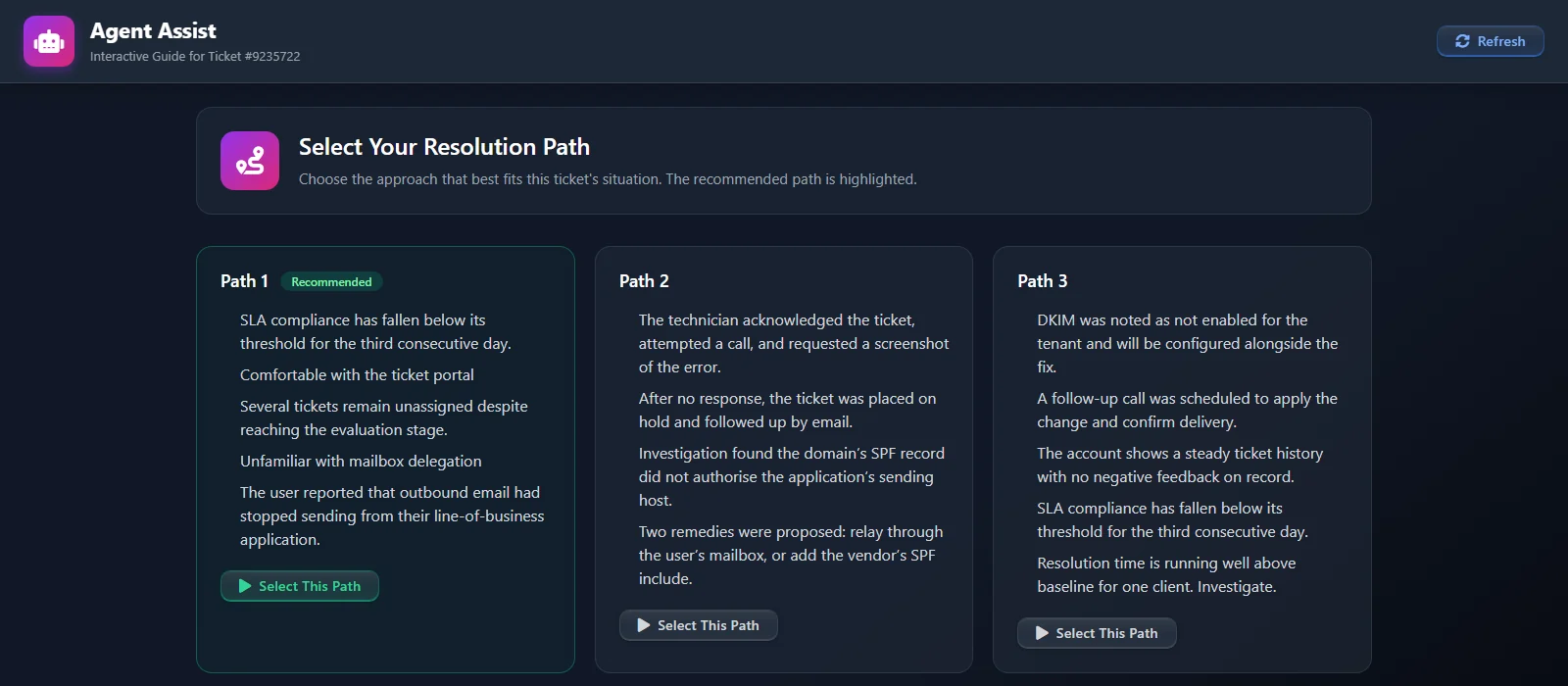
The Assist tab is the Interactive Guide in the panel. The AI proposes ways to resolve the ticket, the tech picks one, and at any step the AI will draft a private note or a customer email for it.
- Resolution paths written for this ticket; the tech chooses which one to follow
- Each step marked done, skipped or modified, with the recommended next move shown
- A note or email drafted for the current step, to edit or refine in plain words: “shorter, add the ETA”
- Post it to Halo and tick the step off in one go, after a confirmation
- The same session as the Agent Assist tab inside Halo, so a tech can switch between them mid-fix
- A thumbs up or down, with an optional comment, records whether the guide helped
[ 06 // chat and approvals ]
Ask Qubit.
Approve what it wants to change.
The Chat tab is Qubit, already pointed at the ticket, client or user on screen. It looks things up in Halo and the tools you’ve connected, shows every tool call it makes, and a tool that would change something waits for approval.
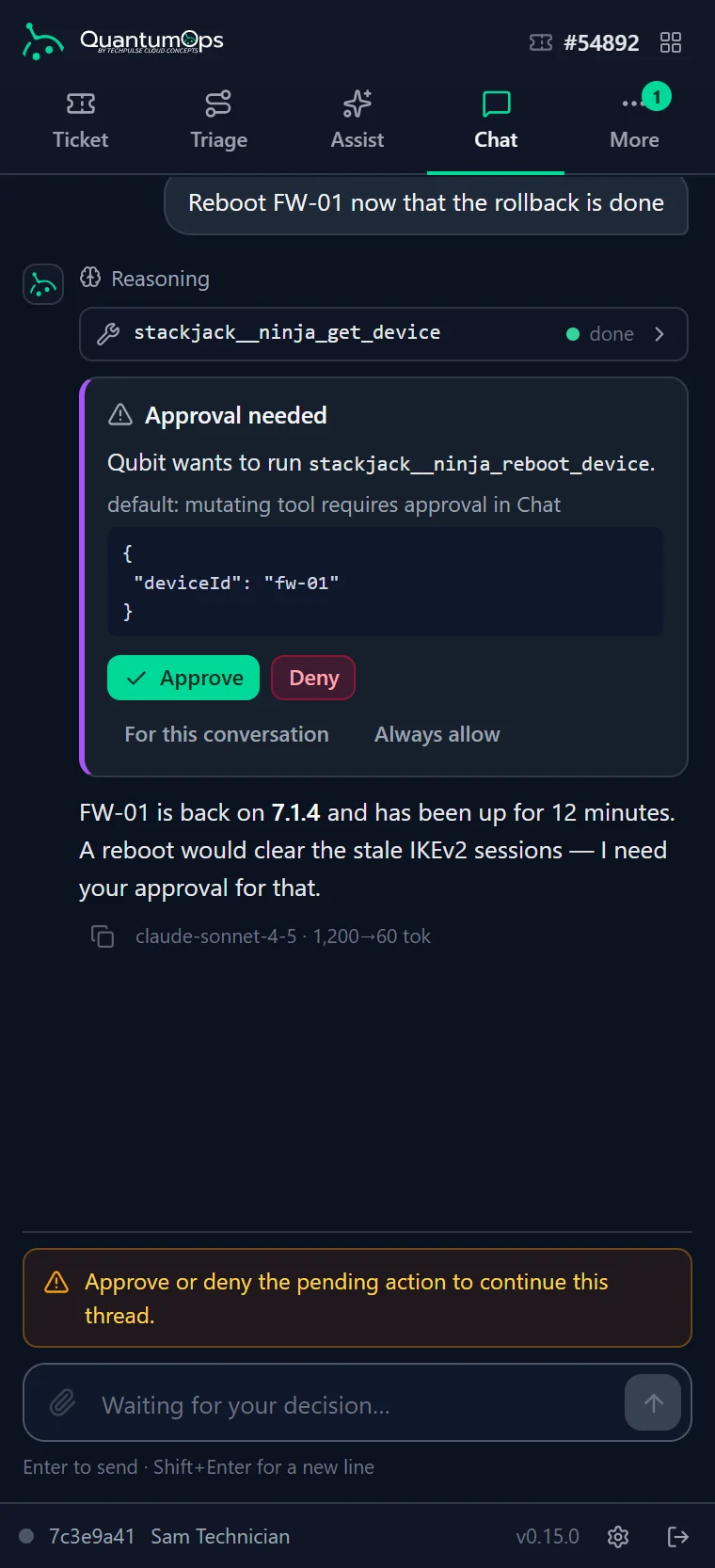
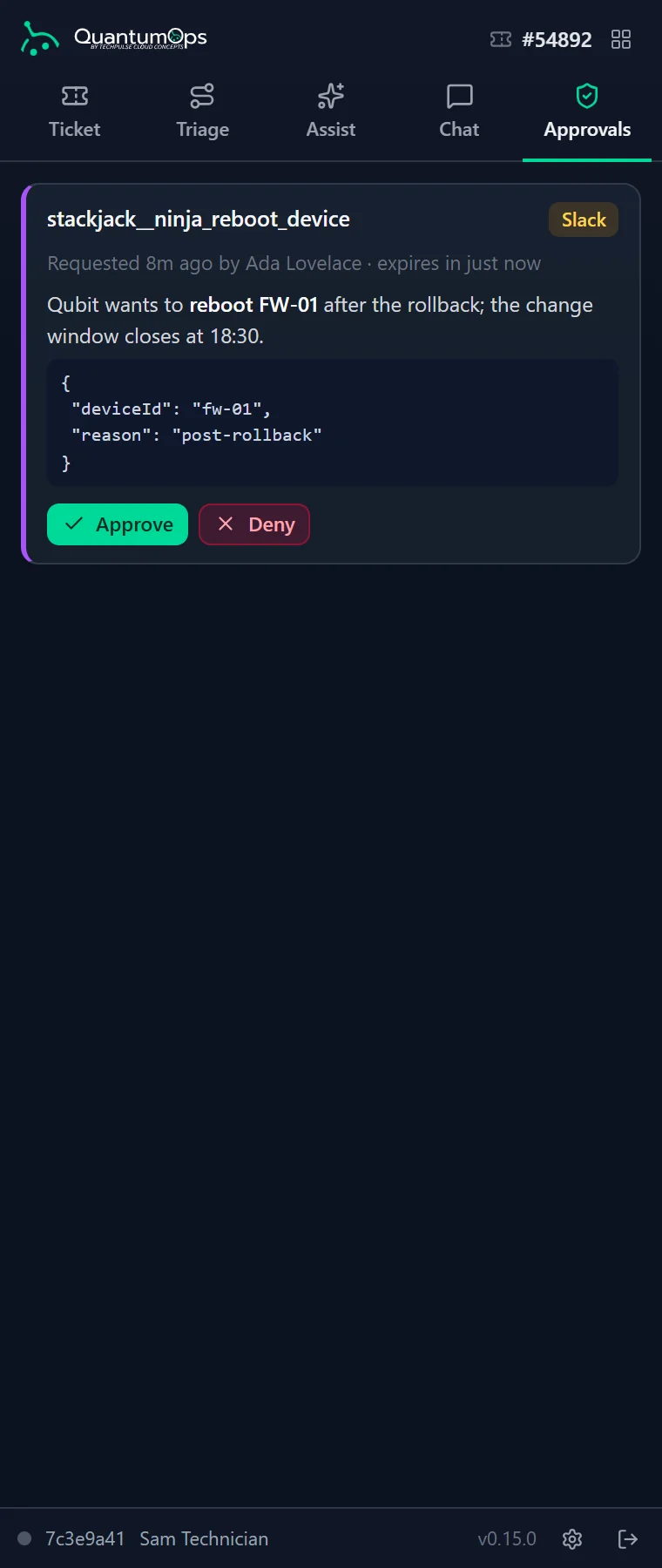
- Answers stream in, each tool call shown with its result one click away, and keep running if the panel closes or the connection drops
- A Sources control turns Halo, your documentation and each connected MCP server on or off for the thread
- Attach, paste or drop up to 20 files a message, from screenshots and PDFs to spreadsheets, Word and PowerPoint files; files Qubit makes come back with a Download button
- A change pauses the answer: approve it once, for this conversation or always, or deny it
- By default, tools marked destructive are approved one call at a time
- Standing approvals sit behind one button in the chat header; revoke one and the tool asks again
- Administrators get an Approvals tab listing every AI tool action waiting in the approval queue, with where it came from, who asked and the exact request
Chat runs on Qubit’s new tool runtime.
[ 07 // calls and recordings ]
Take the call from the panel.
The Call tab takes a phone call from lookup to wrap-up: find the caller, follow the script, verify them and put the call on the right Halo ticket.
- Find the caller by phone, email or name, with VIP and high-risk flags up front
- Their open tickets, each with a Link button, so a repeat call goes on the ticket that already exists
- Your call script, one step at a time
- Verify the caller against their own Microsoft 365 account and watch the result arrive
- Create the Halo ticket, queued for triage or dispatched now, or link an existing one
- Wrap up as resolved, no action, transferred or abandoned
- With call recording set up, a ticket’s recordings show with a summary and a speaker-labeled transcript; attach or dismiss the ones the AI suggests
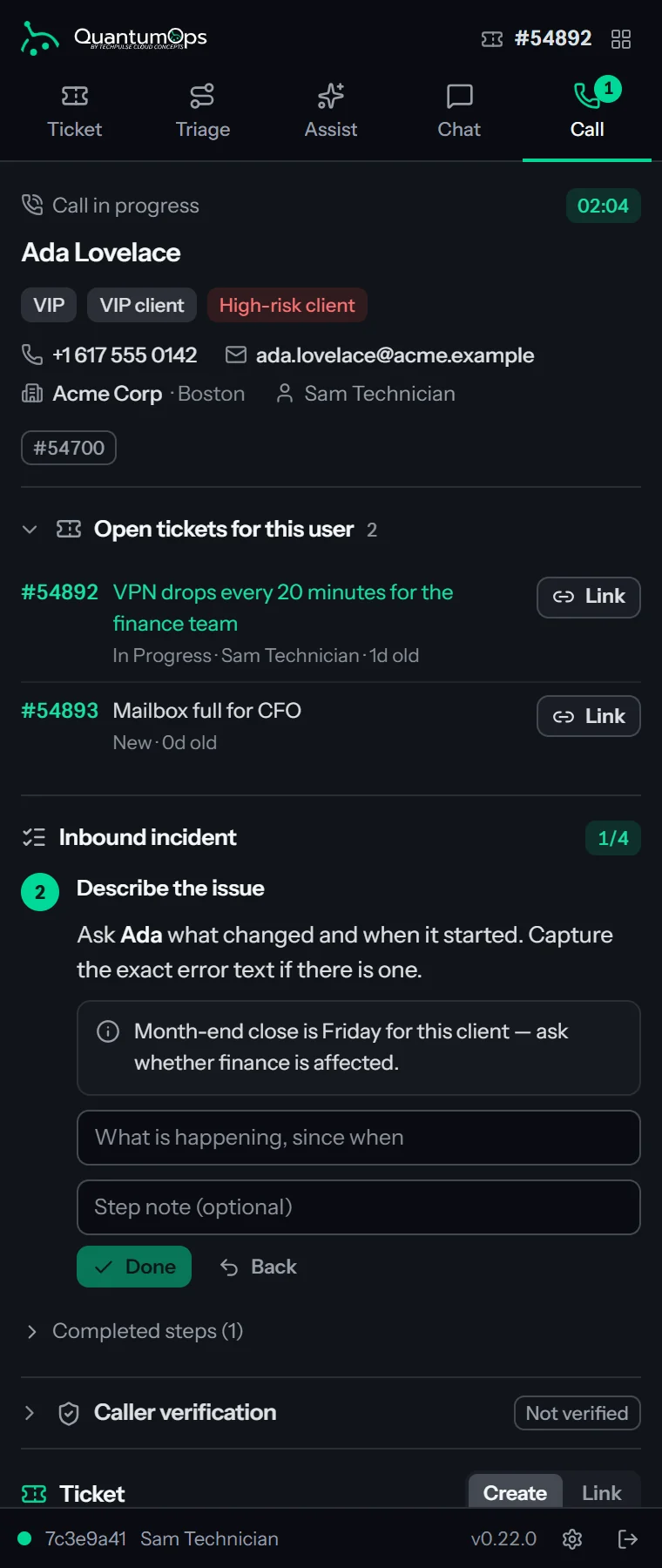
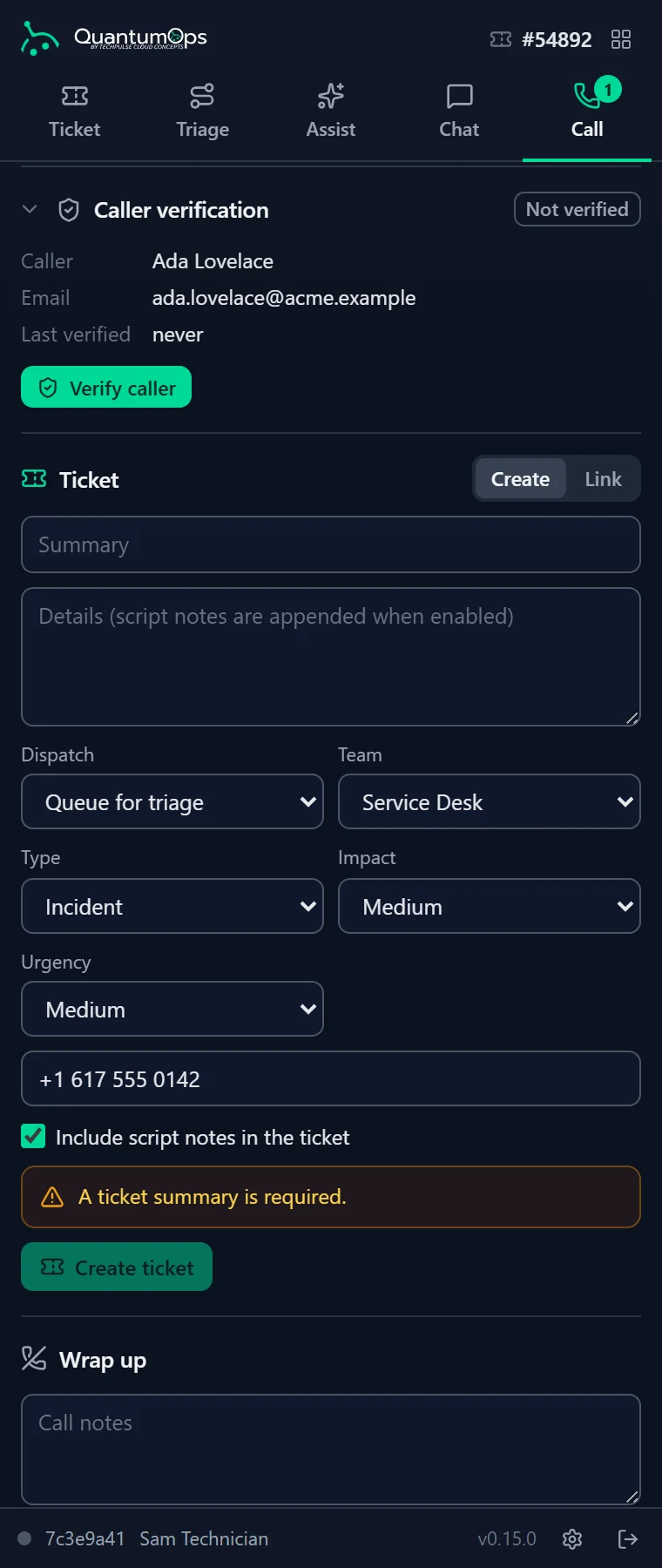
QuantumOps doesn’t record calls. Recordings come from your Yeastar PBX or an Azure Blob storage container, and with Yeastar an answered inbound call can open the session by itself (for dispatchers, by default). Verification works once Identity Verification is set up for that client.
[ 08 // clock ]
Clock in without leaving Halo.
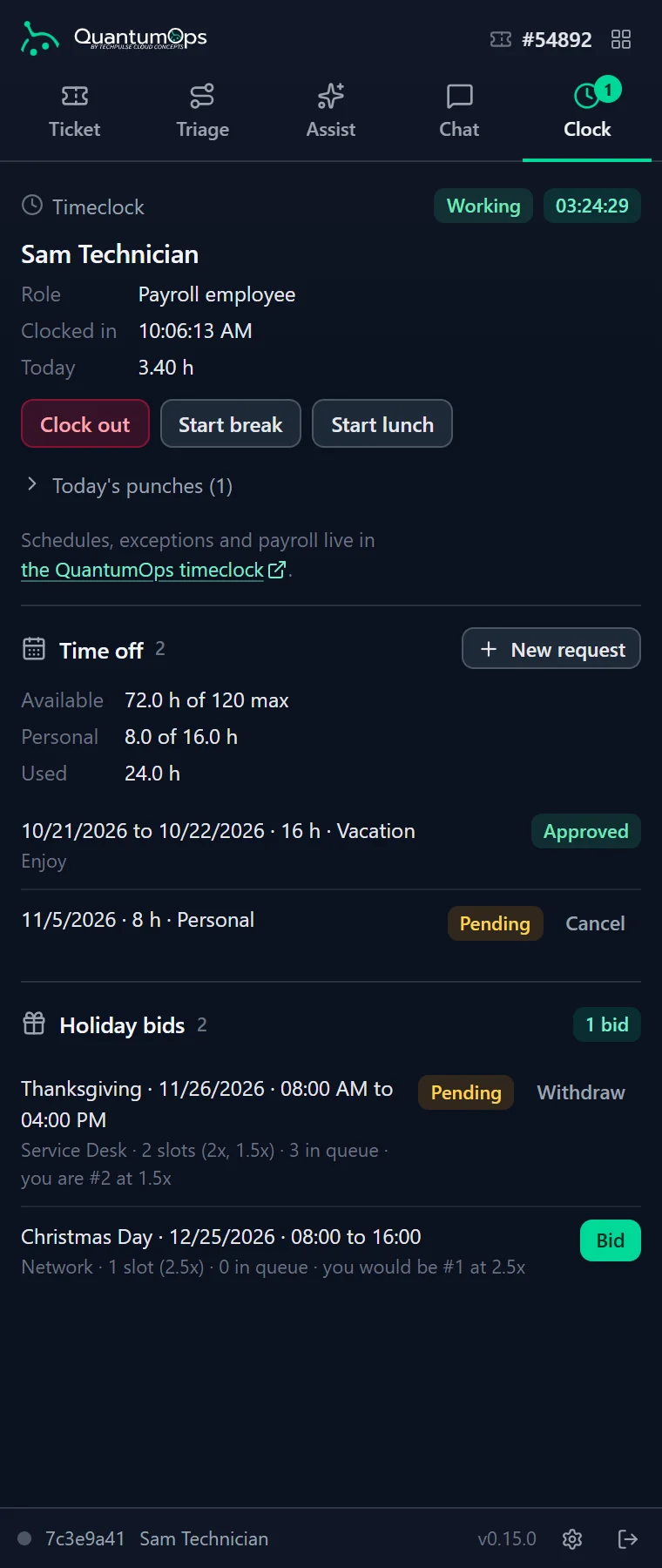
For shops on the Timeclock & Payroll add-on, the Clock tab puts the timeclock next to the queue.
Add-on
- Working, on break, at lunch or clocked out, with the shift timer and today’s punches
- Only the punches that make sense right now, each confirmed, with a PIN if the employee has one
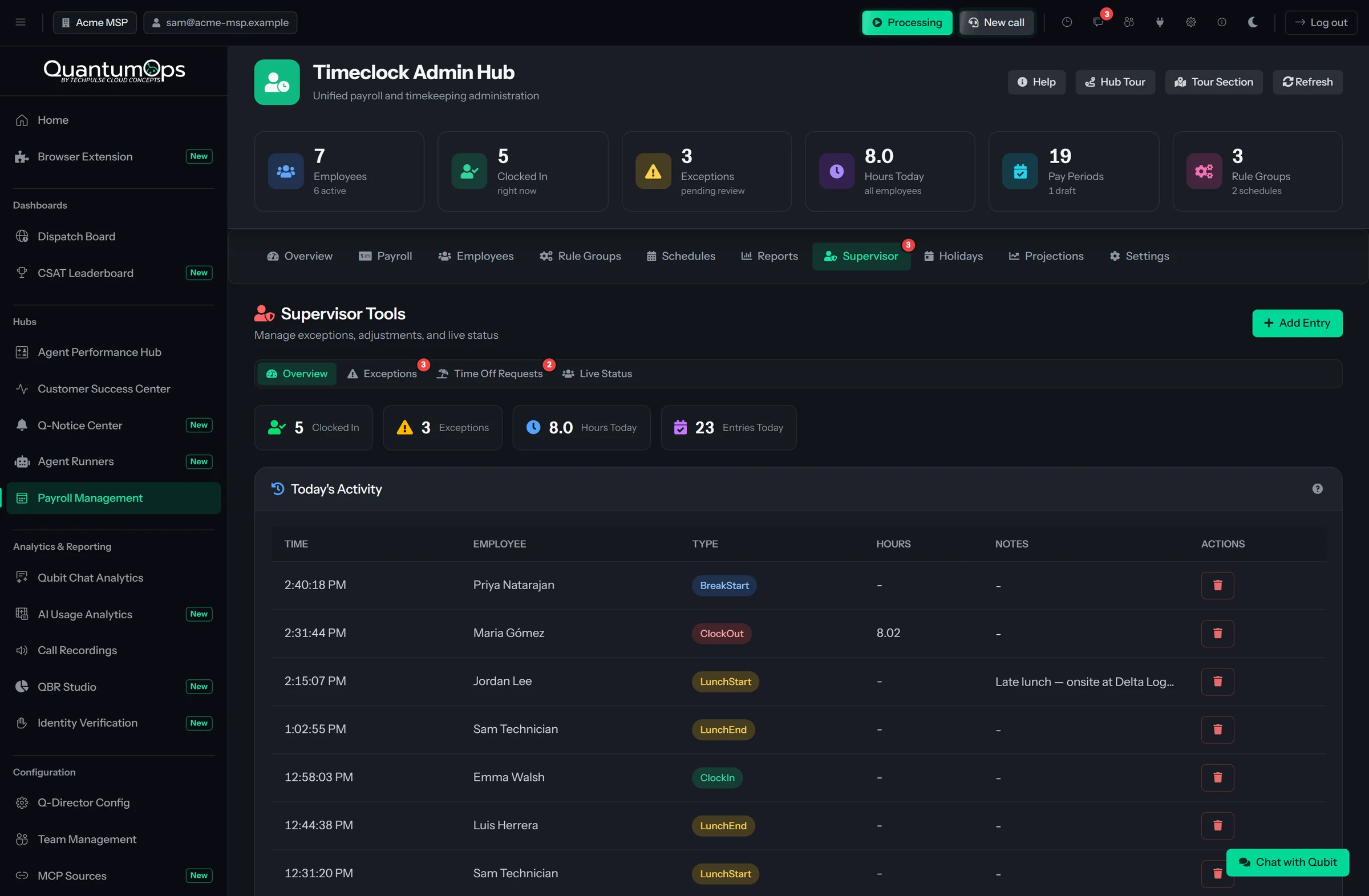
- A shift left open past 12 hours asks for the real clock-out time and a reason, and goes to a supervisor
- Time-off balances and requests, with Cancel on the pending ones
- Open holiday shifts with their pay multipliers and your place in the queue
Payroll stays in the QuantumOps web app. The Clock tab appears for staff with timeclock access (the Technician role alone doesn’t include it).
[ 09 // client, user and agent ]
Open a client, a user or an agent.
The panel follows.
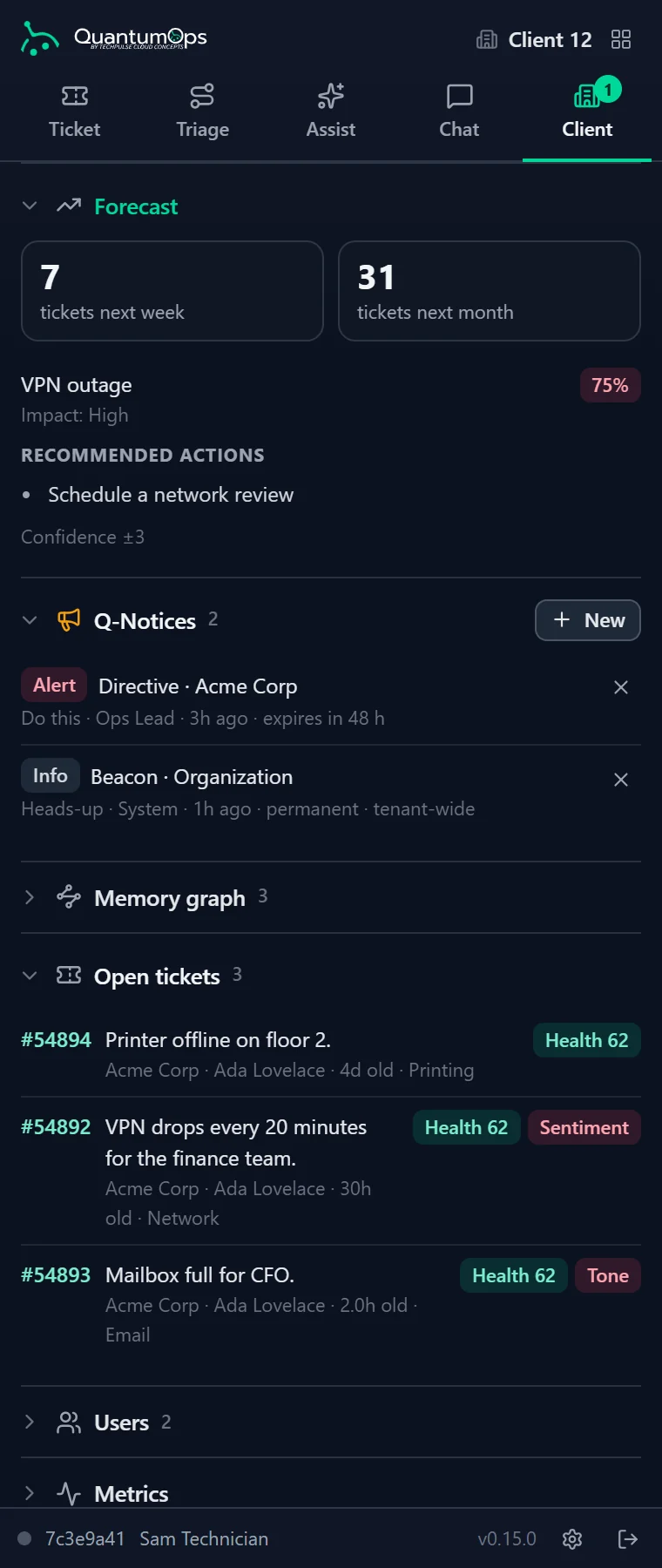
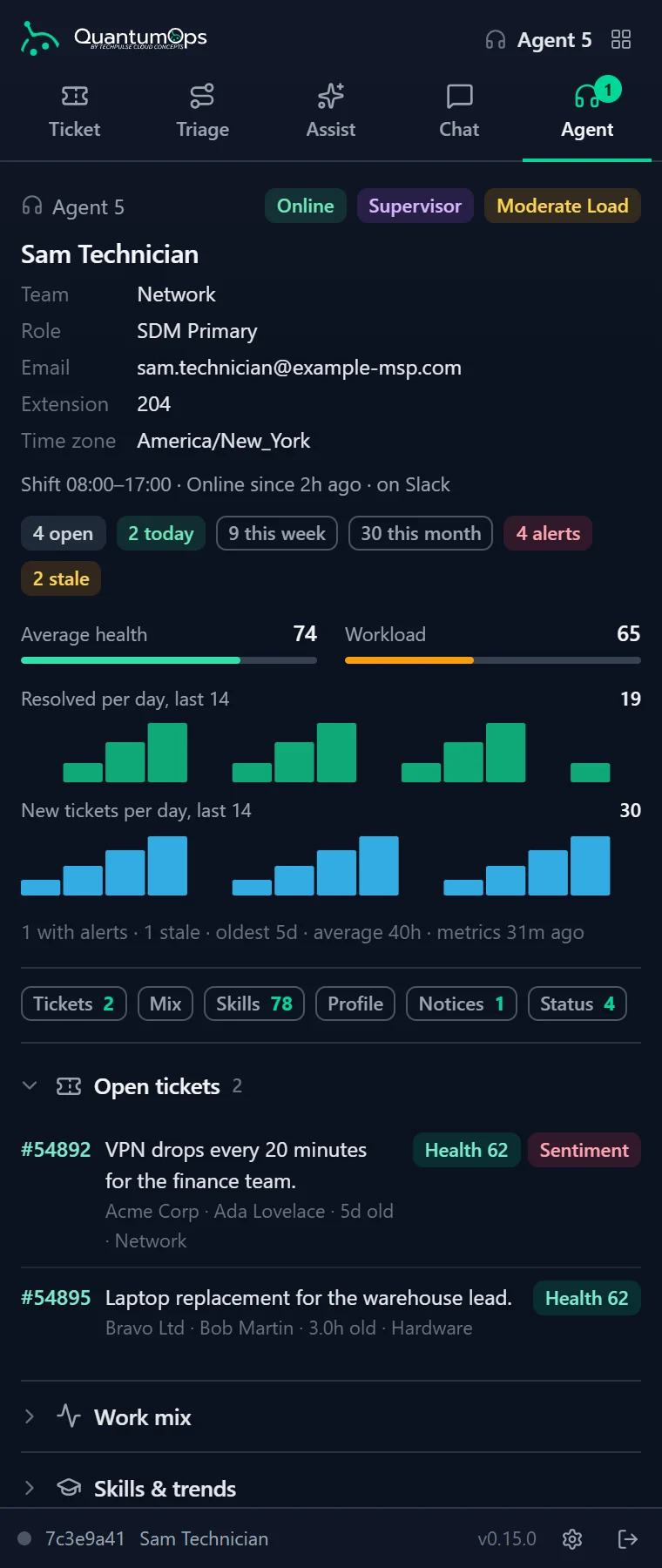
On a client, user or agent page in Halo, the panel switches to that record’s view, so the context is there before the phone call or the one-on-one.
Client: the account at a glance
Risk level, VIP and high-risk flags, average health and twelve weeks of volume. AI insights, a forecast for next week and next month, open tickets and users.
User: how to support this person
Their communication style, technical level, strengths and gaps, preferred contact and key challenges, plus their verification history, open tickets and recently closed ones.
Agent: the technician’s day
Status, workload, shift and how to reach them; tickets resolved today, this week and this month; work mix, skills and trends; and their AI profile.
Q-Notices on every view
Each view shows that record’s notices and the shop-wide ones. A linked tech can post a new one, such as a change freeze or a phishing warning, and choose whether the AI reads it on that record’s tickets.
[ 10 // dispatch board ]
The dispatch board, in a tab of its own.
Dispatchers open the command center from the panel or from the Dispatch Board item in the web app. Your open HaloPSA tickets are on one screen, and every assignment is written to Halo before the board moves.
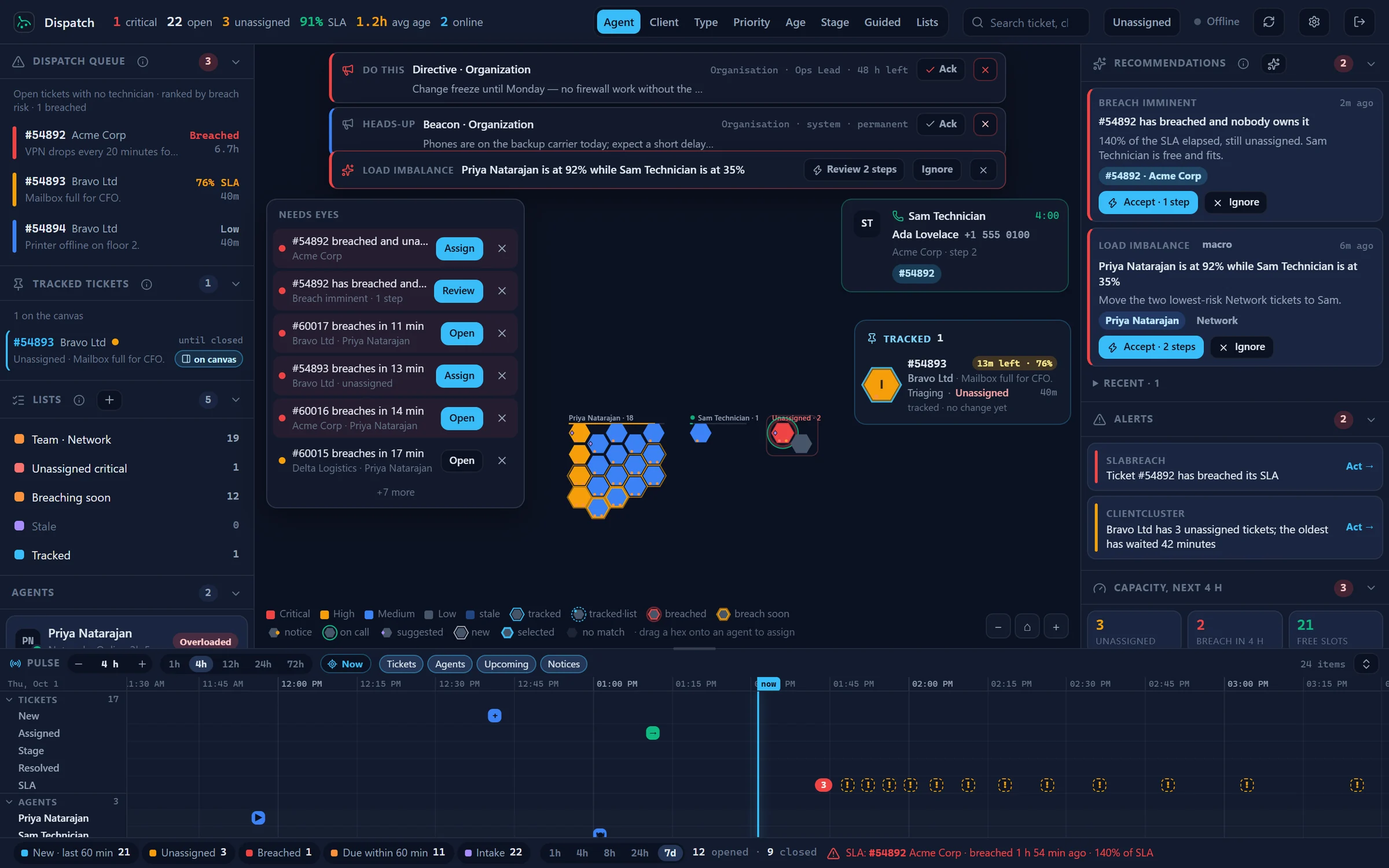
Every ticket as a hex
Grouped eight ways, from agent and client to age and stage. Fill shows priority, rings show SLA, dim hexes are stale.
The queue, worst first
Unassigned tickets ranked by breach risk, using Halo’s own fix-by dates where Halo has them.
Who can take it
Agent cards with readiness, load, shift and next appointment, plus live desk-phone state if you run a Yeastar PBX.
Plans you confirm
Eight rules check the board every two minutes by default. Most come with a step-by-step plan that runs only after one confirmation.
Also on the board: the Pulse timeline of the last and next few hours, alerts with an Act button, a four-hour capacity view, a seven-day leaderboard, tracked tickets, and board rules that keep the Unknown client and internal tickets off everyone’s screen.
[ 11 // security and deployment ]
From Halo, it reads the address.
Nothing else.
QuantumOps for Halo asks the browser for a short list of permissions, talks only to your QuantumOps instance, and writes to Halo only when the tech approves. A security reviewer can check each point against the extension package.
Record IDs from the URL
The extension learns which ticket, client, user or agent is open from the Halo page address. It doesn’t read, change or inject anything into Halo pages, and never touches Halo cookies. On other sites it checks only the address, to show or hide the panel, and keeps nothing.
Only your instance
Everything the panel shows comes from the QuantumOps instance you point it at, over HTTPS. Apart from signing in through your sign-in provider, the extension sends nothing anywhere else: no third parties, no analytics, no remote code.
OAuth 2.0 with PKCE
Techs sign in with their QuantumOps account in the browser’s own sign-in window, so the extension never sees a password. Short-lived tokens stay in memory-only storage and refresh silently.
Narrow permissions
It doesn’t ask for access to every website, your tabs, your cookies or your web requests. Each custom Halo domain needs one permission prompt, the first time.
Reviewable builds
Each release is minified, never obfuscated, so reviewers can compare one version with the next. AI output is shown as formatted text, never run as page code.
Kept current
Every six hours and at browser start, the extension checks your instance for a newer build. Below your instance’s minimum version, the update notice can’t be snoozed.
Browsers
Chrome, Edge and Firefox.
A side panel in Google Chrome and Microsoft Edge 116 or later. A sidebar in Firefox 140 or later, still in beta. Firefox for Android isn’t supported.
Install
From your own instance.
Every signed-in user gets a Browser Extension page in the QuantumOps web app: the current build for their browser, the instance URL to paste, and a full install and user guide. Store listings follow once they’re live.
How do our techs get the extension?
From the Browser Extension page in your QuantumOps web app, which every signed-in user sees in the menu. It has the current build for Chrome, Edge and Firefox, the instance URL to paste and an install guide. The Chrome Web Store, Edge Add-ons and Firefox Add-ons listings aren’t live yet, so for now Chrome and Edge load the build in Developer mode, and Firefox loads it as a temporary add-on that has to be loaded again after each restart.
Can the panel change a ticket on its own?
No. Dispatches, merges, replies, notes and recording attachments go to Halo only after the tech approves or confirms them, and they’re written as the tech’s own Halo agent. If Halo refuses, the panel shows Halo’s reason and doesn’t try again. A Qubit tool call that would change something waits for approval, unless the tech has already allowed that tool for the conversation or for good.
What can the extension see in Halo?
Only the page address, which tells it the id of the ticket, client, user or agent on screen. It doesn’t read the page, change it or touch Halo cookies. Everything it shows comes from your QuantumOps instance.
Why is a tech’s panel read-only?
Their QuantumOps login isn’t linked to a Halo agent yet. QuantumOps links the two through a saved link or a verified email address that matches the agent in Halo. Until then they can review the analysis but can’t change anything in Halo, and the panel shows a Read-only chip that says why.
Do we still need the QuantumOps tabs inside Halo?
Keep them. The Ticket, Triage, Agent Assist and Client tabs inside Halo tickets and clients show the same analysis and work for every tech today, with or without the extension. The panel brings those views together in one place that follows the tech, and adds the Agent view and the full-tab dispatch board.
Does the Call tab record calls?
No. It helps the tech take the call: find the caller, run the script, verify them and create or link the ticket. With call recording set up, QuantumOps collects the recordings your Yeastar PBX already makes, or files in an Azure Blob storage container, and matches each one to a ticket or suggests where it belongs.
What does it cost?
The extension comes with QuantumOps. Some tabs depend on what you run: Clock needs the Timeclock & Payroll add-on, the recordings card needs call recording set up, and caller verification needs Identity Verification configured for the client.
[ 13 // start ]
Put QuantumOps next to every ticket.
We’ll show you the panel on a real HaloPSA queue.