

[ 01 // timeclock and payroll ]
From punch to paystub,
in five steps.
Timeclock & Payroll is a separately licensed QuantumOps add-on for MSPs that also run a payroll. Staff clock in with a PIN, supervisors fix punch problems the same day, and a five-step wizard takes each period through to PDF paystubs, on pay rules you set for each country.
[ 02 // who it’s for ]
Add-on
For MSPs that also run a payroll.
Timeclock & Payroll is licensed on its own and stays off until an administrator switches it on in Module Management. Then a Payroll Management item in the menu opens the Timeclock Admin Hub, and a clock button in the header opens the employee timeclock.
Employees and techs
Clock in with a PIN.
Punch in and out, take breaks and lunch, check balances, request time off and, where you allow it, bid on holiday shifts, from a shared screen or their own page.
Supervisors
Clean punches, same day.
See who is on the clock, clear missed clock-outs and stale shifts, add missing punches and approve time off.
Payroll
Run the period in order.
Set the rules and pay schedules, reconcile leave and punches, audit the variances, then lock the period and email the paystubs.
Accountants
Review without an account.
An outside accountant reviews and adjusts the period through a link that expires, and every change comes back as a diff. Accountants on your staff get a role that opens only the wizard’s Summary & Export step.
These roles decide who does what. Timeclock (and Service Desk Manager) for the Clock tab in the browser extension, Timeclock Admin for the hub and supervisor tools, Payroll Admin for periods, rules and the whole wizard, Payroll Accountant for the wizard’s Summary & Export step only, and Administrator for all of it. The web timeclock needs only a PIN, and an outside accountant needs only the link.
[ 03 // the timeclock ]
A name, a PIN, a punch.
Staff pick their name and enter a 4 to 6 digit PIN. No email, no password, and people who never open HaloPSA use the same clock as your techs.
- Clock in and out, and start and end breaks and lunch
- Five wrong PINs lock the record for 15 minutes
- Each punch records the device, browser and IP address it came from
- A shift left open past 12 hours is caught at the next clock-in: the employee enters the real clock-out time and a reason, for their supervisor to approve
- Employees can’t edit their own punches; corrections go through a supervisor
Where staff punch
On a shared screen
The timeclock runs in the browser on any shared PC, tablet or phone.
On their own page
The same PIN opens each person’s dashboard, most of it translated into Spanish: a live timer, today’s hours, PTO, personal and expiring-time balances, time-off requests and, for eligible staff, holiday-shift bids.
In the Clock tab
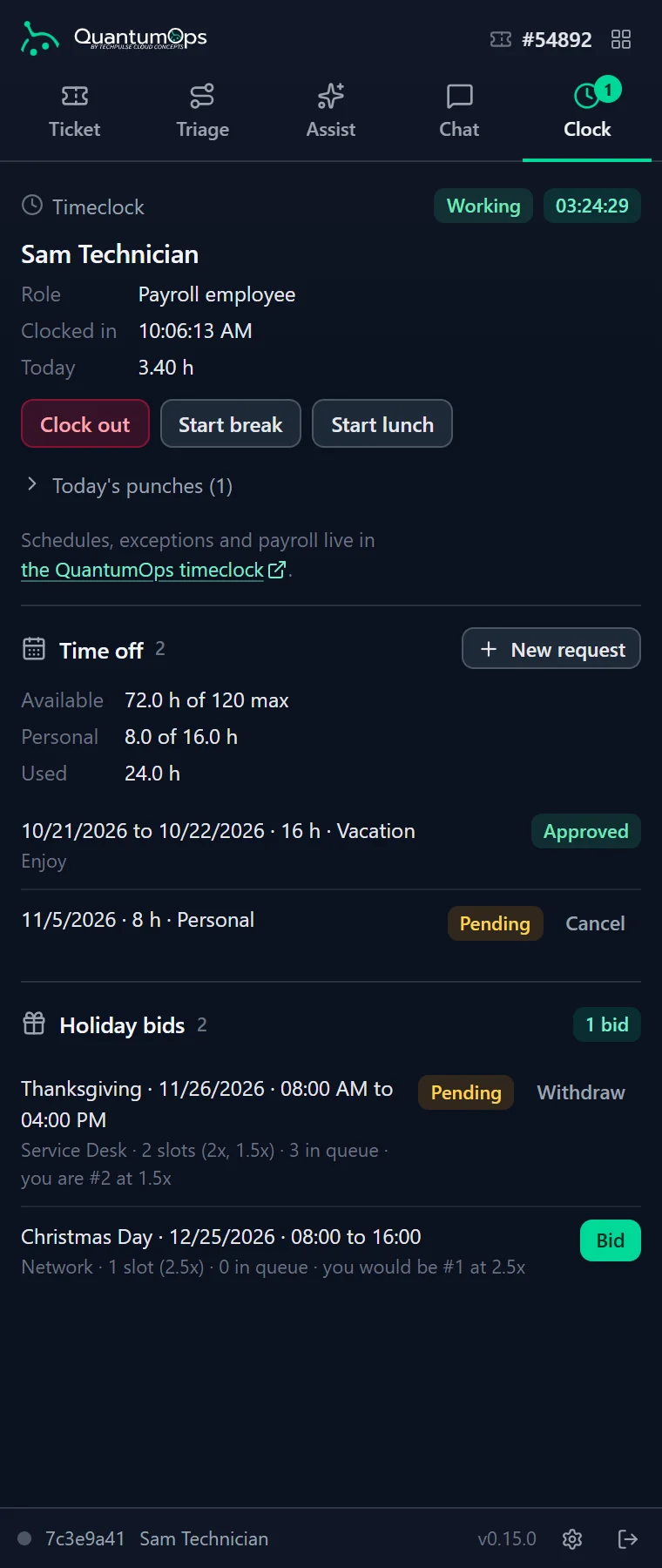
The clock, time off and holiday bids in the QuantumOps for Halo side panel, next to Halo.
Who sees it: the Clock tab shows for the Timeclock, Timeclock Admin, Payroll Admin, Service Desk Manager and Administrator roles, not for Technician alone. Payroll stays in the web app.
[ 04 // supervisors ]
Punch problems, fixed the same day.
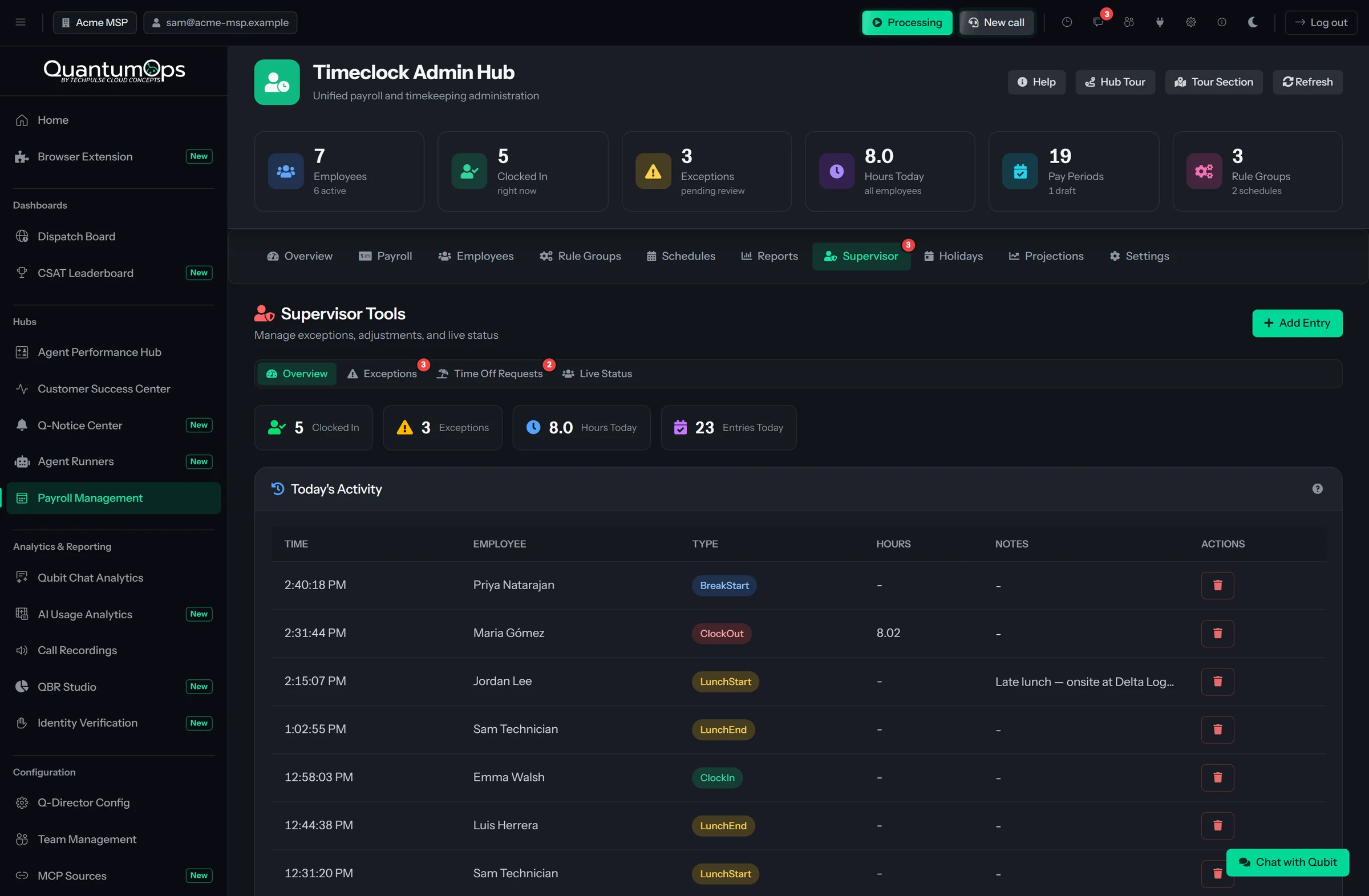
The Timeclock Admin Hub is one screen for the day’s attendance, pay periods, employees, rules, schedules, holidays and cost forecasts, across ten tabs.
Missed clock-outs, caught
A shift left open past 12 hours stops the next punch until the employee says when they left and why. That becomes an exception for a supervisor to approve or reject, and a rejection needs a written reason.
Fixes from the Supervisor tab
For techs linked to a HaloPSA agent, force a clock-out from Live Status or add a missing clock-in or clock-out at the right time. Approve or reject time-off requests there too. Any employee’s missing punch, breaks and lunches included, can be added during the payroll run.
Stale shifts
The Stale Clock-Ins panel lists shifts still open after 12 hours: email the employee a reminder, force the clock-out or fix it by hand. An on-demand scanner finds finished shifts over 12 hours in any date range.
Reports for audits
Filter every punch by date, employee and type, with IP address, device and notes. Export it to CSV with a daily summary of first in, last out, breaks and net hours.
Email when it matters
Eight notifications, from a time-off request to a missed clock-out to payroll approval, each off until you switch it on. Choose whether the employee, the supervisors or extra recipients get each one.
On the dispatch board, too
The dispatch board in the browser extension shows Halo-linked techs’ clock-ins, breaks and lunches as they happen, so dispatchers can see who is at lunch.
[ 05 // time off and holidays ]
Leave, holidays and rosters, in one place.
Balances, approvals, holiday pay and schedules live next to the punches, so payroll starts from the right numbers.
Time off and balances
PTO, personal time, expiring grants such as voting leave, and unpaid time, each with its own balance. PTO can accrue through a payroll rule up to a maximum balance, and requests go to a supervisor.
Holiday calendars
Import a year of public holidays for the US, Mexico, Colombia or the Philippines, including holidays that move to a Monday. Give any holiday its own multiplier.
Holiday shift bidding
Publish a holiday shift with a multiplier per seat, such as 3.0× for the first two seats and 2.0× for the third. Eligible staff bid first come, first served and see their place in the queue, and a supervisor approves the winners. The premium lands on the paystub.
Pay and work schedules
Weekly, biweekly, semi-monthly or monthly pay. Fixed, alternating or custom rosters, night shifts included, which set overtime thresholds and expected hours.
[ 06 // the payroll wizard ]
Five steps, in order. None skipped.
Open a pay period in the wizard and it moves one step at a time; it won’t jump ahead. Progress is saved per period, so reopening it lands on the step where work stopped.
Step 1
Setup
The period, the employees and the payment date. If payday comes before the period ends, the remaining days can be estimated from the schedule.
Step 2
Reconcile
Leave, incapacity, unpaid time, broken punches and one-off adjustments, plus an overtime checklist and an AI review of the punches.
Step 3
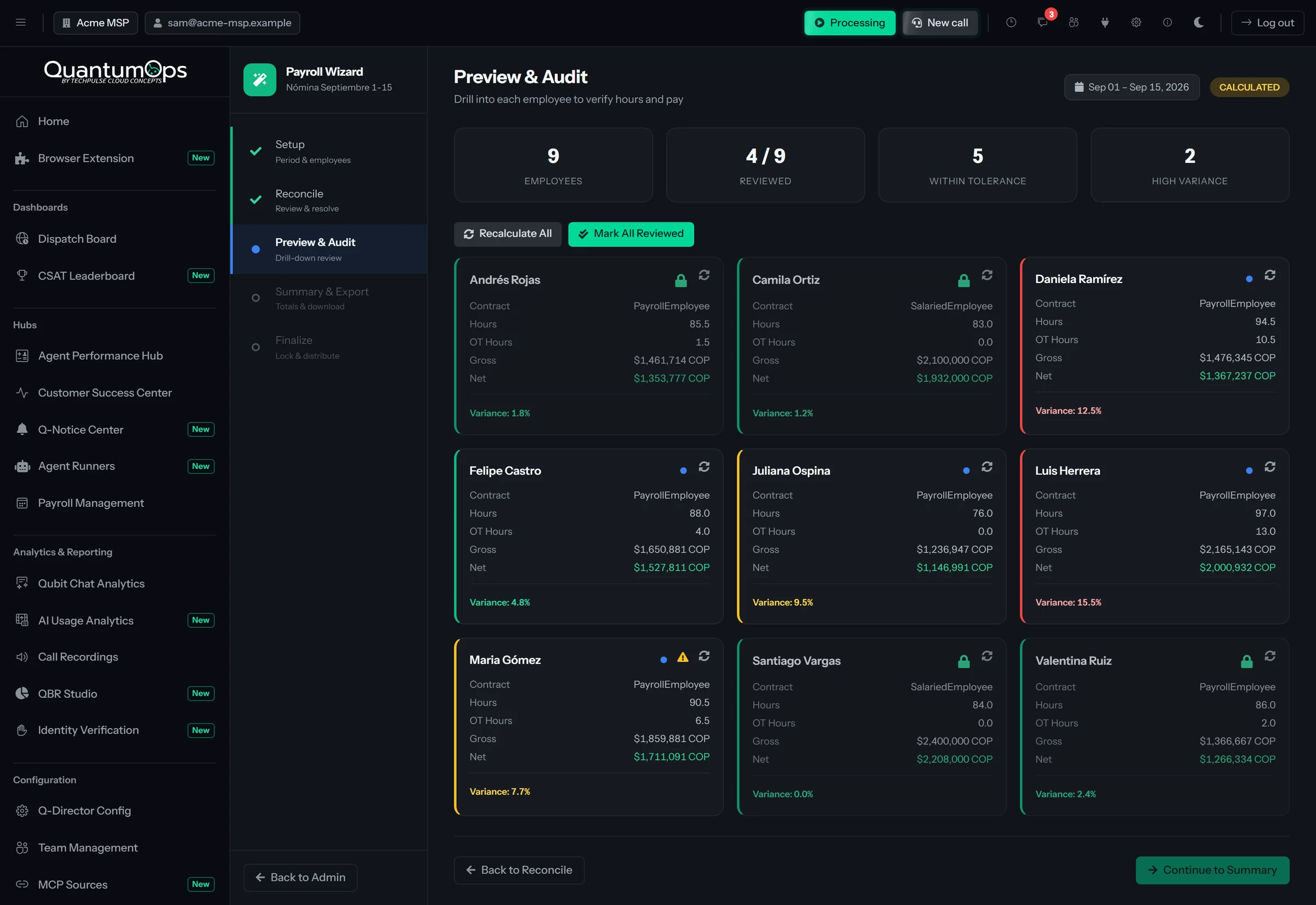
Preview & Audit
A card per employee, green, orange or red by variance from expected hours, that drills down from employee to day to punch.
Step 4
Summary & Export
Editable totals per currency, an Excel workbook and a secure review link for your accountant.
Step 5
Finalize
Lock the period, download the final report, then generate and email PDF paystubs.
Reconcile clears the exceptions first.
- Add PTO days, unpaid time and incapacidad (general, work-related, maternity or paternity) at its own pay percentage, 66.67% by default
- Approve or reject pending exceptions, correct a punch time with a note, or add any missing punch
- Work through an overtime checklist, employee by employee
- Record bonuses, deductions, reimbursements and corrections under a category that prints on the paystub
Then a second pair of eyes.
Press Run AI Analysis and Claude reads each employee’s punches, overtime settings, expected hours and the average of their last three periods. It flags pattern changes, clustered punch times, lopsided days and unusual times or places, each as a warning or a critical finding with a recommendation. It runs on demand, for up to 50 employees at a time, and only flags: a person decides what happens next. Findings aren’t kept after you leave the wizard.
 Reconcile · AI review4 findings
[ 07 // rules engine ]
One rules engine.
Any country’s payroll.
Every shift is split to the minute at midnight and at the night boundary you set, and its hours are sorted into eight buckets: day or night, weekday or Sunday, regular or overtime. Each hour is paid at its bucket’s rate, and every rate, threshold and window is yours to set per rule group or per employee.
Hours breakdown8 bucketsAll regular hours. Split at the night boundary and again at midnight; breaks come off before the weekly overtime check.
The eight buckets
Example rates · all editable
- Day · regular
- Base
- Night · regular
- +35%
- Sunday day · regular
- +75%
- Sunday night · regular
- +35% +75%
- Day · overtime
- 1.25×
- Night · overtime
- 1.75×
- Sunday day · overtime
- 2.0×
- Sunday night · overtime
- 2.5×
Every rate is a setting, not a constant, per rule group or per employee, and none of it is legal advice. Set the figures in force where your people work for the period you pay, and have your accountant confirm them.
[ 08 // any country ]
Staff in several countries.
One payroll run.
Each rule group carries a country, a currency and its own rules, so people in different countries are paid side by side in the same period.
Starting templates
Start from a ready-made template, such as the full statutory template for Colombia or a US starter, or from a blank rule group. Change anything afterwards.
Night windows and working weeks
Set the night window, the length of the working week and how overtime is counted for each rule group.
Holiday calendars
Import public holidays for the US, Mexico, Colombia or the Philippines, or add your own, each with its own multiplier.
Several currencies
Pay each person in USD, EUR, GBP, MXN or COP. Totals are grouped by currency, and the exchange rates used are saved with each period so later reviews match.
The cost before you run it
Projections of gross, net and fully burdened cost from recent punches or configured salaries, and accrual tracking that flags when accrued payouts come due.
[ 09 // review and paystubs ]
Your accountant reviews.
Everyone gets a paystub.
A review link, not a shared login.
From Summary & Export, generate a link to one period for your outside accountant. It’s shown once, you send it, and they don’t need an account.
- Valid for 1 to 30 days, and you can revoke it at any time
- In English or Spanish
- Pay components, hours, deductions, employer costs, accruals, leave and adjustments on one page
- While the period is still open (not yet exported, locked, closed or paid), they adjust figures and submit the review with a note
- Before you finalize, each edited figure shows as the system figure, the changed figure and the difference, and Analyze with AI summarizes them
Accountants on your own staff get the Payroll Accountant role instead. It opens the wizard at Summary & Export and nowhere else: no locking, finalizing or deleting.
Lock the period, then send.
Summary & Export shows totals per currency (gross, deductions, net, employer costs and burdened cost) above a per-employee grid you can edit, and downloads an Excel workbook: a summary tab, a tab per employee with punches and adjustments, and a Leave & PTO tab. In Finalize you lock the period and download the final workbook, which adds employer burden and accrual balances.
Paystubs can only be made from a locked period. Each PDF pay statement carries the company name, address, tax ID and logo you set, and lists earnings line by line, from night and Sunday premiums to holiday bid premiums and allowances, then deductions, accrual payouts, net pay, year-to-date totals and PTO balances. Email Paystubs sends each employee theirs, PDF attached.
Finalize2 accountant changesPay Statement
Comprobante de Pago · Priya Natarajan · Sep 1 – 15, 2026
- Regular pay
- $1,500.00
- Night premium
- 43.75
- Sunday premium
- 75.00
- Overtime (1.25×)
- 31.25
- Allowance
- 124.55
- Health and pension
- −132.00
- Other deductions
- −85.00
- Net pay
- $1,557.55
Is Timeclock & Payroll included in QuantumOps?
No. It’s a separately licensed add-on to your QuantumOps instance, and it stays off until an administrator turns it on in Module Management. It’s priced on its own; ask us for the current add-on price.
Which countries’ payroll rules does it support?
Any country’s, as rules you set: each rule group has its own country, currency, rates and thresholds. Colombia ships with a full statutory template. The US template is a starting point with flat percentages you set, not IRS or state withholding tables, and it doesn’t file taxes or produce W-2s.
Are template rates kept current with the law?
Not automatically. They’re defaults stored in your rule groups, which you edit per group and per employee, and they aren’t a guarantee of compliance. Set the figures in force and have your accountant confirm them for each period you pay.
Does it connect to our bank, payroll provider or accounting system?
No. What comes out is the Excel workbook, CSV exports, PDF paystubs and the accountant link. There is no direct-deposit file and no electronic payroll filing to a tax authority.
Does any of it go into HaloPSA?
No. Halo agents appear on the timeclock and can be linked to their payroll records, but punches, time off and payroll stay in QuantumOps. Staff who don’t use Halo can be on the payroll too.
Do employees need a QuantumOps login?
Not for the timeclock: a name and a PIN are enough. Techs with the Timeclock role can also punch from the Clock tab in the browser extension, which uses their QuantumOps sign-in. Outside accountants need only the link.
Is it in Spanish?
Partly. Most of the employee dashboard is translated into Spanish, and the accountant review can be opened fully in Spanish. Paystubs carry English labels with Spanish sub-labels. The timeclock’s name and PIN screen, the Timeclock Admin Hub and the Payroll Wizard are in English.
Can we pay before the period ends?
You can estimate it. When payday falls before the period ends, the wizard can fill the remaining days from each person’s schedule so you know what to pay. The period can’t be locked, and paystubs can’t be made, until real punches replace those estimates or they’re cleared, and nothing trues up the difference next period.
What does the AI look at, and can it change pay?
Each employee’s punches (times, types, hours, device and IP-based city), their overtime settings and expected hours, and the average of their last three periods. It runs when you press Run AI Analysis, covers up to 50 employees per run and only flags; people make the corrections. It uses Claude, so it needs Anthropic access through Managed AI or your own Anthropic key.
[ 11 // start ]
See a pay period run end to end.
Book a demo and we’ll take a period from punches to paystubs with you.