

[ 01 // insights ]
Know which clients are drifting,
and which techs need help.
QuantumOps already scores your HaloPSA tickets for sentiment and tone, and flags the ones that stall. Insights adds your customers’ ratings and Halo’s own reporting, and turns all of it into four hubs for service managers and owners.
[ 02 // four hubs ]
Four hubs. One source: your tickets.
Every ticket QuantumOps analyzes gets a sentiment score, a tonality score and a stale check. The hubs add your customers’ ratings and your HaloPSA reporting, and give each person the part they act on.
Service and account managers
Customer Success Center
A feed of unhappy customers and stalled tickets, with an outreach ticket or a survey a couple of clicks away.
The whole team
CSAT
Ratings from the reply and resolution emails Halo already sends, written back to the ticket and turned into a leaderboard.
Service managers
Agent Performance Hub
Workload, ticket health, interaction quality and burnout risk for every technician, with AI coaching profiles.
Owners and account managers
QBR Studio
A client’s quarter from HaloPSA reporting as a slide deck with AI commentary. Present it, download a PDF or PowerPoint, or publish a link that expires; by default the link needs approval first.
[ 03 // customer success ]
Catch the unhappy client before they call.
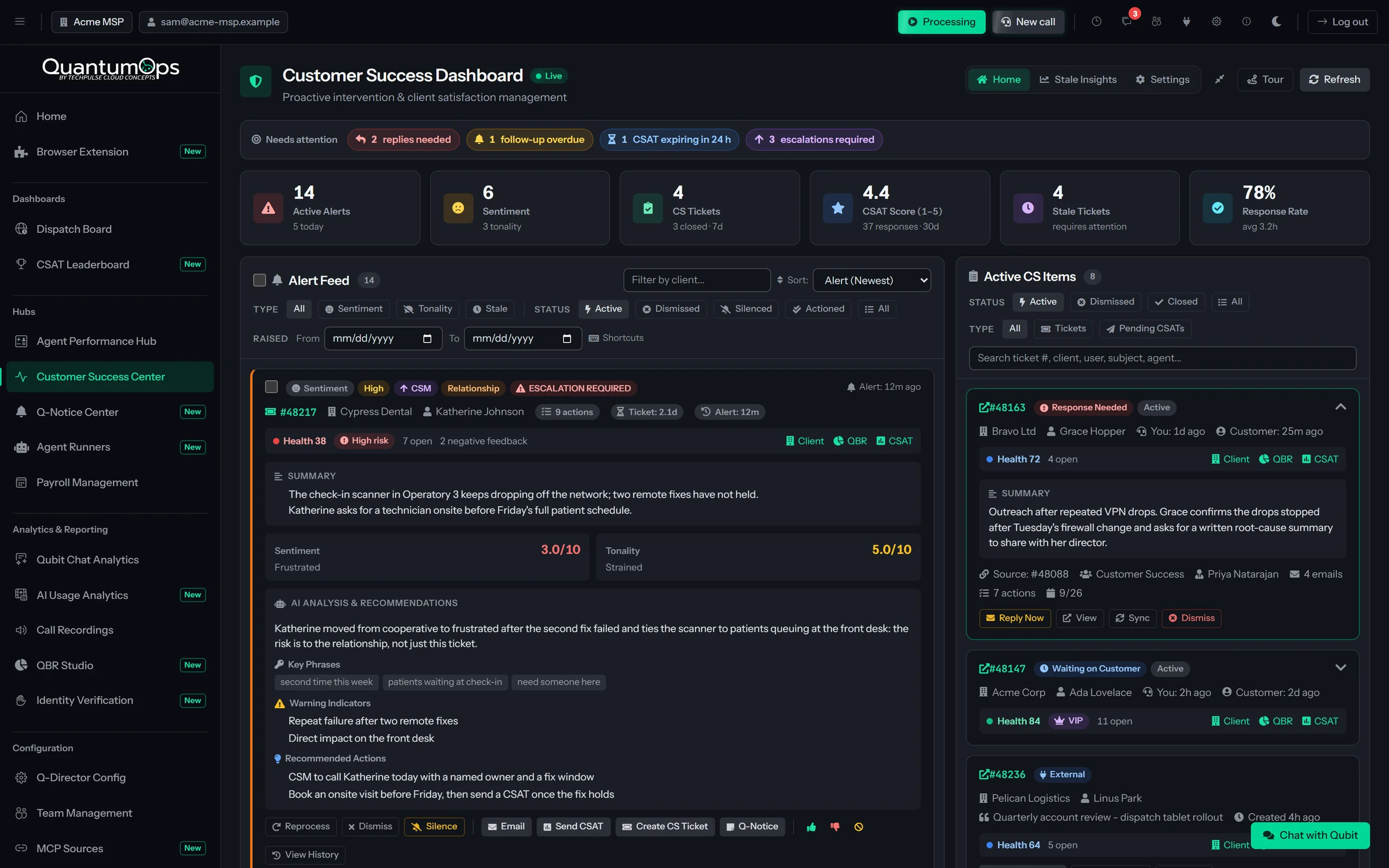
The Customer Success Center turns the tone of ticket conversations, and tickets that have gone quiet, into one alert feed for service managers and account managers.
Each alert shows the customer’s sentiment and tonality out of 10, the phrases behind them and an AI read on what to do next. Filter by type and status, silence an alert for 1 to 24 hours, until the next action or for good, or act on it.
- Open a CS ticket. AI drafts the subject and an outreach email. QuantumOps creates the ticket in HaloPSA with your default type, team and agent, and Halo emails the customer.
- Send a survey. AI writes a question aimed at this ticket. QuantumOps posts it to the Halo ticket with your logo, and Halo emails it.
- Follow up. Tracked CS tickets sync back from Halo. When the customer writes back, Reply Now opens an AI-drafted answer for you to edit and send.
- Keep the record. Every alert and every status change goes to an audit log.
 Create Customer Success Ticket
Alert context
- Ticket
- #54892 · VPN drops every 20 minutes
- Client
- Acme Corp
- User
- Ada Lovelace
- Alert
- Sentiment (High)
- Assigned agent
- Sam Technician
- Risk
- Relationship
Stalled tickets, explained
Stale checks run on thresholds you set, per HaloPSA ticket type if you like: two business days without agent action by default. The AI says why each ticket went quiet and how to restart it.
Stale Insights
A 30-day trend of tickets going stale and recovering, the reasons behind them, and the clients, priorities and categories where they cluster.
[ 04 // csat ]
Ratings from the emails you already send.
Paste a QuantumOps snippet into your HaloPSA email templates. Customers click a face in the reply or resolution email, then rate the ticket on a survey page with your logo.
Service desk → Ada Lovelace, Acme Corp · Resolved
Sam Technician
How satisfied are you with your support experience?
Click a face to rate your experience
Halo sends the email, as it already does. QuantumOps hosts the survey page and brings the answer back to the ticket.
- Reply and Resolved layouts, with emoji faces that show in every mail client, or face images from a built-in set
- Your own question, or one AI writes from the ticket when the link opens
- Your logo, header, footer and thank-you text, and the technician’s photo if you want it
- Feedback tags and a comment, with the comment required for low ratings
- Links expire after the days you choose, and each survey takes one response
Written back to Halo
Each rating posts to the Halo ticket as a note, private by default, so the result sits with the work it rates.
The next tech knows
A low rating flags that end user on the QuantumOps ticket grid and in their Negative Feedback History. Three ratings of 2 or lower mark the client High Risk on the Client Dashboard.
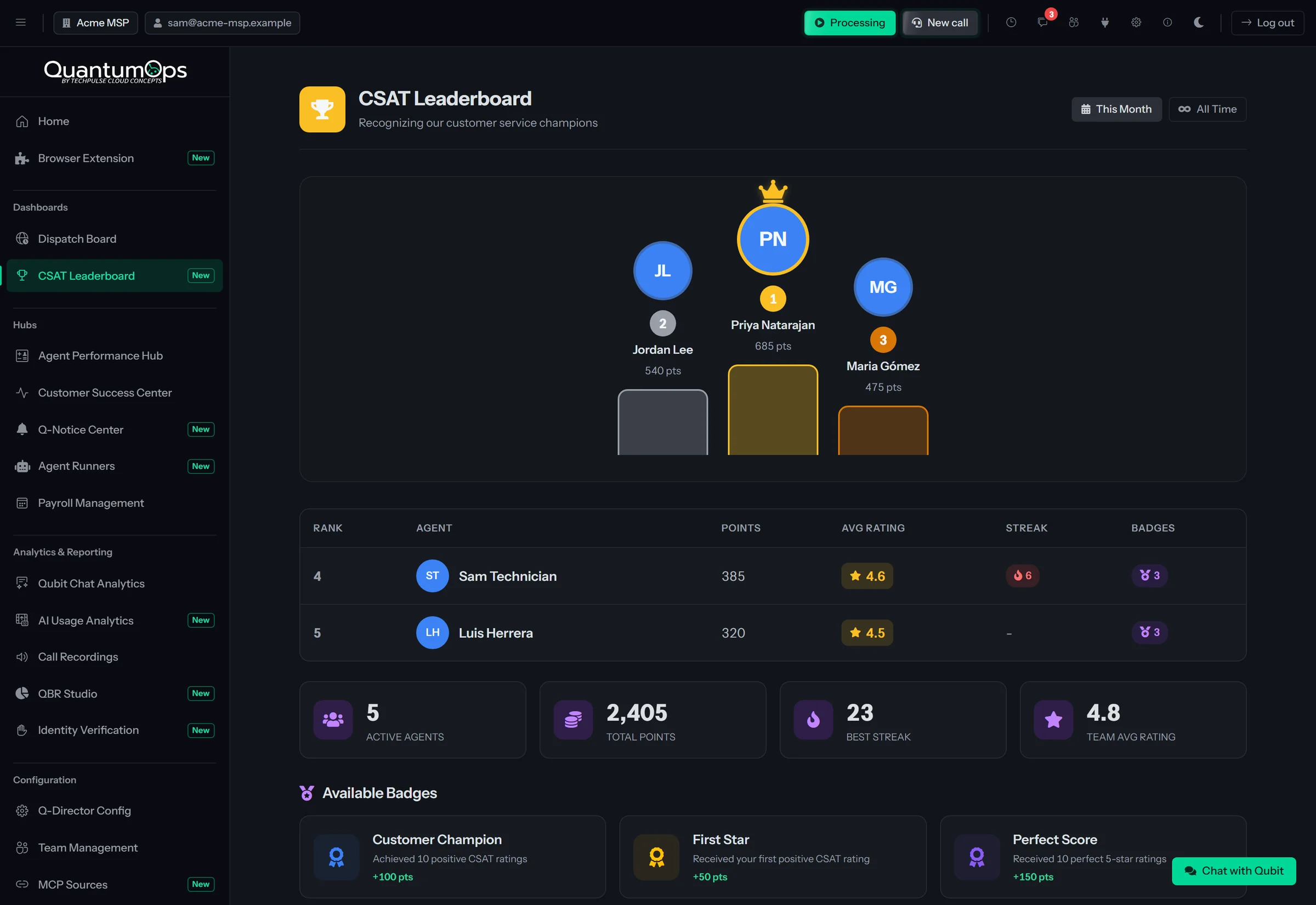
Make good service visible.
Every rating at or above your threshold earns points for the technician on the ticket, and a rating below it resets their streak. The leaderboard ranks the team for this month or all time, with the top three on a podium. Anyone signed in can open it.
- Streak and milestone badges, awarded automatically
- Points per rating and the positive threshold are yours to set
Also available: monthly points targets per technician or for the whole team, and a TV wall display that rotates today’s score, the top performers and customer comments as they arrive.
[ 05 // agent performance ]
Coach from evidence, not a hunch.
The Agent Performance Hub shows service managers each technician’s open-ticket load against thresholds you set, the health of the tickets they carry, the quality of their interactions and their burnout risk.
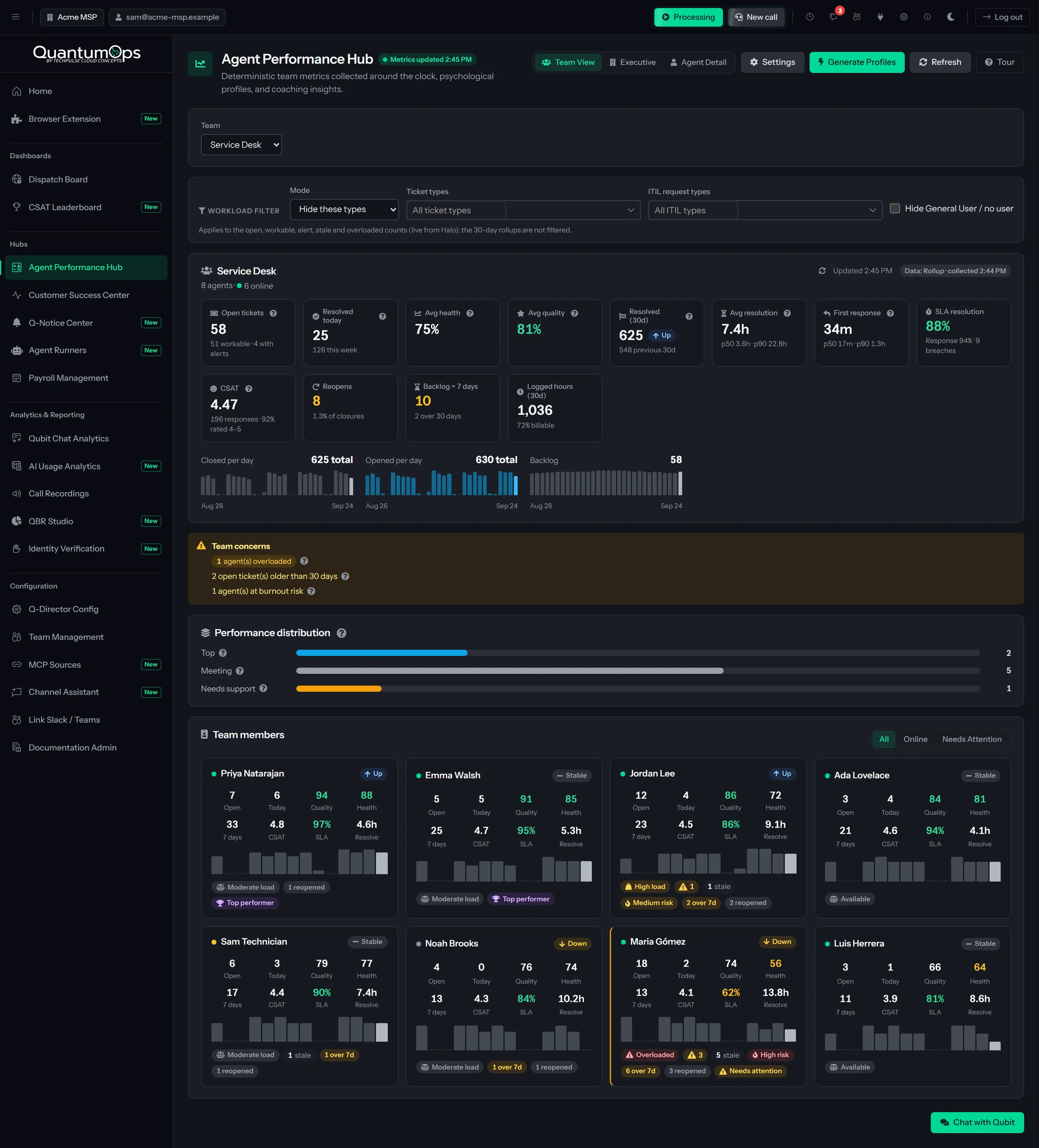
Team View picks a team and says in plain words what needs attention, such as how many agents are overloaded or at burnout risk. Executive View rolls the whole desk up for leadership. Agent Detail opens one technician before a one-on-one. Behind all three, a collector gathers every technician’s numbers around the clock, every 30 minutes by default, into a daily history.
- Overloaded at 15 open tickets and High at 10 by default, not counting tickets on hold or SLA hold unless you want to
- Open-ticket counts come from a HaloPSA snapshot refreshed every few minutes, and open the tickets behind them in one click
- Executive View: resolved today, this week and this month, desk health and quality, burnout risk, team rankings and recommended actions, plus 30-day resolution and first-response times, SLA, CSAT, reopens and logged hours, with weekly trends
- You choose which Halo agents count, so service accounts stay out
AI coaching profiles.
Generate Profiles reads a technician’s real ticket messages from HaloPSA, their last 500 tickets by default, and gives the manager a working-style profile, an emotional-intelligence reading, a skills matrix and a coaching plan with objectives, action steps and feedback tips.
Use it to start the one-on-one conversation, not as an HR assessment: it is the AI’s reading of ticket text.
- One technician, a team or everyone, over recent tickets or a date range
- You set how many recent tickets each profile reads
- Run on demand, or switch on automatic profiles: on weekdays between 3 and 5 AM, AI rewrites a profile only when it is missing, more than 30 days old, or the technician’s numbers have moved
A resolution note on every close Documentation
- Current
- Notes on about half his closes
- Target
- A note before every close
- Time frame
- 30 days
Action steps: write the note before closing · reuse the network runbook template
Take Entra ID tickets solo Technical
- Current
- Few Entra ID tickets handled
- Target
- Owns the next five end to end
- Time frame
- 60 days
Action steps: pair with Priya Natarajan on the next two · AZ-104 study plan
[ 06 // qbr studio ]
QBRs in minutes, not a weekend.
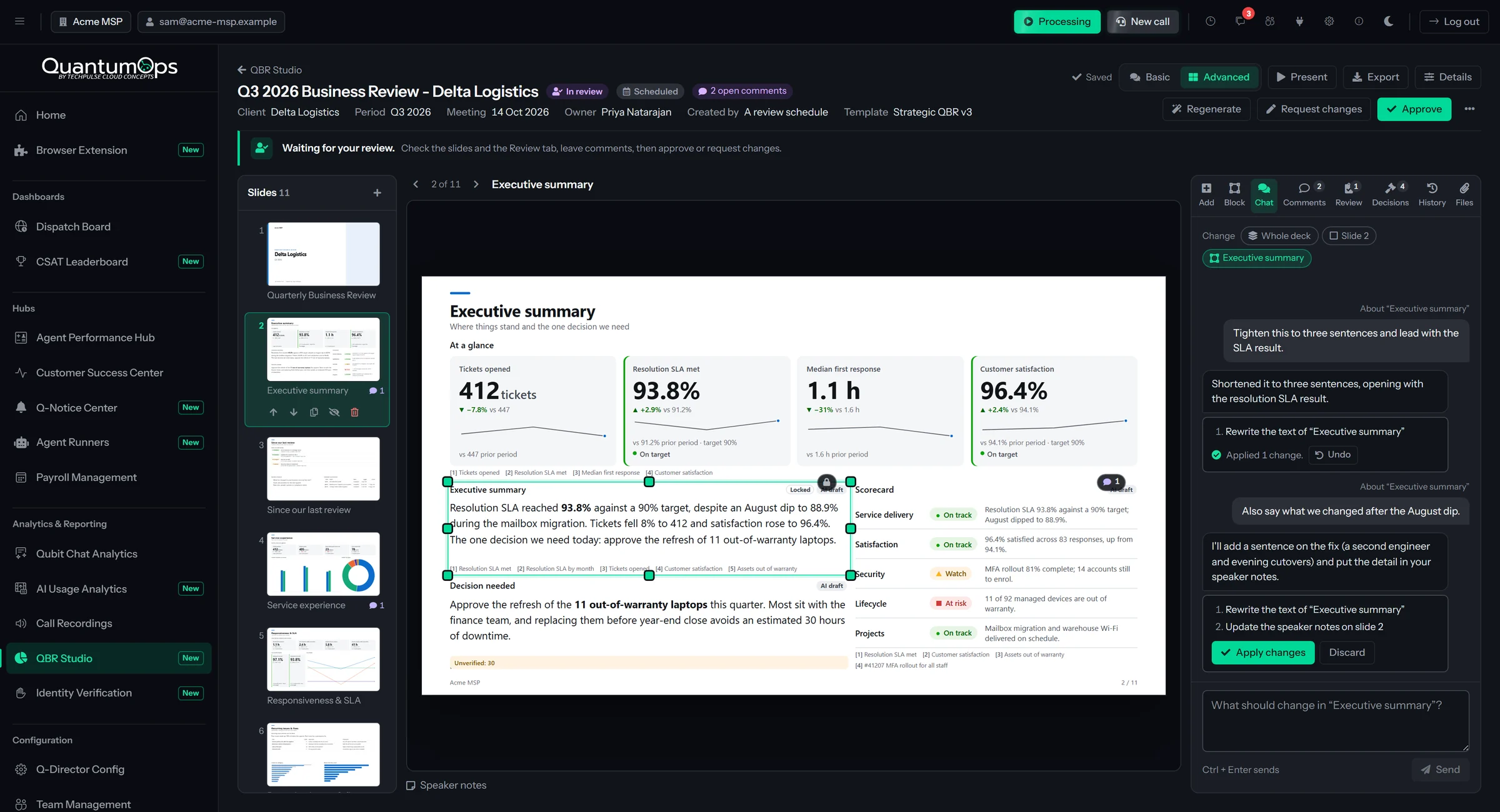
Pick a client, a template and a period. QBR Studio builds a slide deck from HaloPSA reporting and your QuantumOps data, AI writes the commentary, and by default someone approves the deck before its link is published to the client.
Drag blocks onto a slide, regenerate an AI block with your own instruction, or ask for changes in chat and see them before they apply. A fact check flags figures in the AI’s text that don’t match the data. Your brand kit, the AI’s tone and house style, and the satisfaction sources you trust are set once in QBR settings.
- Last quarter, this quarter to date, last month, this month to date, the last six months, year to date or your own dates, each compared with the period before
- Five starter templates, or your own built from a palette of blocks
- Upload a PDF, CSV, Excel file or image, such as a phishing test, and AI summarizes it and pulls out the key figures
- Satisfaction pooled from QuantumOps surveys, HaloPSA’s own ratings, and Crewhu or Simplesat scores kept in Halo fields
01
From your data
A library of 76 metrics, most from HaloPSA reporting: volume and backlog, response and resolution times, SLA, reopen and first-contact rates, billable hours, assets and warranties, and calls.
02
Reviewed, then published
By default, every report goes from draft to review to approval, by the reviewers you name, before its link can be published. Presenting and downloading don’t wait for approval. Schedules create each client’s draft before the meeting and send reminders.
03
Delivered four ways
Present it full screen, download a PDF or an editable PowerPoint, or publish a link that stops working after the number of days you set, from 1 to 365. On the link, the client can accept, defer or decline each recommendation, and you can turn accepted work into a Halo ticket or opportunity.
[ 07 // inside halo ]
The same picture, next to the ticket.
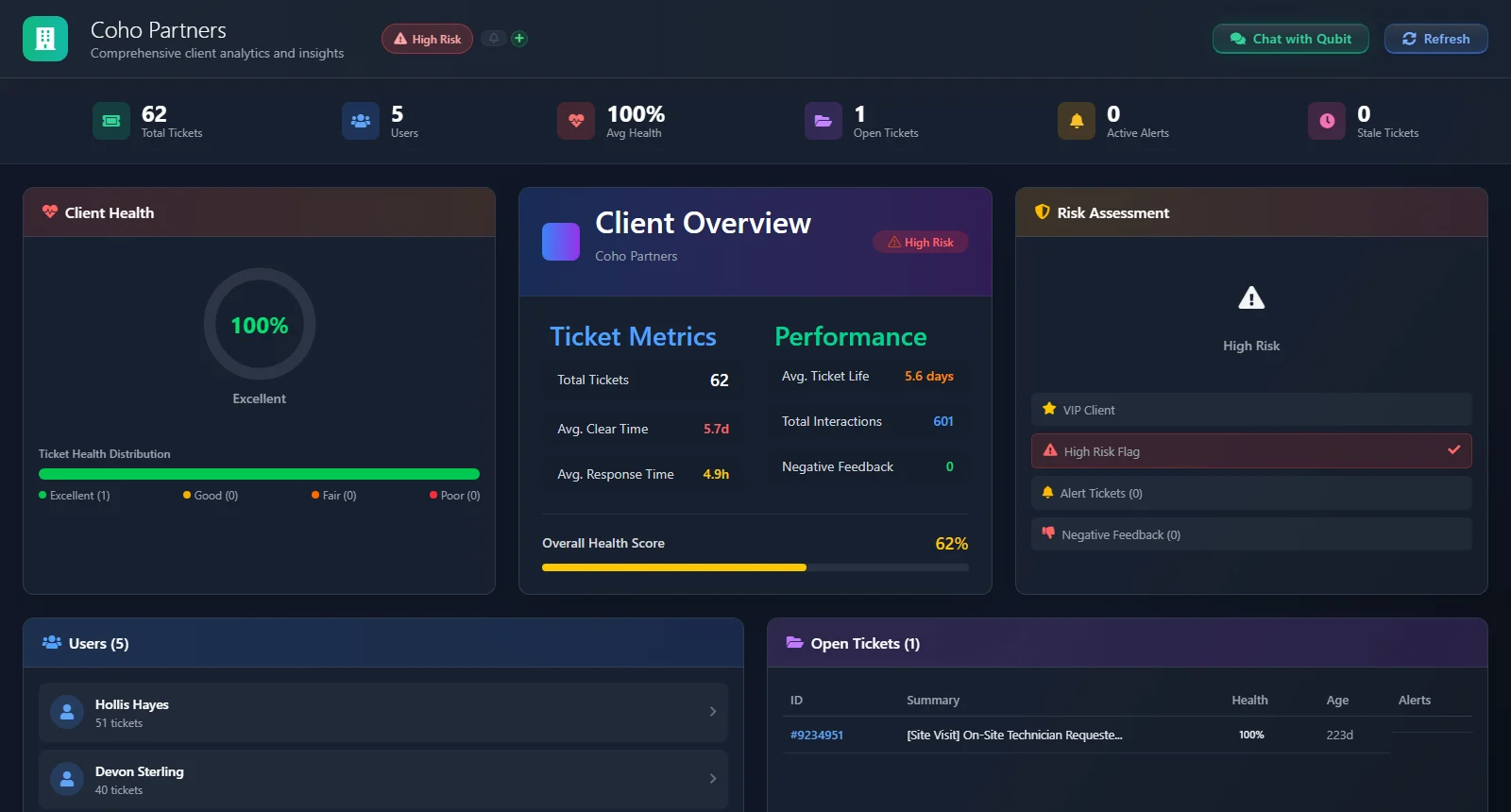
Techs work in HaloPSA, not in the hubs. The Client Dashboard sits on the Halo client record, the User Dashboard is one click from the ticket, and the same views follow the tech in the QuantumOps for Halo side panel.
On the Halo client record.
The Client Dashboard is a HaloPSA Custom Tab, and the setup wizard writes the URL to paste into Halo. The User Dashboard opens in one click from the requester on a ticket.
- VIP and High Risk flags, ticket health, open and stale work, users, and an Overall Health Score from response time, clear time, ticket life and negative feedback
- An AI risk analysis with key challenges and recommendations, plus predicted tickets for next week and next month, to review before the client meeting
- For each requester: their history, risk level, Negative Feedback History and how to pitch the answer
In the side panel, too.
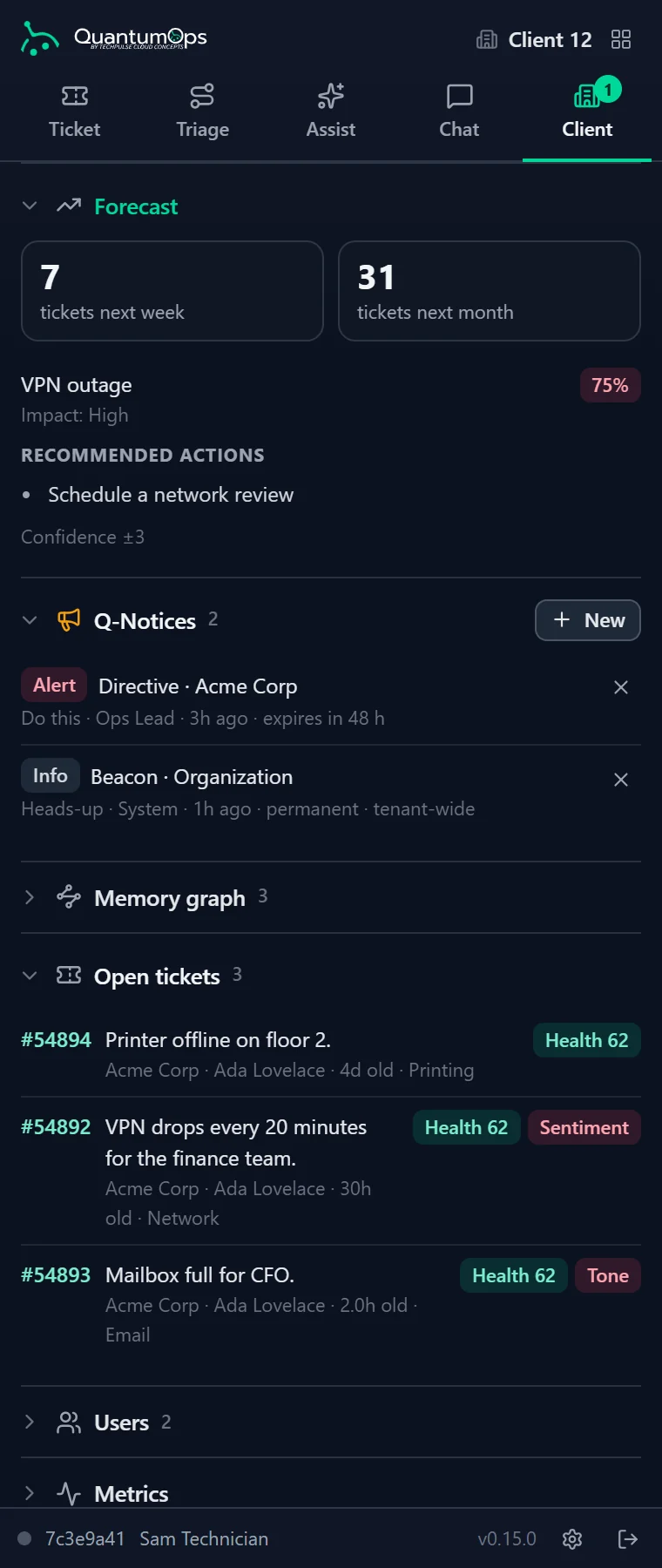
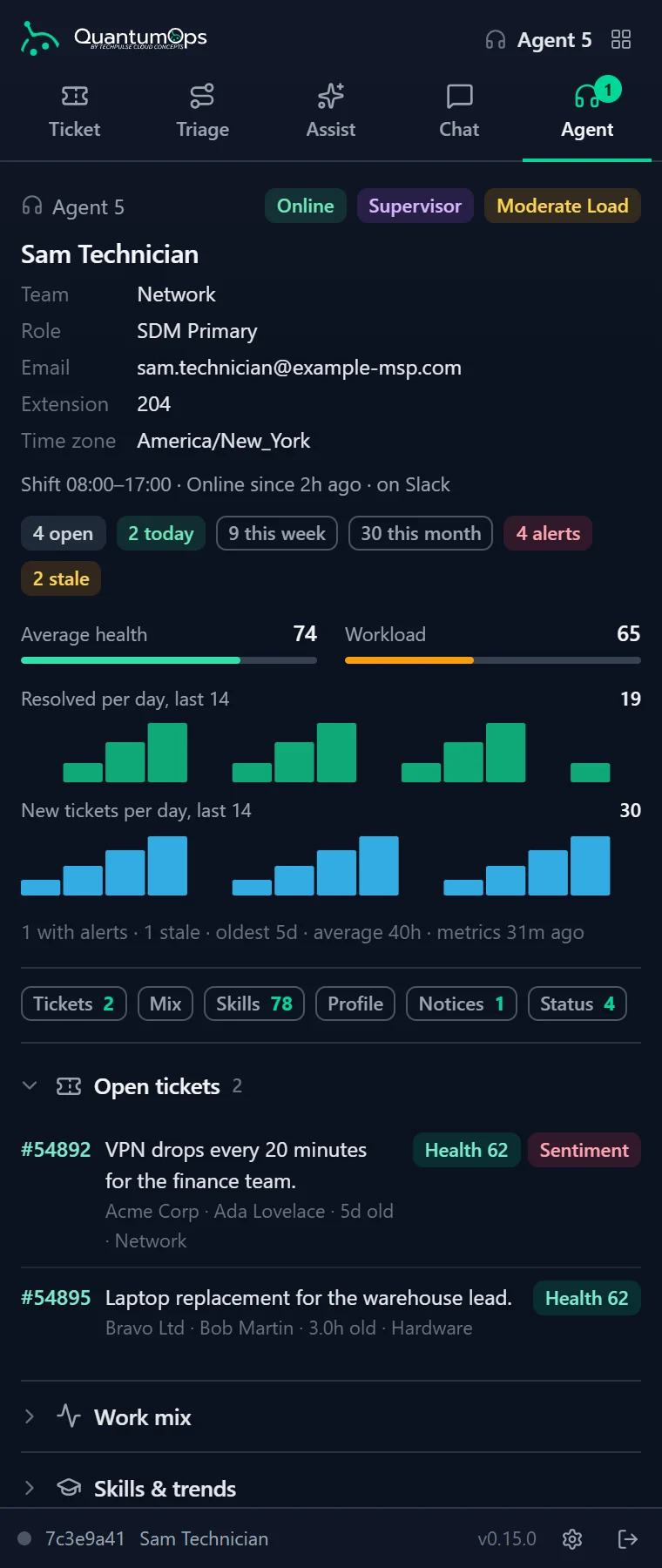
Open a client, a user or an agent in HaloPSA and the QuantumOps for Halo side panel switches to it: a forecast on the Client tab, how to support this person on the User tab, workload and the hub’s skills snapshot on the Agent tab. For Chrome, Edge and Firefox (beta).
Do the Insights hubs need their own setup?
A little. An administrator switches each hub on or off, and the Customer Success Center and the Agent Performance Hub work from tickets QuantumOps already analyzes. The Customer Success Center needs a default CS ticket type, team and agent. CSAT needs a saved survey configuration and its snippet pasted into your HaloPSA email templates. QBRs need access to Halo’s reporting, and the Client Dashboard is a Custom Tab whose URL the setup wizard writes for you.
Does QuantumOps send the survey emails?
No, HaloPSA does. The snippet rides in the templates Halo already sends, and a survey from the Customer Success Center is posted to the Halo ticket as an action, so Halo’s own mail delivers it. QuantumOps hosts the survey page and writes the result back.
Who can see the agent profiles?
The Agent Performance Hub opens only for the Administrator, Service Desk Manager, Dispatcher and Customer Success roles. The working-style profile and the coaching plan stay in the hub.
The extension’s Agent tab is lighter: workload, skills and skill gaps, trends, and an AI profile of strengths, development areas and training ideas. Anyone signed in to your instance can open it for any agent.
Is an AI profile a performance review?
No. It is the AI’s reading of a technician’s ticket messages, meant to start a coaching conversation. Check it against what you know before you act on it, and don’t use it as an HR assessment.
Is the client health score AI?
No. The Overall Health Score on the Client Dashboard is a plain average of banded measures (response time, clear time, ticket life and negative feedback), pulled down when the client is flagged High Risk. The AI writes the separate risk analysis and predictions, for you to review before a meeting.
Can we put CSAT on the office TV?
Yes. The Big Screen display rotates today’s score, the month’s top ten technicians and the latest customer comments, and refreshes itself every 30 seconds. It is a kiosk page with no sign-in, so anyone with its address can see agent names and comments. Put it on a screen your team sees, not your clients.
Can a QBR go out as PowerPoint?
Yes. Download an editable PowerPoint with native charts and speaker notes; a few visuals are simplified there, such as gauges drawn as bars. You can also present it in the browser, download a PDF, or publish a link that expires on its own, where the client can download either file.
[ 09 // start ]
Walk into every QBR ready.
Book a demo and we’ll walk through Insights on a real HaloPSA queue.