

[ 01 // dispatch ]
See the whole queue.
Hand it out in one move.
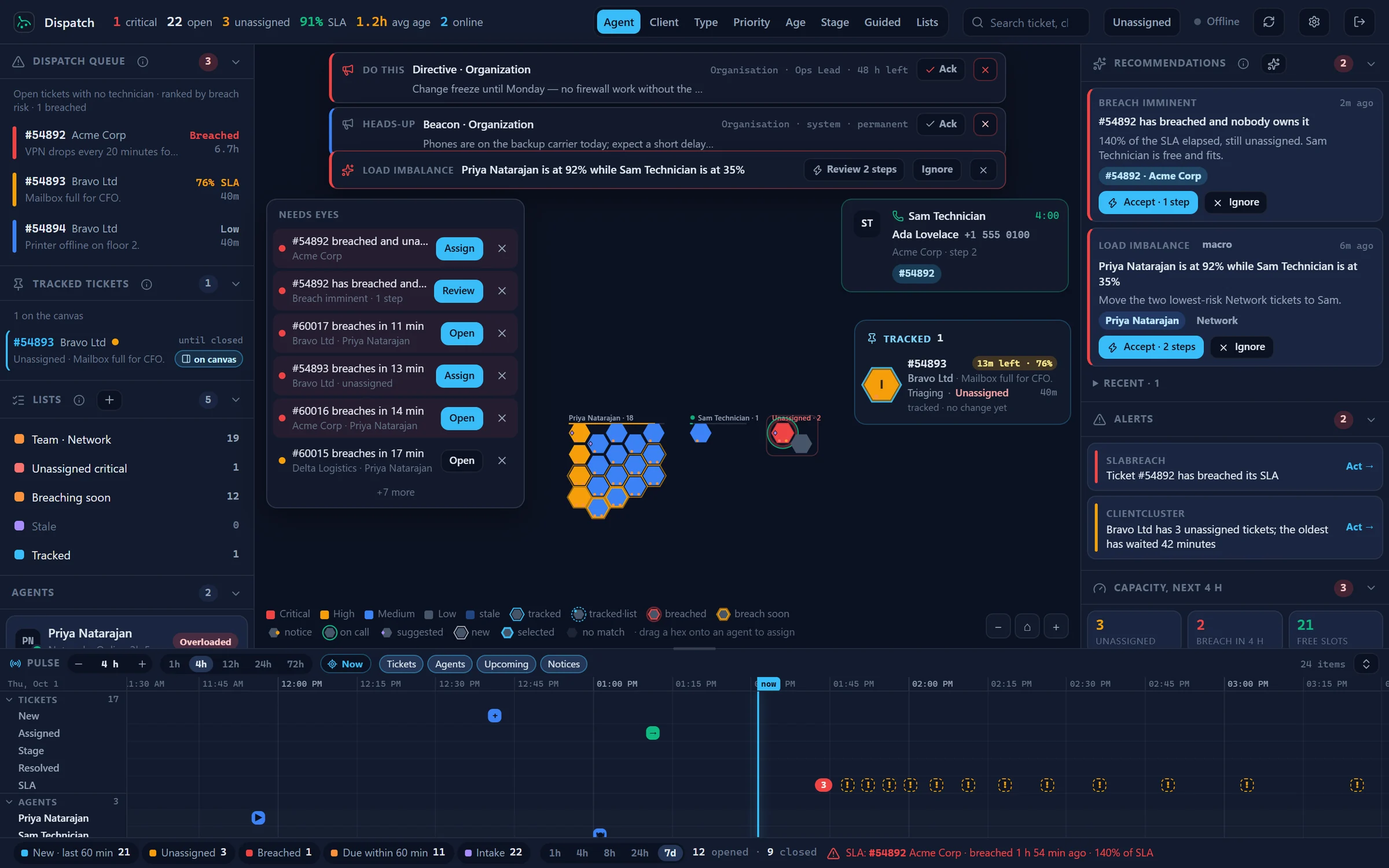
Every open HaloPSA ticket on one live board, the unowned queue ranked by breach risk, and the technicians who can take the next one. Drag a ticket onto a tech, confirm, and Halo gets the assignment before the board moves.
[ 02 // the board ]
Every open ticket, one hex each.
The dispatch command center opens in its own browser tab from the QuantumOps for Halo extension. It is for dispatchers, service desk managers, administrators and customer success.
Read the queue at a glance
Fill is priority, the ring is SLA (amber at risk, red when breached), faded hexes are stale, and the letter is the Halo ticket type. Zoom in and ticket numbers appear, then mini-cards.
Eight ways to group it
Agent, Client, Type, Priority, Age, Stage, Guided and Lists, on keys 1 to 8. Switch views and every hex flies to its new cluster. In the Agent view, unassigned work is packed last and boxed in red.
The numbers that matter, on top
Critical, open and unassigned counts, SLA compliance, average age and technicians online. The counts that need attention turn amber or red.
SLA from Halo’s own dates
When HaloPSA has a fix-by date, the board works SLA out from it and shows Paused while a ticket is on hold. When it has to estimate, it says so.
Board rules keep the noise off
Administrators and service desk managers hide chosen clients, ticket types, teams, categories, statuses or old tickets for everyone, and can stop the AI processing those tickets too.
[ 03 // hand it out ]
Drag a ticket to a tech.
Halo gets it first.
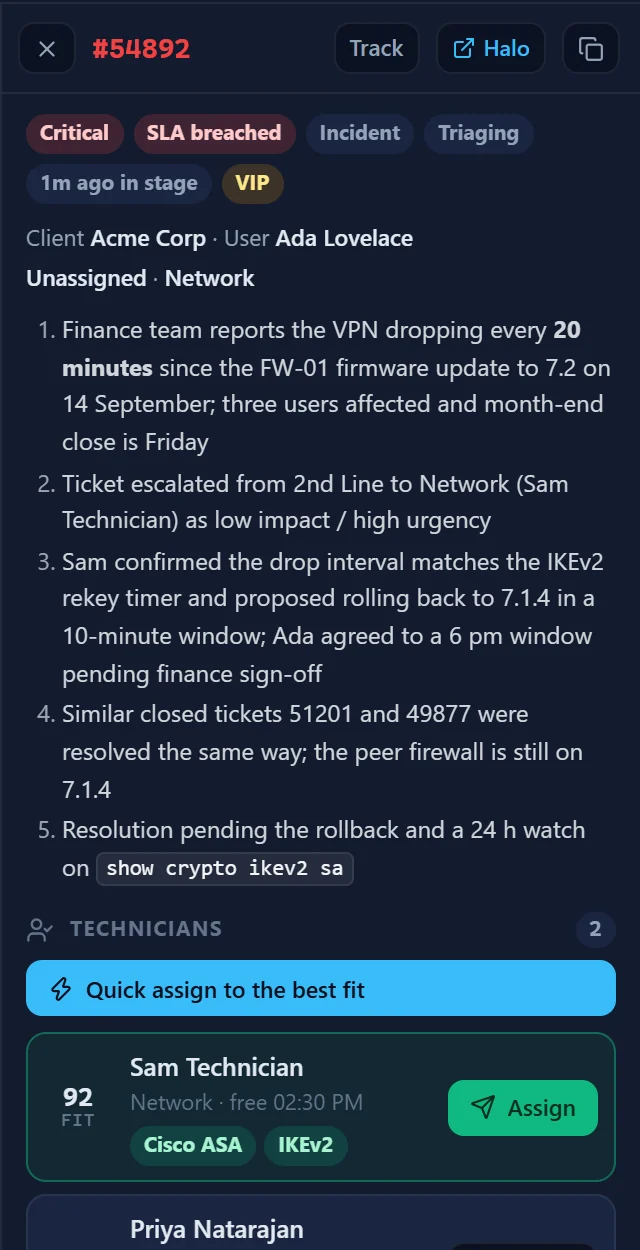
The queue lists tickets with no technician: breached first, then at risk by SLA, then priority. Pick one and the cockpit shows the AI summary, the technicians ranked by fit, and which required skills each one has or lacks.
Drag, or take the best fit
Drag a hex onto an agent card, take Quick assign to the best fit, or right-click for the top three technicians and their fit.
Confirmed, then written to Halo
Every assignment opens a confirmation, then goes to HaloPSA first. The board moves only when Halo accepts. If Halo refuses, you see Halo’s reason and nothing moves.
Book the slot
Book a technician’s free slot as a Tentative appointment in Halo, straight from the cockpit, with possible duplicates and the expected resolution time beside it.
[ 04 // recommendations ]
It spots the trouble. You accept the fix.
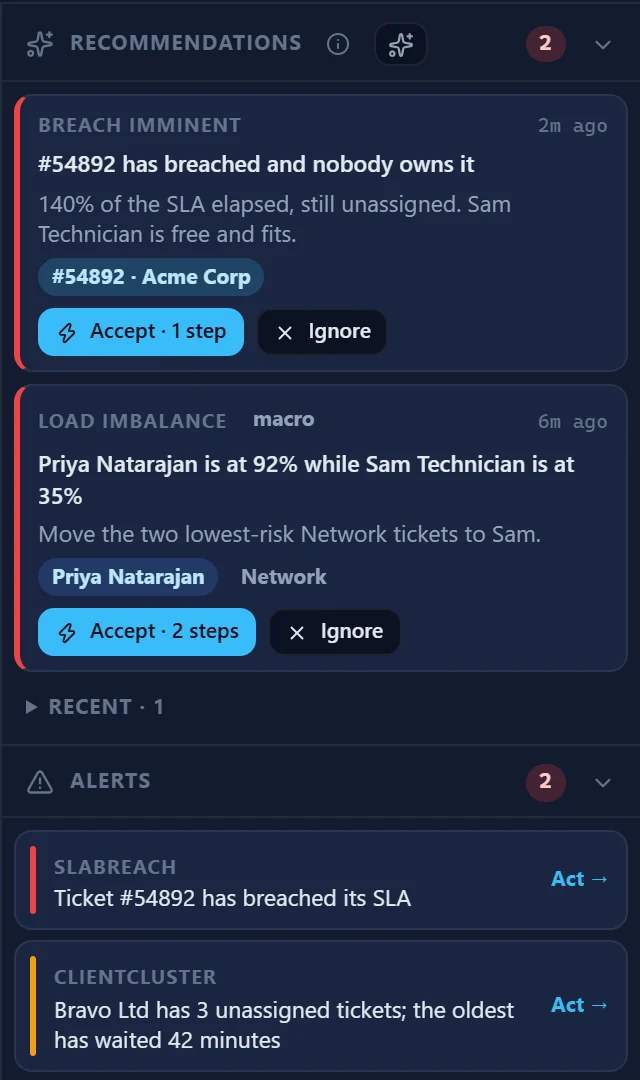
Eight rules run on the server every two minutes. Most results come with a plan written out step by step: assign or reassign in Halo, post a Q-Notice, message a technician on Slack or Teams. Nothing runs until a dispatcher accepts it.
- Accept lists every step in plain words before you confirm
- Steps run in order and stop at the first failure, with a check or cross on each
- A failed plan keeps its results and can be retried
- A Slack or Teams message is skipped, not failed, when the tech has no linked chat account
- Ignore for good, or snooze for 30 minutes, an hour or four hours
 Accept: Shift ending with critical workWarning
Priya Natarajan leaves in 25 min with 2 critical tickets
#60017, #60016 are critical or breaching and still assigned to Priya Natarajan. Hand them over before the shift ends.
- Halo
- 2 assignments, Halo first
- Q-Notice
- 1 posted, attributed to you
- Runs
- In order, stops on a failure
Breach imminent
An unassigned ticket at 85% of its SLA or more. The plan assigns it to the best-ranked technician who is available.
Load imbalance
One tech above 90% load while an available teammate is under 40%. The plan moves up to three of the busy tech’s lowest-risk tickets.
Agent slowdown
Four or more open tickets and no recorded action in two hours, from a tech whose usual pace says otherwise. The plan moves the breaching work and tells the service desk managers.
Appointment at risk
An appointment within 15 minutes while its tech is on a call or holds a breached ticket. The plan posts a warning to the tech and the service desk managers.
No dispatcher coverage
Every dispatcher is on a call or away. The board raises a critical banner; there is no plan to run.
Shift ending
A shift ends within 30 minutes with critical or breached tickets still assigned. The plan hands them to techs still on shift and posts each a handover notice.
Recurring issue
A cluster of tickets in one category or type in the last hour. The plan posts an organization-wide Q-Notice.
AI insight
An AI observation about the board that names tickets. The plan assigns them, or posts a notice.
[ 05 // who can take it ]
Know who can take the next ticket.
Agent cards show each technician’s readiness, load, shift and next appointment. Readiness changes the moment a status does; load counts refresh every 15 minutes.
Readiness comes from timeclock punches, the lunch, brb and back status commands where your Teams or Slack app has them, and the nightly schedule reset. With a Yeastar P-Series phone system, the card also shows the desk phone: ringing, on a call or switched off.
- Open, critical-and-high, breached and at-risk counts, plus the oldest ticket’s age
- The shift as a progress bar, with lunch and the next appointment
- The agent lens: the next four hours, their tickets in risk order, and today’s pace against their own 28-day baseline
- Techs starting within four hours fade in as Arriving
Agents2 onlineReadiness states
Readiness from punches needs the Timeclock & Payroll add-on. Desk-phone presence needs a Yeastar P-Series PBX, with call recording collection set up in QuantumOps, extensions mapped to agents and the PBX’s extension status monitors switched on. See Phones and identity.
[ 06 // pulse and attention ]
What needs eyes now, and what’s coming next.
The edges of the board hold only what needs a person, each item with one action. The Pulse timeline shows the last few hours and the next few.
Pulse
A timeline with now in the middle: arrivals, assignments, resolutions and predicted SLA breaches, clock-ins, lunches, calls and appointments. Zoom from 15 minutes to 72 hours, or press P to give it the whole canvas.
Needs eyes
Breached and unassigned tickets, tickets about to breach, tracked tickets that just changed, appointments at risk and critical recommendations, each with Assign, Open or Review.
Q-Notice ribbons
Organization-wide notices run along the top with a countdown. Ack hides one for you; dismiss expires it for everyone. Notices about one ticket or one tech badge that hex or card.
Live call tiles
Who is on a call, with which caller and client, for how long, at which script step, and on which ticket. That ticket’s hex gets a green ring. Calls come from the Call Taking screen, the extension’s Call tab or a Yeastar PBX.
Tracked tickets and lists
Track a ticket until it closes, for four hours or for the shift, and get a notification when it’s assigned, changes stage, nears SLA or closes. Watch lists and footer badges count what you care about.
Alerts, capacity and AI insights
Alerts with an Act button, whether the next four hours will fit, a seven-day leaderboard of closed tickets, and AI insights you dismiss or investigate. An investigation reports back; it never acts.
[ 07 // q-notices ]
Tell the team once. The AI hears it too.
A Q-Notice is operational context: a change freeze, a known outage, a do-not-reboot order. Mark it for AI processing and it goes into the prompt when the AI analyzes a matching ticket, so the triage accounts for it.
- Five kinds: Q-Beacon, Q-Intel, Q-Directive, Q-Sentinel and Q-Signal
- Five severities, from Info to Critical
- Scoped to a ticket, client, user, agent or the whole organization
- Expires on a timer, or stays until someone expires it
- AI Refine polishes the wording before you post
- An audit log of deliveries and changes
Where notices show up
On HaloPSA tickets
A Q-Notices button on the Ticket Analysis and Ticket Triage tabs raises a notice scoped to that ticket.
On clients, users and agents
The Client, User and Agent dashboards in Halo carry a bell with the active count, the list and a create button.
On calls and in the web app
The same bell sits on the Call Taking screen and the web app’s ticket grid.
On the dispatch boards
As ribbons and badges on the command center, and in a panel on the web Dispatch Control Center.
[ 08 // alerts ]
Heads-up where the team already talks.
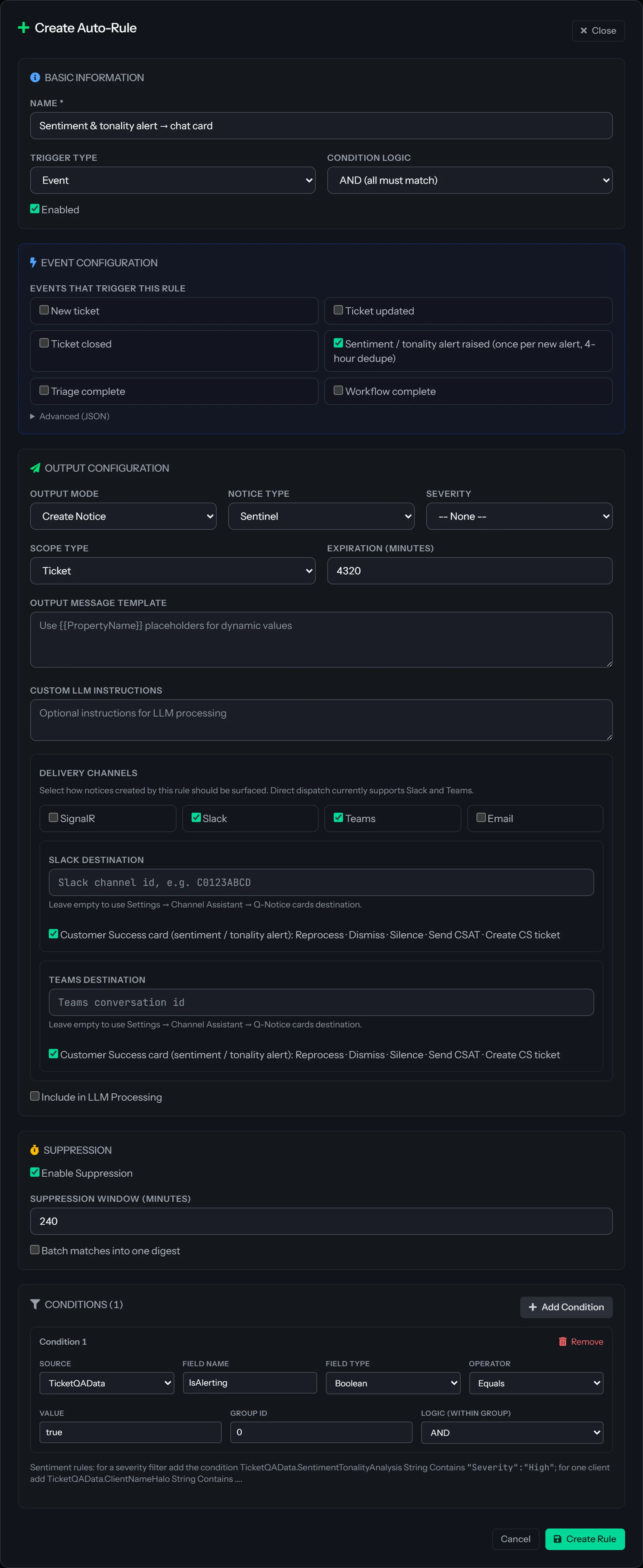
Auto-Rules and AI health notices reach the app, Slack, Teams and email. Sentiment alerts go to Slack or Teams. Suppression keeps a known problem from repeating.
Auto-Rules
Administrators set rules that fire on an event (a new, updated or closed ticket, or finished triage), on a schedule, or both. Conditions use AND/OR on ticket, client and user fields. Create a notice, post straight to Slack or Teams, or both.
Suppression windows
Once a rule fires, it stays quiet for the window you set, 60 minutes by default, so one real problem doesn’t become a hundred messages. Rules from the older Alert Engine import with one button.
Sentiment and tonality alerts
When a customer’s email update scores at or below your alert threshold, a card lands in your Slack or Teams channel with the scores out of 10, key phrases, recommendations, and buttons to the ticket and the Customer Success Center. One alert per ticket per four hours, with Good Analysis, Poor Analysis and Exclude Similar buttons when the feedback loop is on.
AI provider health
If your AI provider keeps refusing your account, a large share of calls fall back to other models, or no AI call succeeds for 15 minutes, QuantumOps raises a notice that names the provider, the cause and the fix, and sends it to Slack, Teams and email.
Dispatch board alerts
While a board is open, it raises its own on-screen warnings: SLA approaching or breached, three or more unowned tickets from one client, a stalled queue, and dispatchers overruling the AI on more than 40% of tickets in the last hour.
[ 09 // in the web app ]
Not on the extension yet?
Dispatch from the web app.
The Dispatch Control Center in the QuantumOps web app is generally available. It uses the same Halo-first assignment and updates live as tickets change in HaloPSA.
Dispatch Control Center
Team health, the ticket mosaic and the dispatch queue on one screen, with Dispatcher and Management lenses, an SLA heatmap, AI insights, Q-Notices and a leaderboard. Ctrl+K jumps to a ticket or runs “assign #1234 to Sam”.
Guided Work
Switch it on and each technician’s assigned tickets are re-ranked every few minutes: red to work now, yellow next, orange after, green when waiting on someone else. Turn on color sync and the colors show on the tickets in Halo. It orders work; it doesn’t hand it out.
Override review
When a dispatcher overrules the AI’s team, type, impact or urgency, both choices are saved side by side. A manager approves or rejects each one, and only approved corrections are used to shape later recommendations.
Is the dispatch command center available now?
Yes. It opens in its own browser tab from the QuantumOps for Halo extension, on Chrome and Edge, with Firefox support in beta, for the Administrator, Service Desk Manager, Dispatcher and Customer Success roles. Q-Notices, the alerts on this page (except the chat cards) and the web Dispatch Control Center are generally available.
Does the board assign tickets on its own?
No. A drag, a quick assign or an accepted recommendation each opens a confirmation first, and the assignment is written to HaloPSA before the board changes. Recommendations are plans a dispatcher accepts or ignores. People whose sign-in isn’t linked to a Halo agent get a read-only board.
Does it use our HaloPSA SLA?
The command center does. When Halo supplies a fix-by date, SLA is worked out from it, shows Paused while a ticket is on hold, and is labeled as Halo SLA. Otherwise the board estimates from priority (1, 4, 8 or 24 hours) and says it’s an estimate. The web Dispatch Control Center and the board alerts use the estimate.
Who receives Q-Notices and alerts?
In the app, anyone who opens a matching ticket, client, user or board sees them. Outside the app, Q-Notices go to the one Slack channel and one Teams channel you connect and to your primary contact’s email. Sentiment alerts go to Slack or Teams, and board alerts stay on screen. An accepted dispatch recommendation can also message a named technician directly. There is no SMS and no on-call rota.
Does the AI read Q-Notices?
Only the ones marked for AI processing. Those are added when the AI analyzes a ticket the notice covers (that ticket, its client, its user, or the whole organization), so the triage and research account for them. Agent-scoped notices and system notices, such as AI provider health, are left out.
Which phone systems show live presence?
Yeastar P-Series only, with call recording collection set up in QuantumOps and extensions mapped to agents. Without it, “on a call” comes from the Call Taking screen or the extension’s Call tab.
Do we need the Timeclock & Payroll add-on?
Only for readiness from punches: clock-ins, breaks and lunches on agent cards and in Pulse. Shifts and scheduled lunches otherwise come from the agent schedules in QuantumOps.
[ 11 // start ]
Put the whole queue on one screen.
Book a demo and we’ll walk the board through a real HaloPSA queue.