

[ 01 // q-notice and q-notify ]
Tell the team once.
The AI hears it too.
A Q-Notice is operational context: a change freeze, a known outage, a do-not-reboot order. Post it once and it shows where the team works, reaches Slack, Teams and email, and, if you mark it, goes into the AI’s analysis of the tickets it covers. For a word with one person, Q-Notify sends a dispatcher’s message straight to an agent.

[ 02 // q-notices ]
Five kinds of notice. One place to post them.
Choose what kind of message it is, how serious, what it is about and when it ends. The Q-Notice Hub, called the Q-Notice Center in the menu, lists them all.
Q-Beacon
Awareness and FYI
The notices everyone should know about. Heads-up on the dispatch board.
Q-Intel
Intelligence and context
Background that helps with the next ticket, such as a VIP client. Background on the board.
Q-Directive
Instructions and requirements
A change freeze, a do-not-reboot order. Do this on the board.
Q-Sentinel
Monitoring and watch
Something to keep an eye on, such as an SLA at risk. Watch for on the board.
Q-Signal
Alerts and escalations
A status change or an escalation. Status on the board.
Severity
Five levels
Info, Advisory, Warning, Alert and Critical. The AI is told to weigh severity, Warning and above especially.
Anyone who may post chooses a kind, a severity and a message of up to 4,000 characters. The rest says who it is for and when it ends.
- Scoped to a ticket, a client, a user, an agent or the whole organization
- Ends on a timer, on an event, on a condition, or stays until someone expires it
- AI Refine polishes the wording before you post, keeping the facts, and keeps your text if it cannot
- An audit log of 15 kinds of action: created, modified, expired, dismissed, delivered, delivery failed, included in AI processing, acknowledged, snoozed and more
A notice can be edited after it is posted: the title, the message, the severity and whether it is included in AI processing. The kind is fixed. To change the targets, the expiry or the AI instructions, expire the notice and post a new one. Expire in the Hub needs no confirmation, takes the notice off every list at once and goes in the audit log.
[ 03 // posting a notice ]
Five steps for the full notice. One panel for the quick one.
The wizard asks for everything a notice can carry. The quick panel opens on the record you are looking at and asks for the few things you usually need.
Step 1
Type
A kind and a severity, which starts at Info. If an administrator set up categories for the kind, pick one and its default severity and expiry fill in.
Step 2
Scope
At least one target: a ticket, client, user, agent, the organization, the system or a custom record, by its number in your PSA.
Step 3
Content
A title of up to 200 characters and a message of up to 4,000. Load a template, add AI instructions, or let AI Refine polish the wording.
Step 4
Delivery
Include the notice in AI processing, and check where it goes: the real-time dashboard, Slack, Teams, e-mail.
Step 5
Expiry
Permanent, after a time, on an event, on a condition, or a mix. The notice ends at the first one that is met.
Aim it, then fill it in.
- The Entity ID is the number of the record in your PSA: the ticket number, or the client, user or agent number. Starting from the record fills it in for you
- Add as many targets as you need and remove one with its cross. Next stays off until there is one
- Load Template offers up to eight templates, in name order, and fills in kind, severity, message, AI instructions and expiry. Change anything afterward
- Custom AI Instructions, up to 4,000 characters, say how the AI should use the notice. They matter only when the notice is included in AI processing
- Include in LLM processing passes it to ticket analysis. Inherit category instructions, on by default, adds the category’s own AI instructions to yours


A notice that never ends turns into noise.
- Time-based is checked when the wizard opens, at 480 minutes. A notice you post without touching this step ends after eight hours
- Event-based ends it when a ticket it targets is created, updated, closed or finishes triage
- Condition-based ends it when a field of the ticket, client or user data meets a test: equals, not equals, contains or starts with
- Permanent keeps it until someone expires it. Turn everything off and it has no end date, and the summary says so
The quick panel, on the record you are looking at.
- Pick a kind and a severity, write a message (up to 4,000 characters; the title is written for you from the kind and the record’s name), and choose Include in LLM, Broadcast and when it expires: 8 hours unless you change it, or Permanent
- Broadcast sends it to the real-time dashboard, Slack and Teams at once. It does not send e-mail
- It has no category, template, custom instructions or e-mail. Advanced – full wizard opens the wizard with the record as the first target
- It sits where you work: the Q-Notices button on the ticket and triage dashboards, the bell on client, user and agent dashboards, Call Taking and the ticket list on Home, and Q-Notice on a Customer Success alert, which attaches it to the alert’s ticket

Write a notice that helps
Lead with what to do, and put the reason after it, so a technician who reads only the first line still acts correctly. Use a title that names what and who: the client, the system, the dates.
Aim it narrowly: the ticket first, then the client or user, and the organization only for what applies to everyone. Mark it for AI processing only when the analysis should change, and say in one or two sentences how.
Choose the severity by the response you want
Info is routine information. Advisory is useful to know. Warning is elevated concern people should be aware of. Alert needs prompt action. Critical needs an immediate response.
Leave out secrets: everyone who can see the record, and everyone in the channels you pick, can read the message. And always set an end.
[ 04 // the ai hears it ]
Mark it for the AI. The analysis accounts for it.
Check Include in AI processing and the notice goes into the prompt when the AI analyzes a ticket it covers, so the analysis knows about the freeze or the outage.
Which tickets
A notice scoped to a ticket, its client or its user, or to the whole organization. It goes in as the first message of the ticket analysis.
What the AI sees
Each notice’s kind, severity, scope, time left and message, plus any instructions you wrote for it.
What stays out
Notices you did not mark, expired ones, and notices scoped to an agent. AI provider health notices are not marked either. Everything stays out while the Q-Notice Engine module is off.
On the record
The first time a notice reaches the AI, the audit log records that it was included.
[ 05 // where people see it ]
On the record it is about.
A notice appears wherever someone opens the ticket, client, user or agent it covers, and again as a card when a tech opens the ticket.
On tickets
The side panel’s Ticket tab raises a notice scoped to that ticket on any PSA, and on HaloPSA so does the Q-Notices button on the Ticket Analysis and Ticket Triage tabs.
On clients, users and agents
The side panel’s Client, User and Agent views show them on any PSA, and on HaloPSA so do the Client, User and Agent dashboards inside it, with a bell for the active count, the list and a create button.
On calls and in the web app
Two bells on the Call Taking screen, one for the client and one for the caller, and one on the web app’s ticket grid. A note icon with a red count in the top bar opens the Hub.
On the dispatch boards
Organization-wide notices run along the top of the board as ribbons, three at a time, and a notice about one ticket or one tech badges that hex or card. The agent menu has Post a Q-Notice to that agent.
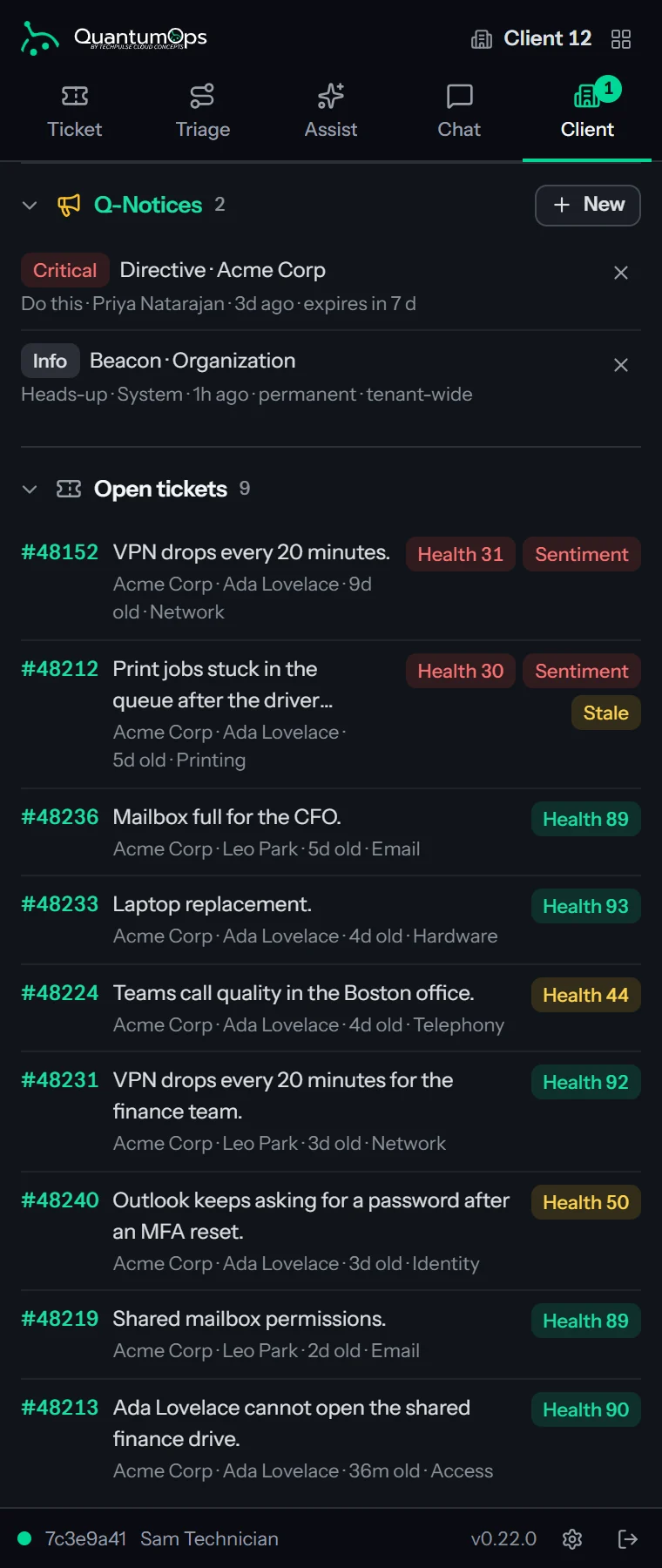
The moment a tech opens the ticket. A card shows up to three active notices for that ticket, its client or its user, most severe first, once per ticket per browser session, for agents whose login is linked to a technician in your PSA. It is a card on the page, never a desktop alert. It comes from the same Moments that carry bounties.
Open pages, the Hub and the dispatch board update by themselves when a notice is posted, edited or expires. The count in the top bar is read when the page loads.
[ 06 // auto-rules ]
Let a rule post it.
Administrators set rules that watch for an event, run on a schedule, or both, and then post a notice, a chat message, or both.
- Events: a new ticket, an updated ticket, a closed ticket, a sentiment or tonality alert raised, finished triage, or a finished workflow
- Or a schedule: a scheduler checks every five minutes, over records updated in the last hour
- Conditions use AND and OR groups on ticket, client and user fields
- Output: create a notice, post straight to Slack or Teams with no notice, or both
- Suppression is off until you check it. Checked, a rule stays quiet while its earlier notice is still active and inside the window you set, 60 minutes if you leave it empty, per ticket or client when the rule has a scope
- A rule can batch matches into one digest, with a digest window of 5 minutes if you leave it empty

What a rule reads, and what it makes.

Conditions
- Each condition compares one field of the ticket, client or user data: a Source, a Field Name, a Field Type (string, number, date and time, or true or false), one of ten operators and a Value
- Conditions with the same Group ID form a group, joined by AND or OR, and Condition Logic combines the groups. A rule with no conditions reacts to the event alone
Output Mode
Create Notice posts a notice. Direct Dispatch sends a plain message straight to Slack or Teams, with no notice and no buttons. Notice + Dispatch does both. Leave the kind and severity empty and the notice is a Beacon at Info.
Message template
Write the message with {{PropertyName}} placeholders named after fields of the record that matched, and QuantumOps fills them in. Left empty, the message is the rule’s name. The scope is filled in from the matched record.
Manage the rules
The list shows each rule’s state, trigger, mode, kind, conditions, suppression window, interval and when it last ran. Disable pauses a rule. Delete removes it, except a rule that has already made notices: disable that one.
Autopilot can post one too. When an Autopilot playbook escalates a ticket to dispatch, it raises a Critical Q-Notice on the ticket and sends a Q-Notify to the dispatchers on shift. Ticket Autopilot
[ 07 // administration ]
Categories, templates and the record of what happened.
For administrators and Q-Notice Admins: shape what people post, and see what happened to every notice.
Categories
A category groups notices of one kind and gives them defaults: a severity, an expiration, an icon and color, a sort order and AI instructions. The wizard offers a category only for its own kind. A built-in one carries a System label and cannot be deleted, and unchecking Category is active stops offering one.
Templates
A starting point for a notice you write often: kind, severity, expiration, message, AI instructions and whether it is included in AI processing by default. Administrators edit them in the list. The wizard offers them under Load Template.
Inherited instructions
When a notice is included in AI processing and Inherit category instructions is on, the category’s AI instructions go to the AI along with the notice’s own.

The audit log
- Every notice, expired ones included: the 500 most recent entries that match your filters, 20 to a page, newest first
- Filter by kind, by action (created, modified, expired, dismissed, delivered, delivery failed, included in AI processing) and by date
- Each entry shows the time, the notice, the action, who did it, whether it was the system, and details
- Rules and the platform appear as System. A click on a Slack or Teams card names the person and the channel
- An expiry says why: manually, by time, by event or by condition
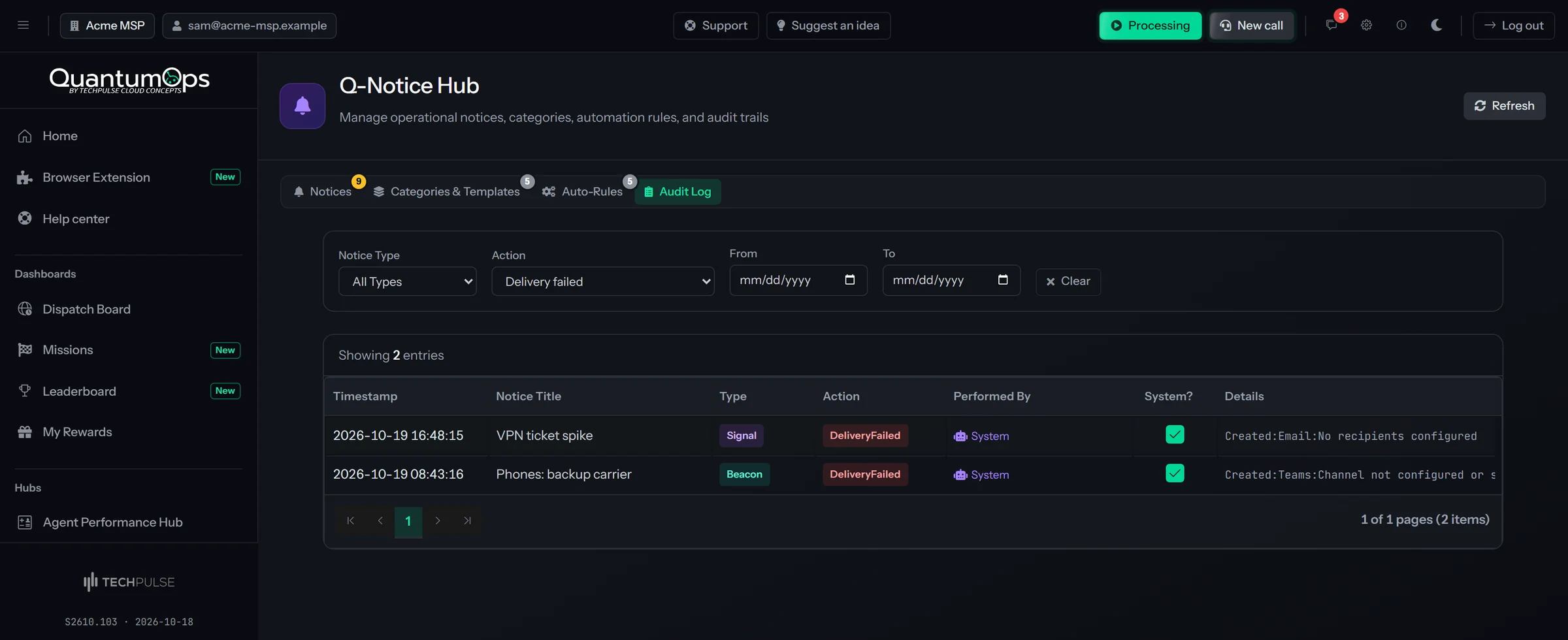
Channel not configured or send failed
Slack or Teams has no incoming webhook set, or the post was refused. Check the Messaging tab.
No recipients, or the e-mail failed
E-mail was chosen but no address was available, or the send itself failed.
Unsupported channel
A channel a notice cannot be delivered to, which can happen to a rule imported from the Alert Engine.
[ 08 // delivery ]
Heads-up where the team already talks.
Notices reach the app, Slack, Teams and email. Alerts reach Slack or Teams. Suppression and digests keep a known problem from repeating.
Live in the app
Pages that are open get the notice as it is posted, with no refresh.
Sent from QuantumOps to the rule’s list of up to 25 recipients, or to your primary contact when none is set, and capped at 200 deliveries an hour for the instance. In the full wizard, the Administrator, Service Desk Manager, Q-Notice Editor and Q-Notice Admin roles set the recipients. For everyone else, e-mail goes to the primary contact.
Sentiment and tonality alerts
When a customer’s email scores at or below your alert threshold, 5 by default, a card lands in your Slack or Teams channel with the scores out of 10, key phrases and recommendations, and buttons to the ticket and the Customer Success Center. One alert per ticket per four hours, with Good Analysis, Poor Analysis and Exclude Similar buttons when the feedback loop is on.
The interactive sentiment card is an opt-in rule
Add it from the Sentiment alert card template in Auto-Rules. The card carries Reprocess, Dismiss, Silence, Send CSAT and Create CS ticket, and its own channel. Without that rule, only the Q-Director messaging alert arrives, as it always did.
Sent when it is posted or edited
A notice goes out when it is posted and again when someone saves an edit, and the card or e-mail says which. Snoozing from a card only moves the end time and sends nothing again. Expiring sends nothing either, except that a PagerDuty incident the notice opened is resolved.
The buttons on a card
Acknowledge
Records that you have seen it, and the notice stays active. Anyone in the channel can press it, even after the notice has expired.
Snooze 4h
Sets the notice to end in four hours, or keeps the earlier time if it would end sooner. A permanent notice stops being permanent. Needs a linked chat account unless an administrator turned that check off.
Assign to me
Only on a notice about exactly one ticket. Assigns that ticket to you in your PSA, for a chat account linked to a QuantumOps user who is linked to a technician in your PSA.
Open in your PSA, Open Q-Notice Dashboard
Links. Open in your PSA is only on a notice about one ticket. If an administrator turns off the action buttons, only the dashboard link stays.
After a click, the buttons are replaced by a line saying who did what, and the audit log records it. Every click also passes your tool rules: a rule that blocks the action answers “Blocked by tenant policy”, and a rule that asks for approval counts the click as the approval.


Where the cards are posted
- The destination on the rule’s Slack or Teams channel comes first, then the Q-Notice cards destination on the Channel Assistant screen. Notices posted by hand use the second one
- For Slack the destination is a channel ID that Qubit has joined. For Teams it is a conversation ID where Qubit has been mentioned once
- With no destination, Qubit switched off for the channel, or a card that cannot be posted, a plain message goes through the incoming webhook. Its only button is a link to your PSA, and nothing on it talks back
Post cards to a private staff channel. Anyone in the channel can acknowledge a notice, and linked people can snooze it or assign its ticket. Do not use a channel that customers or outside guests share.
Dispatch board alerts stay on the board. An SLA breach where your PSA supplies the fix-by date, four or more unique unassigned tickets from one client with the oldest waiting more than 30 minutes, and a stalled queue show on screen, not in chat. Dispatch
[ 09 // ai provider health ]
When the AI cannot run, you are told what to fix.
QuantumOps watches the AI providers it uses for your instance. When a provider refuses your account, configured models are being replaced, or calls are failing, it raises a Q-Sentinel for the system called AI provider health.
A provider refuses your account
Severity Alert, visible for 26 hours and repeated at most once a day while it lasts. The title names the provider and the cause: no credit left, no API key set, a key that is not accepted, or a model that cannot be used. The message says whether another provider is absorbing the failures or nothing is being served.
Configured models are replaced by a fallback
Severity Alert, visible for 12 hours and repeated at most every 6. A sustained share of calls ran on a fallback instead of the model you set. Work continues at the fallback’s cost and quality, and the message lists the most frequent substitutions.
Most calls are failing, some still served
Severity Alert, visible for 13 hours and repeated at most every 12. At least 20 calls failed in the last six hours and they make up at least half of all calls, while some are still being served. Work continues for the calls that succeed, but most of it is not getting an AI answer. The message names the failing providers and the likely cause.
AI is unavailable
Severity Critical, visible for 7 hours and repeated at most every 6. No call has succeeded on any provider and nothing is left to take over, so AI-dependent processing is producing nothing.

- Each is raised once when the condition is found, not once per failed call, so one notice can stand for hundreds of failures
- It goes to the Hub, to Slack and Teams where they are set up, and by e-mail to your primary contact
- You do not dismiss them. Each expires on its own, and a new one appears only if the condition lasts or comes back
- They are for people to read. The AI does not see them
The fix is never on the notice itself. Top up or fix the account in the provider’s own billing, change the key or the model in your instance’s tenant settings, or check the provider’s status and your rate limits when the failures are on its side. An administrator can pause AI processing from the header while you do.
[ 10 // from chat ]
Post one without leaving Slack or Teams.
In Slack, /qnotice lists, posts and expires notices. In Teams, @qops qnotice does the same. QuantumOps checks who you are first.
/qnoticeor/qnotice listlists the active notices, privately to you, each with its ID and when it ends/qnotice expire <id> [reason]ends one/qnotice [type] [severity] [scope:id] "message" [flags]posts one. The type is beacon, intel, directive, sentinel or signal, and the severity runs from info to critical. The scope isticket:1234,client:42oruser:7, and with none the notice applies to the whole organization- The flags are
--llmto include it in AI processing,--expires 2hor1d,--permanentand--broadcast - A notice made this way is posted in the channel, so everyone there sees it
Being in the workspace is not enough. Your chat account must be linked to a QuantumOps account whose role can post notices, the same roles that can open the Hub. If it is not linked, or the role is not on the list, or QuantumOps could not check in time, you get a private reply that says which, and nothing runs. If your organization signs in through Microsoft Entra ID, chat cannot read QuantumOps roles, and notices are posted from the Hub instead.

[ 11 // alert engine ]
Already on the Alert Engine? Move your rules.
Auto-Rules are the current way to set up alerts. The older Alert Engine keeps working until you move a rule, one at a time.
What it was
An administrator screen with Configuration, Channels, History, Data Sources and Testing tabs, sending to email, Slack, Teams, PagerDuty, webhooks and the app.
One button per rule
Import from legacy Alert Engine copies a rule’s trigger, interval, conditions, channels, suppression and batching into an Auto-Rule that creates a Sentinel notice at Warning severity, and switches the original off. Running it again skips the rules already moved.
PagerDuty and webhooks
Webhook and PagerDuty channels come across only on imported rules. You do not have to move anything: both engines keep running.
[ 12 // q-notify ]
A word with one person.
Q-Notify sends a short message from a dispatcher to one agent and brings the answer back to the board. It is not a notice: nobody else sees it.
On the dispatch board, open an agent’s menu and choose Q-Notify with their name. Pick a template, or add a few words of your own.
- Five templates: Call me, Customer waiting, Check your queue, Pick up your phone, and Come see me. Customer waiting names the ticket
- Up to 200 characters of your own text. Markup is stripped and links are replaced with “[link removed]”, so a message cannot carry one
- 20 messages per sender an hour, and 6 per agent in ten minutes, so nobody is buried
- Dispatchers, service desk managers, administrators and customer success staff can send. Technicians can receive and reply


The agent answers in one tap.
- A card drops in at the top of the page, with the side panel open or closed, with Acknowledge, Busy and Reply
- Reply takes up to 200 characters, typed in the side panel’s Missions tab
- If no page can show the card, a desktop alert does, when the agent turned them on, and otherwise it waits in the Missions tab. On Chrome and Edge the alert carries Acknowledge and Busy buttons
- The dispatcher sees the answer on the board: acknowledged, busy or the reply
- If the card has not reached the agent’s extension within a minute and they have Slack or Teams, a plain direct message goes out instead
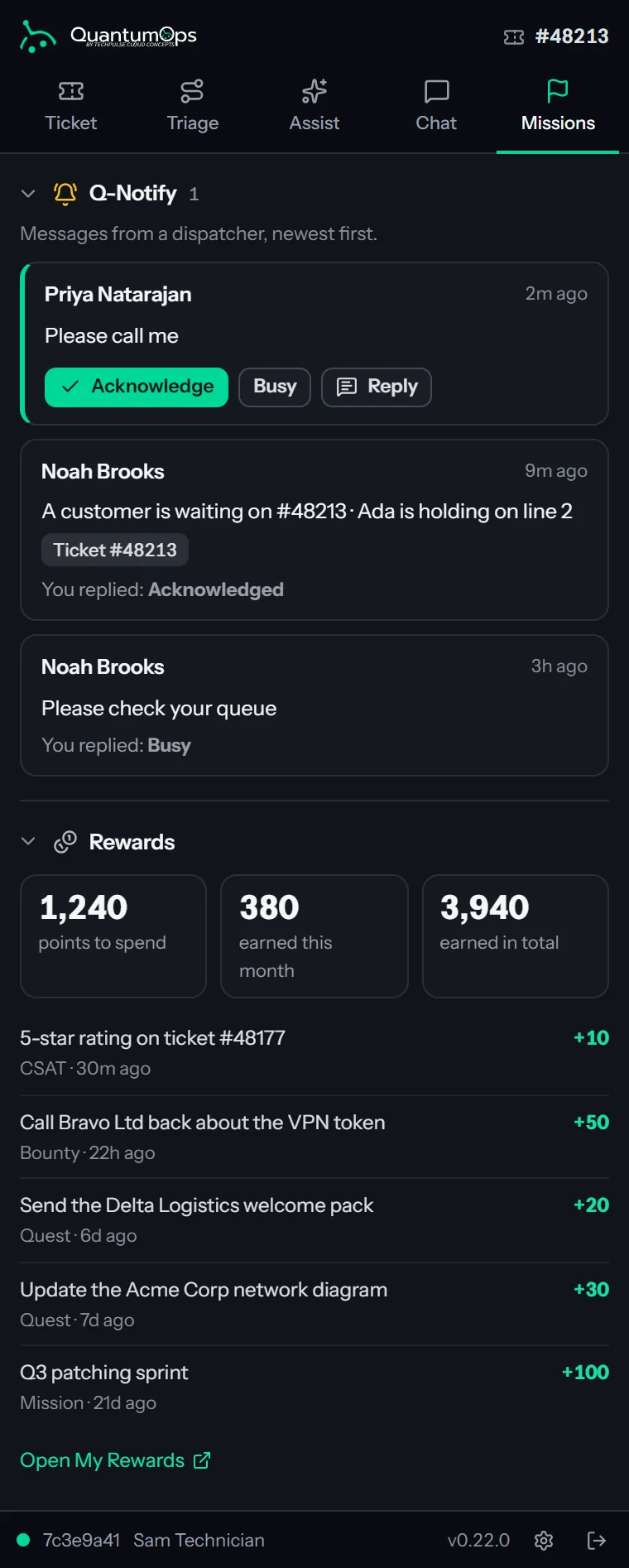
The agent needs to have signed in to the QuantumOps extension to receive one. Q-Notify belongs to the dispatch board. The card, the desktop alert and the inbox are Moments, which come with Q-Missions: if an administrator switches Q-Missions off, the Slack or Teams message is how a Q-Notify arrives.
[ 13 // who and what it needs ]
Who can post, and what it needs.
Post
Most of the desk
Administrators, service desk managers, dispatchers, customer success staff and technicians can post a notice, and so can the Q-Notice Creator, Editor and Admin roles. In the extension, a person whose login is linked to a technician in your PSA can. In Slack and Teams, a command does it for a linked account.
Manage
Fewer hands
Editing or expiring a notice is for administrators, service desk managers and the Q-Notice Editor and Admin roles. Auto-Rules, categories and templates, and the audit log are for administrators and Q-Notice Admins.
Modules
Two switches
Q-Notice Engine is in the Automation bundle and is on unless an administrator switches it off, which stops auto-rules, digests, chat commands and notices reaching the AI. Q-Notify belongs to the dispatch board.
Does the AI read Q-Notices?
Only the ones marked for AI processing, and only when it analyzes a ticket the notice covers: that ticket, its client, its user, or the whole organization. They go in as the first message of the analysis prompt, so the analysis accounts for them. Notices scoped to an agent are left out, and so are system notices such as AI provider health, which are not marked for the AI.
Who receives Q-Notices and alerts?
In the app, anyone who opens a matching ticket, client, user or board sees them. Outside the app, a rule or notice can go to Slack, Teams and email: each rule can set its own channel or use the Q-Notice cards destination in the Slack or Teams assistant settings, and email goes to a list of up to 25 recipients, or to your primary contact. Sentiment alerts go to Slack or Teams, and board alerts stay on screen. There is no SMS gateway.
Who can post a notice?
Administrators, service desk managers, dispatchers, customer success staff and technicians, and the Q-Notice Creator, Editor and Admin roles. The quick panel on a page needs no Q-Notice role beyond being able to use that page. Editing or expiring is narrower: administrators, service desk managers and the Q-Notice Editor and Admin roles.
Can I post one from Slack or Teams?
Yes, with /qnotice in Slack or @qops qnotice in Teams, if your chat account is linked to a QuantumOps account whose role can post notices. If your organization signs in through Microsoft Entra ID, post from the Hub instead.
What is the difference between a Q-Notice and Q-Notify?
A Q-Notice is a broadcast about a ticket, client, user, agent or the whole organization, shown where people work and, if you mark it, read by the AI. Q-Notify is one message from a dispatcher to one agent, with a one-tap answer. They are separate features, and both can arrive as the same kind of card.
What happens when a notice expires?
It leaves the lists and the board, and the AI stops reading it. The audit log records why: manually, by time, by event or by condition. Nothing is sent to Slack, Teams or e-mail when a notice expires, except that a PagerDuty incident it opened is resolved.
Do we have to move our Alert Engine rules?
No. Both engines keep running. Import a rule when you want it as an Auto-Rule, and the original is switched off when you do.
Can a dispatcher flood an agent?
No. Q-Notify allows 20 messages per sender an hour and 6 per agent in ten minutes, and a rule’s suppression window and digest keep a known problem from repeating.
What does the chat side need?
Nothing for notices in the app. Chat cards for notices need the Slack or Teams assistant switched on and a channel chosen, and without it a plain message with links goes out. A Q-Notify direct message goes to the agent’s own Slack or Teams account, when QuantumOps knows that account and the Slack or Teams app is connected.
[ 15 // start ]
Say it once.
Book a demo and we’ll walk through notices, rules and Q-Notify on a real queue.