

[ 01 // q-missions ]
Put a reward on the urgent work.
Your PSA confirms it is done.
Q-Missions lets a service manager post a bounty on a ticket, set quests for agents or a whole team, and group them into a mission. Agents claim a slot, QuantumOps watches your PSA for the work, and the reward lands as points on the leaderboard or as a physical product from your own Zinc wallet.

[ 02 // how it works ]
Post it. Claim it. Your PSA confirms it.
A Mission Manager puts a reward on the work, an agent takes it, and the reward is paid when your PSA shows the work done.
01
Post the work
A bounty is a one-off job with a number of slots, a time limit and a reward, usually tied to a ticket. A quest is work for named agents or a team. A mission groups quests toward one goal.
02
An agent takes it
Agents get a card in the browser when a bounty is posted, even with the side panel closed. They claim a slot and the clock starts on the time limit you set.
03
Your PSA confirms it
QuantumOps reads the ticket in your PSA. When the logged update, status change, close or assignment shows up in time, the reward is paid. Work with no ticket waits for a Mission Manager to confirm it.
[ 03 // bounties ]
First come, first served. On the clock.
A bounty is one job with one to twenty slots. The first agents to claim take them, each on a time limit you set, and a claim that runs out goes back to the pool.
Post a bounty from the Missions hub, or from a ticket on the dispatch board. Give it a title, an optional ticket, a rule for what done means and a reward.
- Slots from 1 to 20, and a time limit per claim from 1 to 1,440 minutes
- Open for as long as you say: claims already held can still finish after it closes
- Open to every agent with a linked sign-in, or only to the teams you check
- A Critical bounty stays on the agent’s screen until they act on it or dismiss it
- A reward of points, a Zinc product, or none

One slot, one agent
A claim takes a slot with one conditional update, so a slot cannot be taken twice. An agent can hold a given bounty once, even if the claim lapses or is released.
Release it or let it lapse
An agent can release a claim, and a claim that reaches zero lapses. Either way the slot goes back to the pool for someone else.
Posted means posted
A bounty cannot be edited once it is posted. Post again opens the form filled in, and you cancel the old one. Canceling closes the open slots, ends active claims and pays nothing.
From the dispatch board, a dispatcher with the Mission Manager role can post a bounty on a ticket in a few clicks: call back within N minutes, close it, take it, or a manager confirms it, with a points reward. Dispatch
[ 04 // missions and quests ]
Work for named agents or a whole team.
A quest is a task with a rule for what done means, an optional due date and a reward. A mission groups quests toward one goal and can pay a completion reward of its own.

Build the mission as a draft, add its quests, then activate it. Each person’s assignment is created and announced.
- Who it is for: named agents, a team where anyone can do it once, or a team where each member does it
- Stand-alone quests work without a mission
- A quest that passes its due date is Missed and pays nothing, unless a Mission Manager extends it or reopens it
- When every quest is done, each agent who finished at least one is paid the mission’s completion reward
Close finishes a mission by hand without paying its completion reward. Cancel cancels the mission and its open quests.
Live while it runs, History when it is over.
The Live tab refreshes itself every 45 seconds. Waiting for your confirmation lists the work agents marked done that your PSA cannot check, with Confirm and Reject, and each open bounty shows who holds every slot with a countdown that turns amber in the last minute.
- The History tab lists finished bounties (completed, expired or canceled), missions that completed or were canceled, and finished stand-alone quests
- Extend gives an open quest a new due date, and on a Missed quest the same button reads Reopen and reopens its Missed assignments
- People lists each assignment under a quest and its state, so you can see who has done what

[ 05 // completion from your psa ]
Your PSA says it is done. Nobody has to tap.
Tie a bounty or a quest to a ticket and choose what done means. QuantumOps reads the ticket and pays when the rule is met, by the agent who took the work, and in time.
Call back within N minutes
Done when the agent logs a call or a note on the ticket within the minutes you set.
Log an action on the ticket
Done when the agent logs a note or update on the ticket, optionally of the types you check.
Move the ticket to a status
Done when the ticket is moved to the status you pick.
Close the ticket
Done when the ticket is closed.
Take the ticket
Done when the ticket is assigned to the agent.
A Mission Manager confirms it
For work your PSA cannot see. The agent presses Done with an optional note, and a manager confirms it or sends it back. A rejected bounty frees the slot. With no ticket, this is the only choice.
How it watches
The webhooks from your PSA
QuantumOps listens to the ticket and note updates the webhooks bring, and re-reads every ticket with a live claim or an open quest about every minute, so a change that never arrives as a webhook still counts. The evidence is kept with the claim.
What counts
Work done after the claim, in time
Only work the agent did after taking the job, and before the claim’s deadline, counts. The time the work was logged decides, not the time QuantumOps noticed it. QuantumOps only reads from your PSA here; it adds nothing to the ticket.
[ 06 // rewards ]
Points, or a product at the door.
Each mission, quest or bounty picks its own reward: points, a product from your Zinc catalog, or nothing.
One points pool
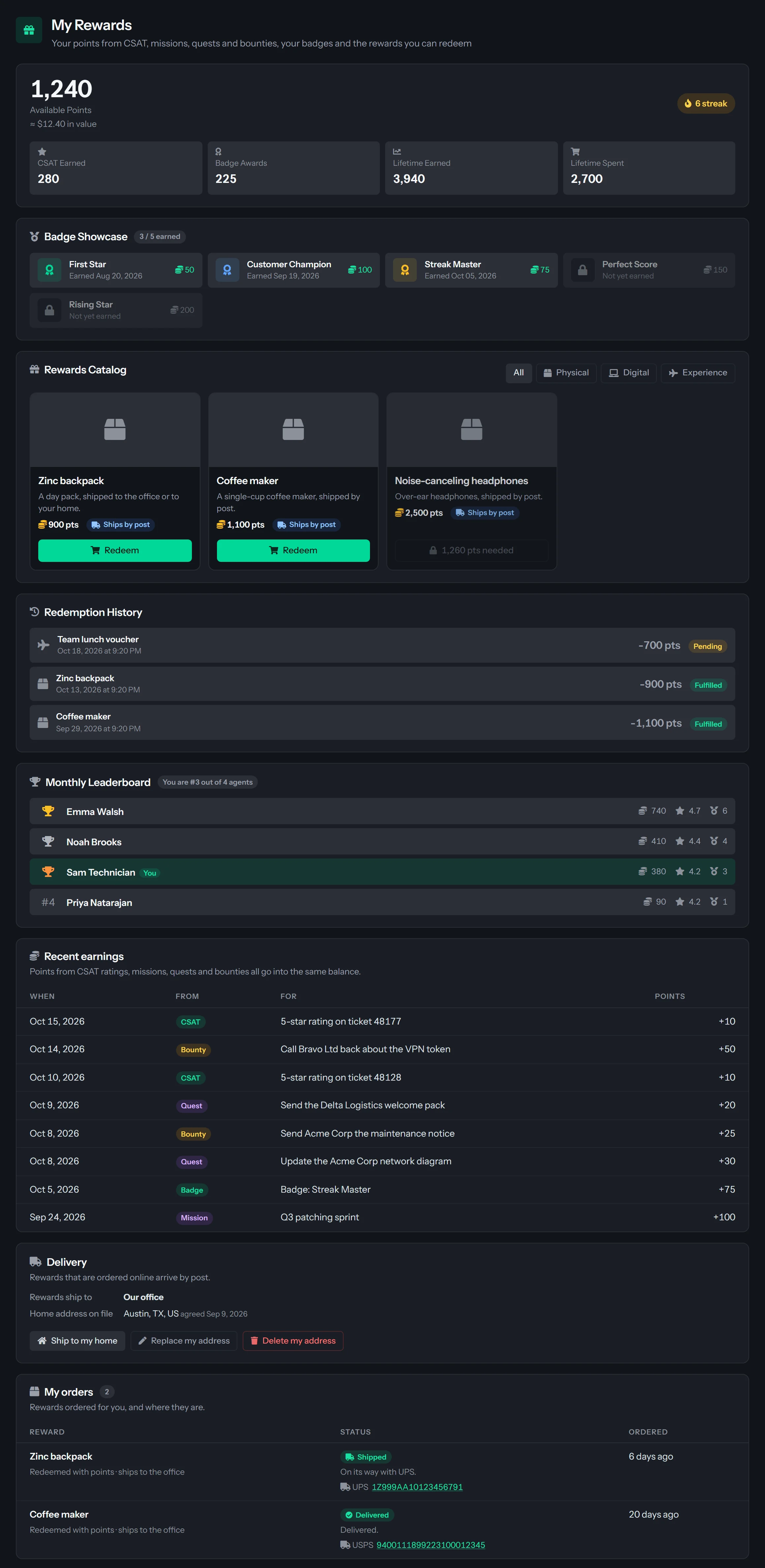
Points from missions, quests and bounties land in the same balance as CSAT points. Agents spend them in My Rewards, and they count on the Leaderboard.
A physical product
Zinc buys products from shops such as Amazon and Walmart and ships them, from your own Zinc wallet. Gift cards and digital goods cannot be ordered through it.
Earn it, or redeem it
An agent can earn a Zinc product by finishing work, or redeem one from the catalog with points. A rejected, canceled or failed order gives the points back.

Add a product by its page address.
A Rewards Admin pastes the product link. For Amazon and Walmart, QuantumOps looks the product up and fills in the name, image and price. For any other shop, type the name and the price yourself.
- You set the points cost, the price an agent pays in points
- A suggested maximum price, the most Zinc may charge for one order: the price plus 15%, rounded up to the next dollar
- The price of an Amazon or Walmart product is refreshed every day
- A product a mission, quest or bounty uses is retired, never deleted
[ 07 // zinc ]
Your wallet, your budget, your approval.
Your organization uses its own Zinc account. You sign up, add funds and paste the API key, and QuantumOps handles the orders. Nothing is bought outside the limits you set.
Connect it in minutes.
- QuantumOps checks the key with Zinc before it saves it. It is stored encrypted, and the tab shows only its first characters and last four, a Test mode or Live badge and the wallet balance
- A test key places pretend orders that cost nothing. Run a test order sends Zinc’s test product to your office address and waits for Zinc to accept it
- Set the office address, a monthly budget (0 means no Zinc orders) and an approve-automatically limit (0 means you approve every order)
- Each order costs the product price, up to its maximum price, plus Zinc’s $1.00 fee


Orders you can see and stop.
- An order over the auto-approve limit, or over the month’s budget, waits for a Rewards Admin to approve, reject or cancel it
- Approving past the budget asks first, and the override is recorded under the admin’s name
- If the wallet is short, the order stays approved and the tab says Wallet needs top-up. Add funds in Zinc and it is placed on the next pass of the order worker, about a minute later
- Ordered, shipped with tracking, delivered: QuantumOps asks Zinc about every minute, or hears at once through an optional signed webhook
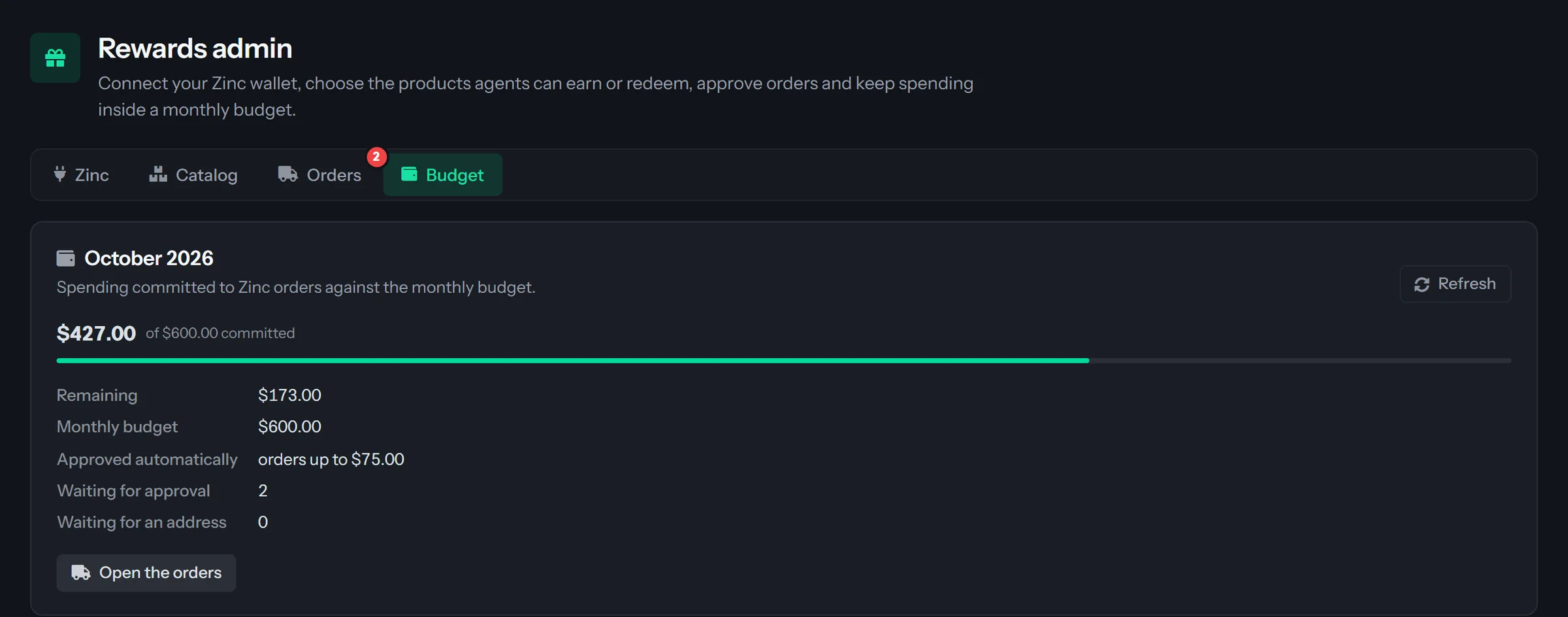
A budget you can read at a glance.
- This month’s commitment against the monthly budget, and what is left. Committed counts the maximum prices of orders from approved to delivered, so it is what could be charged, not what has been
- The approve-automatically limit, and how many orders wait for approval or for an address
- An order whose reward has nowhere to go waits as Needs an address until you save the office address
Office by default. Home only if the agent opts in.
- Rewards ship to your office address, unless an agent opts in to home delivery and you allow it
- The agent enters the address and phone themselves and agrees to a stated use. It is stored encrypted, administrators see only the city, region and country, and the agent can delete it at any time
- Zinc delivers to the United States, Germany and Italy
- Agents see each order and its tracking on My Rewards
[ 08 // moments ]
A card that finds the agent.
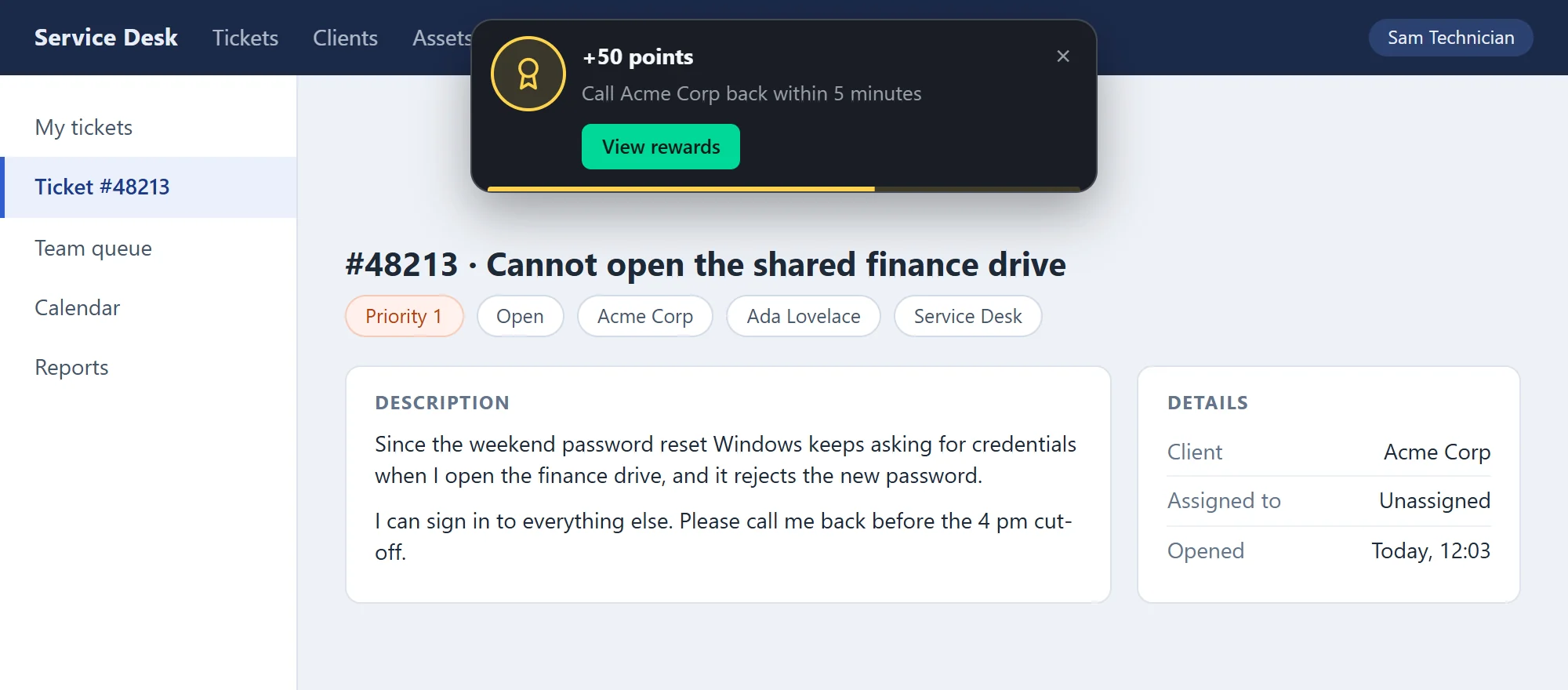
A Moment is a short, achievement-style card that drops in at the top center of the page. It announces a bounty, a quest, a reward or a message, with up to three buttons, so an agent can claim a bounty without opening anything.
- Shows on your PSA’s pages and on QuantumOps pages, with the side panel open or closed
- Reaches the browser about every 30 seconds on Chrome and Edge, every minute on Firefox, and at once while the panel is open
- Hides after 7 seconds, and hovering pauses it. A Critical bounty stays until the agent acts on it or dismisses it
- With reduced motion set in the operating system, the card simply fades in

Desktop alerts
An optional desktop notification when a card arrives and no page can show it, for example while the agent is in another application. The browser asks permission the first time.
Alerts on every site
An optional switch that shows the card on any https page the agent is looking at. QuantumOps does not read those pages: the card is all it adds. The browser asks to allow QuantumOps on all sites.
A tab that keeps them
If no page and no desktop alert could show a card, it waits in the Missions tab of the side panel.

What arrives as a Moment
Direct messages from a dispatcher and the Q-Notices on a ticket use the same card. Q-Notice and Q-Notify
[ 09 // for agents ]
The work, where the agent already is.
The side panel’s Missions tab and the web app’s My missions page show the same kinds of things: what is open, what the agent holds and what they have earned.

- Claim a bounty in one press. If Claim is grayed out, the line under it says why: it is full, not open to your team, or you held it before
- A live countdown on an active claim, with Release, and Done with a note for work a Mission Manager confirms
- Quests grouped by mission, with progress, reward and due date
- A count on the More menu for open bounties and unread Q-Notify messages
Quests and bounties go to technicians in your PSA, so an agent’s sign-in has to be linked to their technician record in Team Management. Without the link the page says so and shows nothing else.


[ 10 // leaderboard ]
The leaderboard counts all of it.
The Leaderboard ranks agents by every point they earn, from customer ratings, missions, quests and bounties, and filters by where the points came from.

- Filter Points from: All, CSAT, Missions and quests, or Bounties
- This month or all time, a podium for the top three, then the table, up to 20 agents
- Any signed-in user can open it, and it names agents
[ 11 // roles and setup ]
Two roles, one switch and a short setup.
Q-Missions is a module in the Insights bundle, on by default. An administrator can switch it off under Modules.
Mission Manager
Runs the work
Posts bounties, builds missions and quests, attaches points rewards and confirms the work your PSA cannot check. Administrators and Rewards Admins have the role too.
Rewards Admin
Runs the rewards
Connects Zinc, curates the catalog, approves orders and watches the budget. It is also needed to attach a Zinc product to a mission, quest or bounty. Administrators have it too.
Everyone else
Sees their own work
My missions, the Leaderboard and My Rewards open for any signed-in user, and show only the technician their login is linked to.
Setup
Link logins to technicians
In Team Management, so agents can receive and claim work.
Grant the two roles
Give Mission Manager and Rewards Admin to the people who run the work and the rewards.
Points rewards work at once
As soon as the module is on, with no other setup.
For products, connect Zinc
Paste your Zinc API key, then set the office address, the monthly budget and the approve-automatically limit.
Get the extension
The Missions tab, Moments and desktop alerts come with the QuantumOps browser extension version 0.21 or later.
Do agents need the browser extension?
For the Missions tab, Moments and desktop alerts, yes: they come with the QuantumOps browser extension 0.21 or later. Without it, agents still see and claim bounties on the My missions page in the web app, and an agent with a Slack or Teams account gets one direct message for each bounty when their extension has been quiet for ten minutes.
Is Q-Missions an add-on?
No. It is a module in the Insights bundle, on by default. Points rewards cost nothing beyond the points. Product rewards are bought from your own Zinc wallet, where Zinc charges the product price, up to the maximum you set, plus a $1.00 fee for each order.
Can we pay in gift cards?
No. Zinc orders physical products only, and gift cards and digital goods cannot be ordered through it. The manual rewards you already run in CSAT Administration, such as time off or a voucher you hand over yourself, still work beside it.
What if our PSA cannot see the work?
Choose A Mission Manager confirms it. The agent presses Done with an optional note, and a manager confirms it or sends it back. For a bounty or quest with no ticket, that is the only choice.
Can two agents take the same slot?
No. A claim takes a slot with one conditional update, so the slot count cannot be overrun. An agent can hold a given bounty once, even if the claim lapses or they release it.
Can a reward be paid twice?
No. Every payout carries a unique key, so a retry never pays twice. A payout that fails never undoes the completion, and QuantumOps retries it.
Does Q-Missions change anything in our PSA?
No. It reads tickets, their notes and updates and the status list to see whether the work was done, and it adds nothing to the ticket.
Who can see the leaderboard?
Any signed-in user, and it names agents. Filter it by where the points came from, or open it from a link that ends in ?source=bounties, csat, missions or all.
What happens to an agent’s home address?
The agent enters it themselves and agrees to how it is used. It is stored encrypted and used only to ship rewards. Administrators see only the city, region and country, and the agent can delete it at any time. If you switch home delivery off, everything ships to the office.
[ 13 // start ]
Give your desk something to claim.
Book a demo and we’ll walk through a bounty on a real queue.