

[ 01 // qbr studio ]
Build the quarterly review
from your own PSA data.
Pick a client, a template and a period. QBR Studio pulls the numbers from your PSA reporting, AI writes the commentary, and by default someone approves the deck before its link goes to the client. Edit it in chat or on a canvas, present it, download a PDF or PowerPoint, or publish a link that expires. Give each client a schedule and the draft is waiting before the meeting.
[ 02 // how it works ]
Three steps from a client to a deck.
The review is built from the same PSA reporting you already trust, and it is yours to edit before anyone outside sees it.
01
Pick the client and the period
Choose a client, a template and a period: last quarter, this quarter to date, last month, this month to date, the last six months, year to date or your own dates. Each is compared with the period before it, automatically.
02
Generate
Generate now builds the deck in the background: the numbers from your PSA reporting and your QuantumOps data, then the AI’s commentary, scorecard and recommendations. Or start from an empty draft.
03
Review, then present or publish
Reviewers approve the deck, you present it or download it, and a link goes to the client. By default every report goes from draft to review to approval before its link can be published.
A review’s path
A reviewer can send a review back to its owner with a note, and an approved review that you edit goes back to Draft. A draft that a schedule creates arrives already in review.
In this tour: Home · a new QBR · templates · generation · the editor · blocks · chat edits · the metric library · satisfaction · uploads · review · publishing · the client page · the decision log · presenting and exports · schedules · Qubit · settings
[ 03 // home ]
One home for every review.
QBR Studio Home shows what is waiting on you, which reviews are coming, and every report with how the client has used it.
- Needs your attention lists, in up to four groups, reviews waiting for your approval, changes a reviewer asked for, your drafts and drafts whose generation failed, with the reason on the row. A meeting within three days is highlighted.
- Coming up shows the next reviews your schedules will draft: the meeting date, the day the draft is made, the template and the period.
- All reports filters by client, status and owner, with a search box. Each row shows the status, the meeting, the owner and the client’s engagement: page views, PDF downloads and when they last opened the link, or Not published.
- Each row opens the report, presents it in a new tab, opens that client’s open recommendations, or copies the client link. The list updates by itself as drafts generate.

Six places, three of them admin
The sub-navigation has Home, Decisions, Templates, Schedules, Metric library and Settings. Templates, Schedules and Settings are for administrators and service desk managers; customer success staff do not see them.
Nine statuses you can filter by
Draft, Generating, In review, Changes requested, Approved, Published, Link expired, Failed and Archived. Waiting for you marks the reviews you are listed to approve, and Needs my attention gathers every group above.
Reports from the old builder
A report made with the previous QBR builder carries a Classic tag and its client link keeps working. It opens read-only until you select Convert to editable deck.
[ 04 // a new qbr ]
Pick a client, a template and a period.
The form is one page, and a summary on the right shows what you are about to generate.

- Client is a search of your active PSA clients. The QBR link on a client in the Customer Success Center opens this form with the client already chosen.
- Template starts on your default. Under Or start from a starter you can use any of the five; the first report from a starter adds it to your templates, and later ones reuse that copy, so an administrator changes it once for everyone.
- Period opens on Last quarter. Both the first and last day count, the numbers are compared with the same length of time immediately before, and a period can run about two years at most. The form warns when the last day is still in the future.
- Meeting and people: an optional meeting date (it shows on the cover, and reminders count down to it), a title, the owner and the reviewers. As you type, the fields suggest your PSA’s technicians. Remove every reviewer and the owner approves.
- Generate now creates the review and builds it in the background, so you can leave the page. Create an empty draft makes it without generating, to adjust first. With no templates yet, the first report starts from Strategic QBR and makes it your default.
[ 05 // templates ]
A template is the outline every review follows.
Slides, the metrics on them and the plain-language prompts that AI answers. One well-made template saves you from rebuilding the same review for every client.

- Each card shows the name, a category, a description and four counts: Slides, Blocks, AI blocks and Version. A line under them says how many schedules and reports use the template, and who changed it last.
- Exactly one template is the default, and it is listed first. A new review uses it when nobody picks another.
- Duplicate makes a copy named after the original. Archive drops a template out of the pickers for new schedules, and the schedules that already use it keep drafting from it.
- Delete removes the template and its revision history; reports already built from it keep their slides. A template a schedule still uses cannot be deleted.
- Save as template on a finished review keeps its slides and block settings and leaves out the client’s numbers and text.
Quarterly · 11 slides
Strategic QBR
The ten-part quarterly review: an executive summary with a scorecard and one decision, what changed since the last review, service experience, responsiveness and SLA, recurring issues with fixes, satisfaction, environment health and risk, a ranked roadmap, the ask and the decision log.
Monthly · 5 slides
Monthly Service Review
A short operational review: ticket volume, SLA and backlog, satisfaction, and the month’s wins and risks.
Executive · 1 slide
Executive One-Pager
One slide for leadership: headline KPIs, the summary, a red, amber and green scorecard and the decision needed.
Security · 7 slides
Security & Lifecycle Review
Security posture from connected sources, assets and warranties, licensing, a risk register and recommendations.
Annual · 9 slides
Annual Technology Plan
The year in review, service and satisfaction trends, lifecycle, risks, a 12-month roadmap, a budget table you fill in, and the decision log.
Yours
A blank template, or one of your own
Start from a blank template with a cover slide and build up, or save a review you already like. Starters are copied when you use them, so your copy is yours to cut down.
The editor you review in, pointed at a template.
The template editor is the same canvas, palette and chat you use on a client’s review, working on block definitions instead of a client’s results.
- The header carries the name (rename it in place), a Version badge, Default and Archived badges, the category, and Unsaved changes as soon as you touch anything.
- Add a slide from nine layouts: Blank, Cover, Section divider, Title and text, Two columns, Executive summary, Service desk, Satisfaction or Recommendations.
- A data block takes Show as, Metrics, Compare with the prior period and Show the top. A prompt block takes a Focus, the instruction What should this block say? and its Evidence metrics.
- Type default speaker notes under each slide. Check Start hidden in new reviews for a deep-dive only some clients need.
- Slide theme keeps your brand kit or gives reviews from this template a look of their own.

Preview a slide with a real client’s numbers
On the Preview tab pick a client and a period (it starts on the last full calendar quarter) and select Preview this slide or Preview every slide. KPI, chart, table and quote blocks fill in place and a banner names the client and the period. AI blocks are not run in a preview, and nothing from it is saved.
Versions, with a note
Saving writes a new version, and Save with note lets you say what changed. Reports already made from the template keep the version they started from, so editing a template never rewrites a review in progress. The Revisions tab lists every version; Restore saves the old content as a new version and deletes nothing.
[ 06 // generation ]
The draft builds itself in the background.
Generate now puts the review in a queue. Close the page if you like: the draft is waiting when you come back, and the owner can be told by e-mail when it is ready.

- One snapshot. The client’s metrics for the period and the period before are computed once, frozen into the report and shared by every block.
- Data blocks first, with no model. KPI tiles, charts, tables and quote cards are filled straight from the snapshot.
- Then the AI blocks. Each gets an evidence list and may use read-only lookups if you allow them. Up to three run at a time.
- The decision log and uploaded reports are filled from the log and from your files.
- Executive summaries last, so they can read what every other block says.
What the AI writes
The executive summary, wins and risks, a red, amber and green scorecard, three to five ranked recommendations with good, better and best options, and any Ask AI block you wrote a prompt for. Never prices: you enter costs yourself.
What it reads
The metrics from the snapshot, the client’s earlier recommendations, and summaries of your uploaded reports. The executive summary also reads every other block’s results. A block must cite the evidence it used, and it may use only the figures that are in it.
A fact check on the numbers
A number in the AI’s text that matches nothing in its evidence is listed for the reviewer. It also warns if the AI mentions a cost or a price. It is advisory and never blocks approval.
Progress you can watch
Blocks show Generating, Not generated, Out of date, or Failed with a Retry button as they build. One block failing does not stop the run, and the deck is saved after every block, so a closed tab never loses finished work.
A record of every run
History keeps an activity trail. For a generated block, Run details shows the model, the tokens used, how long it took, the tools it called and how many numbers were unverified.
Restarts do not leave it spinning
A run a restart cuts off is marked Failed with a message, ready to retry. With AI switched off, AI blocks say so and every data block still builds.
[ 07 // the editor ]
Edit it by asking, or edit it by hand.
Two modes show the same review. Your choice is remembered in this browser, and edits save by themselves a moment after the last change.
Basic
Chat does the editing
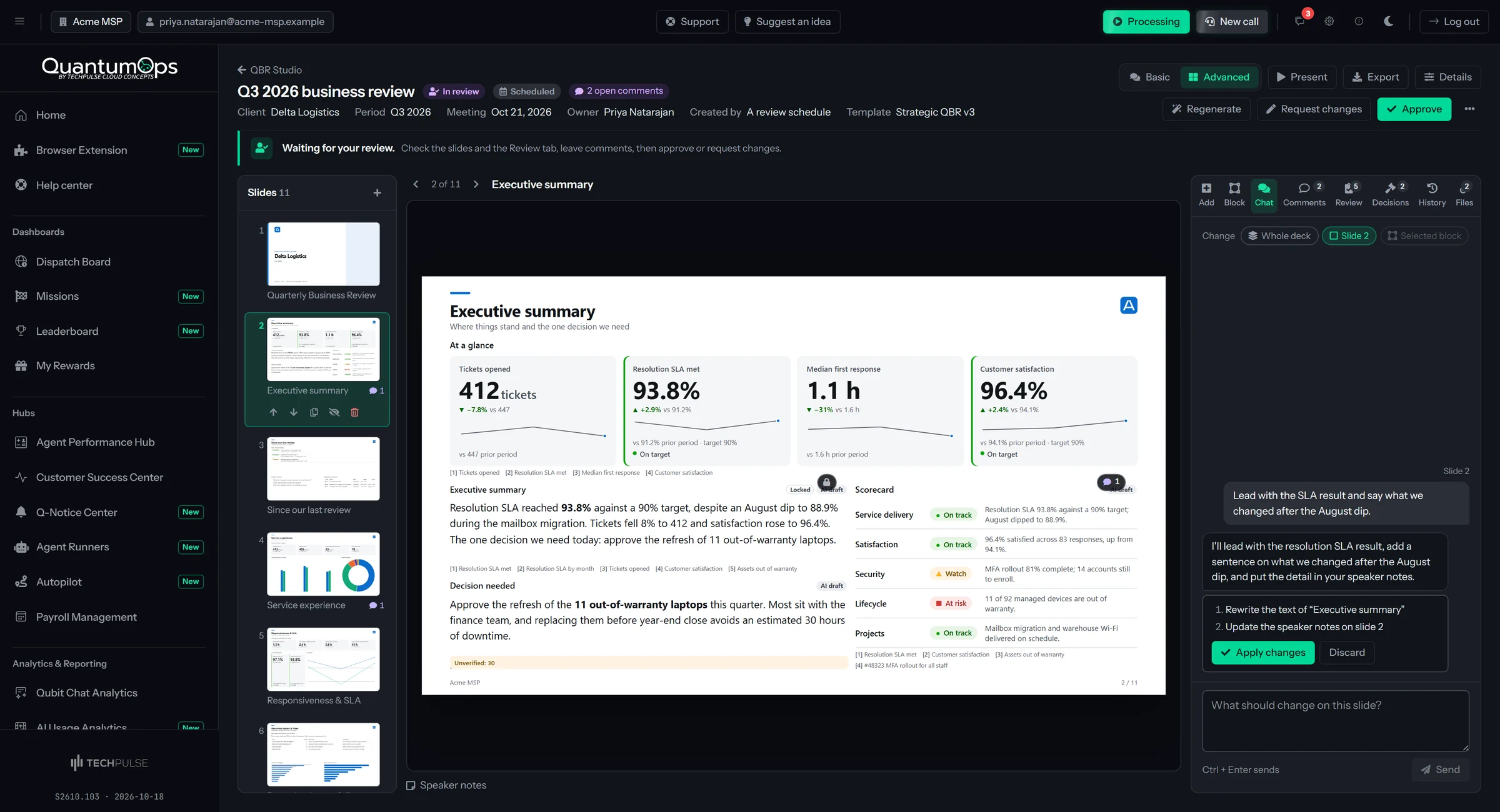
The slide list is for reading and choosing a slide, and the right panel opens on Chat. Panels: Chat, Comments, Review, Decisions, History and Files. It needs AI on in QBR settings; with it off, the Chat tab says so and points you to Advanced.
Advanced
A canvas, a palette, an inspector
Slides are a grid of 12 columns by 7 rows. Drag a block to move it, drag a handle to resize it, add blocks from the palette, and shape the deck: add, move, duplicate, hide and delete slides. It adds the Add and Block panels to the rest.
A palette you search, then drop in.
The Add tab groups the catalog into Structure, Executive, Service desk, Satisfaction, Value delivered, Security & lifecycle, Strategy & roadmap and Custom. Type in Search blocks to filter.
- Drag a block onto the slide, or select it to place it where there is room. If the slide is full you are asked to make room or add a slide.
- With a block focused, the arrow keys move it, Shift and the arrow keys resize it, and Delete removes it.
- A frame shows the block’s state, a lock if it is locked, and a count of open comments.
- Deleting a block or a slide shows an undo button above the slide, such as Undo delete of slide 4.


An inspector for every block.
Which fields appear depends on the kind of block. Every one shows its state and who edited it last.
- Show as picks the visual; some blocks offer Let the AI choose. Metrics lists only the metrics that can be drawn that way. Compare with the prior period, Show the top and Show at most (1 to 50 tiles, rows, quotes or cards) limit it.
- An AI block takes a Focus, the instruction in plain language, and the Evidence metrics it may cite. It can use only numbers from those metrics.
- Text blocks take Markdown with Write and Preview views. Images can be PNG, JPG, GIF, SVG or WebP up to 500 KB, or an https link, with a description for screen readers.
- Regenerate rebuilds a block from fresh data, optionally with an instruction for that run, such as “focus on the SLA dip in August”. Lock keeps it when the whole review is regenerated, and editing its text by hand locks it for you.
Slide settings
With no block selected, the Block tab holds the slide’s title, subtitle, layout (Title and blocks, Cover or Section divider) and Hide this slide from the client. A hidden slide stays in the review and is left out of the client page, the PDF, the PowerPoint and the presentation.
Speaker notes
Under the slide, write what to say. The notes show when you present and go into the PowerPoint you export from QuantumOps. The starter templates ship with coaching notes for the presenter.
Review details
Details holds the title, the period, the meeting date, the owner and reviewers, whether clients can decide on recommendations, and a slide theme for this review alone. Change the period, then regenerate so the numbers follow.
A review is read-only while it is generating, while it is published or its link has expired (unpublish it to edit), and when it is archived. A review in review can be edited by its owner, its reviewers and administrators. Editing an approved review moves it back to Draft.
[ 08 // the block catalog ]
75 blocks, in eight groups.
Drag one onto a slide and it builds itself from the client’s data. Every block can be retitled, resized and pointed at other metrics.
Structure · 6
The frame
Cover with the client, period and your logo, an agenda built from the slide titles, a section heading, free text, an image, and a closing slide with next steps and the next meeting.
Executive · 7
The headline
Headline KPIs, the executive summary, a red, amber and green scorecard, Decision needed, Since last review, wins and achievements, and risks and concerns.
Service desk · 25
The work
A KPI strip, opened against closed, volume trend, tickets by type, category, priority, site and technician, channel mix, top requesters, an arrival heatmap, after-hours share, SLA gauges, SLA by priority, trend and breaches, response and resolution times, backlog age, quality, recurring issues with fixes, and effort.
Satisfaction · 10
What people said
CSAT KPIs, a gauge, a monthly trend, the rating distribution, customer comments as quote cards, satisfaction by technician and by survey tool, an AI summary of what customers told you, and two Net Promoter Score blocks.
Value delivered · 6
What you did for them
Tickets analyzed and auto-triaged by AI, duplicates caught, calls handled and calls by month, caller identity verifications and offboardings, service notices, and an AI-written value story.
Security & lifecycle · 9
Risk in business terms
Microsoft 365 Secure Score, MFA coverage, backup health, patch compliance, license use, assets, assets by type, warranties ending in 90 days, and an AI-drafted risk register.
Strategy & roadmap · 7
What happens next
Recommendations with good, better and best, a roadmap, the decision log, a budget table you fill in, projects, and a summary and key figures from reports you uploaded.
Custom · 5
Anything else
Ask AI: describe a block in plain language. Plus AI text, a chart of any metric in the library, up to four metrics as tiles, and a table of any table-shaped metric.
Sixteen kinds of block underneath
Cover, section heading, text, image, KPI tiles, chart, table, narrative, Ask AI, quote cards, scorecard, recommendations, decisions, roadmap, agenda and uploaded report. KPI tiles, charts, tables and quote cards run no model at all; the narrative, Ask AI, scorecard and recommendations blocks do.
Security blocks use what you connect
The Secure Score, MFA, backup, patch and license blocks are prompts that use the tool sources you have connected or a report you upload. With neither, a block says no source is connected and suggests connecting one, rather than guess.
Sixteen ways to draw a metric
[ 09 // chat edits ]
Ask for the change. Read it before it applies.
The Chat tab changes a review in plain words, and you always see what will change before it changes.
- Choose how much it may touch: the whole deck, the current slide (the button shows its number), or one block you selected first.
- Type a request or pick a suggestion such as Tighten the executive summary or Add a customer satisfaction slide, then press Send or Ctrl and Enter.
- Read the numbered list of changes the assistant proposes, then Apply changes or Discard.
- A version is saved first. The card then says how many changes were made and how many blocks are regenerating, lists anything it skipped, and offers Undo. The version is also in History.

Words and notes
Rewrite a block’s text, retitle the deck or a slide, and set a slide’s speaker notes.
Blocks and slides
Add a block from the catalog or from a prompt of your own, remove or move a block, add, remove, move or hide a slide, and update a block’s settings.
Regenerate with an instruction
Ask for a block to be rebuilt with a one-off instruction, and blocks that need data are queued for you. The same assistant works in the template editor.
[ 10 // the metric library ]
76 metrics, each with its formula.
Every number in a review comes from the library, computed the same way for every client. AI writes the words around the numbers and never makes one up.
76
metrics in the library
15
categories
51
from your PSA’s ticket data
25
from QuantumOps, rating tools and uploads

Look up what a number means.
- Search by name, short key, description, category or formula. Filter by source: your PSA, QuantumOps, CSAT sources or Uploaded reports.
- Each card says how it is computed, where it comes from, how it is fetched, its unit, whether higher or lower is better, and whether a block can compare it with the prior period.
- Under the facts, every way the metric can be drawn, with the default highlighted.
- Unless a formula says otherwise: per client and per period, both days counted, deleted and merged tickets and opportunity and project ticket types left out, times in hours, and a service level is the tickets inside the target divided by the tickets inside plus outside it.
Try it on a real client.
Try it computes one metric live for a client and period, so you can see what it will look like before it goes into a template.
- Pick a client from your active client list, a quick range or your own dates, and, if the metric can be shown more than one way, Show as.
- Build preview draws it in a slide frame, captioned with the client and the period, and says which source it came from. Nothing is saved.

From your PSA’s ticket data
Volume and classification
Opened, closed and backlog; opened against closed by month, week and day; by type, category, priority, site and technician.
Patterns and requesters
When tickets arrive, after-hours share, tickets per active user, channel mix, proactive against reactive work, top requesters, load across users and recurring issues.
SLA and responsiveness
Response and resolution SLA met, by month and by priority, where SLAs were missed; median and 90th-percentile first response and time to resolve, their trends, and open ticket age.
Quality and effort
Reopen rate and first-contact resolution; hours worked, billable against included, by month, technician and issue type, travel and effort per ticket.
Assets and delivery
Managed assets, by type, out of warranty and warranties expiring in 90 days; projects completed and projects this period.
From QuantumOps, your rating tools and your uploads
Satisfaction
CSAT, net CSAT, average rating, responses, trend, distribution, comments, and results by technician and by survey source, pooled from the sources you switch on.
Experience
Tickets from frustrated users, the ticket health profile and customer-success interventions.
Communication
Calls handled, by month and in minutes, caller sentiment and service notices issued.
Value delivered
Tickets analyzed by AI, tickets auto-triaged, duplicate tickets caught, caller identity verifications and user offboardings processed.
External reports
Metrics read from the reports you upload to a review.
Unavailable, never zero
A metric your PSA cannot supply shows as unavailable with the reason: data it needs that your PSA does not hold, no satisfaction source switched on, or a figure it could not work out. A zero would claim something that is not true. Some cards carry a line that starts Needs, naming what your PSA has to hold.
[ 11 // satisfaction ]
Satisfaction from every tool you already use.
Turn on every source you have. Each keeps its own scale and is put on 0 to 100 before the scores are pooled into one per client.
- QuantumOps surveys are your CSAT survey answers: the faces in your HaloPSA e-mails, or surveys sent from the Customer Success Center, matched to the client of each ticket. On by default.
- PSA satisfaction is the score your PSA stores from its own feedback survey. Off by default. On HaloPSA, say which end is best, set the number of levels (2 to 10), and Show score distribution to check the end you chose against the last year’s scores. On Autotask and ConnectWise PSA, check Use it: ConnectWise ratings keep their survey’s scale, and Autotask ratings read from 1 to 5, higher being better.
- On HaloPSA, Crewhu, Simplesat or any rating tool that writes onto a ticket custom field: load your PSA’s custom fields, then Add Crewhu, Add Simplesat or Add another tool, and name the rating, comment and date columns.
- A number scale takes a lowest and a highest value, and a checkbox if lower numbers are better. A word or face scale uses Sample values to read the distinct ratings from the last 180 days, and you mark each positive, neutral or negative.

What comes out
CSAT percentage (the positive share), net CSAT (positive minus negative), the average on a 0 to 100 scale, the number of responses, a monthly trend, the rating distribution, the comments, results by technician and by survey source.
Not enough responses
A client needs a minimum number of responses before its score shows: 5 by default, from 1 to 100. Below that the block says there are not enough, instead of a number that swings on one survey.
Fails soft
If a mapped column is not in your PSA, that source is skipped when the review is generated and the scores use the sources that remain. If none can answer, satisfaction shows as unavailable with the reason.
[ 12 // your own reports ]
Bring the report from another tool.
A phishing test, a backup report, a license audit. Upload it to the review and the AI reads it, summarizes it, and lets your blocks cite it.

- PDF, CSV, Excel (.xlsx), text, Markdown, PNG, JPG and WebP, up to 50 MB each. Images are read with a vision-capable model.
- The card shows Analyzing, then an AI summary, key figures and findings. Analyze now and Retry are there if it stalls or fails.
- Edit sets the title shown in the review, a category and a description.
- Use the summary as evidence lets AI blocks cite it and lets the summary, figures and findings reach the client. Add it to the PDF appendix appends a PDF or image file to the end of the PDF export.
- The Uploaded report summary and Uploaded report figures blocks read from these files. With AI off, uploads are kept, not summarized, and can still go in the appendix.
[ 13 // review ]
A reviewer checks it before the client sees it.
Comments, a check list, saved versions and an approval step sit beside the slide. Nothing here reaches the client.

- The Review tab lists the blocks a reviewer should look at, for this slide or all of them: a failed block’s error, a block that is out of date, warnings such as a skipped source or a metric that was not available, and any figure that was not found in the evidence.
- Each entry names the sources the block cites and the model that wrote it. Check every unverified number, then correct the text or regenerate the block.
- Comments attach to a block or a slide, with Reply, Resolve and Reopen. Open counts show in the header, the slide list and on the block.
- History keeps the saved versions, one before every chat edit and on submit, approve and publish, with Restore (the current review is saved first), plus the activity trail.
Submit for review
Add a note for the reviewers, and the dialog says who will be asked: the reviewers, or the owner when there are none. They are e-mailed a link, and a version is saved.
Approve, or send it back
Approving saves a version, adds the review’s recommendations to the decision log and lets the owner publish. Request changes needs a note, which is e-mailed to the owner and added to the review as a comment.
Who may approve
The reviewers named on the report; the owner when none are named; administrators always. An administrator can switch the approval step off, or stop owners approving their own report when it has reviewers.
[ 14 // publish ]
Publish a link that expires.
Publishing gives the client a private link to a branded page, with PDF and PowerPoint downloads. The review is read-only while it is published.

- Keep the link open for 1 to 365 days, 30 unless your administrators changed the default. The dialog shows the date it will stop working.
- Manage it: copy it, extend it, reopen an expired one, replace it so the old link stops at once, or unpublish it, which makes the review editable again.
- Only the owner, a reviewer or an administrator can change the link. A client who opens an expired, replaced or unpublished link sees a page that says This link has expired or is unavailable. Archiving a published review also stops its link.
- Send pre-read e-mails the link to up to 25 people, with a short note from you, the meeting date and the date the link works until. It carries your logo and colors.
From your own mailbox
In HaloPSA, the recommended setting sends the pre-read as an e-mail action that is not attached to a ticket, as the report owner’s HaloPSA agent or the agent you name, so the client sees your own mailbox. Replies land in HaloPSA. It needs no e-mail set-up in QuantumOps; the send is refused only when neither the report owner nor the agent you name exists as a HaloPSA agent. Only HaloPSA has an e-mail action that is not attached to a ticket, so on Autotask and ConnectWise PSA the pre-read always goes from the QuantumOps sender.
Or from the QuantumOps sender
The other choice, and the only one on Autotask and ConnectWise PSA, sends from donotreply@qops.app and replies go to the report owner. This route needs e-mail set up for your organization; without it nothing is sent this way. Sending the same pre-read to the same people twice within a couple of minutes sends it once. You can always copy the link and send it yourself.
Who read it
Once published, a strip under the title shows page views, unique visitors, downloads, how many times you presented it, and when it was last viewed. Engagement adds, for each slide, views, visitors and average time, and marks the three that held attention longest.
[ 15 // the client page ]
A branded page. No sign-in.
The page the client opens is the deck in your logo, colors, font and footer. The PDF and the PowerPoint they download are the same review.

- Scroll reads the review as one long page, Slides one slide at a time with Previous and Next, and Full screen fills the display.
- It needs no sign-in. The link is checked on every request, the page is kept out of search engines and rate limited, and it is a stand-alone page with no QuantumOps menu around it.
- Hidden slides are left out. The PDF on the page is rebuilt from the current version of the review the next time someone downloads it.
The client decides on each recommendation.
- When client decisions are allowed (on by default, and you can turn it off for a report), every open recommendation shows Accept, Defer and Decline.
- The client chooses an option when several are offered, enters a name and, if they like, an e-mail address and a note, then confirms. The card then shows who decided.
- A client can decide while a recommendation is undecided or deferred. After that your team records any change.
- The decision lands in the decision log as the client’s own, and by default the owner is e-mailed, at most once an hour per recommendation.
 Delta Logistics · Q3 2026 review
Move the file backups off the old NAS
The backups still land on a ten-year-old NAS in the loading-bay office. Move them to the managed cloud vault.
[ 16 // what stays with you ]
What the client never sees.
A client sees only a published link. A lot of what makes a review good is for your team, and stays that way.
Drafts and hidden slides
Nobody outside your team sees a review until it is published, and by default it must be approved first. Presenting and downloading inside QuantumOps never wait for approval, so you can rehearse the deck. A slide you hide is left out of the client page, the PDF, the PowerPoint and the presentation, and a template can start a slide hidden for the clients who do not need it.
Speaker notes
The PowerPoint a client downloads from a published link has no speaker notes. The Export menu in QuantumOps keeps them in your copy, and the starter templates ship with coaching notes for the presenter.
Uploaded reports you switched off
When Use the summary as evidence is off for a file, its summary, figures and findings are left out of the client page, the PDF and the PowerPoint, and the PDF appendix cover leaves out its summary. Your workspace still shows the block, marked Not shown to the client.
The check list for reviewers
The Review tab, comments, version history, run details and the fact check are for your team, and none of it reaches the client. If you switch off Show SLA metrics to clients, SLA blocks are skipped when a review is generated and hidden from everything the client sees.
[ 17 // the decision log ]
Every recommendation, kept across reviews.
A review ends with recommendations. The log keeps each one for a client across all their reviews: what they decided, who decided it, and what happened since.

- A recommendation joins the log when its review is approved or published, or when you record a decision on it first.
- Open ones are Proposed, Accepted, Deferred and In progress, and they are what the next review has to pick up. The others are Declined, Completed and Superseded.
- On a card: the review that proposed it, the last review that showed it, why it matters, the options with their costs, the chosen option, and whether your team or the client decided.
- Record decision takes Accept, Defer, Decline, In progress, Completed or Reopen, the option chosen, who decided, an optional e-mail and a note.
The AI never prices
It drafts each recommendation (title, what it is, why it matters, priority, horizon) and good, better and best options. You enter the costs: up to three options, each with a tier (single option, good, better or best), a name, a one-time and a monthly cost. The slide and the client page show the same wording and prices.
The next review opens with them
The Since last review and Decision log blocks bring the log into the deck: either the decisions since the last review or everything still open. The Decisions tab on a review shows this review’s recommendations and the ones still open from earlier.
You decide what becomes work
On an accepted recommendation with no item yet, the owner, a reviewer or an administrator presses Create ticket or, in HaloPSA, Create opportunity. Nothing is created unless they do, each recommendation gets one item, and it takes the ticket type and team set under PSA items, plus the opportunity type, impact and urgency in HaloPSA.
[ 18 // meeting day ]
Present it, or send it.
The same deck goes to the screen, to a PDF, to PowerPoint and to the client’s link.

- Present opens the deck in a new tab. F fills the screen, N shows your speaker notes, Esc goes back to the report. Arrow keys, Page Down, Space or a click move on; swipe on a touch screen.
- Hidden slides are skipped. The controls at the bottom right show where you are, such as 9 / 11, and a thin bar tracks your progress.
- Decide on a recommendation card opens a panel to accept, defer, decline or mark it in progress or completed, with a note, or to create the ticket. It reads Manage once the recommendation is decided.
- Each presentation adds to the review’s Presented count; opening it again within ten minutes counts once.
One 16:9 page per slide, the same slides the client sees. PDFs and images you uploaded and marked for the appendix are added at the end, after an Appendix page.
PowerPoint
An editable file with native text, tables and charts, your colors and logo, and your speaker notes. A few visuals are simplified: gauges and bullets become bars, KPI sparklines are dropped and heatmaps become colored tables. Anything that could not be carried over is listed after the download.
The client’s link
The page, the PDF and the PowerPoint, with hidden slides left out. The client’s PowerPoint has no speaker notes.
Restyle a copy with Claude. Open in Claude Design sends nothing: you download the PowerPoint or PDF and take it to Claude yourself. Design with Claude is off by default and needs your organization’s own Anthropic key; when someone uses it, the review’s client name, numbers, text and speaker notes go to Anthropic. Either way it is a copy, and edits to it never come back.
[ 19 // on a schedule ]
The draft is ready before the meeting.
Give each client a schedule and QuantumOps creates the draft ahead of the meeting, lands it in review, and reminds the owner if nobody has approved it.
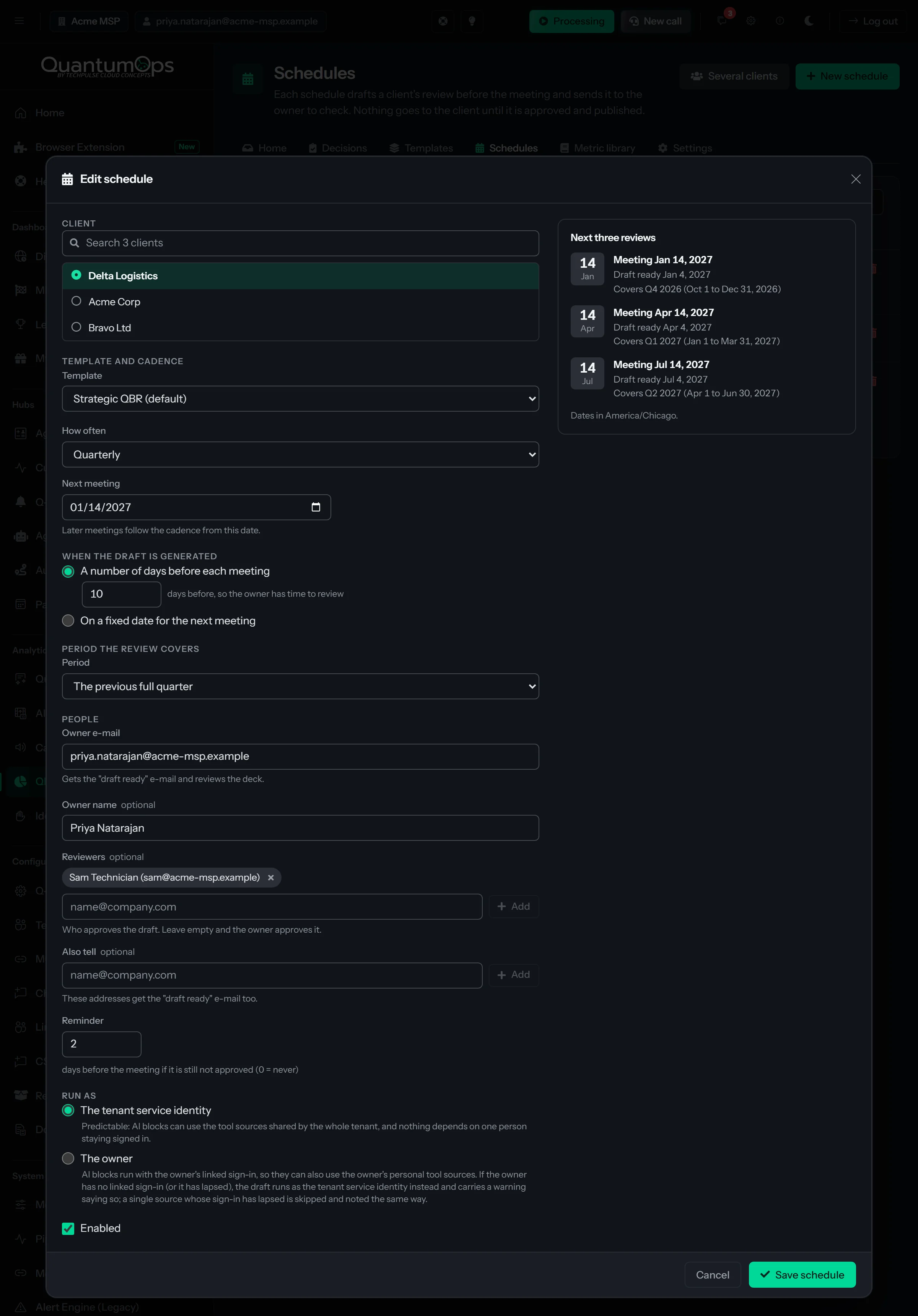
- Cadence: monthly, quarterly, twice a year, yearly, or every 7 to 730 days. Set the next meeting; a date that has passed moves forward by whole steps.
- When the draft is made: a number of days before each meeting (10 by default), or on a fixed date for the next one.
- The period it covers: the previous full period, the last N days before the draft, or everything since the client’s last review.
- People: an owner, reviewers, extra addresses to tell, and a reminder N days before the meeting. A Next three reviews panel shows the dates before you save.
- Run as: the tenant service identity, or the owner, whose own tool sources the AI blocks can then also use. If the owner’s sign-in has lapsed, the draft runs as the tenant and the block says so.
Many clients at once
Select the clients, fill in the form once, and one schedule is created per client, up to 500 at a time. Edit any of them afterwards.
When it runs
Due schedules are checked every 15 minutes and drafted from 06:00 in your reporting time zone. The schedule moves on to the next meeting as soon as a draft is due, and one report is made per meeting. A draft made before its period has ended carries a note in its history to regenerate it afterwards.
Run now, pause, edit
The lightning bolt drafts the next review immediately, even on a paused schedule, and leaves the schedule where it was. A switch pauses it, and deleting one keeps the reports it already made. The list shows the last run and a link to its report.
E-mails to your own team, each sent once for the event
Draft ready
To the owner and anyone on the schedule’s Also tell list, when generation finishes. Can be switched off.
Generation failed
To the owner, with the reason.
Review requested
To the reviewers, or the owner when there are none, when a review is submitted or a scheduled draft arrives in review.
Changes requested, and Approved
To the owner: the reviewer’s note, or the approval.
Reminder
To the owner, N days before the meeting, if the review is not approved yet. Reports you made by hand are reminded too, unless an administrator turned that off.
Your client recorded a decision
To the owner, naming the client and the recommendation, at most once an hour per recommendation. Can be switched off.
These e-mails need e-mail set up for your organization. When it is not, QBR settings says E-mail is not configured. and nothing is sent, and after an action such as submitting or approving QBR Studio tells you whether the e-mail went out.
[ 20 // qubit ]
Ask Qubit about your reviews.
If you can use QBR Studio, you can ask Qubit about it in the chat pane of the web app or in the Chat tab of the browser extension. Qubit acts as you and follows the same rules as the screens.
Look things up
List reports, for one client or one status. Show one report: its summary, headline numbers, recommendations with their decision status, and the client link when it is open. List a client’s open recommendations, the meetings your schedules have coming up (the next 30 days by default) and your templates. Qubit answers these without asking.
Start a draft
Ask for a draft QBR for a client and period, from a template you name or your default, and it starts generating. Qubit asks for your approval first, because it creates data.
Record a decision
Record a client’s decision on a recommendation, with the option chosen and a note, after you approve it on the card. These tools are for signed-in people who can use QBR Studio, in the web chat pane and the extension, not in Slack or Teams, and not in unattended routines.
[ 21 // settings ]
Six tabs, one Save button.
The settings apply to all of your organization’s reviews. One Save settings covers every tab, a badge shows Unsaved changes, and nothing saves until every tab is valid.

The brand kit sets the look of everything.
- Primary and Accent colors, up to eight chart colors (leave them empty and charts use shades of your two), a Light or Dark slide background and one of four web-safe fonts, so the PDF matches the screen.
- A company name, which shows on the cover and is the sender name on client e-mails, and a footer.
- A logo as PNG, JPG, SVG or WebP up to 500 KB. An uploaded logo is stored with your settings, so the PDF never has to fetch it.
- A live preview shows a sample cover and a sample KPI slide as you change things. A review or a template can carry its own theme instead.
Workflow
Whether a report must be approved before it is published, whether owners may approve their own, the draft-ready e-mail, the default owner, reviewers and template, the draft lead time (0 to 90 days, 10 by default), the reminder, how long a client link lasts (1 to 365 days, 30 by default), whether clients may decide, and how the pre-read is sent.
PSA items
The ticket type and team, and in HaloPSA the opportunity type (none by default) and the impact and urgency, and whether to use the client’s main site, for the work an accepted recommendation creates. The lists come from your PSA, with a reload button.
AI
Commentary on or off, the tone, house style, and which connected tool sources the AI may use to look things up, read-only. Limits per block: tool calls (0 to 25, 6 by default), seconds (15 to 600, 180 by default) and tokens (60,000 by default, or none). Design with Claude lives here too.
The CSAT sources and Metrics tabs are covered above, under satisfaction and the metric library.
[ 22 // who and what it needs ]
Who can use it, and what it needs.
Who
Managers and customer success
Administrators, service desk managers and customer success staff create, edit and present reviews. Templates, schedules and settings are for administrators and service desk managers. Only the owner, a reviewer or an administrator can record decisions, change a client link or send a pre-read. QBR Reporting is a module in the Insights bundle, on by default.
Data
Access to your PSA’s reporting
The metrics are computed from its ticket data, and the same connection supplies the client list. Security blocks need a connected tool or an upload, and say so when they have none, rather than guess.
AI
AI on or off
With AI switched off, the AI blocks say so and every data block still builds. The chat assistant waits for AI, and Advanced mode works either way.
Does the client see a draft?
No. A client sees only a published link, and by default a report must be approved before its link can be published. Presenting and downloading in QuantumOps do not wait for approval, so you can rehearse the deck first.
Who approves a report?
The reviewers named on it. With none named, the owner approves their own deck, and administrators always can. An administrator can switch the approval step off, and then drafts can publish.
What if a number looks wrong?
The metric library shows each metric’s definition and formula, and Try it computes one live for a client. The fact check flags figures in the AI’s text that match no evidence from your data, and a metric your PSA cannot supply shows as unavailable with a reason, not as zero.
Can a QBR go out as PowerPoint?
Yes. Download an editable PowerPoint with native charts and speaker notes, or present it in the browser, download a PDF, or publish a link where the client can download either file. The client’s PowerPoint leaves out the speaker notes and any hidden slides.
Do the satisfaction slides need QuantumOps surveys?
No. QuantumOps surveys are one source. Your PSA’s own ticket rating is another, and on HaloPSA so are Crewhu or Simplesat scores kept in a ticket custom field. QBR Studio puts them on one scale.
Does it create work in our PSA on its own?
No. A client’s accepted recommendation becomes a ticket, or in HaloPSA an opportunity, only when the owner, a reviewer or an administrator presses the button, and it takes the ticket type and team set in QBR settings or the Customer Success defaults.
Does the AI price the options?
No. It drafts each recommendation and good, better and best options, and leaves the costs blank. You enter a one-time and a monthly cost, and the slide and the client page show them. If the AI mentions a price anyway, the Review tab warns the reviewer.
What happens to reviews made with the older builder?
They keep working. Their client links stay valid, and they carry a Classic tag. They open read-only until you select Convert to editable deck.
[ 24 // start ]
Walk into every QBR ready.
Book a demo and we’ll walk through QBR Studio on a real client.