

[ 01 // customer satisfaction ]
Ratings from the emails
your PSA sends.
Customers rate the ticket from an email your PSA sends: on HaloPSA, a face in the reply or resolution email it already sends; on Autotask and ConnectWise PSA, a survey the Customer Success Center posts to the ticket for your PSA to email. The survey page carries your logo, and the result is written back to the ticket. Low ratings get followed up, good ones earn points, and a leaderboard makes good service visible.
Service desk → Ada Lovelace, Acme Corp · Resolved
Sam Technician
How satisfied were you with your support experience?
Click a face to rate your experience
[ 02 // surveys ]
A survey in an email your PSA sends.
On HaloPSA, paste a QuantumOps snippet into your reply or resolution email templates. Customers click a face, QuantumOps hosts the survey page, and the answer comes back to the ticket. Autotask and ConnectWise PSA have no template variable that carries the ticket into a link, so there a survey goes out from the Customer Success Center as a customer-visible note your PSA emails.
Reply and Resolved layouts
A compact Reply snippet or a full Resolved card, with emoji faces that show in every mail client or face images from a built-in set. Three faces, scored 1, 3 and 5, or five.
A link that belongs to the ticket
The first click on a face creates the survey for that ticket. Each survey takes one response, links expire after the days you choose, 7 by default, and with Require signed links on, each ticket’s link carries a signature made for that ticket.
Your question, or one the AI writes
The default question is How satisfied were you with your support experience? Use your own, or let AI write one from the ticket when the link opens, for tickets QuantumOps has stored.
Your branding
Your logo, header, footer and thank-you text, and the technician’s photo, or a default picture, with their name, if you want it shown.
The snippet, with a readiness check.
The Email Snippets tab builds the HTML you paste into a HaloPSA email template and checks that a click on a face will open a survey. HaloPSA fills in the ticket number when it sends the email, so each message carries faces linked to that ticket.
- Resolved or Reply. A full card with a heading for the email you send when a ticket closes, or a compact block for agent replies, so every reply can carry the faces
- Emoji or images. Emoji need nothing hosted and look the same in every mail app. Images load PNG files from your survey address and some mail apps hide them until the reader allows it
- Three faces or five, five themes. Standard, Winter, Summer, Fall or Holiday colors, previewed as the email and as the survey page
- Readiness. Whether surveys and on-demand generation are on, the survey address, the expiry, surveys per ticket, and how many links failed in the last seven days
- Test a ticket. Enter a real ticket number and it says whether a click would open a survey, show Already Submitted, or fail, and why, without creating anything

Placed in minutes
Paste the snippet in the code view of your ticket-closed template, or of the template your agent replies use. It works only in a HaloPSA email template, where HaloPSA fills in the ticket number. Turn off HaloPSA’s own feedback survey in the same template so customers are not asked twice.
Signed links, when you want them
Without a signature, a link accepts an answer for any ticket number someone types. With signing, QuantumOps writes a key into a custom field on each ticket, the template reads it back, and you can then refuse every link without a valid key. The key also lets the survey name the technician.
Link problems explained
A list of links that could not open a survey, newest first, with what the customer saw, why, and how to fix it: a snippet pasted outside an email template, a missing key, an expired survey, or the surveys-per-ticket limit.
[ 03 // what the customer sees ]
One page, your branding, no sign-in.
The face a customer clicks is already chosen when the survey opens. They add tags and a comment, and submit.
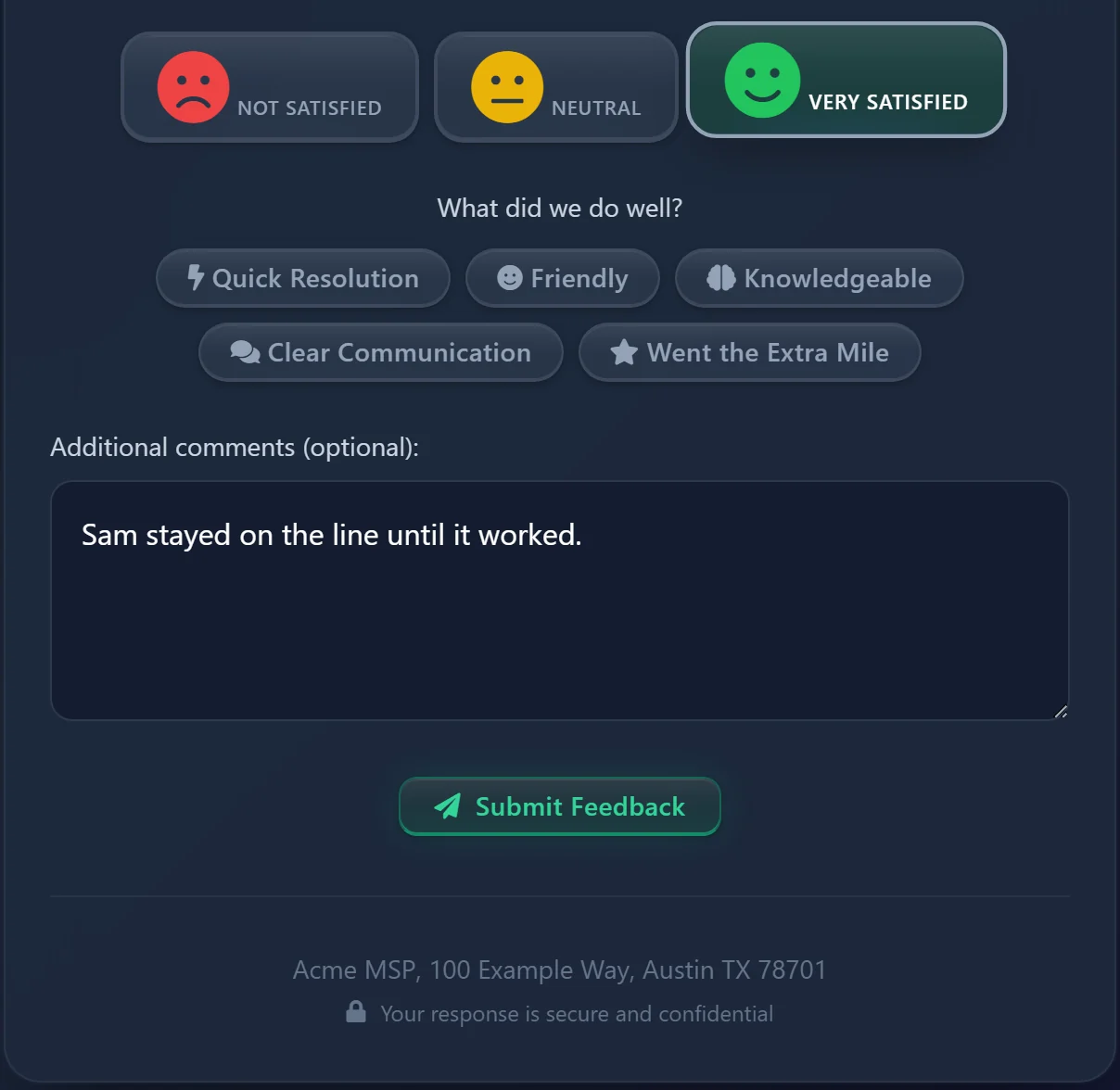

Tags and a comment, with a rule for low scores.
- After a rating, tags that fit it: What did we do well? for 4 or 5, What could we improve? for 2 or below. A starter set of 18 tags is one button away, and you add your own with a category, a color, an order and a rating range
- A comment box. At or below the low-rating threshold the comment is required, on the page and on the server
- A thank-you card headed Thank You for 3 or more and We Hear You for 2 or below, with an optional link to your public review page for every customer
- A customer who opens an answered survey sees Already Submitted, and one with a bad or expired link sees a plain card saying why
Who gets the credit.
One rating covers the whole ticket, however many technicians worked it. Feedback Mode decides who earns the points and the streak: the assigned technician by default, every technician your PSA lists on the ticket, or a share split by each technician’s part in the ticket.
- The survey names the technician, with a photo or a default picture, when Show Agent Photo is on
- A survey you send from the Customer Success Center can use a 1 to 10 scale, and the thresholds scale with it

Every setting has a default.
Survey Config holds one set of settings per scope. Save once on the tenant default to store your own. If you serve white-label clients, a client can have settings of its own, started from a copy of the default.
- Static or AI Contextual question, and whether the first click on a face may create the survey
- Expiry from 1 to 90 days, 7 by default, and 1 to 20 surveys per ticket, 3 by default
- Writeback to the ticket, private by default, and the points a positive rating earns
[ 04 // results ]
Results back where the work is.
Every rating is written to the ticket, and a bad one reaches the next technician before they pick up the phone.
Written to the ticket
Each rating posts to the ticket as a note, private by default, so the result sits with the work it rates. QuantumOps writes new ratings back every five minutes, retries a refused note, and the note lists the stars, the question, the tags and the comment.
The next tech knows
For tickets QuantumOps has stored, a low rating flags that end user on the QuantumOps ticket grid and in their Negative Feedback History. Three ratings of 2 or lower mark the client High Risk on the Client Dashboard.
Six numbers at a glance
The dashboard shows average rating, response rate, satisfaction rate, surveys sent, low ratings and an NPS score worked out from star ratings, with a 30-day trend.

The dashboard.
Pick a date range and the six tiles and the rating distribution follow it. The trend always shows the last 30 days, and Responses Needing Attention lists the ratings of 2 or below from the last week, five at a time.
- Satisfaction rate is the share of 4 and 5 stars. The NPS tile here is worked out from star ratings, and is separate from NPS campaigns
- Surveys sent counts a survey from the moment it reaches a customer, and one nobody answers counts as unanswered once its link expires
- Agent Performance shows the five highest-rated technicians
- Big Screen opens the wall display with your display key already in its address
Every response, with the story behind it.
The Responses tab lists the 50 most recent answers, 15 to a page, sortable by ticket, client, agent, rating, tags, comment and date. Filter to 5, 4, 3 or 1 to 2 stars, or to the responses you flagged.
- The detail. The rating, ticket, client, contact, technician, the question that was asked, the comment, the tags and a UTC timeline of the survey. A label marks a survey started from an email face
- Flag for follow-up. The flag stays until you remove it and has a filter of its own
- Create CS ticket. A ticket icon shows on ratings of 2 or below, and the detail always offers it, with the ticket, client and rating filled in and the email and internal note shown before anything is created

[ 05 // feedback follow-up ]
A low rating gets a person, not a shrug.
Feedback turns into work three ways. QuantumOps never sends a survey on its own: on HaloPSA your templates carry it, and on any PSA a person sends one from an alert.
Flag it, or open a CS ticket
On the Responses tab, flag a response for follow-up or create a Customer Success ticket from it. Filter to 1 to 2 star ratings, or to the ones you flagged.
A rule that opens the ticket for you
The Negative CSAT rule opens a Customer Success ticket as soon as a low rating arrives, and the customer receives an email. It needs a default CS agent and has limits per ticket and a cooldown. Ratings answered from an email snippet are skipped unless the rule opts in.
Send a survey from an alert
In the Customer Success Center, an alert about an unhappy customer can send a survey: AI writes a question aimed at the ticket and QuantumOps posts it to the ticket for your PSA to email. With the private-action setting on, nothing is emailed.
The Negative CSAT rule, step by step.
An administrator adds a rule on the Trigger Rules tab. When a customer submits a rating, QuantumOps checks the enabled Negative CSAT rules in priority order, and the first whose limit is met acts.
- Choose the rating at or below which it fires, 2 by default, and Create a Customer Success ticket. The form warns that the customer receives an email
- Max per ticket starts at 1 and a cooldown sets the least time between two, so one ticket cannot be flooded
- The customer gets an email from the default Customer Success agent that thanks them, apologizes and says a person will follow up. A private note on the new ticket names the rule and quotes the comment
- Staff find it under Active CS Items. Per-client rule sets and Copy from default are there for white-label clients
- Other trigger types can be saved, but QuantumOps never runs them, and the tab says so

[ 06 // nps ]
NPS campaigns, for the other question.
An administrator creates a campaign, pastes the email addresses and launches it. Each recipient gets the 0 to 10 question by email and a personal link that takes one answer.
The answer
The email carries buttons from 0 to 10, and a comment box follows the score. A 9 or 10 is a promoter, 7 or 8 a passive and 0 to 6 a detractor. NPS is the share of promoters minus the share of detractors.
The results
Each campaign shows its NPS, how many were sent, responses and response rate, a score distribution, every response and who has not answered. The Big Screen has an NPS panel.

Draft, launch, complete.
- A campaign saves as a Draft, which you can still edit. Launch takes one address per line and pastes in any list, ignoring lines without an @
- Launching records each address, creates a personal link and emails it. If no email goes out, the campaign returns to Draft with nothing sent
- Links answer once and expire after the days you set, 14 by default, up to 90
- Complete closes a campaign to new answers and keeps its results. Only drafts can be deleted
- Recipients are the addresses you paste. QuantumOps does not pick them from your PSA, and a campaign is launched by hand, not on a schedule
The page the recipient opens.
We Value Your Opinion: the question, buttons from 0 to 10 labeled Not at all likely to Extremely likely, then a follow-up question that fits the score and an optional comment. The page keeps its own look and does not use your survey branding.
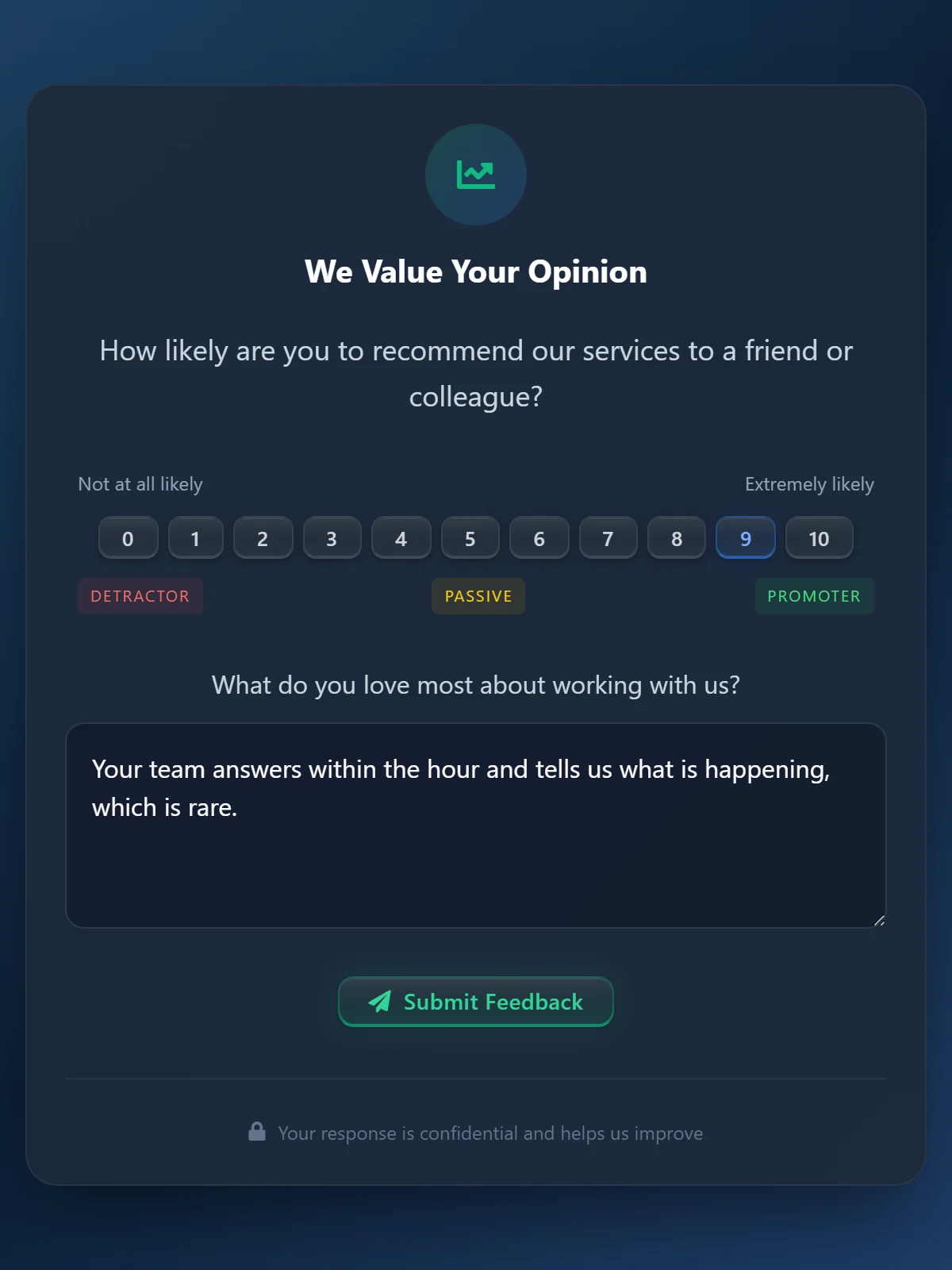
The NPS Score tile on the CSAT dashboard is a separate figure, worked out from star ratings: 5 stars count as a promoter, 4 as a passive and 1 to 3 as a detractor. An administrator launches each NPS campaign by hand, from the addresses they paste in.
[ 07 // points and badges ]
Good ratings earn points.
Every rating at or above your positive threshold earns points for the technician on the ticket, and a lower rating resets their streak.
Points you set
A positive rating earns 10 points by default, at 4 stars or more. Both are yours to set.
Streaks and badges
A streak counts positive ratings in a row. Five badges come ready: First Star, Customer Champion, Streak Master, Perfect Score and Rising Star. Make your own, and they are awarded automatically.
Monthly targets
On the Quotas tab, managers can set a monthly points target for a technician or for the whole team.

Badges that award themselves.
After each rating QuantumOps checks the active badges and awards them to an agent who meets the condition. A badge adds its point value, and each badge has a limit on how many times one agent can earn it.
- First Star, Customer Champion (10 positive ratings), Streak Master (5 in a row), Perfect Score (10 perfect ratings) and Rising Star (top 3 on the month’s leaderboard)
- Your own badges by type: a minimum rating, a streak, a milestone count or an achievement, with an icon, a color and a maximum number per agent
- Award one by hand with a note, for recognition that no rule can see
- Retire a badge by clearing Active. Deleting one removes the record of who earned it
Quotas: a target, not a cap.
The Quotas tab lists agents by average rating with a monthly points target and a progress bar for the month, quarter or year. Agents keep earning past the target.
- Set one agent’s quota, or the whole team’s, and choose whether to overwrite quotas people already have
- Four cards show active agents, met quota, below quota and the team’s average rating
- View History lists an agent’s 50 most recent point changes with the reason

[ 08 // rewards ]
Points that buy something.
Agents spend their points in My Rewards. Some rewards you hand over yourself. Others are physical products that ship from your own Zinc wallet.
Redeem, then confirm. QuantumOps shows the reward’s cost, the agent’s balance and the balance after, and refuses with the reason when the points are short, the item is out of stock or not offered, or the agent has reached its limit.
- Manual rewards, such as time off or a voucher: an administrator fulfills or rejects the request, and a rejection returns the points and the stock
- Zinc products: a redemption takes the points and becomes an order that an administrator may approve first, then it is ordered and tracked automatically. A rejected, canceled or failed order gives the points back
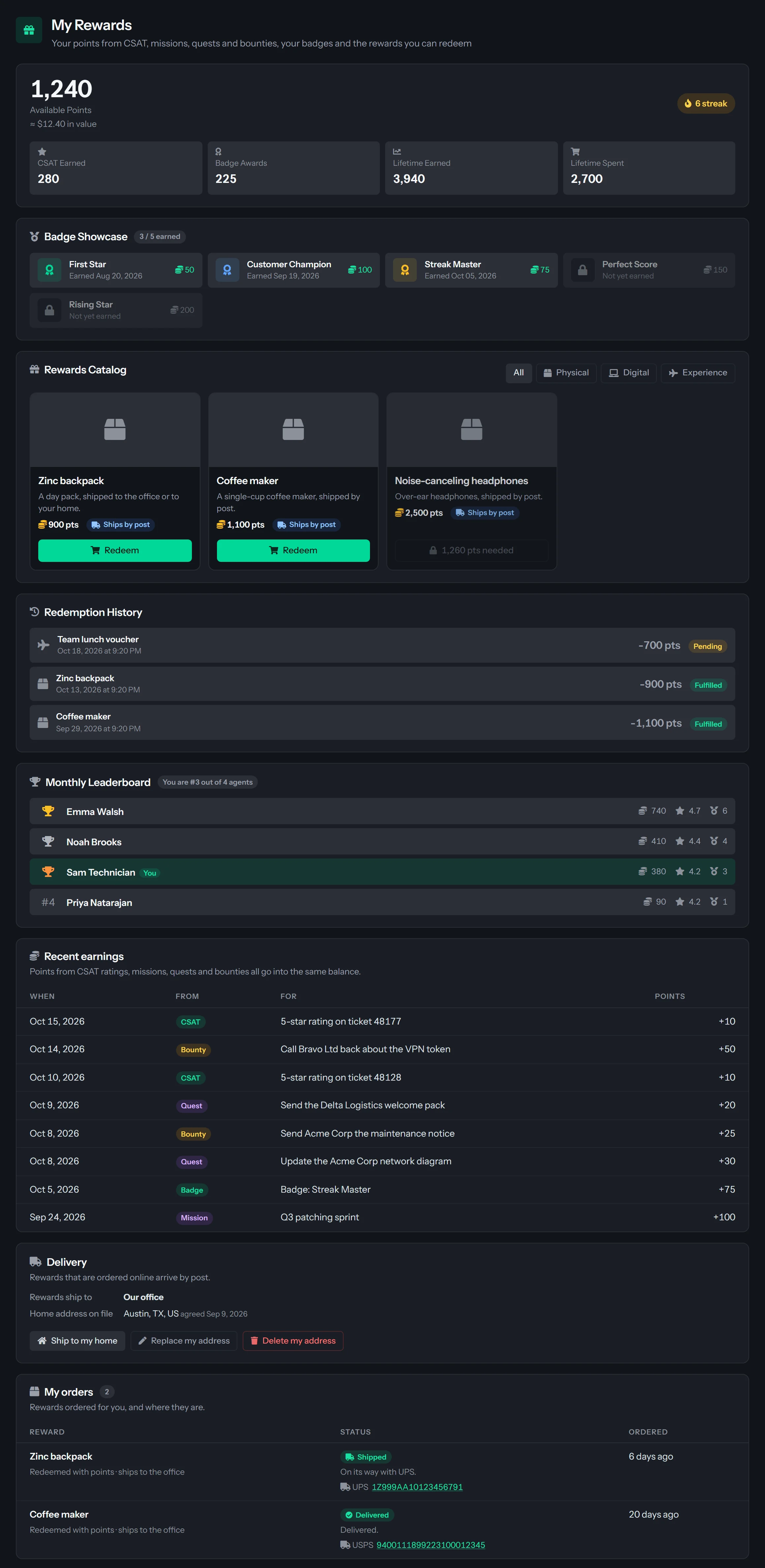

Rewards you set up in one tab.
- A name, a description, a point cost, a quantity or unlimited, an image, and a category for manual rewards
- Pending redemptions wait for you to hand the reward over and press Fulfill, or Reject to return the points and the stock once
- A points-to-cash figure, 100 points to the dollar by default, shown to agents for display only. It never changes a cost
- A Zinc reward is created by a Rewards Admin, and only a Rewards Admin edits or retires it
[ 09 // leaderboard ]
Make good service visible.
The Leaderboard ranks agents by the points they earn: mostly customer ratings, plus every point from missions, quests and bounties.

- Points from: All, CSAT, Missions and quests, or Bounties. Under All, each agent shows where the points came from
- This month, the default, or all time. A podium for the top three, then a table of up to 20 agents with average rating, streak and badges
- Team totals for active agents, total points, best streak and team average rating, and the list of badges anyone can earn
- Any signed-in user can open it, and it names agents
- Points from Q-Missions land in the same pool as CSAT points
The TV wall below lists only agents who have received a rating, so an agent with only mission points shows on the Leaderboard but not in the wall’s Top performers.
[ 10 // on the wall and on your site ]
The score where the team can see it.
The Big Screen turns CSAT into a TV display for the office, and a widget puts it on a web page.
Big Screen
It rotates Overview, Leaderboard and Live Feed every 15 seconds and refreshes every 30. Overview shows today’s results: the CSAT score (today’s average, not the 30-day average in CSAT Administration), an NPS score, today’s responses and the top performers. The Live Feed shows named agents and customers’ comments as they arrive. Put a view in the address to fix it.
A display key
The page needs no sign-in, but its address carries a display key you create in CSAT Administration, under Widgets, and can rotate. A wrong key shows only “This display link is not valid”. Anyone who holds the full address can see agent names and comments, so put it on a screen your team sees, not your clients.
Widgets
Four types for a web page: Score Badge, Full Dashboard, Testimonial Carousel and Rating Distribution, each with its own key you can rotate.

Widgets for your own site.
Build one on the Widgets tab and paste the embed code into a page. Each widget has its own key, and its type and every option are signed into its address, so an edited address falls back to the plain score badge.
- Score Badge, Full Dashboard, Testimonial Carousel and Rating Distribution, in a light or dark theme, for today, 7 or 30 days, 3 months or 12 months
- Top agent and recent feedback are off until you check them. A testimonial never shows below 4 stars, and a company name shows only if you check it
- Rotating the display key cuts off every Big Screen link at once and leaves widgets alone. Rotating the widget key does the opposite
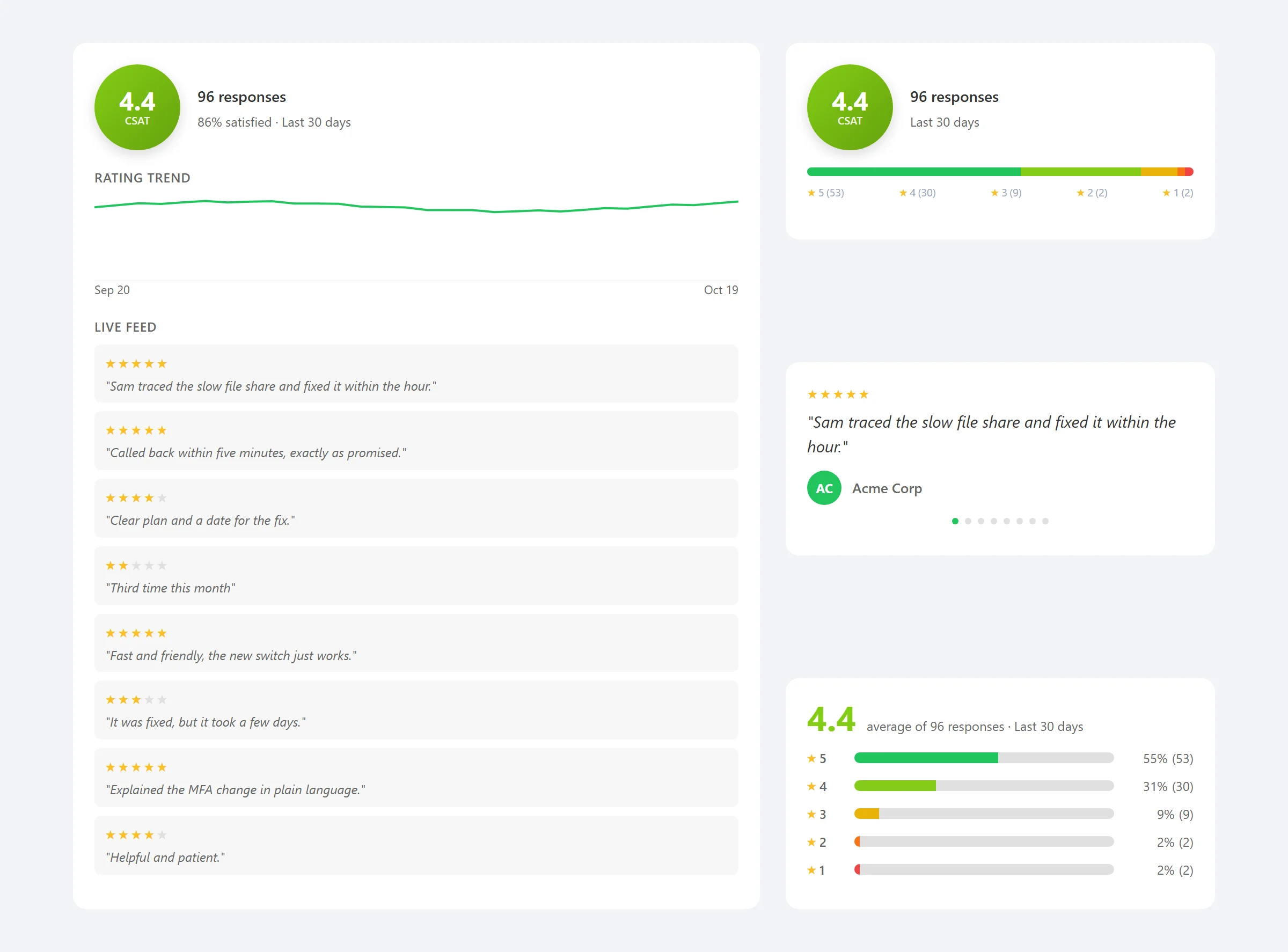
Public by design. A widget is shown to anyone who visits the page that carries it. Show only what you want customers to see, and leave Show Top Agent and Show Recent Feedback off unless you mean to publish an agent’s name and customers’ comments.
Who sends the survey emails?
Your PSA does. On HaloPSA the snippet rides in the templates it already sends, and on any PSA a survey from the Customer Success Center is posted to the ticket for your PSA’s own mail to deliver. An NPS campaign is emailed when an administrator launches it. QuantumOps hosts the survey page and writes the result back.
Do surveys go out automatically when a ticket closes?
Only through your HaloPSA templates: if the resolution email carries the snippet, the customer gets the faces. On Autotask and ConnectWise PSA a survey goes out only when someone sends one from the Customer Success Center. QuantumOps does not send a survey on a schedule or a trigger. The one trigger rule that runs, Negative CSAT, opens a Customer Success ticket after a low rating.
What does it need to start?
On HaloPSA, the snippet pasted into your email templates. On Autotask and ConnectWise PSA, a notification in your PSA that emails customer-visible notes. Everything else has a default: the question, a seven-day expiry, up to three surveys a ticket and a required comment for low ratings. Administrators tune the survey in CSAT Administration afterward.
Can a customer answer twice?
No. Each survey takes one response, a second click shows Already Submitted, and an expired link is refused.
What if a face link does not open a survey?
The Email Snippets tab lists the links that failed in the last seven days with the reason and the fix, and Test a ticket checks a real ticket number without creating anything. The usual causes are a snippet pasted somewhere other than a HaloPSA email template, a survey that expired, or the surveys-per-ticket limit.
Can we show our own faces?
No. You choose three or five faces and one of five color themes, and the survey can show numbers instead of faces. Uploading your own face set is not available.
Who can see ratings, rewards and the leaderboard?
CSAT Administration is for administrators. The Leaderboard and My Rewards open for any signed-in user, and My Rewards shows only the profile of the technician that user is linked to.
Can we put CSAT on the office TV?
Yes. The Big Screen display rotates its views every 15 seconds and refreshes every 30. The page needs no sign-in, but its address carries a display key you can rotate, so put it on a screen your team sees, not your clients.
Is NPS the same as the CSAT score?
No. NPS campaigns ask one 0 to 10 question of the addresses you paste in and report on their own. The NPS tile on the CSAT dashboard is worked out from star ratings and is a separate number.
[ 12 // start ]
See what customers say, inside your PSA.
Book a demo and we’ll walk through CSAT on a real queue.