

[ 01 // call taking and recordings ]
Take the call on the right ticket.
Keep the recording with it.
Call Taking finds the caller, shows what is already open and turns the call into a routed ticket before you hang up. Afterward, the recording your phone system already made is transcribed, matched to that ticket and posted to it. QuantumOps does not record calls and does not place them.
[ 02 // the whole path ]
From the first ring to the transcript on the ticket.
Four stages, and each has a section below. The first three work without the last, and the last works with any phone system that saves its recordings.
Take the call
Look the caller up by number or name, see their tickets and every open ticket at their company, and end the call as a ticket, a link or an outcome.
Follow the script
Scripts built once in Q-Director ask the right questions in order, and an AI Assist step drafts the ticket from the answers.
Connect the phone
A ringing call can open the screen with the number already searched. A Yeastar P-Series adds live phone state, and a webhook brings recordings in as calls end.
Keep the recording
Recordings are collected, transcribed, matched to a ticket and posted to it, and agents get a digest of the ones that need a person.
Call Taking is not a softphone. Calls ring, get answered and get transferred on your phone system exactly as they do today. QuantumOps handles the ticket side: who it is, what is open and where the work goes, and later the recording your phone system already made. Caller verification, click-to-call and presence have their own page: Phones and identity.
[ 03 // the call taking screen ]
Three questions, answered while the caller is still talking.
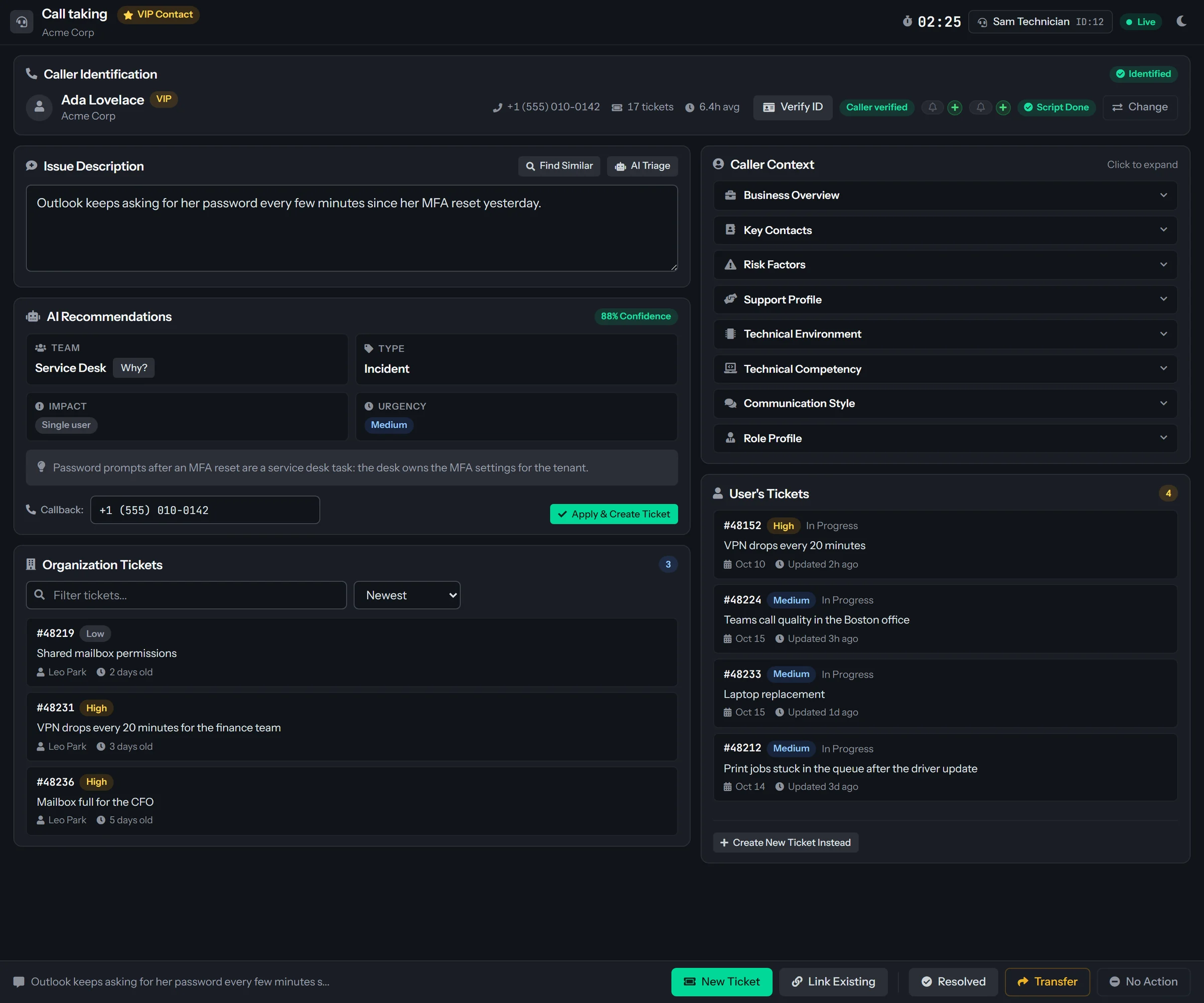
Who is this, what is already open, and what do we do with it. Call Taking is the screen your desk opens when the phone rings. The web screen is for HaloPSA. On Autotask and ConnectWise PSA, techs take calls in the browser extension’s Call tab.
Find the caller.
Type the number or a name in the Caller Identification card. A number is looked up against your PSA’s users and contacts first, then against tickets from the last seven days that mention it, then, on HaloPSA, against the contacts of your linked white-label partners. A name search starts at two characters and shows each person’s client, site and a VIP badge.
- A search never picks the person for the agent: one match asks for a Confirm, and several give a Multiple Users Found list with each person’s organization, e-mail address, phone number and open tickets
- No match says Caller Not Found by Phone and lists what it tried, then offers Continue Without Identification and takes the call as an unknown caller
- A caller found by name who rang from a new number can have it saved to their record in your PSA (on HaloPSA as a work, work mobile, home or home mobile number), so the next call from it finds them
- A contact who belongs to a linked white-label partner carries a badge with the partner’s name


See what you already know.
Once someone is chosen, three panels show their history, and the caller toolbar carries VIP and High Risk badges and any Q-Notices for the client or the person.
- Caller Context holds the profiles QuantumOps has built from past tickets: the client, support, technical environment, the user, technical competency, communication style and role, and recent tickets
- User’s Tickets lists the caller’s own open tickets
- Organization Tickets lists the rest of what is open at their company, sorted by newest, priority or oldest and filtered as you type. It shows 15 by default, and an administrator can set 5 to 50
- Selecting a ticket in either list, or in Find Similar, links the call to it and opens it in your PSA in a new tab with no confirmation step, so check the number first. That is how the fourth caller in an outage joins the ticket that already exists
Describe the issue and let the AI suggest the triage.
Find Similar
From 10 characters of the issue description, QuantumOps looks for past tickets that resemble what the tech typed, and it searches again as they type. Each result shows whether it is open or closed, a match strength from Very Similar to Related, its team and its age.
AI Triage
From 15 characters, AI Triage opens an AI Recommendations card with a team, a type, impact and urgency and a confidence percentage, and Why? gives the reasoning for the team. Triage while the tech types is off by default, because each request is an AI call.
Apply and create
The card holds the callback number, which goes at the top of the ticket details. Apply & Create Ticket opens the ticket dialog with the issue text in it and every field editable. The AI suggests and the tech decides: nothing is created until they press the button.
End every call honestly.
The buttons along the bottom end the call, and each one saves how it ended on the call’s record with the ticket, the destination and the tech’s notes. When nobody could be identified, the call records that rather than guessing.
New Ticket
Opens the ticket dialog. When the ticket exists it opens in your PSA in a new tab and the screen confirms Call Completed.
Link Existing
Lists the caller’s open tickets with a filter, and offers Create New Ticket when there are none. It is the right choice for the second and third caller about one outage.
Resolved
For a call dealt with during the call.
Transfer
Asks for a destination and optional notes, and saves both on the call record. QuantumOps does not move the call: the tech transfers it on the phone system.
No Action
For a wrong number or a question answered in a sentence.
Two more when you want them.
An administrator can switch on Escalate, which asks who the call goes to, and Mark Spam, which ends the call with no ticket. Transfer can be switched off.
- A call session left open four hours is closed as abandoned, with a note, so the dispatch board stops showing it as live
- If creating the ticket fails, the issue text and the script answers stay on screen and Try Again reopens the dialog
- Where the client has Identity Verification on, the toolbar carries the verification panel and the result
Places to take a call.
On HaloPSA the same screen runs in up to three places, and a ringing call can open it in any of them. On Autotask and ConnectWise PSA, the side panel’s Call tab is the place.
- On HaloPSA, inside it as a tab where your techs already work. The address is the same one that opens in its own browser tab
- On HaloPSA, from the New call button in the QuantumOps header, which opens the screen in its own tab with a call timer running from the moment it opens
- In the side panel’s Call tab, next to whatever page of your PSA is open: look up by phone, name or e-mail, run the script, create or link the ticket and wrap up. It uses the same scripts and creates the same tickets, and it sets team, type and priority fields by hand (impact and urgency; impact and severity on ConnectWise PSA; one Priority choice on Autotask), because AI triage, profiles and AI Assist steps are on the HaloPSA web screen
- A reload of the panel does not lose the call, and a dot on the More menu shows a call in progress. When the phone hangs up before there is a ticket or an outcome, the call shows Phone hung up and the timer stops, so the tech can still finish it
- Panel wrap-up outcomes are Resolved, No action, Transferred and Abandon, and every write asks for a confirmation first

[ 04 // call scripts ]
Every tech asks the right questions in the right order.
A script walks the agent through a call and fills in the ticket from the answers. An administrator builds it once, and the right one starts by itself.

Running a script.
When a caller is chosen the script window opens with the script QuantumOps picked. On HaloPSA, a script made for a white-label partner starts first when the call came in on that partner’s number, which the phone system passes as the dialed number, or when the caller is that partner’s contact. Otherwise the default script starts.
- One step at a time with a progress bar: text to read, a question with a typed or picked answer, a decision with buttons that branch, a person to match, a ticket to search for
- Completed Steps lists what has been answered, and Revisit changes an earlier answer
- Step text can carry the caller’s name, number and company and the tech’s earlier answers
- A required step keeps Continue off until it is answered, and a step that allows it has Skip
- A ticket search step records the ticket the tech picks. It does not link the call by itself: Link Existing does that
- Skipping the whole script asks first, and warns that the information used to categorize and route the ticket will not be collected
AI Assist steps
On the web screen, an AI Assist step reads everything collected so far and drafts the ticket: summary, details, impact and urgency, and a triage recommendation with the team, ticket type and routing mode, a confidence and the reasoning. The tech edits the draft, regenerates it or confirms it. An administrator can add instructions of their own, such as always recommending a particular team for network problems.
When the script ends
When the script produced a summary and the team and ticket type are known, from the script or from the triage defaults an administrator set, QuantumOps creates the ticket itself and the footer offers a button to open it in your PSA. Otherwise the tech chooses New Ticket, Link Existing or Close, and New Ticket opens with what the script collected already filled in. The script’s questions and answers go into the ticket details, unless that setting is off.
The same scripts in the side panel
The Call tab runs the same scripts: one step at a time with a step note, Skip, Back, a Completed steps list and a Confirm caller step. It has no AI Assist handling, so a script’s AI Assist step is a web-screen feature.
Build it once, in Q-Director.
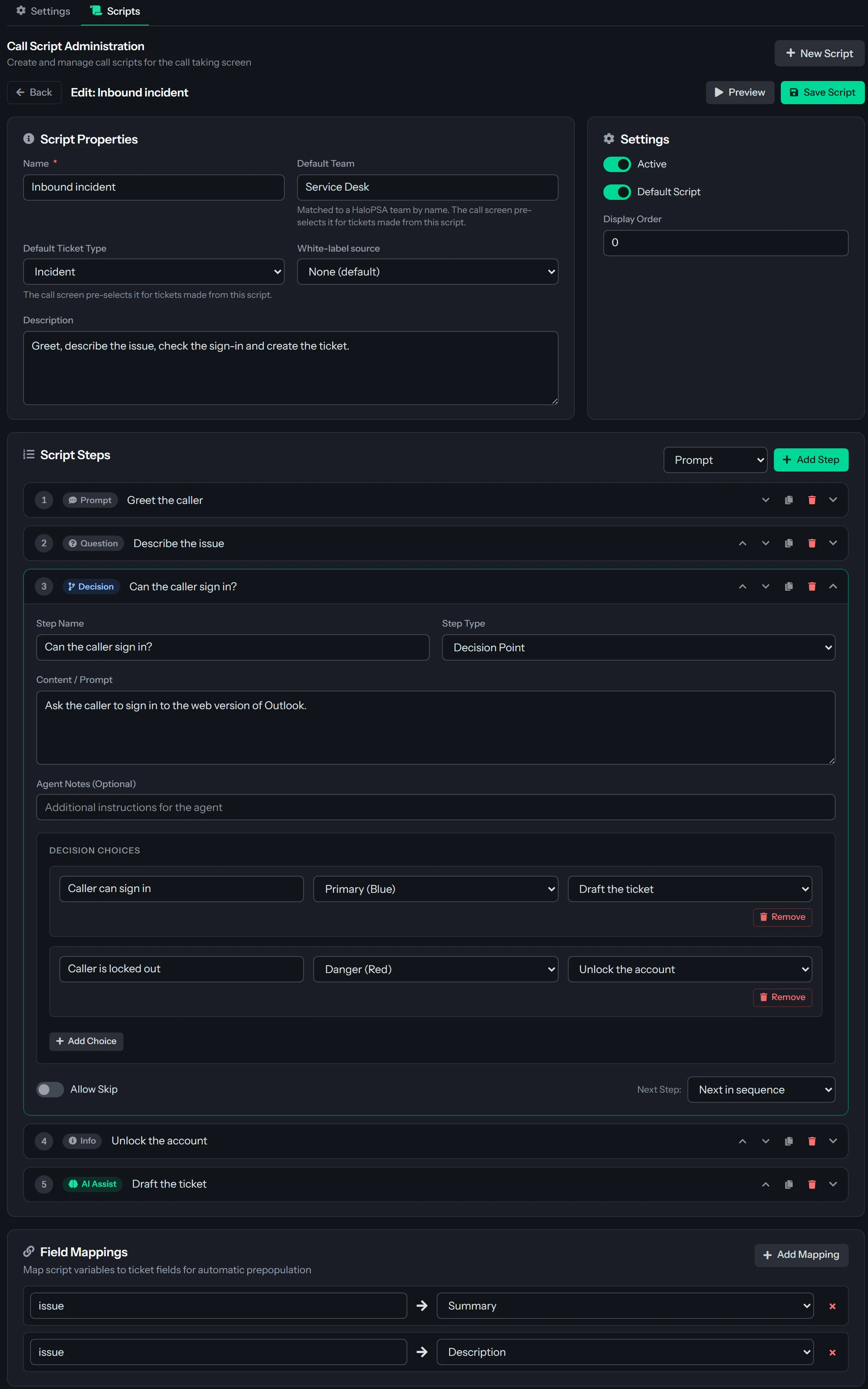
Scripts live in Q-Director Config, under Call Taking, then Scripts. Each script is a card with its name, a Default tag, an Inactive tag, its step count and its default team, with Edit, Duplicate and Delete on the card. Administrators and people with the Q-Director Configuration role build them.
- Script properties: a name, a default team and ticket type that the ticket form pre-selects, an optional white-label source, a description agents see in the script list, Active, Default Script and a display order
- Steps move up and down, duplicate and delete, and each has Allow Skip and a Next Step that can jump to any step or finish the script
- Field Mappings send the answer held in a variable into the ticket’s Summary, Description, Team, Ticket Type, Impact or Urgency
- Preview runs the script as it is now, unsaved changes included, with no caller and no ticket
- Duplicate makes a switched-off copy. Delete switches a script off and keeps its card with an Inactive tag, so nothing is lost
Nine step types.
Information
Information to read to the caller, and Continue.
Input Field
The same kinds of input for a value to type or choose, kept in a named variable. A required field holds Continue until it is answered. Options have a value, which is stored, and a label, which the agent sees.
Decision Point
Buttons, each sending the agent to a step you choose, so a caller who is locked out gets different questions from one who can sign in.
User Match
A search for a person. The one the agent picks becomes the caller on the screen, and their id, name, e-mail, phone and client can fill variables. It can be limited to the caller’s own organization.
Ticket Search
A search for tickets by what the caller reports, open only or closed too, with up to 20 results. The step can branch one way when a ticket is picked and another when it is skipped.
AI Assist
Drafts the ticket from everything collected so far, with your own instructions if you add them.
Set Variable
Sets variables to fixed text or to other values before the first question the agent sees.
Write a placeholder such as {{_callerName}}, {{_callerPhone}}, {{_clientName}}, {{_currentTime}} or {{_currentDate}}, or the name of any variable an earlier step set, in a step’s text. A placeholder with no value yet shows as written, so check the order of your steps.
[ 05 // the ticket ]
A routed ticket before you hang up.
The ticket dialog takes what the call produced and decides where it goes. The AI suggests, and the tech applies.

Dispatch now, or queue for triage
Dispatch Now puts the ticket with a team and, depending on the mode, a technician. Queue for Triage sends it to the triage queue with a default team and ticket type, for a dispatcher to assign.
An AI triage recommendation
In Dispatch Now, a recommendation loads once the summary and notes have enough text: team, type, impact and urgency with a confidence percentage and a Why? for the reasoning. Apply All applies it again after the tech has changed fields.
Four routing modes
Load Balance, Round Robin and Intelligent assign the ticket automatically, with QuantumOps picking the technician. Specific Agent assigns the technician the tech picks.
Technician suggestions
Up to three recommended technicians appear with a skill-match score, and picking one switches to Specific Agent. An agent who is offline or busy brings an Agent Offline warning with Assign Anyway or Choose Another.
Estimates and appointments
With historical estimation on, the dialog shows Resolution Estimate and Appointment Duration ranges. With appointment scheduling on and a specific technician chosen, the tech can check Schedule Appointment, pick Tentative or Firm and a slot, and QuantumOps books it after it creates the ticket.
What the ticket carries
The summary, the details with the callback number at the top, and, unless that setting is off, the script’s questions and the answers. A script’s Default Team and Default Ticket Type pre-fill the form when the call starts with that script.
Straight into analysis
Every ticket created from a call goes into QuantumOps’ AI ticket analysis like any other ticket, so the summary, the health score and the research are there when the tech opens it.
The call record
The outcome, the ticket, the destination of a transfer and the tech’s notes are saved on the call record. The call log for the conversation itself comes later, from the recording.
The AI suggests and the tech applies and submits. QuantumOps does not create or dispatch a ticket from a call on its own, with one exception: a script the tech just ran that ends with a summary and a known team and type creates the ticket when it finishes.
[ 06 // call taking settings ]
Tune the desk to how you work.
Administrators set how callers are found, how scripts and AI triage behave and what a ticket starts with, in one tab with one Save Changes.
The Settings sub-tab is the first thing under Call Taking in Q-Director Config, next to the Scripts sub-tab. Each group of options has its own heading, and one Save Changes at the bottom stores them all.
- Caller Identification: search at once when a number arrives, allow continuing without a user, keep the name search, and which phone field a new number is saved to
- Call Scripts: require a script before a ticket, choose the default script for the agent, allow skipping and show the Completed Steps list
- Context Panels: organization tickets, similar incidents and caller and client profiles, and how many of each to list
- AI and triage: enable AI triage (on), triage while the tech types (off), show the reasoning, and how many characters it takes before a recommendation is requested (30 by default)
- Ticket Creation: require a team and a type, include script notes, the default dispatch mode (Immediate Dispatch), routing (Load Balance), impact and urgency (HaloPSA), and the team and type for Queue for Triage
- Scheduling and estimates, display and quick actions: show estimate ranges, the VIP and High Risk badges, how the call timer reads, live workload updates, and which of Transfer (on), Escalate (off) and Mark Spam (off) appear
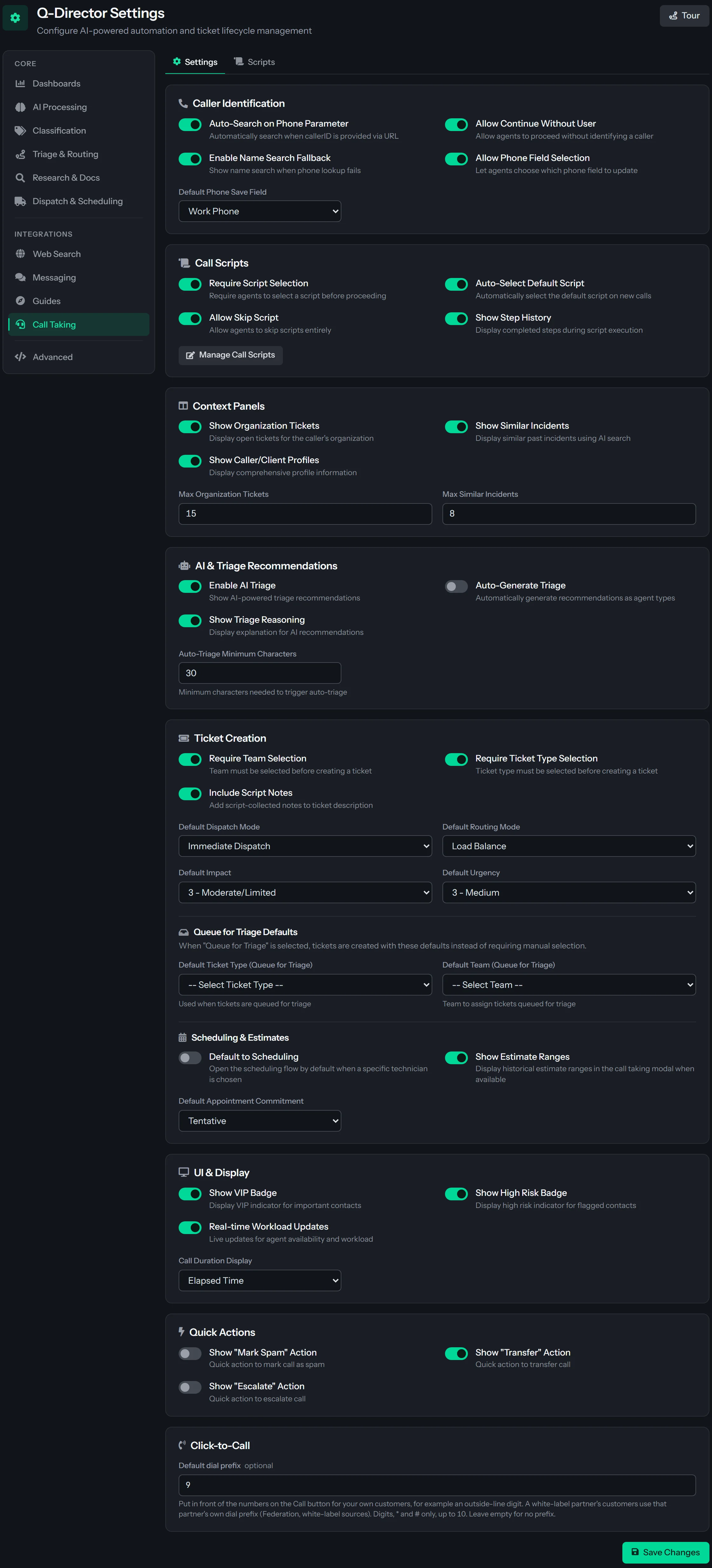
Some of these reach the side panel’s Call tab too: the organization ticket list, the script options and the defaults for dispatch mode and routing, and on HaloPSA impact and urgency. On Autotask and ConnectWise PSA, a Load Balance, Round Robin or Intelligent routing leaves a call’s ticket unassigned in the team’s queue, and the call notes say so. The Default dial prefix for the Call button is here as well: see click-to-call.
[ 07 // your phone system ]
Three ways to connect it. Use any mix.
Call Taking works alongside any phone system. These connections make it faster, and they are what bring recordings in.
HaloPSA
Screen pop
On HaloPSA, set the action your phone system runs when a call rings or is answered to open a web address, and add the call’s details. The screen opens with the number already searched. It never picks the person for the agent. On Autotask and ConnectWise PSA, calls are taken in the side panel’s Call tab.
- callerid: the caller’s number, searched as the screen opens
- did: the number dialed, which on HaloPSA starts a white-label partner’s script first
- agentid and agentname: the answering agent, shown in the header
Yeastar P-Series
PBX call presence
QuantumOps follows the PBX’s live call, registration and presence events. Phone state shows on the dispatch board and call sessions follow the phone.
- Needs recordings collected through the Yeastar PBX API
- Each agent’s extension number set in Team Management
- Call, Registration and Presence Status Monitors turned on for the extensions on the PBX
Yeastar, 3CX or any system that posts call details
Call-end webhooks
The PBX tells QuantumOps the moment a call ends, so the recording is processed within moments instead of waiting for the next poll. Polling and the webhook run together, and a recording that arrives both ways is stored once.
- A Yeastar address, a 3CX address and a generic JSON address
- The call must carry a recording link or a recording file name
- Each request carries your organization’s webhook key

See the phone from QuantumOps.
In Call Recordings, Settings, an Administrator chooses Yeastar PBX API, saves the PBX base URL, client ID and client secret, presses Test Connection, checks Enable PBX call presence and saves. The PBX needs its OpenAPI on.
- The PBX call presence panel says whether QuantumOps is connected and since when, when the last event arrived and how many of each type, and warns about problems such as two agents sharing an extension number
- A table gives each extension’s agent, role, phone state, presence, call state, caller and whether the PBX monitors it. If every call state says Unknown, Call Status Monitor is off on the PBX
- Fetch CDR Data adds the PBX’s own record of each call, and Sync Extension List can give agents their extension about once an hour by an exact e-mail or full-name match. It never changes an extension you entered
A key on every webhook
The call-end webhooks are open to the internet, so a PBX has to prove it belongs to your organization. An Administrator generates a key under Call Recordings, Settings and sends it as the X-QOps-Webhook-Key header, or adds it to the address as ?key= when the PBX cannot set headers. A request without the right key gets a 401, and until a key exists every webhook is refused.
It is a shared key for your organization, stored encrypted and shown masked, not a signature. Rotating it asks for a confirmation first, and the PBX then has to be pointed at the new address.
Guarded on the way in
A recording link has to be https and on a host you configured, so a webhook cannot make QuantumOps download an arbitrary address. The webhook accepts events only while the Call Recording & Transcription module is on, and each organization runs one recording scan at a time, so a recording is collected once.
Treat the webhook addresses as private: they identify your organization.
The board shows the phone
On the dispatch board each agent’s phone shows as off, idle, ringing or busy beside their PBX presence, and live call tiles show who is on a call, with the caller, the client and the ticket. Everyone who can open the board sees every live call, including who is calling.
Sessions follow the call
A pop answered on another extension is closed. A hang-up moves the session to wrap-up, so the ticket can still be created. An answered inbound call opens a session for a dispatcher who had no screen pop, and for every agent where that is enabled for your organization. A caller who rings back within ten minutes reopens the wrap-up instead of starting a second session.
Nobody closes it, so it closes
Every few minutes QuantumOps looks for call sessions still open four hours after they started and marks them abandoned with a note, so old calls stop showing as live. That runs for every organization, with or without PBX call presence.
[ 08 // call recordings ]
Every recorded call, collected, transcribed and findable.
QuantumOps does not record calls. It collects the recordings your phone system already makes, transcribes them and attaches each one to its ticket when the evidence is clear. Anything less certain waits for the agent who took the call. Managers see every recording and how far it has got, and techs clear their own on My Call Recordings.
Source 1
Yeastar P-Series over its API
Enter the PBX base URL, client ID and client secret, set a poll every 5 to 1,440 minutes (15 by default) and press Test Connection, which signs in, lists the extensions and the latest recordings and says how many it found. Fetch CDR Data adds how each call ended, how long it rang and how long the conversation lasted.
Source 2
Azure Blob Storage
For any phone system that can save recordings to a storage container. Enter the connection string and the container and press Test Connection, then describe your file names with a template, such as {timestamp}-{endtime}-{extension}-{number}-{direction}, and paste a real file name into Test Filename to see what QuantumOps reads from it. A template that does not fit leaves recordings without a caller’s number, and those cannot be matched.
Agents need an extension number, set in Team Management, so a recording can be tied to the agent who took the call. A recording from before a date you choose can be skipped with Only Process Recordings After, which leaves an old backlog alone.
The Call Recordings screen.
Managers see every recording and how far it has got. It opens for Administrators, Service Desk Managers, Dispatchers and Customer Success. Only an Administrator can change its Settings tab, and the other roles see it read-only.
- Four counters, Total Recordings, Processed, Pending Match and Unprocessed, count pipeline stages rather than health: a large Pending Match figure is work waiting for somebody
- Tabs for All Records, Ready to Post, Pending Match, Unprocessed, Failed and Posted, and a search over file name, caller number, extension and caller name, with filters for agent and status
- Each row shows the caller, extension, direction, date, length, agent and ticket number, a match badge (Pending, No Match, Matched, Posted or Dismissed) and a processing badge (Pending, Processed, Improved, Failed or Provider Account)
- Scan Storage collects new files and transcribes what is waiting right now, whatever the scan interval says. The list shows 50 recordings at a time, newest first


Read it, or play it.
View Transcript opens one window with everything QuantumOps knows about the call.
- AI Summary: what the call was about, in a short paragraph
- Sentiment Analysis: the overall tone and the share of positive, neutral and negative speech
- Topics: up to five subjects the engine detected, with how strongly each came through
- Call Details, for Yeastar calls: how the PBX recorded the call, how long it rang and how long the conversation lasted
- Full Transcript: speaker by speaker with times when the engine separated the speakers, plain text when it did not
- Audio plays from your storage or streams from the PBX through a link that expires, so reopen the window if playback fails after a long wait. If the PBX has already removed the file the window says Audio file not available, and the text stays
Three engines, your own account.
Transcription runs on a speech-to-text account you connect in Settings: an AssemblyAI key, an Azure Speech key and region, or OpenAI Whisper through your OpenAI key. The provider charges for the minutes.
- Summary, sentiment, topics and speaker names come only from AssemblyAI. Azure Speech separates the speakers and Whisper does not
- With AssemblyAI, Universal-3 Pro takes a custom prompt of up to 1,500 words and a temperature, and Custom Key Terms takes the company names, technical terms and proper nouns your calls are full of
- For Azure Speech and Whisper, an optional AI Enhancement pass cleans up speakers and wording after the first transcript. AssemblyAI transcripts are not processed twice
- Up to 10 recordings are transcribed at once, newest first unless you change it, and Auto Processing can be switched off so recordings wait for a click
- A call under three seconds fails, and a call with no speech finishes with an empty transcript. Recordings the engine refuses for an account reason, such as an empty balance, wait as Provider Account until Retry Parked releases them

[ 09 // matching ]
The right ticket, or the right person asked.
QuantumOps attaches a recording to a ticket only when the evidence is clear. Everything else waits for the agent who took the call, with its best suggestion.
First
The Call Taking link
If a dispatcher took the call on Call Taking from the same number inside the correlation window, 30 minutes by default, and created or linked a ticket, the recording takes that ticket. It is the first thing tried.
Then
Phone, agent and time
QuantumOps finds the users in your PSA with the caller’s number, looks at their tickets opened around the call and scores each on phone, agent and timing. It attaches the recording when the top ticket scores 80 or more and no other reaches 70. A number on no user falls back to tickets that mention it, and the top one needs 70 and no rival.
Later
An AI check
Every two hours, calls from the last seven days that are still unmatched after 12 hours get an AI check, up to 50 per organization per run. At 90% confidence or more the match is applied. From 50% to 89% it is saved as a suggestion for the agent.
Set how careful it is.
- Auto Match to Tickets runs the rules on each transcribed recording. Unchecked, matching stops: no rules, no two-hour AI check and no Run Batch Match & Post. Test Match still works, because a person asked for it
- Match Time Window, 5 to 480 minutes (60 by default), is how far from the call a ticket can have been opened and still count. Too narrow and calls stay unmatched. Too wide and a call can land on the wrong ticket, which looks resolved and is worse
- Enable Dispatcher Correlation and its window, 5 to 120 minutes, switch the Call Taking link on and tune it
- Auto-Group Related Recordings combines the legs of one conversation, such as a transfer, within the related-recording window, 10 minutes by default

Test Match
Previews the lookups and the scoring for any recording and lists the possible tickets with their scores, then the recording’s current status. It saves nothing, so it is safe on any recording, and it offers Use ticket when one clearly wins.
Match and post by hand
A manager can enter a ticket number to match a recording, post it with Post to Ticket, or post everything in the Ready to Post tab with Post All. Anything your PSA refuses stays there. A hand match also saves the caller’s number on the user’s record, in the first empty phone field and never over an existing number.
Shared numbers
When several people share the caller’s number, QuantumOps does not guess: the recording is flagged and the agent chooses the caller. A recording matched to a different ticket than before is cleared of its earlier posted state, so it can be posted to the new one.

Your own recordings, cleared from the digest.
A recording is yours to match when it has been transcribed, carries your extension and is Pending or No Match. My Call Recordings opens from the button in your digest, and an Administrator, Service Desk Manager or Dispatcher can open another agent’s list.
- Expand a recording for a transcript preview and the full transcript. Matched User shows the person the caller’s number belongs to with a Phone Match badge, or a search when the number matches no one or several people
- Select Ticket lists the user’s open tickets and up to 50 more at their company, and Suggested Matches lists up to three of the user’s tickets from the last 30 days with a score
- Match & Post attaches the recording and posts its transcript in one step. Don’t Match / Dismiss takes a wrong number or a test call off your list, and Dismiss All clears several
- A dismissed recording leaves your list but can still be posted from the Call Recordings screen
Match where you already are.
In HaloPSA
A red You have N Unlinked Recordings button on the Ticket Dashboard opens a list to preview and link several recordings to the open ticket at once. The Call Recording Matcher is a ticket tab an administrator adds, and it does the same for the ticket in front of you.
In the side panel
The Ticket tab’s recordings card lists the recordings that belong to the ticket, the AI’s suggestions with a match percentage and its reasoning, and the agent’s own unmatched calls, each with Attach here or Dismiss and an optional reason. Attaching posts the transcript and summary to the ticket as a note. It needs a login linked to a technician in your PSA.
On the Call tab
When there is no call in progress, My recordings lists the recordings from the tech’s own extension that still need a ticket, and opens by itself when a few are waiting.
A digest of what needs a person.
Each agent with a Slack ID or a Teams ID gets a direct message that lists their unmatched recordings: up to five that come with an AI suggestion and up to five that do not, each with its date, length, caller’s number and a short summary and, where there is one, the ticket the AI suggests and its confidence.
- Slack has a Review or Match button on each recording and a My Recordings button. Teams delivers a message with a link to My Call Recordings
- Teams digests go to the agent’s personal chat with the Qubit bot, so the agent has to have messaged the bot once. With no personal conversation the digest is recorded as failed with that reason, not as sent
- Immediate (at most once every 30 minutes), hourly, daily at a time you set or weekly on a day, weekdays only if you like, and a minimum number of unmatched recordings before an agent gets one
- Digests are off in a new configuration. An administrator can preview one, send a test to a single agent or send everyone’s now


[ 10 // posting to your psa ]
What lands on the ticket.
Posting adds two things to the ticket, a call log and a transcript note. Both carry the agent who took the call.

A call log
The caller’s number, name and e-mail, the user, client and site, the agent, the direction, the start, end and length, and the AI summary, or Call Recording and the length when there is no summary.
A transcript note
A note with the outcome Call Transcript holds the whole conversation in a collapsed section: the agent, the date and length and the caller, then each line with its speaker and how far into the call it was said. The date in the header is in your organization’s time zone.
Private by default
The note is hidden from the end user while Private Notes is checked, which it is in a new configuration. Private Notes does not apply to the call log, which carries the AI summary, so check how your PSA shows call logs to end users before you rely on automatic posting. On Autotask and ConnectWise PSA the call log and the transcript are both internal notes.
One note for a transfer
Recordings of the same caller within ten minutes of each other by default, such as a transfer, are combined into one note with a segment for each leg and the agents in order, and optionally a marker where the caller was on hold.
Who posts, and when
Without a person, only two cases post: a recording linked through a Call Taking session, and one the AI check matched at 90% or more. Both must be from the last seven days, and Post to Tickets must be checked, which it is by default. Every other match, including one from the phone and time rules, shows as Matched and waits for a person.
Never twice
A recording is never posted twice to one ticket. If your PSA takes the call log and refuses the note, the retry posts only the note. Matched to a different ticket, a recording is written there as new and the earlier note stays where it is.
Searchable by Qubit
Matched, transcribed recordings are indexed so that Qubit can find them when someone asks about a client’s earlier calls, alongside tickets, profiles and documentation.
Decide whether you want a call’s summary and full transcript on your tickets before you leave Post to Tickets checked. On HaloPSA, everything QuantumOps adds to a ticket is listed in What QuantumOps writes into HaloPSA.
[ 11 // roles and setup ]
Who does what, and what has to be on.
Two modules, both in the Dispatch bundle, and a handful of roles.
Take calls
Administrators, Service Desk Managers, Dispatchers and Technicians can use Call Taking, the side panel’s Call tab and My Call Recordings. It needs the Call Center Operations module, which is on unless it has been turned off.
Review recordings
Administrators, Service Desk Managers, Dispatchers and Customer Success open the Call Recordings screen. The side panel’s recordings reach those roles and Technicians. Only an Administrator can change the recording settings and the PBX webhook key.
Set it up
Administrators and people with the Q-Director Configuration role build scripts and change the Call Taking settings. Agents need an extension number, and for digests a Slack ID or a Teams ID, in Team Management.
Setup, in order.
A new organization has Call Taking on and recordings off. This is the order that works.
- Turn on Call Recording & Transcription in Module Management. Its sidebar entry reads Configure until the settings are saved and valid, then Active
- Choose a source under Call Recordings, Settings, and press Test Connection
- Add a speech-to-text key and choose the engine
- Give each agent an extension number, and a Slack ID or a Teams ID for digests
- If your PBX posts call records, generate the PBX webhook key and add it to the PBX
- Send a test digest to yourself, then switch digests on
Does QuantumOps record our calls?
No. It collects the recordings your phone system already makes, from a Yeastar P-Series over its API or from an Azure Blob Storage container your PBX saves to. Nothing is recorded in the browser, the side panel records no audio, and there is no recording agent to install.
Is Call Taking a softphone?
No. Calls ring, get answered and get transferred on your phone system. Call Taking handles the ticket side of the call, and its Transfer button only records where the call went.
Which phone systems work with it?
Call Taking works alongside any phone system: the tech looks the caller up, or, on HaloPSA, your phone system opens the screen with the caller ID filled in. Recordings come from a Yeastar P-Series or from any phone system that can save them to Azure Blob Storage, and call-end webhooks work with Yeastar, 3CX or any system that can post call details. Live presence is Yeastar P-Series only, and needs your recordings collected through the Yeastar API.
Who pays for transcription?
Transcription runs on a speech-to-text account connected in the Call Recordings settings: an AssemblyAI or Azure Speech key, or Whisper through your OpenAI key. The provider charges for the minutes. Summaries, sentiment, topics and speaker names need AssemblyAI, and Whisper does not separate speakers.
Can our customers see the transcripts?
Not by default. The transcript note goes on the ticket hidden from end users while Private Notes is checked, which it is in a new configuration, and an administrator can uncheck it. Private Notes does not apply to the call log, which carries the AI summary, so check how your PSA shows call logs to end users before you rely on automatic posting. On Autotask and ConnectWise PSA the call log and the transcript are both internal notes.
Does the AI create tickets from a call on its own?
No. The AI suggests a team, type, impact and urgency and ranks technicians, and the tech applies and submits. A script can create the ticket for the tech when it finishes with a summary and a known team and type, and that script is one the tech just ran. On the recording side, a call matched through a Call Taking session, or by the AI at 90% confidence or more, is posted to its ticket without a person. Every other match waits for one.
What happens to a call nobody can match?
It waits as Pending or No Match. The agent who took the call gets a digest with the AI’s best suggestion and clears it on My Call Recordings, in the side panel or, on HaloPSA, from the Ticket Dashboard, and anyone with access to the Call Recordings screen can match and post it there. Older calls wait for a person.
What does the PBX webhook key do, and what if we lose it?
It proves a PBX belongs to your organization when it posts call details. Only an Administrator can see it. If it is lost or exposed, rotate it under Call Recordings, Settings: the old key stops working, so point the PBX at the new address.
Does it report on call volume or outcomes?
Not as a report. The outcome, the ticket and the notes of each call are saved on its call record, the dispatch board shows calls live while they happen, and the Call Recordings screen counts recordings by pipeline stage.
Where does this fit in the plans?
Call Taking and Call Recording & Transcription are part of the Dispatch bundle of QuantumOps, not an add-on. The speech-to-text provider bills your own account for the minutes it transcribes.
[ 13 // start ]
Take the call. Keep the conversation.
We’ll walk through Call Taking, scripts and recordings on a real queue.