

[ 01 // timeclock and payroll ]
From punch to paystub,
in five steps.
Timeclock & Payroll is a separately licensed QuantumOps add-on for MSPs that also run a payroll. Staff clock in with a PIN, supervisors fix punch problems the same day, and a five-step wizard takes each period through to PDF paystubs, with Colombian labor rules built in.

[ 02 // who it’s for ]
Add-on
For MSPs that also run a payroll.
Timeclock & Payroll is licensed on its own and stays off until an administrator switches it on in Module Management. Then a Payroll Management item in the menu opens the Timeclock Admin Hub, and a clock button in the header opens the employee timeclock.
Employees and techs
Clock in with a PIN.
Punch in and out, take breaks and lunch, check balances, request time off and, where you allow it, bid on holiday shifts, from a shared screen or their own page.
Supervisors
Clean punches, same day.
See who is on the clock, clear missed clock-outs and stale shifts, add missing punches and approve time off.
Payroll
Run the period in order.
Set the rules and pay schedules, reconcile leave and punches, audit the variances, then lock the period and email the paystubs.
Accountants
Review without an account.
An outside accountant reviews and adjusts the period through a link that expires, and every change comes back as a diff. Accountants on your staff get a role that opens only the wizard’s Summary & Export step.
These roles decide who does what. Timeclock (and Service Desk Manager) for the Clock tab in the browser extension, Timeclock Admin for the hub and supervisor tools, Payroll Admin for periods, rules and the whole wizard, Payroll Accountant for the wizard’s Summary & Export step only, and Administrator for all of it. The web timeclock needs only a PIN, and an outside accountant needs only the link.
[ 03 // the timeclock ]
A name, a PIN, a punch.
Staff pick their name and enter a 4 to 6 digit PIN. No email, no password, and people who never open your PSA use the same clock as your techs.
- Clock in and out, and start and end breaks and lunch
- Five wrong PINs lock the record for 15 minutes
- Each punch records the device, browser and IP address it came from
- A shift left open past 12 hours is caught at the next clock-in: the employee enters the real clock-out time and a reason, for their supervisor to approve
- Employees can’t edit their own punches; corrections go through a supervisor
Where staff punch
On a shared screen
The timeclock runs in the browser on any shared PC, tablet or phone.
On their own page
The same PIN opens each person’s dashboard, most of it translated into Spanish (Colombia): a live timer, today’s hours, PTO, personal and expiring-time balances, time-off requests and, for eligible staff, holiday-shift bids.
In the Clock tab
The clock, time off and holiday bids in the side panel of the QuantumOps browser extension, next to your PSA.
Who sees it: the Clock tab shows for the Timeclock, Timeclock Admin, Payroll Admin, Service Desk Manager and Administrator roles, not for Technician alone. Payroll stays in the web app.

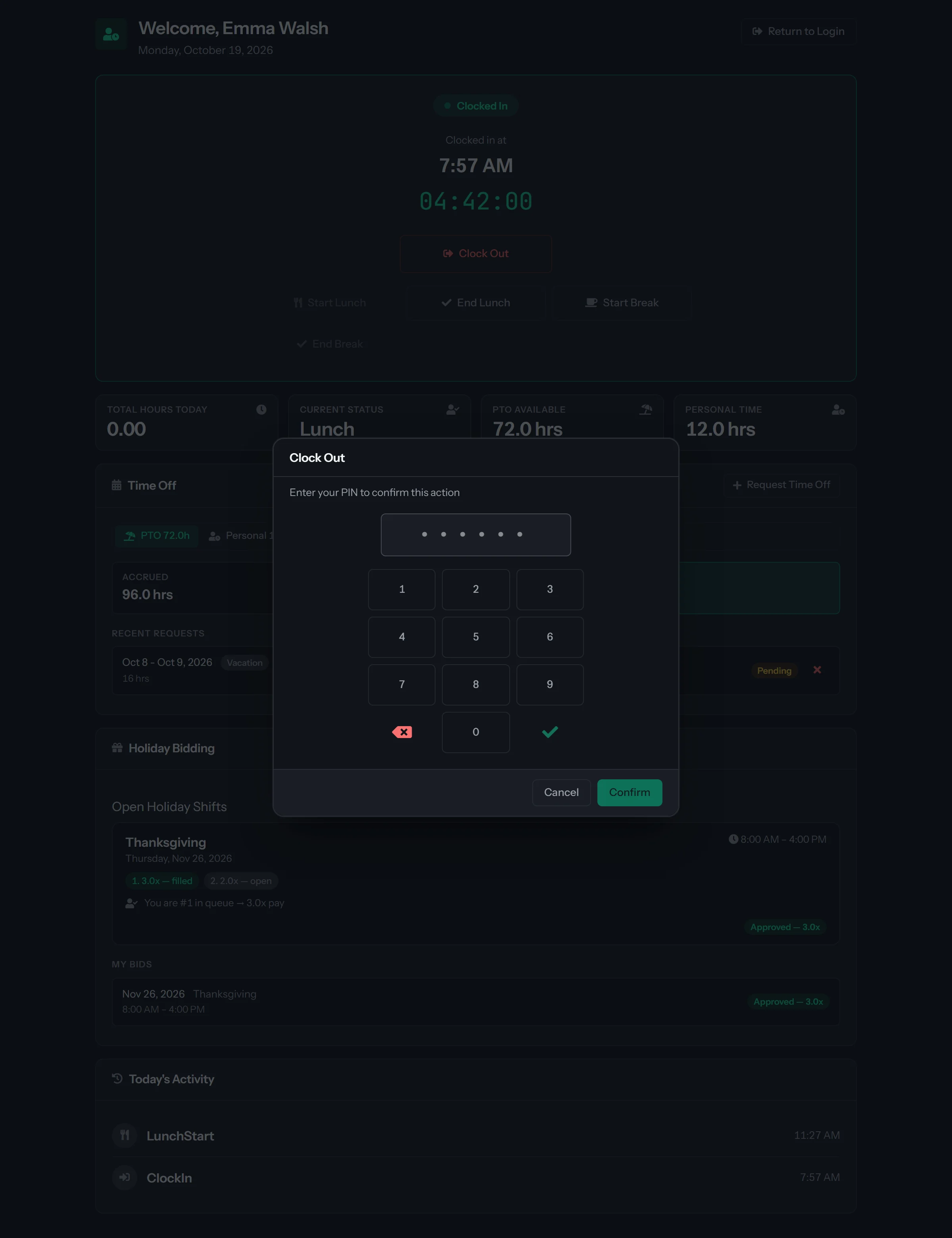
The employee’s own day.
After the PIN, the dashboard asks for it again before it shows anything, and again on every punch, time-off request and bid. A name and a PIN identify the person, so nobody needs a QuantumOps role to use it.
- Lunch and breaks. Lunch is unpaid in payroll, up to 2 hours a lunch. Breaks are recorded and reported, but payroll does not take them off paid hours
- Check the day. Current status, hours for finished shifts today, every punch with its time and the hours on a clock-out
- Locked out, not locked in. The fifth wrong PIN locks the record for 15 minutes, and an administrator can unlock it at once by setting a new PIN. The PIN is stored in a form that cannot be read back
- English or Spanish. The dashboard follows the account’s language, or the browser’s when nobody is signed in
A forgotten clock-out fixes itself, with a witness.
If the last clock-in has been open more than 12 hours, a Missed Punch Detected window appears before the next punch. The employee enters when they really left and why. The corrected clock-out is recorded at once, the dashboard clocks them in, and the correction waits for a supervisor to approve or reject.
- The time must be after the clock-in and not in the future, and the reason is required
- Cancel changes nothing: the clock-in stays open and the window returns next time
- The same card appears in the Clock tab, which keeps the punch buttons off until a correction is sent

[ 04 // supervisors ]
Punch problems, fixed the same day.
The Timeclock Admin Hub is one screen for the day’s attendance, pay periods, employees, rules, schedules, holidays and cost forecasts, across ten tabs.

Missed clock-outs, caught
A shift left open past 12 hours stops the next punch until the employee says when they left and why. That becomes an exception for a supervisor to approve or reject, and a rejection needs a written reason.
Fixes from the Supervisor tab
For techs linked to a technician in your PSA, force a clock-out from Live Status or add a missing clock-in or clock-out at the right time. Approve or reject time-off requests there too. Any employee’s missing punch, breaks and lunches included, can be added during the payroll run.
Stale shifts
The Stale Clock-Ins panel lists shifts still open after 12 hours: email the employee a reminder, force the clock-out or fix it by hand. An on-demand scanner finds finished shifts over 12 hours in any date range.
Reports for audits
Filter every punch by date, employee and type, with IP address, device and notes. Export it to CSV with a daily summary of first in, last out, breaks and net hours.
Email when it matters
Notifications for time-off requests, punch exceptions, missed clock-outs, holiday bids and payroll approval, and one for the accountant’s review. Each is off until you switch it on, except the note telling the administrator that the accountant has submitted a review. Choose whether the employee, the supervisors or extra recipients get each one.
On the dispatch board, too
The dispatch board in the browser extension shows linked techs’ clock-ins, breaks and lunches as they happen, so dispatchers can see who is at lunch.

Three ways to clear a stale clock-in.
- Email Reminder asks the employee to fix their own punch, when that email is switched on
- Fix Manually takes the real clock-out time and a note, records the clock-out and logs an exception that waits for approval
- Force Clock Out Now records a clock-out at the current time, and says how many hours that adds. Use it only when the shift really lasted that long
- Reject on a correction removes the shift it corrected and raises an unresolved-shift exception, so the day pays nothing until real hours are entered and approved
- The scanner finds completed shifts over 12 hours in any date range, highlights those over 24 and 48 hours, and saves a correction as an exception that is approved at once, so there is an audit trail
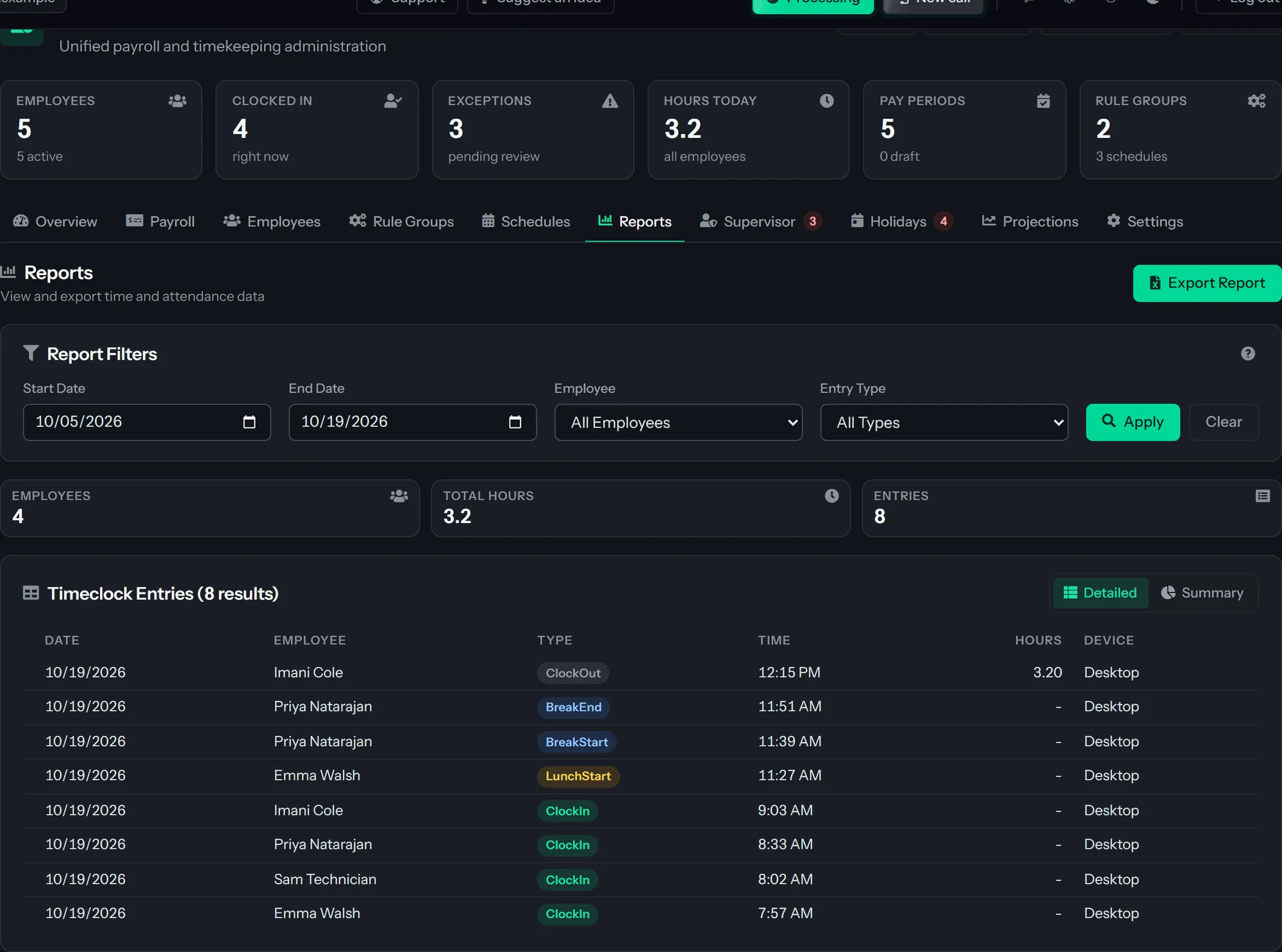
Reports that answer “what did they actually record”.
The Reports tab lists every punch with its device and where it came from: the terminal, the extension’s Clock tab, a Slack or Teams status command, or a supervisor. Choose Detailed for a row a punch or Summary for a card an employee.
- Filter by date, employee and entry type. The table shows the first 100 entries and the export carries all of them
- The CSV has five sections: detailed punches with local and UTC time, a daily summary, an employee summary with weekly overtime split at the threshold, lunch and break detail, and lunch and break totals
- The overtime columns report punches. Overtime pay comes from the calculated period
A Supervisor setting guards the sharp tools
Adding a manual punch and forcing a clock-out change another person’s time, so they need the Supervisor checkbox on your own technician record, set in Team Management. Approving exceptions and time off, and fixing a stale clock-in by hand, do not.
Every punch has a source
The exported report names where each punch came from: Employee or Supervisor, and the device column shows the terminal, the Clock tab, Slack or Teams. Slack and Teams commands record only lunch and break.
A locked period is closed to punches
A punch cannot be moved inside, or into, a period that is Locked, Closed, Exported or Paid. Reopen the period first, and the change is recorded under the signed-in person’s name.
[ 05 // time off and holidays ]
Leave, holidays and rosters, in one place.
Balances, approvals, holiday pay and schedules live next to the punches, so payroll starts from the right numbers.
Time off and balances
PTO, personal time, expiring grants such as voting leave, and unpaid time, each with its own balance. PTO can accrue through a payroll rule up to a maximum balance, and requests go to a supervisor.
Holiday calendars
Import a year of public holidays for Colombia, including the holidays moved to a Monday, or for the US, Mexico or the Philippines. Give any holiday its own multiplier.
Holiday shift bidding
Publish a holiday shift with a multiplier per seat, such as 3.0× for the first two seats and 2.0× for the third. Eligible staff bid first come, first served and see their place in the queue, and a supervisor approves the winners. The premium lands on the paystub.
Pay and work schedules
Weekly, biweekly, semi-monthly or monthly pay. Fixed, alternating or custom rosters, night shifts included, which set overtime thresholds and expected hours.
Asking for time off.
The employee picks which balance to use, a request type, the dates and the hours, with a note for the supervisor, and confirms with a PIN. Nothing leaves a balance until a supervisor approves, and the approver chooses which balance the hours come out of.
- Balances: PTO accrued, used and available, personal time granted, and expiring grants with the date the earliest one ends, flagged within seven days
- Request types: vacation, sick leave, personal day, bereavement or other, or unpaid time off, which takes nothing from a balance
- An employee cancels a request while it is pending. After a decision only a supervisor can change it
- Optional emails when a request is submitted, approved or rejected, with the rejection reason, and a reminder once a day near the end of a pay period to anyone with no request


Rosters that the payroll engine reads.
A schedule says when people work, apart from the pay schedule that says when they are paid. Fixed patterns repeat weekly, alternating ones rotate over two to six weeks from an anchor Monday, and a custom pattern stores no days.
- An overnight shift, whose end is before its start, checks the night-shift box for you. The box labels the schedule: whether an hour pays as night depends on the clock and the rule group’s night window
- Projected days in the wizard for an early payment use the shift times and work days
- Contracted hours set the overtime threshold for employees on the contractual setting in per-week mode
- Fixed monthly allowances, such as transport, are reduced by rostered days not worked
Holiday calendars and bidding, step by step.
- Calendars. A rule group has one holiday calendar, and regular hours on its dates earn a premium at the holiday’s own multiplier or the employee’s. Import a year for Colombia, the United States, Mexico or the Philippines, or add dates by hand. For Colombia, one button adds the year’s missing statutory holidays and never changes a date already there
- Eligibility. Select who may bid and give each a bid role, such as Engineer. They see only shifts for that role. Leave people whose contracts require holiday work ineligible
- Shifts. Choose a holiday, a role, a window and one multiplier per seat. A shift is open, closed or finalized, and one with pending or approved bids cannot be deleted
- Decisions. Approved bids take seats in the order they were placed. Rejecting or revoking asks for a reason and moves the others up a seat
- Pay. For hours worked inside the window, payroll tops pay up to the base rate times the seat’s multiplier, after any holiday, Sunday or night surcharge, and prints it as Holiday Bid Premium
What the employee sees.
Open shifts for the next 120 days with every seat and its multiplier, and where a bid would land: “If you bid now, you would be #3 in queue”, with the pay that earns, or a waitlist at standard holiday pay. A bid is confirmed with the PIN, and a pending bid can be canceled.
- No second bid on the same shift, or on two overlapping shifts of one holiday
- Optional emails when a bid is placed, approved or declined, with the multiplier awarded
- The same bids and balances in the extension’s Clock tab
[ 06 // set it up once ]
Pay schedules, rule groups, then people.
Each setup step needs the one before it, and the Overview tab’s Configuration Status card shows how far along you are. Set the rates and rules before the first run, not during it: a change halfway through means the figures you reviewed no longer match.

Employees: a person, a rate, a rule group.
A payroll employee is either linked to a technician in your PSA or stands alone, so people who never touch your PSA can be on the payroll too. Each has a pay type and rate, multipliers, a contract, a schedule, a rule group and a timeclock PIN.
- Hourly or salary, in COP, USD, EUR, GBP or MXN. A salaried employee can be paid the salary each period whatever the punches say, prorated for a part period, with punches raising exceptions when hours stray beyond a variance threshold
- Optional automatic deduction for missed time, at the hourly or the daily rate
- An employee with no rule group gets no deductions or allowances, and the Configuration Status card warns until every employee has one
- Deactivating an employee sets today as the termination date and leaves history intact. Do it after the period that holds their last day has been calculated
Rule groups: the payroll policy.
A rule group names a country and a currency and holds the rules that take money from pay or add to it, plus the night window, the Sunday premium, the holiday calendar and the paystub branding. Start from the Colombia or US template and adjust.
- A rule can be a percentage of pay, a fixed amount, or an amount per hour or per day, paid by the employee, the employer or both with a split such as 4% and 12%
- A rule can be limited to a salary band, which is how the solidarity fund brackets work
- Allowances add to gross pay and can be kept out of the deduction base, as Colombia treats the transport allowance
- Accrual rules, such as prima or severance, build a balance instead of being deducted from pay
- Rules run in a fixed order: allowances first, then deductions on the adjusted base. Deleting a group deletes its rules and is refused while active employees use it

Bulk changes with a count first
Issue time off to everyone, grant personal time, grant expiring time, switch everyone between period-wide and per-week overtime, or assign a rule group or a shift pattern in one move. The dialog shows how many employees it will touch, and nothing undoes it.
Balances that can be started
Initialize accrual balances from each hire date, import starting balances from a previous system, or rebuild balances from the periods already calculated after a rule is fixed.
Pay schedules
Weekly, biweekly, semi-monthly or monthly, with the pay days, a weekend adjustment and, on a semi-monthly schedule, an unequal split of a salaried employee’s month such as 40% and 60%. A schedule suggests the payment date in the wizard. It does not create periods or change which hours count.
[ 07 // the payroll wizard ]
Five steps, in order. None skipped.
Open a pay period in the wizard and it moves one step at a time; it won’t jump ahead. Progress is saved per period, so reopening it lands on the step where work stopped.
Step 1
Setup
The period, the employees and the payment date. If payday comes before the period ends, the remaining days can be estimated from the schedule.
Step 2
Reconcile
Leave, incapacity, unpaid time, broken punches and one-off adjustments, plus an overtime checklist and an AI review of the punches.
Step 3
Preview & Audit
A card per employee, green, orange or red by variance from expected hours, that drills down from employee to day to punch.
Step 4
Summary & Export
Editable totals per currency, an Excel workbook and a secure review link for your accountant.
Step 5
Finalize
Lock the period, download the final report, then generate and email PDF paystubs.
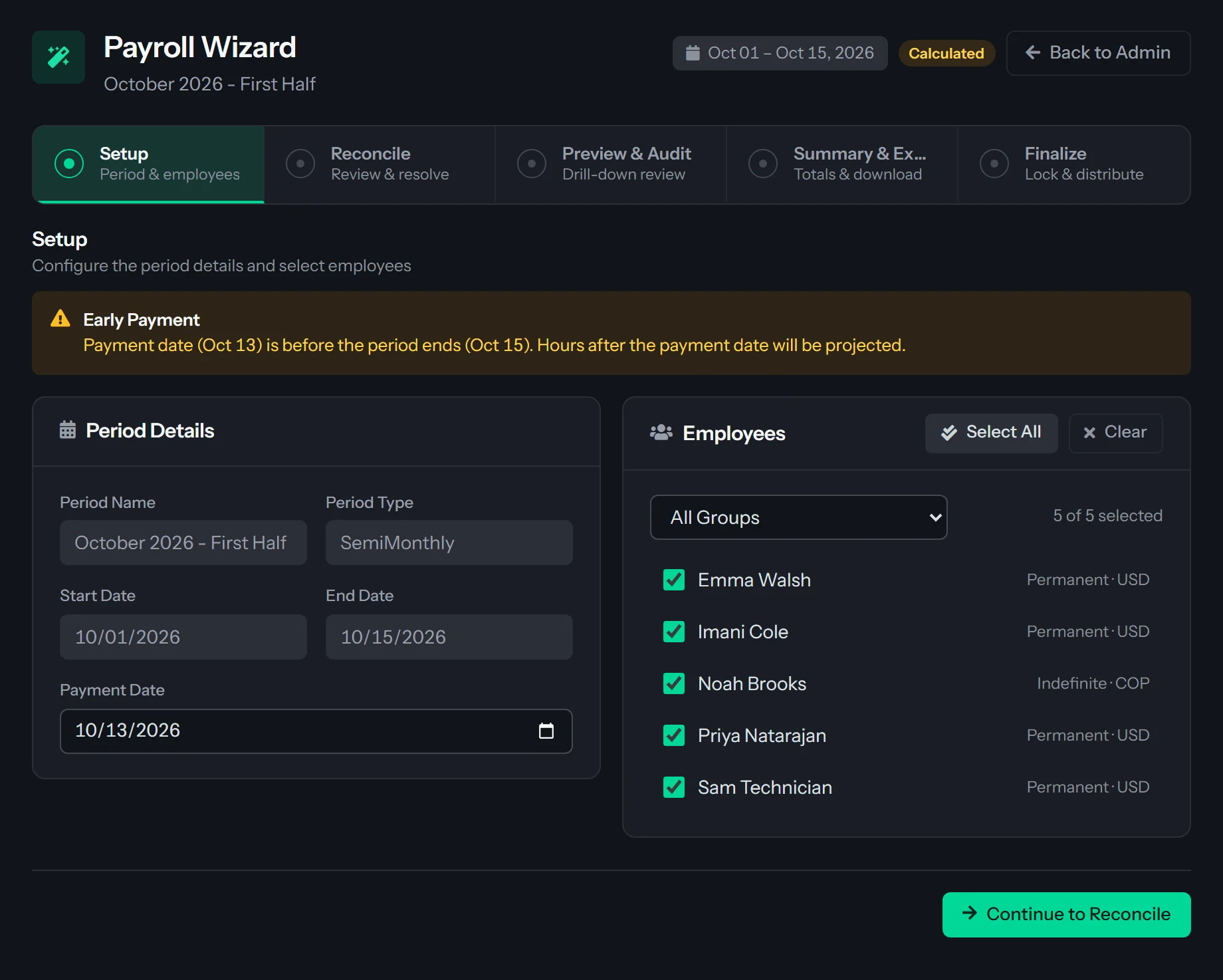
Setup: who is in this run, and when they are paid.
Everyone starts checked, and an employee left unchecked is not calculated, not paid and gets no paystub. The payment date starts from the saved date, or from the date the employees’ pay schedule suggests.
- Early payment. When payday comes before the period ends, hours after it are projected from the schedule’s shift times, from the employee’s average clock-in and clock-out on the same weekday last period, or from a default 08:00 day with a one-hour lunch
- Projected hours are estimates and are paid as if real. You cannot lock the period or make paystubs until real punches replace them or they are cleared, and nothing trues up the difference for you
- The rail makes the same checks as the Continue buttons, so jumping ahead is refused until the step you are leaving is clear

Reconcile clears the exceptions first.
- Add PTO days, unpaid time and incapacidad (general, work-related, maternity or paternity) at its own pay percentage, 66.67% by default
- Approve or reject pending exceptions, correct a punch time with a note, or add any missing punch
- Work through an overtime checklist, employee by employee. Marking a row reviewed records that you looked, and changes nobody’s pay
- Record bonuses, deductions, reimbursements and corrections under a category that prints on the paystub
Then a second pair of eyes.
Press Run AI Analysis and Claude reads each employee’s punches, overtime settings, expected hours and the average of their last three periods. It flags pattern changes, clustered punch times, lopsided days and unusual times or places, each as a warning or a critical finding with a recommendation. It runs on demand, for up to 50 employees at a time, and only flags: a person decides what happens next. Findings aren’t kept after you leave the wizard.
- Every finding must be acknowledged before you continue, once the check has run to the end. A run that fails or times out does not count and does not block the step
- Investigate opens that employee’s days in Step 3 and acknowledges the finding
 Reconcile · AI review4 findings

Preview and audit: from the card to the punch.
Open the red and orange cards first. A variance is a question, not an error: it is how far the employee’s hours are from the hours expected for the period, scaled from their expected weekly hours.
- Green under 5%, orange from 5% to 10%, red at 10% or more, with counters for reviewed, within tolerance and high variance
- Add, edit or delete a punch, and link or unlink the two halves of a shift. Each change recalculates the employee
- Mark an employee reviewed to lock their punches, and Unlock to change them again. Recalculate All skips reviewed and hand-edited rows
- A clock-in with no clock-out, or the reverse, stops the run, because that shift is not paid
Summary and export: edit a figure where you see it.
Totals per currency show gross, deductions, net, employer cost and burdened cost, marked provisional until the period is final. Expand an employee for the pay components, the hours breakdown, each deduction and employer cost, and the accruals.
- Click a value to edit it. A pencil marks the cells you can change, every saved edit is logged with who made it and the old and new values, and a hover on the Adjusted badge shows who and when
- What an edit changes depends on the figure: a pay component reprices gross and the percentage deductions, an edited net stays as typed, and an edit to hours alone changes only the number shown
- A later recalculation keeps edited rows unless you choose Recalculate Anyway
- Export Excel downloads a provisional workbook: a summary, a sheet per employee with hours, rules, paystub block and punches, and a Leave & PTO sheet

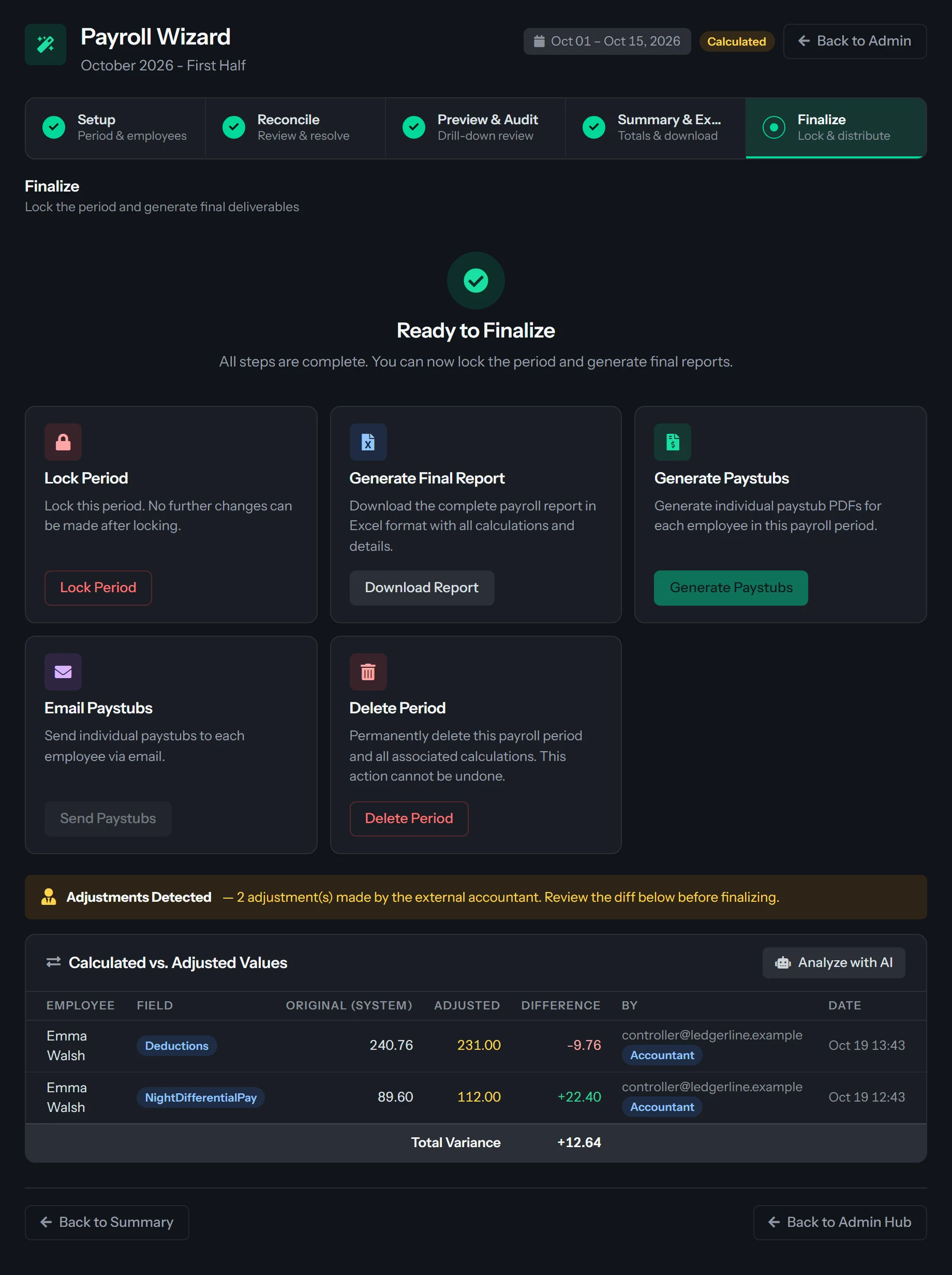
Finalize: lock, report, paystubs.
- Review every edit against the value QuantumOps calculated, labeled Accountant or Staff, and ask the AI to comment on them
- Lock Period checks again with fresh data and is refused while a leave request or punch issue is pending, an employee is not reviewed, a punch is unpaired or projected punches remain
- Unlock and Reopen ask for a reason and show who did it and when. Delete is on the screen at all times and cannot be undone
- Prima and severance payouts are taken off the accrual balances when the period locks, once per balance and month, and reopening puts them back
- Reopening after paystubs went out leaves the emailed PDFs out of date. QuantumOps does not recall them
[ 08 // colombian payroll ]
Built for Colombian labor law.
The engine was written for Colombian nómina. Every shift is split to the minute at midnight and at the 19:00 night boundary, and its hours are sorted into eight buckets: day or night, weekday or Sunday, regular or overtime. Each hour is paid at its bucket’s rate, and every rate below is a template default you can change.
Hours breakdown8 bucketsAll regular hours. Split at the 19:00 night boundary and again at midnight; breaks come off before the weekly overtime check.
The eight buckets
Colombia template defaults · editable
- Day · regular
- Base
- Night · regular
- +35%
- Sunday day · regular
- +90%
- Sunday night · regular
- +35% +90%
- HED · day OT
- 1.25×
- HEN · night OT
- 1.75×
- HEDDF · Sunday day OT
- 2.15×
- HENDF · Sunday night OT
- 2.65×
Overtime · template defaults
Four tiers
All-inclusive rates: no night or Sunday surcharge is added on top of an overtime hour.
| HED · day | 1.25× |
| HEN · night | 1.75× |
| HEDDF · Sunday, day | 2.15× |
| HENDF · Sunday, night | 2.65× |
Surcharges · template defaults
On regular hours
Night runs 19:00 to 06:00, the post-reform window. The Sunday and holiday surcharge is 90% from July 1, 2026, and the next step is 100% on July 1, 2027. On a Sunday night both surcharges apply. Holiday hours count like Sunday hours for overtime and night pay, and are surcharged once, at that holiday’s own multiplier or the employee’s holiday rate.
| Recargo nocturno | +35% |
| Recargo dominical | +90% |
| Sunday night | +35% +90% |
Fondo de Solidaridad Pensional
Progressive brackets
By monthly salary in SMLMV (COP 1,750,905 in 2026), built as salary-band rules.
| 4 to 16 SMLMV | 1.0% |
| 16 to 17 | 1.2% |
| 17 to 18 | 1.4% |
| 18 to 19 | 1.6% |
| 19 to 20 | 1.8% |
| 20 or more | 2.0% |
Every rate is a default you can edit, per rule group or per employee, and none of it is legal advice. The template follows the legal steps: a Sunday and holiday surcharge of 90% from July 1, 2026 (100% from July 1, 2027), a 42-hour week from July 15, 2026, and Sunday overtime tiers of 2.15× and 2.65×. They apply to new employees and to fields you haven’t set, and employees you already have, and periods already frozen, keep what they had. With nothing set, the engine uses the legal maximum hours for the dates paid. Set the figures in force for the period you pay, and have your accountant confirm them.
Colombia template · one click
Social security and parafiscales
- EPS 12.5%: 4% from the employee, 8.5% from the employer
- AFP 16%: 4% from the employee, 12% from the employer
- ARL at 0.522%, risk level I, paid by the employer
- SENA 2%, ICBF 3% and Caja de Compensación 4%
- Employer-paid rules raise the burdened cost, not the employee’s deductions
Colombia template · one click
Prestaciones and allowances
- Prima de servicios, 8.33% accrued monthly, paid half in June and half in December
- Cesantías, 8.33%, with 12% annual interest paid as intereses de cesantías
- Vacaciones, 4.17% accrued for a manual payout
- Auxilio de transporte, COP 249,095 a month up to 2 SMLMV, kept out of the deduction base
- Hourly rate for salaried staff at the Colombian convention, salary ÷ 240, and monthly allowances paid by the day on a 30-day month: half for a full quincena, less any rostered days missed
Where the hours come from
Lunch comes off paid hours, up to two hours a lunch, and breaks stay in. Pay pairs each clock-in with the next clock-out by time, and a session longer than 24 hours is reported as a gap rather than paid as one session.
Overtime measured per week
Colombian groups are always counted per week. Elsewhere an employee can be period-wide or per-week, against the national threshold or the contracted hours of their schedule.
One-time backfill
A page for administrators updates Colombian employees and rule groups that still hold older multipliers, the weekly threshold and the solidarity brackets, wherever a value matches an old default. It never touches a value you changed, and a period calculated earlier keeps its figures until you recalculate it.
[ 09 // beyond colombia ]
Colombia built in.
Other countries by rule.
Each rule group carries a country, a currency and its own rules, so Colombian and US staff can be paid side by side. Only Colombia ships with a statutory template.
Colombia
A one-click statutory template: overtime tiers, recargos, social security, parafiscales, prestaciones and the solidarity fund, plus the Colombian holiday calendar.
United States
A starting template with Social Security, Medicare, federal and state income tax and FUTA as flat percentages you can edit. No withholding tables, W-4s or tax filings.
Mexico and the Philippines
Holiday calendars and a 22:00 to 06:00 night window. The pay rules are yours to write.
Several currencies
Pay each person in COP, USD, EUR, GBP or MXN. Totals are grouped by currency, and the exchange rates used are saved with each period so later reviews match.
The cost before you run it
Projections of gross, net and fully burdened cost from recent punches or configured salaries, and accrual tracking that flags when prima or cesantías payouts are due.

Projections: the cost before you calculate it.
- From punches adds worked hours and approved time off in a date range, prices each at the hourly rate, applies the group’s rules, and treats hours over the weekly threshold as overtime
- From salaries costs each salaried person at the monthly salary for the share of a month the range covers, 30 days to a month for a Colombian group
- Totals in USD, COP or EUR, with a three-month exchange rate chart and a breakdown by currency, and a CSV export
- The projections page adds accrued liabilities, such as prima and severance owed later, and a view three, six or twelve months ahead
- A projection does not split night, Sunday and holiday hours, so it will differ from a calculated period. The calculation is the figure you pay
[ 10 // review and paystubs ]
Your accountant reviews.
Everyone gets a paystub.
A review link, not a shared login.
From Summary & Export, generate a link to one period for your outside accountant. It’s shown once, you send it, and they don’t need an account.
- Valid for 1 to 30 days, and you can revoke it at any time
- In English or Spanish
- Pay components, hours, deductions, employer costs, accruals, leave and adjustments on one page
- While the period is still open (not yet exported, locked, closed or paid), they adjust figures and submit the review with a note
- Before you finalize, each edited figure shows as the system figure, the changed figure and the difference, and Analyze with AI summarizes them
Accountants on your own staff get the Payroll Accountant role instead. It opens the wizard at Summary & Export and nowhere else: no locking, finalizing or deleting.


Lock the period, then send.
Summary & Export shows totals per currency (gross, deductions, net, employer costs and burdened cost) above a per-employee grid you can edit, and downloads an Excel workbook: a summary tab, a tab per employee with punches and adjustments, and a Leave & PTO tab. In Finalize you lock the period and download the final workbook, which adds employer burden and accrual balances.
Paystubs can only be made from a locked period. Each PDF pay statement, Comprobante de Pago, carries the company name, address, NIT and logo you set, and lists earnings line by line, from the night and Sunday premiums (recargo nocturno, recargo dominical) to the holiday bid premium and the transport allowance (auxilio de transporte), then deductions, accrual payouts, net pay, year-to-date totals and PTO balances. Email Paystubs sends each employee theirs, PDF attached.
- Branding belongs to a rule group, so groups can have different headers, and employer costs can be hidden from the stub
- A second press of Send Paystubs sends only to people who have not received theirs, for example after you fix a missing email address
- The year-to-date block counts only finalized periods of the same calendar year
Frozen once approved
An approved period is frozen. Every way of writing a punch, from the clock to a supervisor’s fix to the wizard, refuses a period that is Locked, Closed, Exported or Paid.
Unpaired punches stop the run
A clock-in without a clock-out blocks the payroll wizard until someone fixes it, and editing a punch time keeps the edit.
Accruals pay out once
Prima, cesantías, intereses and vacaciones accrue to balances instead of being deducted from pay. A payout happens once per balance per month, and Reopen reverses it.
Every change labeled
Finalize labels each change as the accountant’s or the staff’s. Employer-cost rules sit outside every pay total.
Is Timeclock & Payroll included in QuantumOps?
No. It’s a separately licensed add-on to your QuantumOps instance, and it stays off until an administrator turns it on in Module Management. It’s priced on its own. Pricing coming soon.
Which countries’ payroll rules does it support?
Colombia first: the calculation engine and the one-click template were built for Colombian labor law. The US template is a starting point with flat percentages you set, not IRS or state withholding tables, and it doesn’t file taxes or produce W-2s. Mexico and the Philippines get holiday calendars and a night-window preset, and you write the pay rules.
Are the Colombian rates kept current with the law?
The template follows the legal steps: a 90% Sunday and holiday surcharge from July 1, 2026 and 100% from July 1, 2027, and a 42-hour week from July 15, 2026. But they’re defaults stored in your rule groups, not a live feed of the law, and they aren’t a guarantee of compliance. A change to a default reaches only new employees and fields you haven’t set, so set the figures in force, edit them per group or per employee, and have your accountant confirm them for each period you pay.
Does it connect to our bank, payroll provider or accounting system?
No. What comes out is the Excel workbook, CSV exports, PDF paystubs and the accountant link. There is no direct-deposit file and no PILA or DIAN electronic payroll submission.
Does any of it go into our PSA?
No. Your PSA’s technicians appear on the timeclock and can be linked to their payroll records, but punches, time off and payroll stay in QuantumOps. Staff who don’t use your PSA can be on the payroll too.
Do employees need a QuantumOps login?
Not for the timeclock: a name and a PIN are enough. Techs with the Timeclock role can also punch from the Clock tab in the browser extension, which uses their QuantumOps sign-in. Outside accountants need only the link.
Is it in Spanish?
Partly. Most of the employee dashboard is translated into Spanish (Colombia), and the accountant review can be opened fully in Spanish. Paystubs carry English labels with Spanish sub-labels. The timeclock’s name and PIN screen, the Timeclock Admin Hub and the Payroll Wizard are in English.
Can we pay before the period ends?
You can estimate it. When payday falls before the period ends, the wizard can fill the remaining days from each person’s schedule so you know what to pay. The period can’t be locked, and paystubs can’t be made, until real punches replace those estimates or they’re cleared, and nothing trues up the difference next period.
What does the AI look at, and can it change pay?
Each employee’s punches (times, types, hours, device and IP-based city), their overtime settings and expected hours, and the average of their last three periods. It runs when you press Run AI Analysis, covers up to 50 employees per run and only flags; people make the corrections. It uses Claude, so it needs Anthropic access through Managed AI or your own Anthropic key.
Who can change someone else’s punches?
Supervisors, with limits. Adding a manual punch and forcing a clock-out need the Supervisor setting on the signed-in person’s own technician record. Every such punch is marked with its source in the exported report, a punch cannot be moved inside a locked, closed, exported or paid period, and an employee can never edit their own.
What happens when an employee forgets to clock out?
After 12 hours the next punch is blocked until the employee enters when they really left and why, and the correction waits for a supervisor to approve or reject. If it is rejected, the shift it corrected is removed and the day pays nothing until real hours are entered and approved.
Can we lock a period and still change it?
Yes, deliberately. Unlock and Reopen each ask for a reason and keep it, and the screen shows who did it and when. Paystubs already emailed are not recalled, so check them before you send.
[ 12 // start ]
See a pay period run end to end.
Book a demo and we’ll take a period from punches to paystubs with you.